This guide is for anyone who has hit an iCloud storage full warning on an iPhone, iPad, Mac, or Windows PC. By the end, you’ll know how to check exactly what’s using your space, delete or archive the biggest offenders, and decide whether to free up iCloud storage manually or simply pay for more. Apple gives every account 5 GB of free iCloud storage, and once that fills up, new photos stop uploading, iCloud Drive files stop syncing across devices, device backups fail, and you can’t send or receive iCloud Mail until you fix it.
Before you start
- Make sure you’re signed in to the same Apple Account on the device you’re using.
- On Windows, install the iCloud for Windows app if you haven’t already.
- Back up or copy anything you care about before deleting it — once you delete content from iCloud, it’s often removed from every device signed in to that account.
- Photos and videos you delete normally sit in Recently Deleted for 30 days, but if your storage is already over the limit, deleted items are removed immediately and can’t be recovered.
Step 1: Check how much iCloud storage you’re using
Before deleting anything, see which category is actually eating your space.
On iPhone or iPad
- Go to Settings > [your name] > iCloud.
- Look at the bar graph at the top, then tap Storage or Manage Account Storage for details.
- Review the list below the graph — apps and features are listed with the biggest space users first.
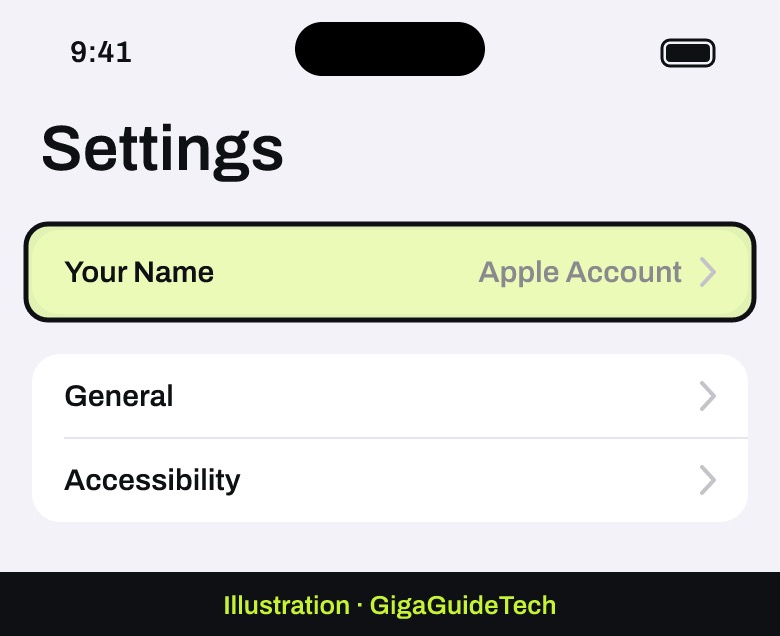
![Illustration: Settings > [your name] > iCloud > Storage (or Manage Account Storage)](https://gigaguidetech.com/wp-content/uploads/2026/09/free-up-icloud-storage-full-step-02.jpg)
On Mac
- Choose the Apple menu > System Settings, then click your name in the sidebar.
- Click iCloud, then click Manage for a full breakdown.
On Windows
- Open iCloud for Windows and scroll to the bar graph showing your total usage.
- Click Manage for more detail, or check usage directly at iCloud.com.
You’ll typically see categories like Backups, Mail, Messages, Photos and Videos, and Docs (which includes iCloud Drive plus data from Notes, Reminders, Health, and third-party apps).
Step 2: Try Recommended for You first (iOS/iPadOS 17 or later)
- Open Settings, tap your name, tap iCloud, then tap Recommended for You.
- Tap one of the suggestions — old backups, large files, or photos you may not need — and follow the onscreen instructions.
![Illustration: iOS/iPadOS 17 or later: Settings > [your name] > iCloud > Recommended for You](https://gigaguidetech.com/wp-content/uploads/2026/09/free-up-icloud-storage-full-step-03.jpg)
This tool only appears on iOS or iPadOS 17 and later. If you don’t see anything useful here, or you’re on an older version, move on to manual cleanup below. Before deleting anything, consider archiving or copying that content elsewhere first.
Step 3: Manually delete content by category
iCloud Backup
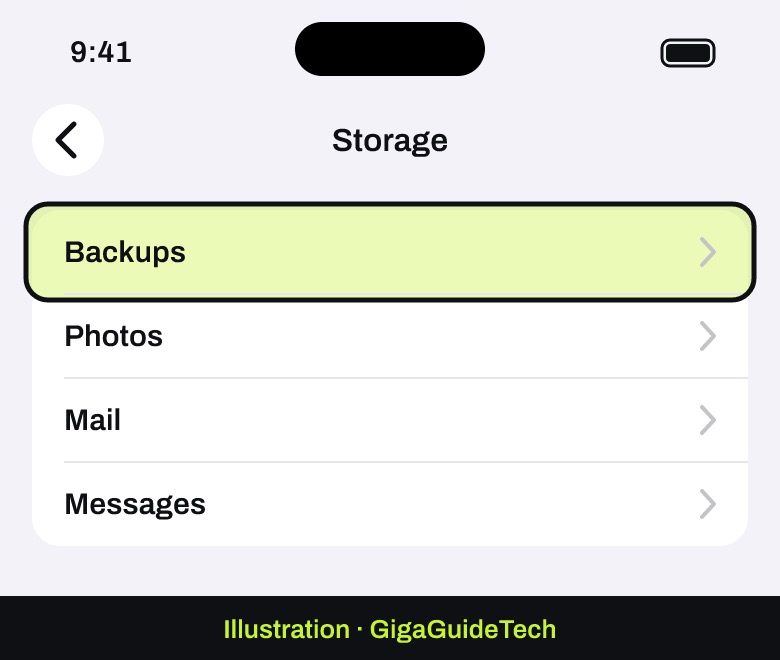
- Go to Settings > [your name] > iCloud > Storage (or Manage Account Storage) > Backups, then tap your device’s name.
- Turn off backup for apps you don’t need backed up, then confirm with Turn Off. This removes that app’s data from iCloud, though some apps can’t be turned off.
- You can also delete an entire old backup for a device you no longer use. Note: a deleted backup stays recoverable for 180 days, and you can’t delete a backup currently being used to restore a device.
Photos and Videos
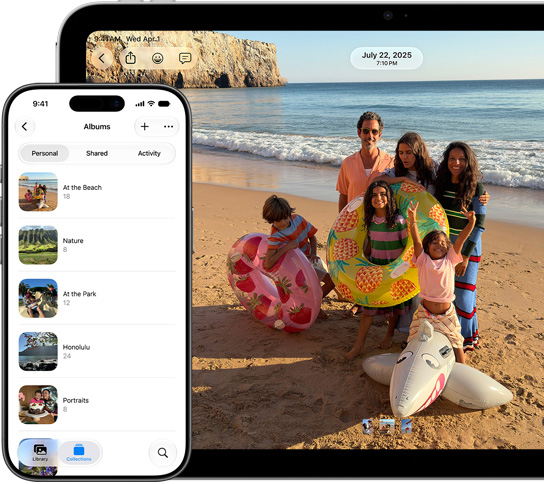
- iPhone/iPad: open Photos, go to your Library, tap Select, choose items, then tap Delete.
- Mac: select the photos or videos, press delete, then confirm.
- iCloud.com: sign in at icloud.com/photos and select items to remove there.
If you don’t use iCloud Photos, your library is stored inside your iCloud Backup instead. Check its size under Backups > your device name > Photo Library, and consider saving photos to your computer first, then turning off Photos in Backup.
iCloud Drive files
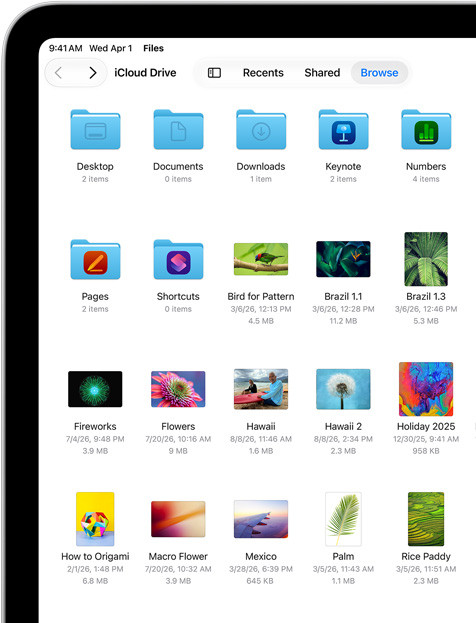
- iPhone/iPad: open Files, tap Browse, tap iCloud Drive under Locations, tap the More button, then Select the files or folders to delete, then tap Delete.
- Mac: open a Finder window, click iCloud Drive in the sidebar, then drag the files or folders you don’t need to the Trash.
iCloud Mail
- Open Mail, go to your iCloud inbox, tap the More button, then tap Cleanup Recommendations > iCloud Mail Cleanup.
- Choose a category — subscriptions, promotions, or transactions — and follow the prompts. This cleanup keeps running automatically until you turn it off.
Contact Images (iOS/iPadOS/macOS 26 or later)
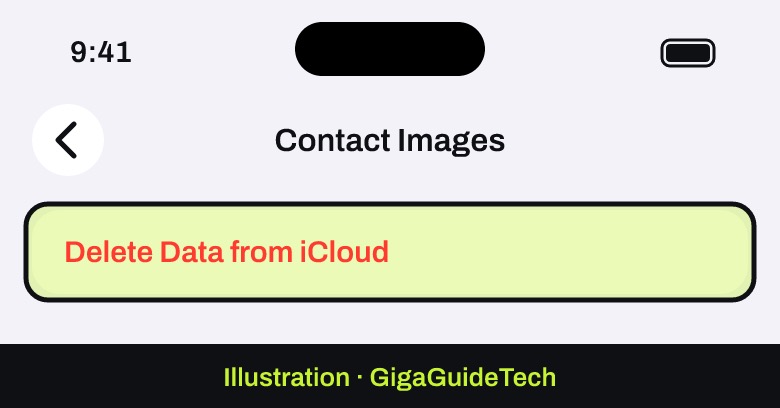
Saved contact photos and posters now count toward your storage. Go to Storage or Manage Account Storage > Contact Images > Delete Data from iCloud. This only removes the images, not the contacts themselves.
Voice Memos
- Open Voice Memos, tap All Recordings, select what you don’t need, then tap Delete.
- Empty the trash afterward from Recently Deleted to fully reclaim the space.
Managing storage on Windows
- Open iCloud for Windows and click Storage.
- Select Backup, choose a device backup, then click Delete — this also turns off future backups for that device until you re-enable it.
- For photos, open File Explorer, click iCloud Photos, select items, and press delete. Before removing anything, right-click images you want to keep and choose Always keep on this device so they stay on your PC.
If it still doesn’t work
- If deleting content isn’t practical, upgrade your plan from Settings > [your name] > iCloud > Manage Plan (or the equivalent on Mac, Windows, or Apple Vision Pro).
- If you’re setting up a new iPhone or iPad, you may be offered free temporary iCloud storage during the transfer if you’re short on space — Apple will show this option automatically if you’re eligible.
- If you have Apple One, your iCloud storage becomes whichever amount is included in that bundle; combining Apple One with a separate iCloud+ plan can give you up to 14TB total.
- Before downgrading or canceling any paid iCloud+ plan, download or archive anything that exceeds your new limit — if your usage ends up over the new plan’s capacity, backups and syncing simply stop until you free up space or upgrade again.
![Illustration: Need more space instead: Settings > [your name] > iCloud > Manage Plan](https://gigaguidetech.com/wp-content/uploads/2026/09/free-up-icloud-storage-full-step-06.jpg)
FAQ
Will I lose my photos if I delete them from iCloud?
Deleted photos usually go to Recently Deleted for 30 days and can be restored, but if your account is already over its storage limit, they’re removed immediately and can’t be recovered — so archive first if you’re not sure.
Why can’t I send or receive email after my iCloud storage fills up?
iCloud Mail is one of the features that stops working when storage is full, along with backups, iCloud Drive syncing, and new photo uploads. Freeing up even a small amount of space restores these features.
Does deleting a shared folder I only participate in free up my storage?
No. Content in a folder shared with you by someone else doesn’t count against your own iCloud storage, so deleting your access to it won’t change your usage.
What happens if I downgrade to the free iCloud plan?
You lose access to iCloud+ features like Hide My Email, Private Relay, Apple Invites, and HomeKit Secure Video support, and the change only takes effect once your current billing period ends.
The bottom line
Most iCloud storage problems come down to old backups, an oversized Photos library, or forgotten large files sitting in iCloud Drive. Check your usage breakdown first, clear out what you don’t need — archiving anything important beforehand — and only upgrade to iCloud+ if deleting content genuinely isn’t enough.
Sources: Apple, Apple Support
Where to buy
As an Amazon Associate I earn from qualifying purchases.