If your iPhone keeps disconnecting from Wi-Fi — dropping to cellular in the middle of a video call, losing the connection when you walk between rooms, or showing full Wi-Fi bars with no internet — this guide walks you through the fixes Apple actually documents, in the order Apple recommends trying them. It is written for anyone with an iPhone or iPad on a home, office or school network. By the end you will either have a stable connection or know exactly which piece of the chain (phone, router or internet provider) is at fault.
Before you start
- Update to the latest iOS or iPadOS. Apple lists this first for its Connectivity Assist feature, and the menu names below assume a recent release.
- Have your Wi-Fi password to hand. Two of the steps (Forget This Network and Reset Network Settings) will require you to re-enter it.
- Get physical access to the router and, ideally, its admin login — several fixes happen on the router, not the phone.
- Grab a second device on the same network. It is the fastest way to tell whether the problem is your iPhone or your network.
- On a school or work network, talk to IT first. Apple explicitly says to consult your network administrator before resetting network settings, because managed network configurations are wiped.
- None of the steps here erase photos, messages or apps, and Apple does not list a backup as a requirement. Taking one anyway is simply good habit.

Step 1: Check the basics in Wi-Fi settings
- Open the Settings app.
- Tap Wi-Fi.
- Make sure Wi-Fi is turned on.
- Tap the name of the network you want to join.
- Confirm you are actually connected — a blue checkmark appears next to the network name.
- Go back to Settings and check that Airplane Mode is off.
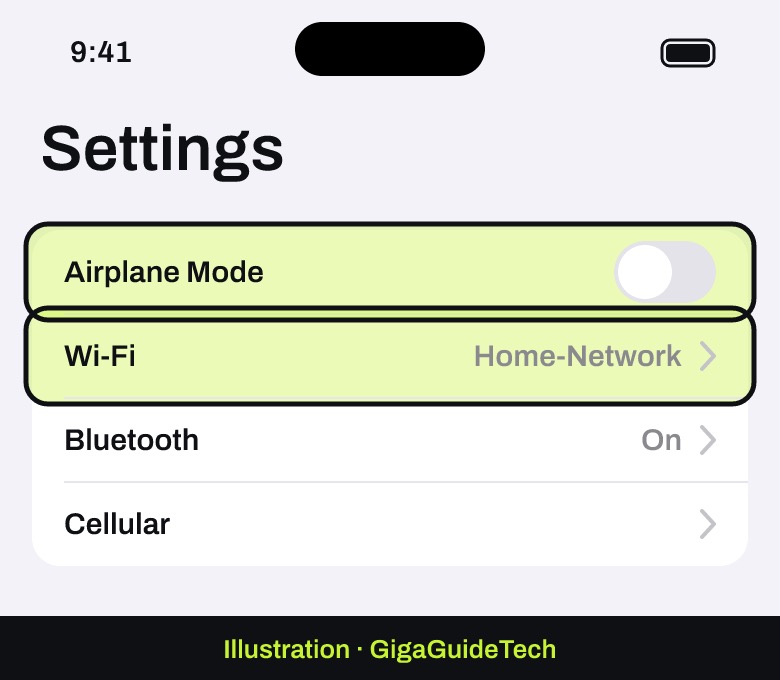
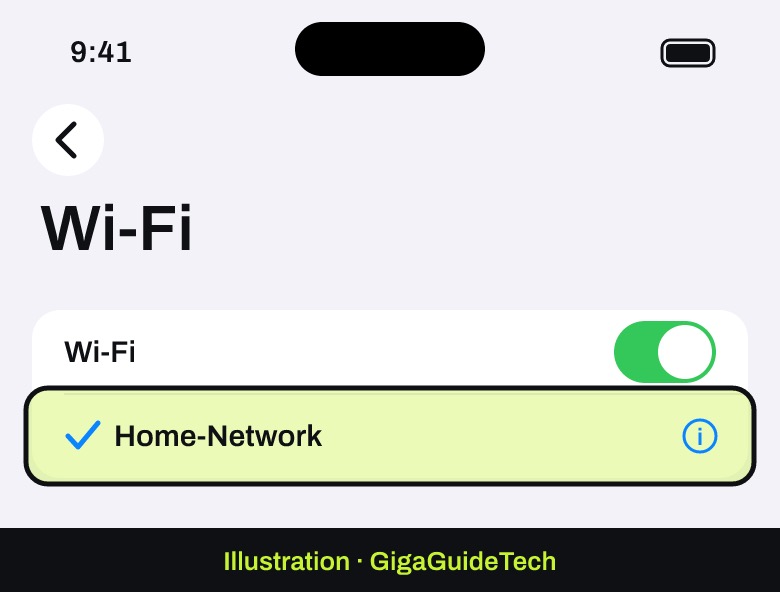
If the Wi-Fi setting itself is dimmed and you cannot tap it, Apple’s advice is to restart the device. The exact button sequence varies by iPhone model, so check Apple’s restart instructions for your specific model if you are unsure.
Step 2: Turn off Connectivity Assist (or Wi-Fi Assist)
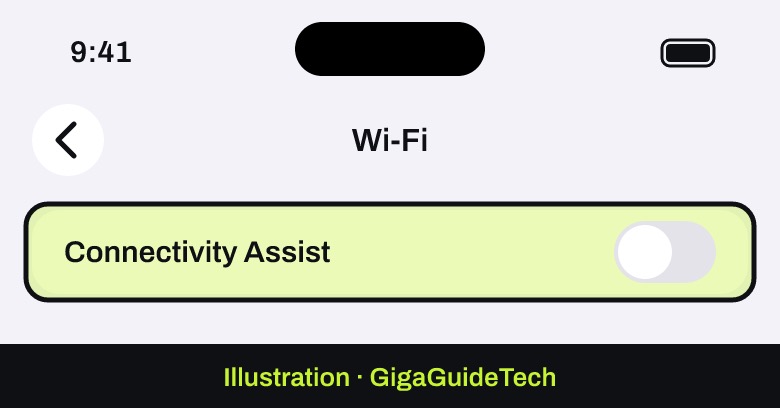
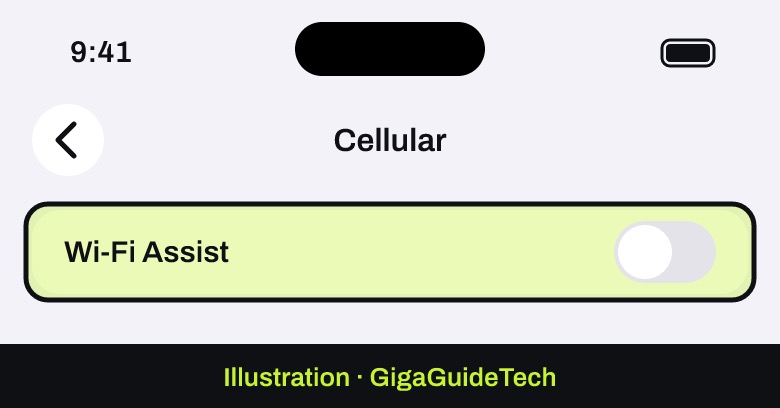
This is the single most common reason an iPhone looks like it is dropping Wi-Fi when it is not. The feature lets iPhone pull in cellular data alongside Wi-Fi when the Wi-Fi signal is weak, busy, or connected but not reaching the internet. Switch it off and iPhone sticks to Wi-Fi only, even when the connection is poor — which makes the real problem visible instead of masking it. Apple also notes the feature can push up your cellular data usage.
Apple renamed this setting and moved it, so the path depends on your iOS version. We could not confirm the exact release where the change happened; check both places if you are unsure.
Recent iOS (Connectivity Assist)
- Go to Settings > Wi-Fi.
- Scroll to the bottom of the screen.
- Make sure Connectivity Assist is off.
Older iOS (Wi-Fi Assist)
- Go to Settings > Cellular.
- Scroll down the page.
- Make sure Wi-Fi Assist is off.
You do not have to disable it everywhere. On the info screen for an individual network there is a Use Connectivity Assist control, so you can switch it off only for the one network that misbehaves — Apple gives the example of a router running an ad blocker. Worth knowing: Connectivity Assist is not used while roaming internationally, in cellular Low Data Mode, or with some third-party audio and video streaming apps.
Step 3: Check the router and the network
If other devices stay connected happily, the network is fine and the fault is on the phone. If everything drops, work through the router side:
- Test whether other devices can connect to the same network.
- Update the router to the latest firmware, and confirm it supports your Apple device — contact the manufacturer if you are not sure.
- Make sure the router is powered on and you are in range; you may simply be too far from the signal.
- If the router broadcasts more than one frequency, try joining the other one — 5 GHz instead of 2.4 GHz, for example.
- Restart the router and cable modem by unplugging both, then plugging them back in. Apple says this refreshes the connection and clears minor faults.
One router-side detail matters enormously for repeated drops on mesh and multi-band systems: Apple recommends a single, unique network name for every band. Giving your 2.4 GHz, 5 GHz and 6 GHz bands different names can stop devices connecting reliably to the network or to all routers on it. Apple’s other recommended settings are WPA3 Personal security (or WPA2/WPA3 Transitional for older gear) with a strong password, MAC address filtering set to Disabled, and no hidden network names.
Step 4: Rule out VPNs, security apps and private addresses
VPN and third-party security software sit between your apps and the network and can cause exactly this symptom. To test properly:
- Uninstall the VPN or security software.
- Restart your device.
- Test the Wi-Fi connection again.
If removing it fixes the problem but you need that software, contact its provider or your VPN manager.
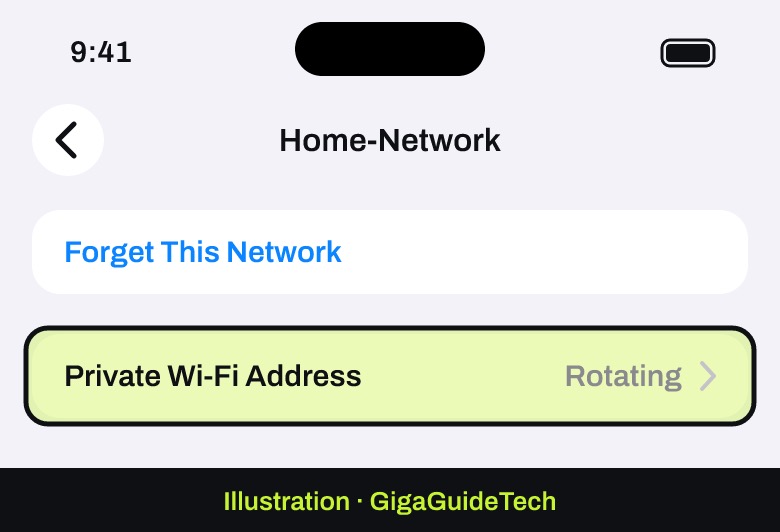
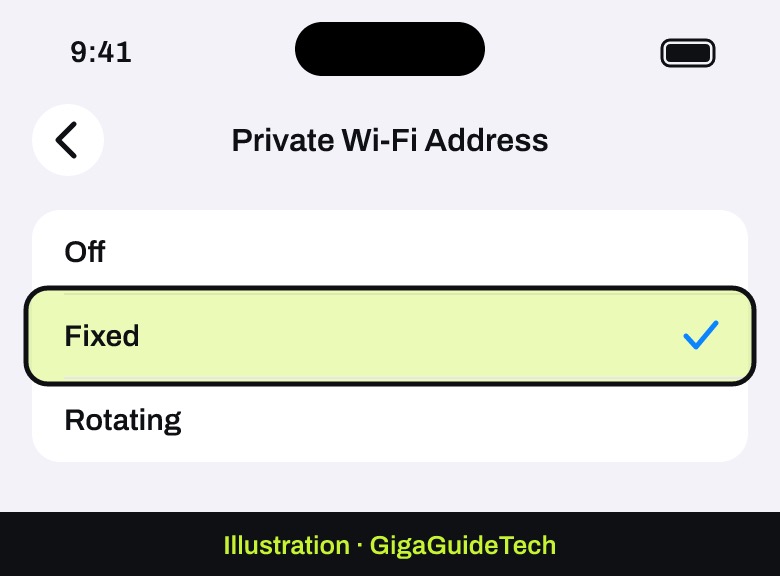
The other suspect is your private Wi-Fi address. iPhone identifies itself to each network with a private (MAC) address, and the Rotating option changes it every two weeks — the default when you join a network with weak or no security. On routers using MAC address filtering or per-device DHCP reservations, a rotated address can get blocked or re-leased, producing drops. To change it, go to Settings > Wi-Fi, tap the network name (or swipe left on it and tap the More Info button if you are not connected), tap Private Wi-Fi Address, then choose Off, Fixed or Rotating. On iOS versions before 18 this is a simple on/off switch. Apple’s advice is to leave private addresses on wherever the network supports them, so try Fixed before Off.
Step 5: Reset Network Settings (last resort)
Apple is clear that this comes only after everything else has failed, because it removes all your network configurations.
- Open the Settings app.
- Tap General.
- Tap Transfer or Reset iPhone.
- Tap Reset.
- Tap Reset Network Settings.
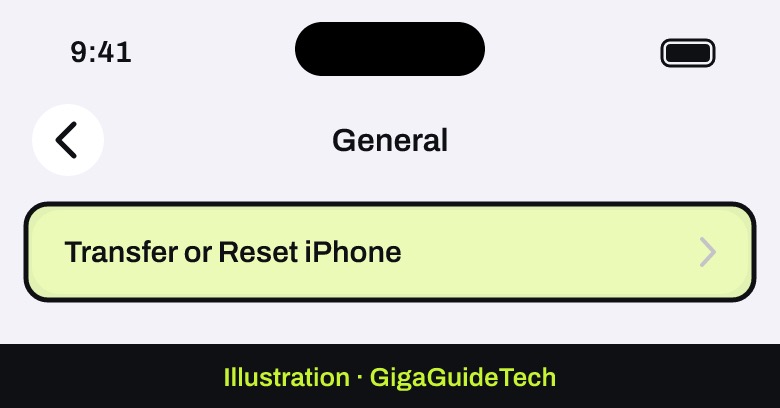
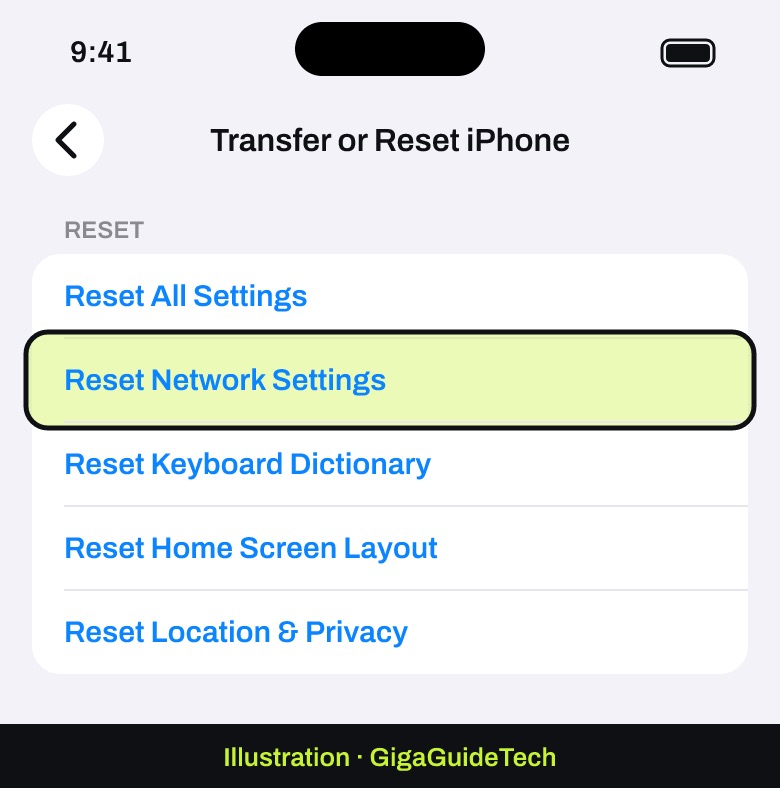
This clears every saved Wi-Fi network and password, your cellular settings, and VPN and APN settings, plus any home, work or school network configurations. Have your Wi-Fi password ready, and speak to IT first if your network is managed.
If it still doesn’t work
- Connected to Wi-Fi but no internet after the reset? Apple’s guidance is to contact your internet service provider.
- No device on the network can get online? There may be a service outage — again, your ISP is the right call.
- Try a different location. Connecting to Wi-Fi somewhere else tells you whether the fault is specific to your own network.
- Can’t connect to any Wi-Fi network? Apple says to contact Apple at that point, as it may be a hardware issue.
- Use guided support. Apple’s “Connect iPhone to the internet” guide page offers Step-by-Step Help, a personalised walkthrough for your Wi-Fi connection.
FAQ
Why does my iPhone switch to cellular when Wi-Fi is still showing?
That is usually Connectivity Assist (previously Wi-Fi Assist) doing its job. When Wi-Fi is weak, busy or not reaching the internet, iPhone supplements it with cellular data. Turn it off in Settings > Wi-Fi on recent iOS, or Settings > Cellular on older versions.
Should I give my 2.4 GHz and 5 GHz bands different names?
No. Apple recommends one identical, case-sensitive network name across every band, and warns that separate names can make devices connect unreliably to the network or to all the routers on a mesh system.
Does forgetting a network delete anything important?
It removes the saved network, so you will need the password to rejoin. On iOS versions before 18, forgetting a network can also discard the private Wi-Fi address that was used with it, unless it was forgotten within the last two weeks.
Is it safe to turn my router’s security off to test?
Apple strongly discourages setting security to None, Open or Unsecured — even temporarily, and even on a guest network — because there is no authentication or encryption at all. Use WPA3 Personal, or WPA2/WPA3 Transitional if you have older devices.
The bottom line
Most cases of an iPhone that keeps disconnecting from Wi-Fi come down to three things: Connectivity Assist quietly handing you to cellular, a router broadcasting different names on different bands, or a VPN sitting in the way. Work through the steps in order, use a second device to separate phone problems from network problems, and keep Reset Network Settings for the very end. If the phone cannot hold any Wi-Fi network anywhere, that is the point to book a visit with Apple rather than keep tweaking settings.
Sources: Apple Support (1), Apple Support (2), Apple Support (3), Apple Support (4)
Where to buy
- Wi-Fi 6 mesh router system: check price on Amazon
- Wi-Fi range extender: check price on Amazon
- Flat Ethernet cable for router and modem: check price on Amazon
As an Amazon Associate I earn from qualifying purchases.