If you’ve ever stuck a small plastic or sticker cover over your MacBook’s camera for peace of mind, you’re not alone. It feels like a cheap, foolproof way to stop anyone from spying on you. But according to Apple itself, that little accessory can quietly damage the one thing you were trying to protect: your screen.
Why a tiny cover can crack a MacBook display
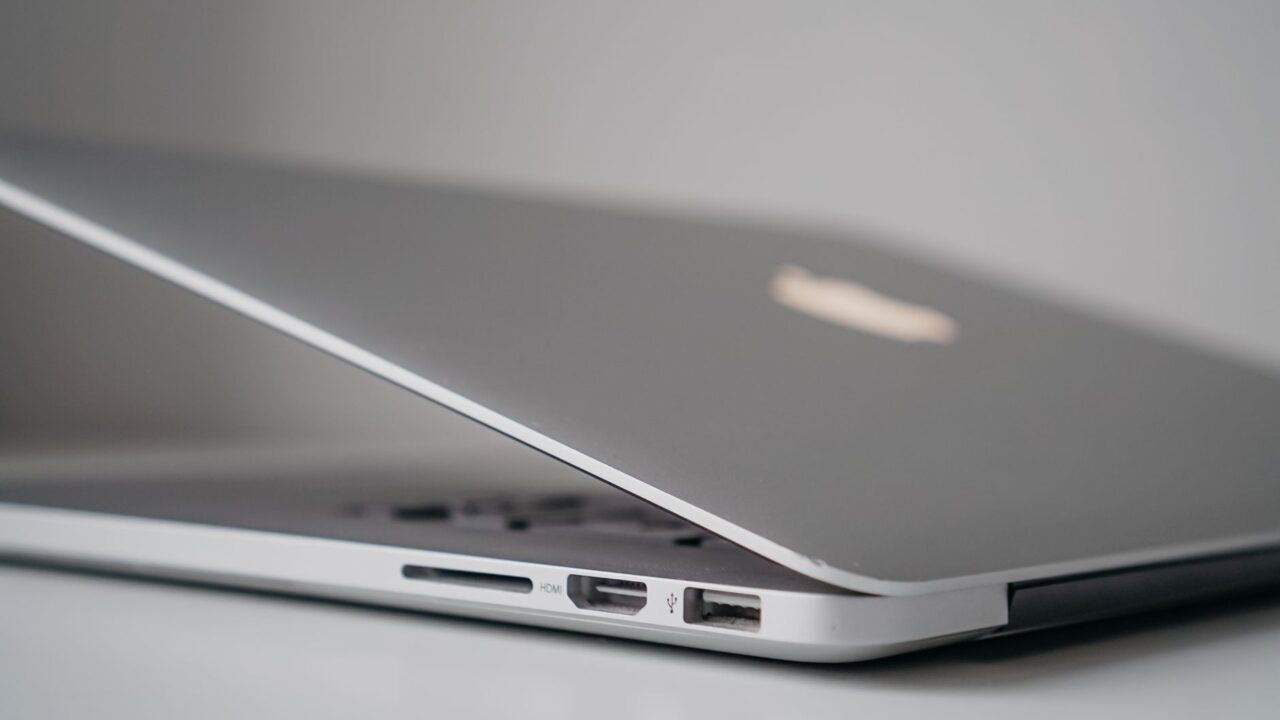
MacBook lids are built with almost no margin for error. When you close one, the glass comes to rest directly on the keyboard and palm rest, with a thin rubber strip around the edge of the lid spreading out the pressure evenly. That gap between display and keyboard is measured in millimeters, so there’s essentially no room for anything extra.
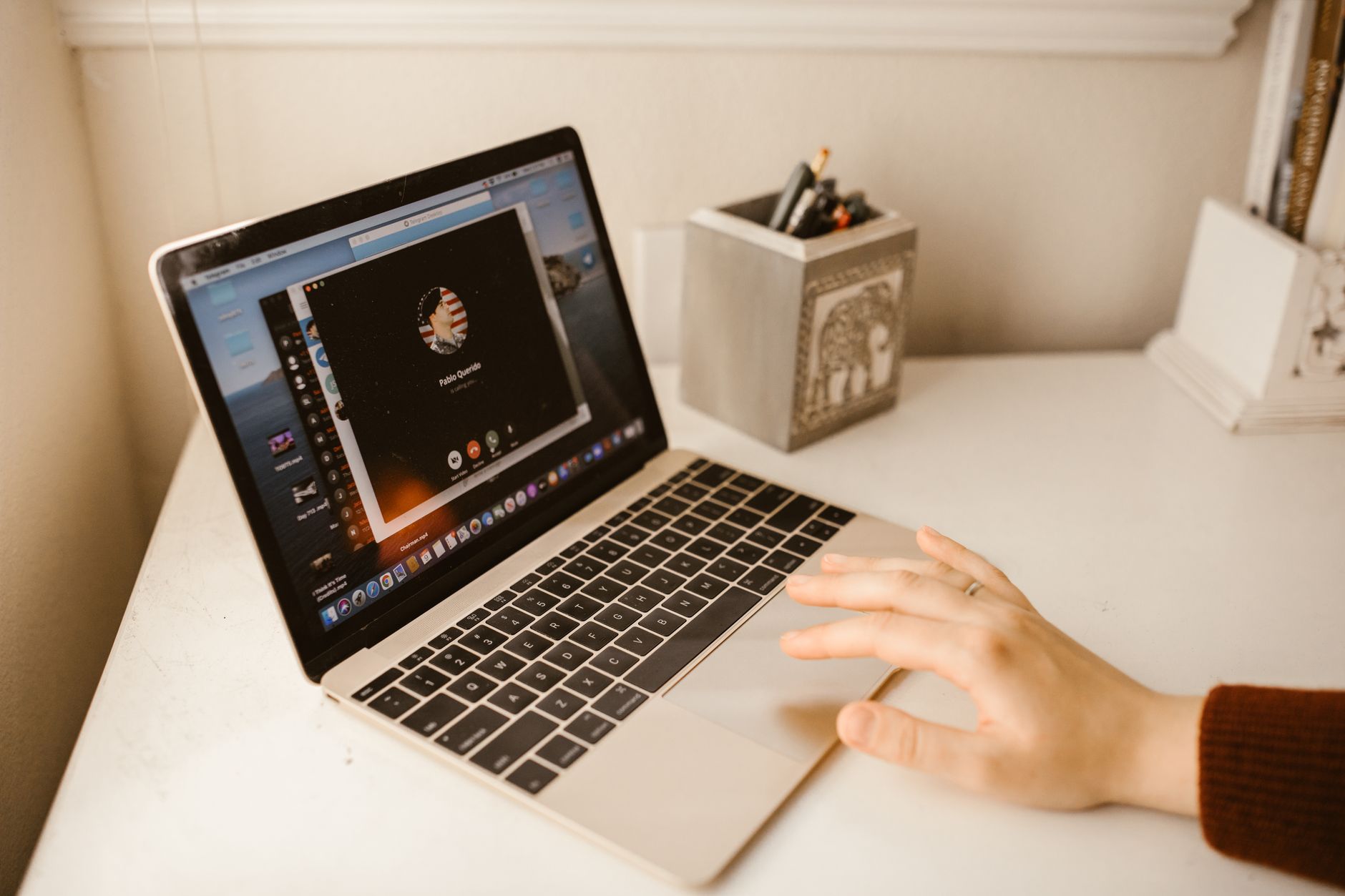
A webcam cover, even a thin one, breaks that balance. Instead of pressure being spread across the whole rubber strip, it gets concentrated on the one small spot where the cover sits. This can leave permanent marks on the glass, cause cracks or, in the worst cases, stop the display from turning on at all. None of this is guaranteed to happen, but it’s why Apple recommends against thick covers.
The notch makes things worse on newer models
The problem is more acute on recent MacBook Pro models, where the camera sits inside a notch cut into the top of the screen. The bezels around that notch are extremely thin, leaving barely any frame to actually attach a cover to. On these machines, there’s even less tolerance for added thickness before the lid stops closing the way it was designed to.
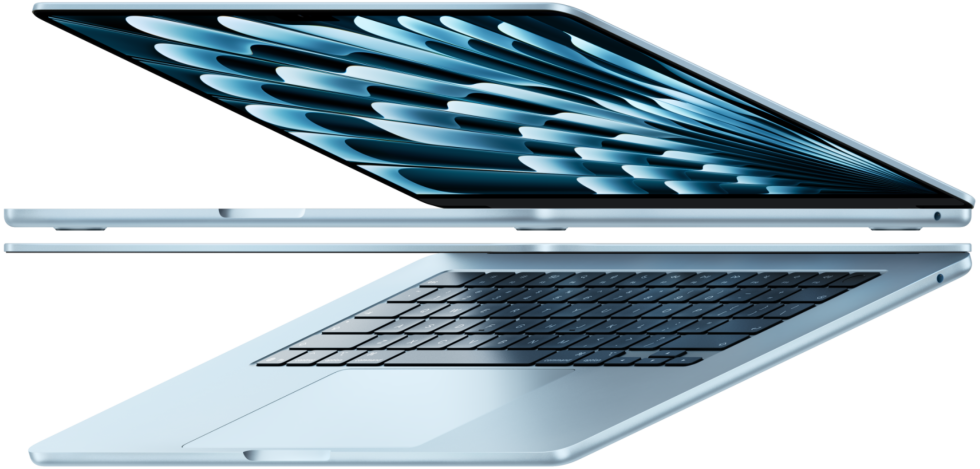
Apple’s own guidance is specific: if you insist on using a cover, it should be no thicker than a sheet of paper, around 0.1mm. Anything thicker risks damaging the screen, and that kind of damage isn’t covered under warranty, so you’d be paying out of pocket for a repair caused by a cheap accessory.
Residue is a separate problem
It’s not just about physical pressure. Removing and reattaching sticky webcam covers over time can leave residue around the camera sensor. That buildup can stop features that rely on the camera’s sensors, like automatic brightness, from working properly.
Safer ways to protect your privacy
Most people don’t actually need a physical cover. Almost every MacBook has a green indicator light next to the camera that’s tied to the webcam, so the camera can’t run without turning it on. On the MacBook Neo, which lacks a physical LED, macOS instead shows a green dot overlay in the top-right corner of the screen whenever the camera is in use.
On top of that, every app has to explicitly ask for camera permission before it can access the lens. You can review and revoke that access any time by opening System Settings, then Privacy & Security, then Camera, where you’ll see a list of every app you’ve granted access to. Turning an app off there blocks it from using the camera until you flip the switch back. The green camera icon in the menu bar also shows you exactly which app is using the camera at any given moment, so if the light comes on and you’re not on a call, that’s your cue to investigate.
If you still want a cover
Some workplaces require a physical webcam cover regardless of software protections, and that’s a reasonable policy to follow. If that’s your situation, stick to covers as thin as a sheet of paper (about 0.1mm), as Apple recommends, and get in the habit of removing it before closing the lid. That one extra step avoids the exact scenario Apple is warning about: pressure concentrated on a single point of glass every time you shut your laptop.
The bottom line
A webcam cover isn’t inherently a bad idea, but on a MacBook it’s a trade-off most people don’t need to make. The built-in indicator light and app-level camera permissions already do the job a cover is meant to do, without any risk to the display. If you do want the extra physical barrier, make sure it’s genuinely thin, and don’t let it stay on the lens when you close the lid.
Source: Engadget
Where to buy

- Ultra-thin webcam privacy cover (3-pack): check price on Amazon
- Microfiber laptop screen cleaning cloth: check price on Amazon
As an Amazon Associate I earn from qualifying purchases.