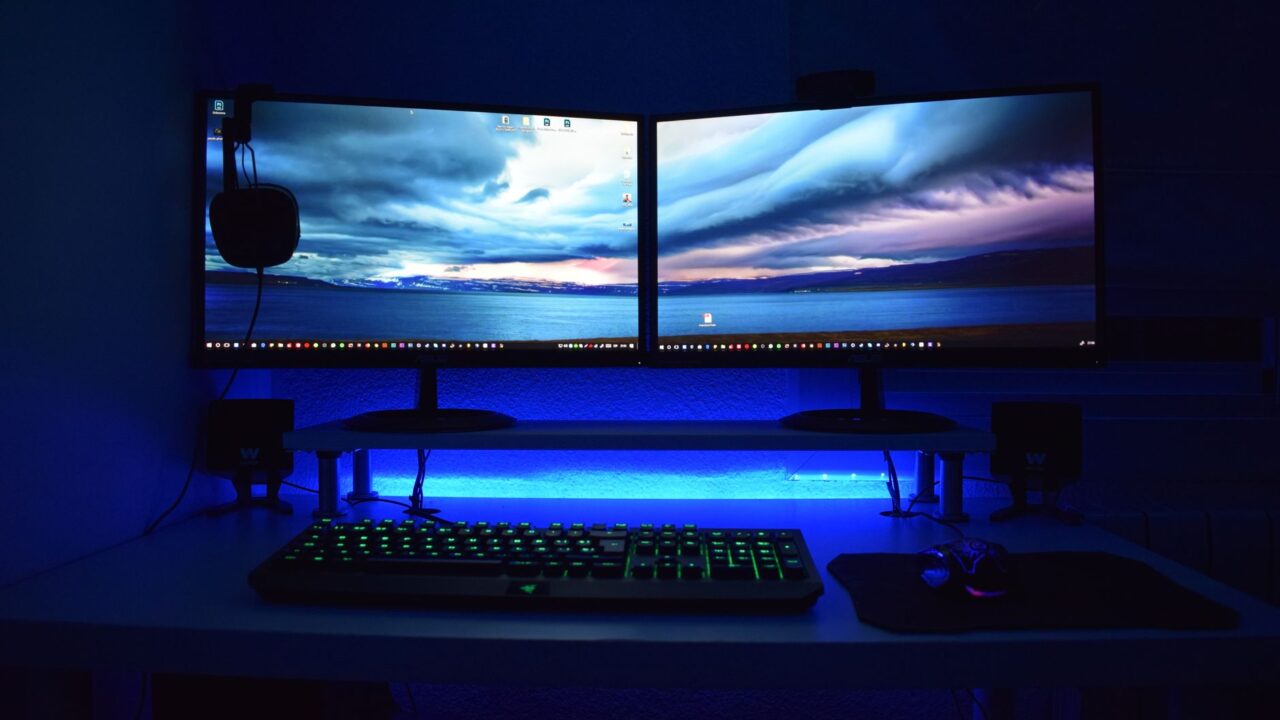
A good gaming monitor can make an older PC feel faster and a new one look its best, but the spec sheets are full of numbers that are easy to misread. The right choice depends less on what is newest and more on what your PC or console can actually drive and the games you play. This guide walks through how to choose a gaming monitor step by step: refresh rate, resolution, size, panel type, G-Sync and FreeSync, ports, and the marketing labels worth ignoring.
As an Amazon Associate I earn from qualifying purchases.
Step 1: Start with the hardware you already have
Before you compare monitors, look at what you will plug into one. A PC with a top-end graphics card like an RTX 5080 or 5090 can push games hard enough to justify a 4K panel with a very high refresh rate. With an older or lower-powered GPU, buy for the frame rates you actually get. As Engadget puts it, if you aren’t routinely seeing more than about 90 fps, there’s no reason to pay for a 240Hz monitor.
To find your real frame rates, turn on the frame counter in the Steam, Nvidia or Xbox overlay while you play, or run a benchmark like 3DMark or the built-in test in games such as Cyberpunk 2077. Your current monitor doesn’t need to be fast for this to work, because the counter shows what your graphics card is producing. Try a few games you play often and note the highest numbers. If you are still shopping for the PC itself, our mid-range gaming PC build is a good match for the monitors in the sweet spot below.
Step 2: Pick a refresh rate and resolution together
Refresh rate, measured in hertz (Hz), is how many times per second the screen can show a new image. It is often treated as the most important gaming spec, so settle it first. Resolution and refresh rate pull in opposite directions: the more pixels you ask your graphics card to draw, the fewer frames per second it can deliver.
- Competitive games like Valorant: give up pixels for speed. A 1080p panel with a high refresh rate is the usual pick.
- Story-driven, visually rich games: lean toward a higher resolution, or find a balance in the middle.
- Most players: according to the Steam Hardware Survey for September 2026, the average PC gamer was using a card like an RTX 5070, 5060, 4060 or 3060. For that kind of hardware, Engadget puts the sweet spot at 144Hz to 240Hz on a 1080p or 1440p panel.
Some monitors now reach up to 1,000Hz in lower-resolution modes, but unless your system can get anywhere close, that speed goes unused. If you want to avoid wasting frames your monitor can’t show, see when to cap your frame rate in games.
Step 3: Choose the size for how far you sit
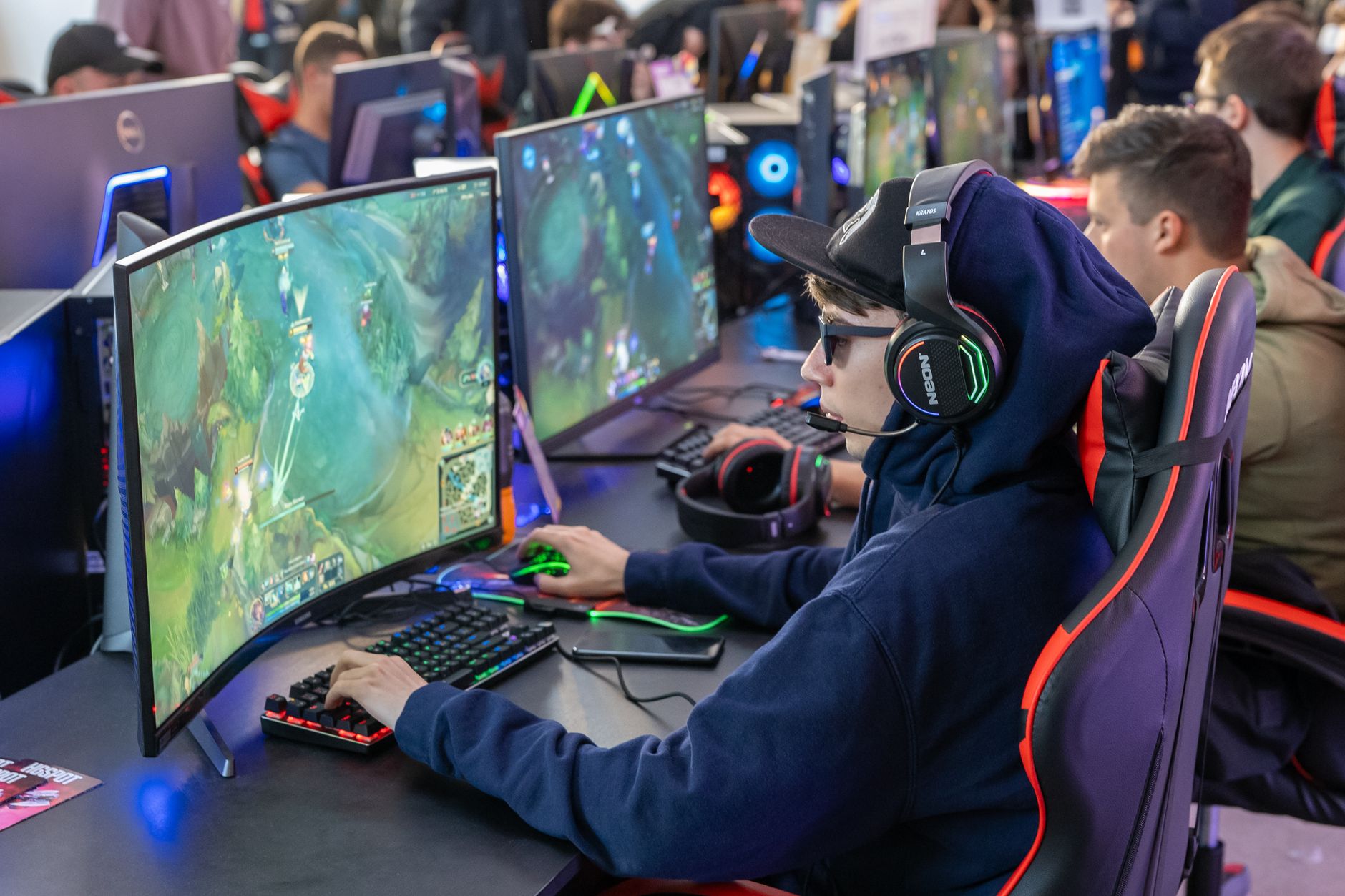
A monitor sits much closer to your eyes than a TV, so TV-size logic doesn’t apply. Engadget’s rule of thumb:
| Distance from your eyes to the screen | Monitor size that works well |
|---|---|
| About 24 to 36 inches | 27-inch |
| About 28 to 42 inches | 32-inch |
For comparison, the recommended viewing distance for a 32-inch TV is about 52 inches. Esports players often prefer smaller screens around 24 inches so they can see everything at once, while players who want immersion tend to go for 27 inches or larger. Size also changes sharpness: at the same resolution, a smaller monitor has a higher pixel density (pixels per inch), so the image looks finer.
Shape matters too. 16:9 widescreen is the standard for gaming. Ultrawide monitors fill more of your side vision, but in games where on-screen information like health and maps matters, they can force you to look away from the action.
Step 4: Decide between OLED and Fast IPS
After refresh rate and size, the panel type is the biggest choice. You will mostly see four kinds: TN, VA and IPS, which are all LCD panels, and OLED. For most gamers, Engadget recommends OLED first and Fast IPS second.
| Panel | Strengths | Weaknesses |
|---|---|---|
| OLED | Perfect blacks and near-infinite contrast, accurate colors, near-instant response times, great for HDR | Burn-in risk, dimmer than LCDs, text fringing, highest prices (entry-level models start around $400) |
| Fast IPS | Excellent colors, wide viewing angles, consistent performance, less motion blur than regular IPS | Weaker contrast than VA; some units show backlight bleed |
| VA | Deep blacks and strong contrast, good for movies | Slower pixel response, more prone to ghosting |
| TN | Fast and affordable | Poor viewing angles, colors shift when viewed from the side |
OLED pixels make their own light, so black areas simply stay off. The trade-off is care: leaving a static image on screen for too long can leave a permanent ghost of it, called burn-in. Newer OLEDs fight this with pixel shifting and pixel-cleaning cycles, but if you leave your monitor on for hours while you aren’t using it, an OLED will make you change that habit. OLEDs also look best in a dim room. If you play in a bright room, work on documents and spreadsheets, or are on a budget, Fast IPS is the easy recommendation.
Step 5: Make sure it has G-Sync or FreeSync
Screen tearing happens when your graphics card sends frames at a different pace than the monitor shows them, so you see parts of two frames at once. The fix is variable refresh rate (VRR): Nvidia G-Sync, AMD FreeSync and the generic Adaptive Sync. It is an industry standard now and rarely costs much extra, so treat it as a must-have. Our guide on how to fix screen tearing in PC games explains how to turn it on.
Full G-Sync monitors can cost more because they use a hardware module, but Nvidia also certifies many monitors as G-Sync Compatible, which work without that module. Many FreeSync monitors are G-Sync Compatible. VRR also needs the right connection: use at least DisplayPort 1.2a. Some HDMI 1.4 and 2.0 connections support VRR, but support is most reliable with HDMI 2.1 and newer.
Step 6: Check the ports
A monitor’s best features only work if your PC can send them. Older HDMI 1.4 ports top out at 4K at 30Hz, while HDMI 2.0 and DisplayPort 1.2 handle 4K at 60Hz, so a PC with only an old HDMI port could leave a 4K monitor stuck at 30Hz. USB-C can carry video only if the port supports DisplayPort or is a Thunderbolt port, so check your laptop’s specs before counting on it.
Buying for a PS5 or Xbox
Consoles change the math. Even the PlayStation 5 Pro and Xbox Series X don’t go above 120Hz, so you’re better off spending on a larger or higher-resolution monitor than on extra speed you can’t use. Console players can ignore G-Sync, since no current console uses an Nvidia GPU. The Xbox Series X and Series S support FreeSync, while the PS5 and PS5 Pro support only HDMI 2.1 VRR. If you play on a PS5, also make sure you’re using the right HDMI port for 4K at 120Hz.
Step 7: Don’t skip ergonomics or fall for the hype
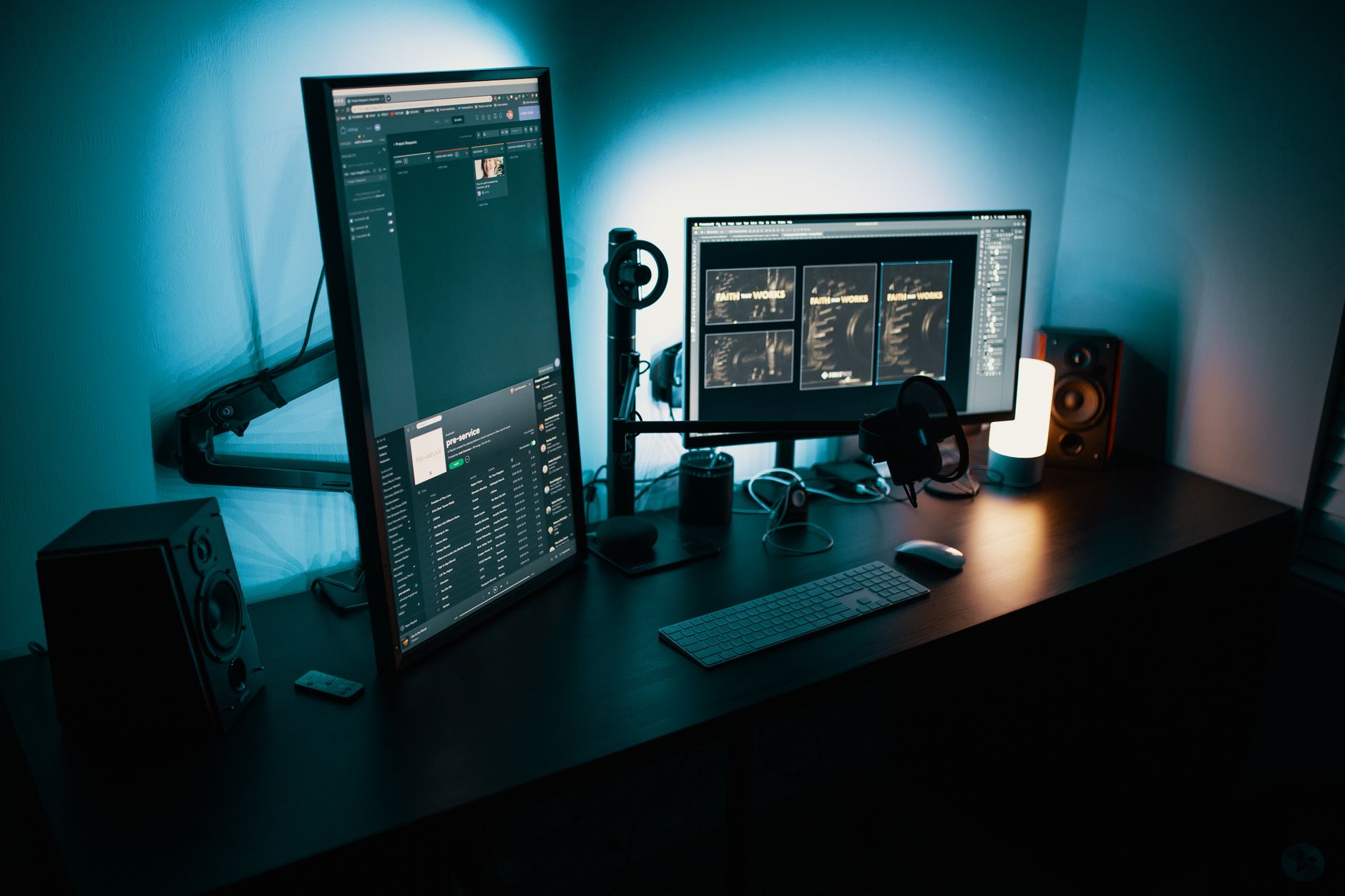
Look for a stand with tilt, swivel, height and pivot adjustment (pivot lets you turn the screen to portrait), or VESA mount support so you can add a monitor arm later. And measure your desk: a big monitor on a small desk leaves little room to position it comfortably.
Be careful with two specs in particular:
- HDR. Labels like “HDR10” or “HDR input supported” may only mean the monitor accepts an HDR signal, not that it is bright enough to make HDR look better. For real HDR, look for a VESA DisplayHDR rating and check independent reviews.
- Contrast ratio. Brands measure it in different ways, so the numbers on two spec sheets can’t be compared fairly.
Quick picks by type of player
| If you… | Look for |
|---|---|
| Play competitive shooters | Around 24 inches, 1080p, the highest refresh rate your PC can actually reach |
| Have a typical gaming PC (RTX 5060 or 5070 class) | 27-inch, 1080p or 1440p, 144Hz to 240Hz, Fast IPS or OLED |
| Own a high-end PC (RTX 5080 or 5090) | 1440p or 4K at a high refresh rate, OLED if your room is dim |
| Play on PS5 or Xbox Series X | A bigger or sharper screen at 120Hz, with HDMI 2.1 |
The bottom line
To choose a gaming monitor, work in order: check what frame rates your PC or console really delivers, match the refresh rate and resolution to that, pick a size that fits how far you sit, then choose between OLED and Fast IPS based on your room and your budget. Make sure it has G-Sync or FreeSync and the right ports, and don’t pay extra for HDR labels or spec-sheet numbers you can’t use.
Sources: Engadget: How to choose the right gaming monitor for you, Engadget: Avoid these common mistakes when buying a new monitor
Where to buy


As an Amazon Associate I earn from qualifying purchases.