This guide is for PC gamers on Windows who want to know whether they should cap their frame rate and, if so, how to do it properly. By the end, you’ll understand when it makes sense to cap your frame rate, which method fits your graphics card, and how to fix common issues like FPS feeling stuck at 60 even when you didn’t set a limit.
Why would you want to cap your frame rate at all?
It sounds backwards to deliberately slow your GPU down, but there are real reasons to do it. If your monitor runs at 60Hz or 144Hz, rendering frames far beyond that refresh rate doesn’t make the game look smoother, it just burns extra power, generates heat and adds fan noise for no visual benefit. Laptop gamers in particular can stretch battery life by keeping the GPU from running flat out in menus, loading screens and lighter scenes where it could easily hit several hundred frames per second.
There’s also a latency argument. If your frame rate is wildly inconsistent, setting a cap slightly below your GPU’s maximum sustained FPS can smooth out that variance and, according to Nvidia, reduce input lag in GPU-bound situations when paired with its Low Latency Mode. And if you own a variable refresh rate display, a cap can help keep frame rates inside the monitor’s supported VRR range instead of exceeding it.
Before you start
- Know your graphics card brand: Nvidia, AMD or Intel, since each handles frame rate limiting differently.
- For Nvidia, you’ll need driver version R440 or newer to get the Max Frame Rate option.
- For AMD, Frame Rate Target Control (FRTC) is set in AMD Software: Adrenalin Edition, and whether it appears depends on your card and driver.
- Dynamic Refresh Rate is a Windows 11 feature only, and your display needs to support VRR with at least a 120Hz refresh rate.
- No data is at risk with any of these settings, so no backup is required.
How to cap your frame rate by GPU brand
Nvidia GeForce cards
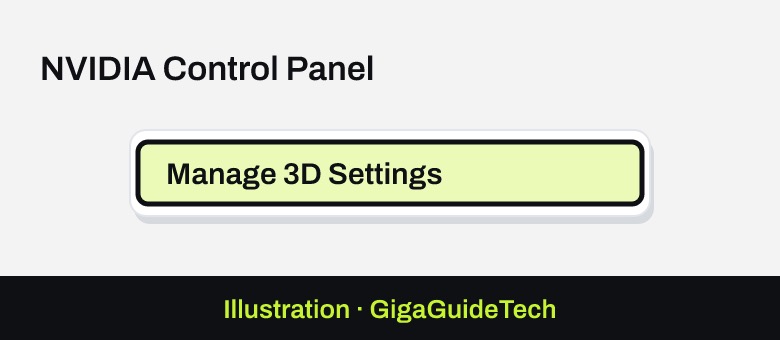
- Open the NVIDIA Control Panel.
- Go to Manage 3D Settings > Global Settings (or switch to the Program Settings tab to limit a single game instead of every game).

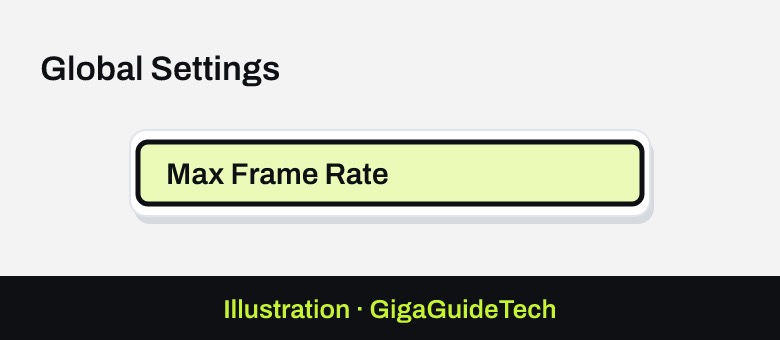
Illustration: NVIDIA Control Panel > Manage 3D Settings > Global Settings - Find the “Max Frame Rate” setting and turn it on.
Illustration: Global Settings - Drag the slider to your desired cap, anywhere from 20 to 1000 fps, then click OK.
If you want to cut power draw, pair this with 3D Settings > Power Management Mode set to “Optimal Power.” If you’re chasing lower latency instead, set Power Management Mode to “Prefer maximum performance” and set the cap a few frames below your average FPS. Laptop owners should note that if Battery Boost or Whisper Mode are also active, the Control Panel applies whichever limit is lowest.
AMD Radeon cards
- Before launching the game, open AMD Software: Adrenalin Edition (Alt+R opens it).
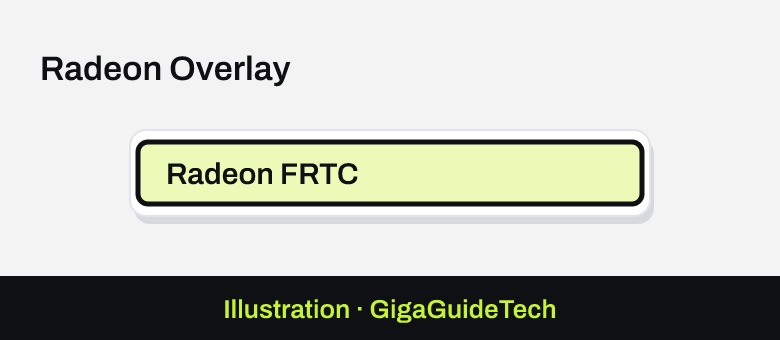
- Select Radeon FRTC.
Illustration: Radeon Overlay > Radeon FRTC - Toggle the FRTC switch on.
Illustration: Radeon FRTC - Drag the FRTC Value slider to set your cap, between 30 and 300 fps depending on your card.
One quirk worth knowing: FRTC changes only take effect if you make them outside the game. Exit fully, adjust the slider, then relaunch. AMD also offers Radeon Chill, which dynamically scales your frame rate cap up or down based on how much your character and camera are moving, trading a little consistency for extra power savings.
Intel integrated graphics
- Open Intel Graphics Command Center (or Intel Graphics Settings on older systems).
- Go to the Display or 3D section, depending on your version.
- Look for “Frame Rate Limit” and disable it if you want uncapped frames, or check whether it offers a value you can adjust.
- Also disable V-Sync if it’s turned on, since it will otherwise lock your frame rate to the monitor’s refresh rate anyway.
Intel’s dedicated FPS capping tools aren’t as developed as Nvidia’s or AMD’s, and the company has acknowledged that older Command Center features are being phased out in favor of its Arc Control software, so options may vary by driver version.
In-game settings and Windows 11’s Dynamic Refresh Rate
The simplest and most reliable place to cap FPS is often inside the game itself. Open the game’s Settings or Video Settings menu and look for “Frame Rate Limit” or “FPS Cap.” Because this works at the engine level, it typically adds less input lag than a driver-level cap.
If you’re on Windows 11 with a VRR-capable monitor running at 120Hz or higher, you can also check Dynamic Refresh Rate, which automatically adjusts your display’s refresh rate based on what you’re doing. Go to Start > Settings > System > Display > Advanced display and use the toggle to turn it on or off. It’s meant to balance smoothness and battery life, but it can sometimes limit the maximum refresh rate in games not designed for VRR, so if a familiar game suddenly feels capped, try switching DRR off.
If it still doesn’t work
- If your FPS seems stuck around 60 even though you didn’t set a cap, check whether the game itself has an internal frame limiter in its settings menu.
- Make sure V-Sync is disabled if you don’t want your frame rate tied to your monitor’s refresh rate.
- Double-check your monitor’s actual refresh rate in its display settings, since a 60Hz panel will never show more than 60 frames per second no matter what cap you set.
FAQ
Does capping FPS reduce GPU temperature?
Yes. Rendering fewer frames per second means less work for the GPU, which typically lowers power draw, heat and fan noise, especially in menus and lightweight scenes where your card would otherwise run far above what the display can show.
Will capping my frame rate hurt my competitive performance?
It can add a small amount of input lag depending on the method, since driver-level limiters tend to add more delay than in-game or engine-level limiters. If responsiveness matters most, prefer the in-game cap or combine an Nvidia cap with “Prefer maximum performance” mode to minimize the trade-off.
What’s the difference between capping FPS and enabling V-Sync?
V-Sync locks your frame rate to your monitor’s refresh rate to prevent screen tearing, while an FPS cap sets a fixed ceiling independent of your refresh rate. The two can be used separately or together, but having both active with mismatched values is a common reason frame rates look stuck lower than expected.
Should laptop gamers cap their FPS?
Generally yes, especially on battery power. Nvidia’s Max Frame Rate works alongside Battery Boost and Whisper Mode to extend runtime, and AMD’s Radeon Chill offers a similar dynamic power-saving approach for Radeon-equipped laptops.
The bottom line
Capping your frame rate isn’t about holding your PC back, it’s about matching your GPU’s output to what your monitor, battery or latency goals actually need. Nvidia and AMD both offer flexible driver-level tools, Intel’s options are more limited, and in-game settings remain the most dependable method across the board. If your frame rate ever looks oddly capped on its own, start by checking V-Sync, the game’s internal limiter, and Windows’ Game Mode before assuming something is broken.
Sources: nvidia.com, amd.com, Microsoft Support
Where to buy
- ASUS TUF Gaming VG27AQ 27-inch 165Hz Monitor: check price on Amazon
- NZXT Kraken GPU Cooling Fan Kit: check price on Amazon
As an Amazon Associate I earn from qualifying purchases.