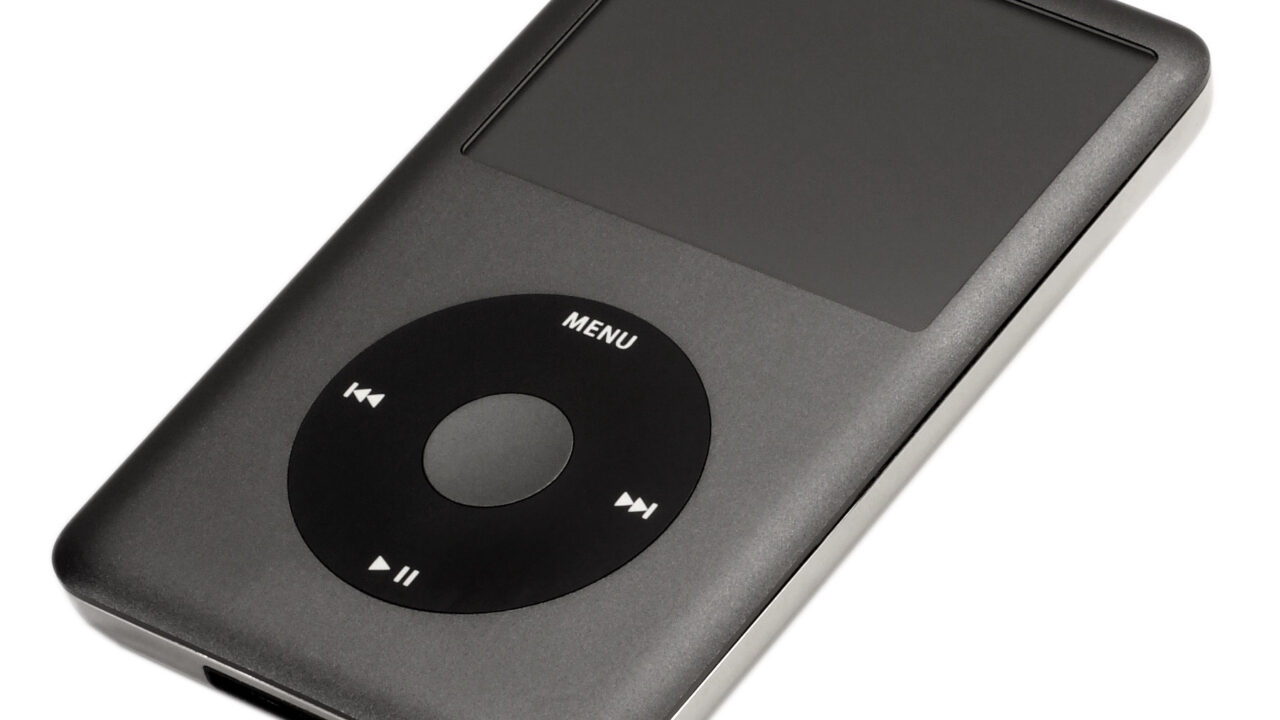
If you’ve still got a click-wheel iPod sitting in a drawer, it doesn’t have to stay retired as just a music player. Older iPods — anything running the classic iPod software rather than iOS — hide a built-in option that turns the device into a basic external drive you can plug into any Mac or Windows PC. It won’t replace a modern external SSD, but if you already own the hardware, it’s a neat way to give it a second job.
How to enable Disk Use
The feature is called Disk Use, and it’s switched off by default. On a Mac, connect your iPod and find it in the Finder sidebar, open the General tab, click Enable Disk Use, and hit Apply before closing the window. On Windows, you get the same toggle through either iTunes or the Apple Devices app. Once it’s on, the iPod shows up in Finder or File Explorer exactly like a regular USB flash drive or external hard drive. You can drag files onto it, and they’ll sit there until you delete them — though they won’t appear anywhere in the iPod’s own music interface, since they only show up on devices that can read external storage.
Storage and speed limits to expect
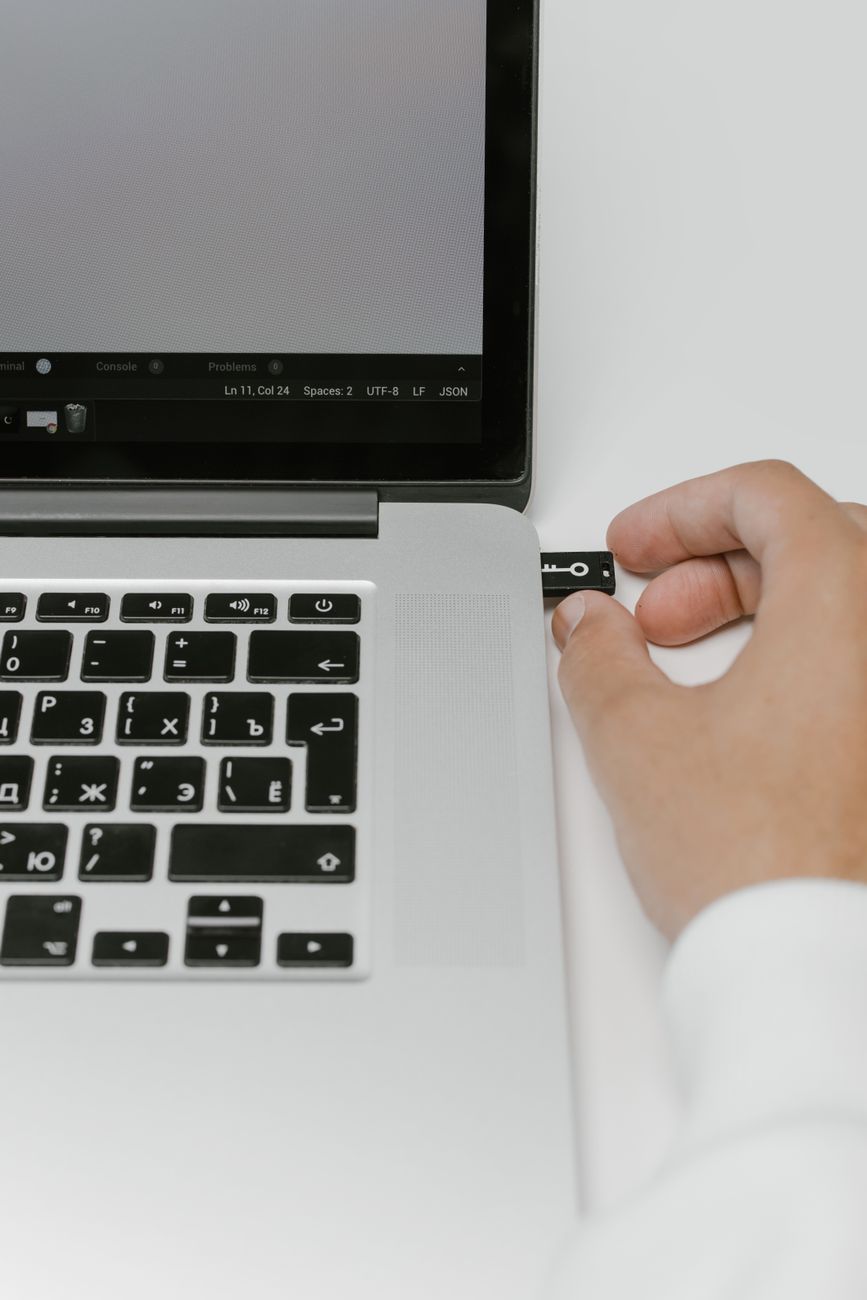
Before you get too excited, it’s worth tempering expectations. Most older iPods hold less than 20GB of storage, aside from the higher-capacity iPod Classic models, and whatever files you add will share that space with the music and system files already on the device. A basic 32GB USB flash drive costs around $10 today and offers more room than most iPods, plus it won’t be held back by the same bottleneck: every click-wheel iPod tops out at USB 2 speeds, which makes them a poor choice for moving large files around quickly. In short, don’t go hunting for a used iPod just to use as a drive — this is really a use-it-or-lose-it option for hardware you already own.
Mac vs. Windows file systems
An iPod set up through a Mac is typically formatted as HFS+, which Windows can’t read without extra software. If you want a drive that works everywhere without hassle, restore the iPod and set it up fresh on a Windows PC instead, which formats it as FAT32. Macs, smart TVs, and most other devices can read FAT32 without issue, though it caps individual files at 4GB. Just know that restoring the iPod wipes everything already on it, so back up anything you care about first.
Disk Mode is a different feature entirely
It’s easy to confuse Disk Use with Disk Mode, but they’re not the same thing. Disk Mode is a diagnostic tool meant to help when an iPod freezes or won’t show up on a computer, not a way to add storage. On click-wheel models — including the iPod Classic, iPod mini, iPod with video, and iPod nano up through the fifth generation — you trigger it by flipping the Hold switch on and off, then holding Menu and the center button for about six seconds until the Apple logo appears, then immediately holding the center button and Play/Pause until the Disk Mode screen shows up. Neither Disk Mode nor Disk Use works on the iPod touch, since it runs iOS rather than the older iPod software; these options only exist on click-wheel models and the touchscreen seventh-generation nano. And if you plan to carry your iPod around as a portable drive, pack a 30-pin cable, since they’re increasingly hard to find outside your own junk drawer.
The bottom line
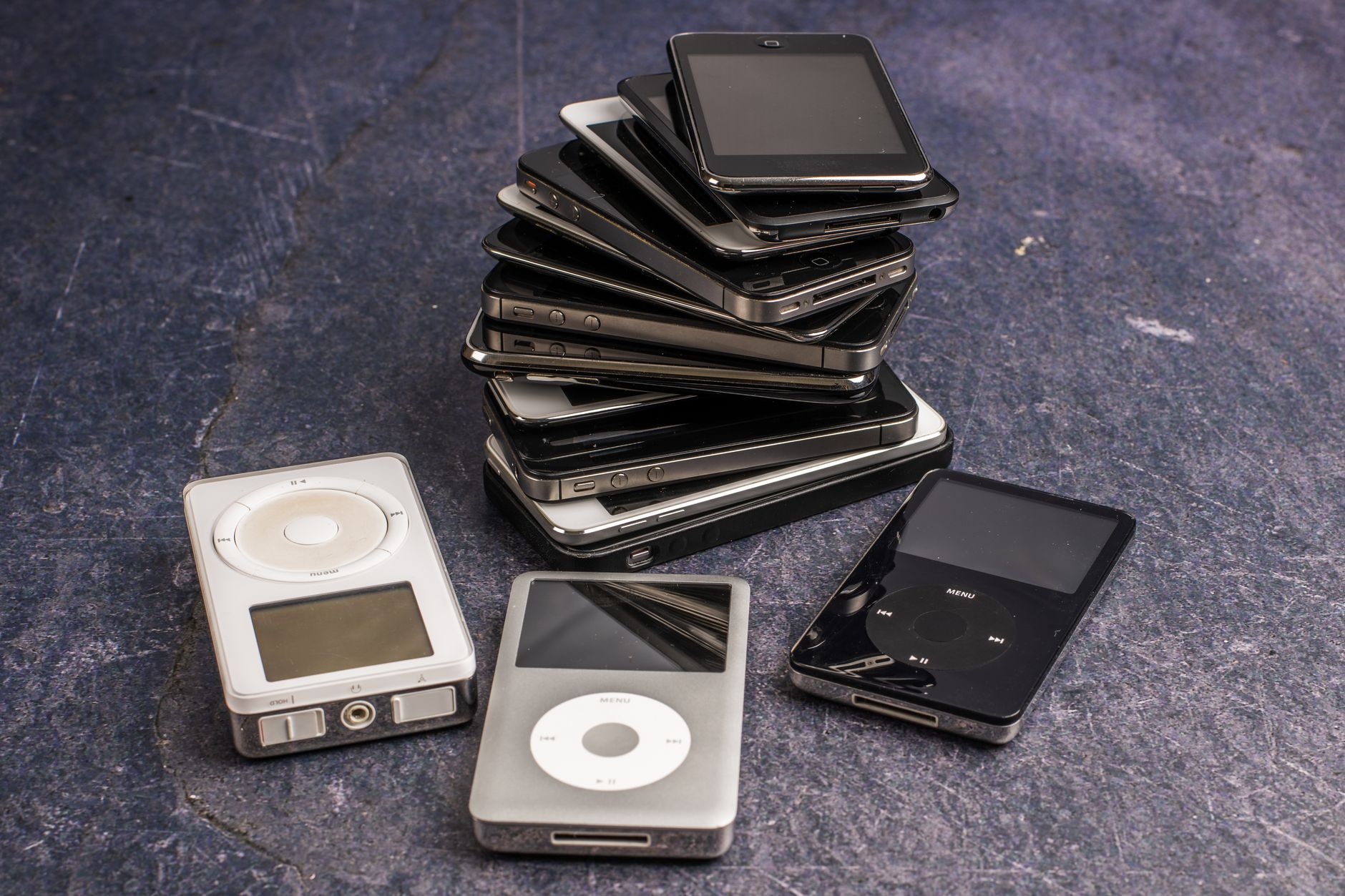
Reviving an old iPod as a flash drive is a low-effort way to get more use out of hardware you already own, especially for quick file transfers between computers. Just don’t buy one specifically for this purpose — a modern USB flash drive is cheaper, roomier, and faster in nearly every case.
Source: Engadget
Where to buy


As an Amazon Associate I earn from qualifying purchases.