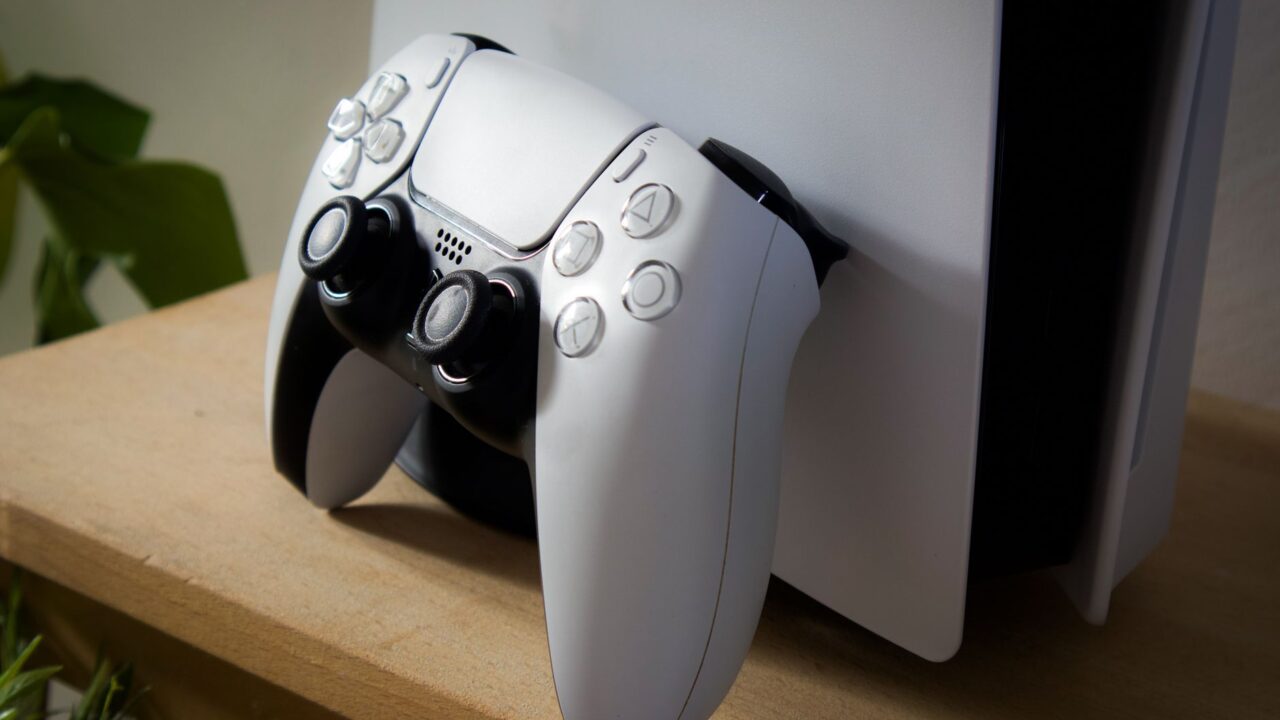
This guide is for PS5 owners who want 4K at 120Hz, variable refresh rate and the lowest input lag, and aren’t sure they’re getting it. The picture can look great even when your PS5 is plugged into an HDMI port that can’t handle its best modes. Here’s how to pick the right port and turn on the right settings, using Sony’s own PS5 support guidance.
Before you start
- Your TV or monitor has to support 4K at 120Hz, which usually means an HDMI 2.1 input. Check the specs for your exact model, since port layouts vary even between TVs from the same brand.
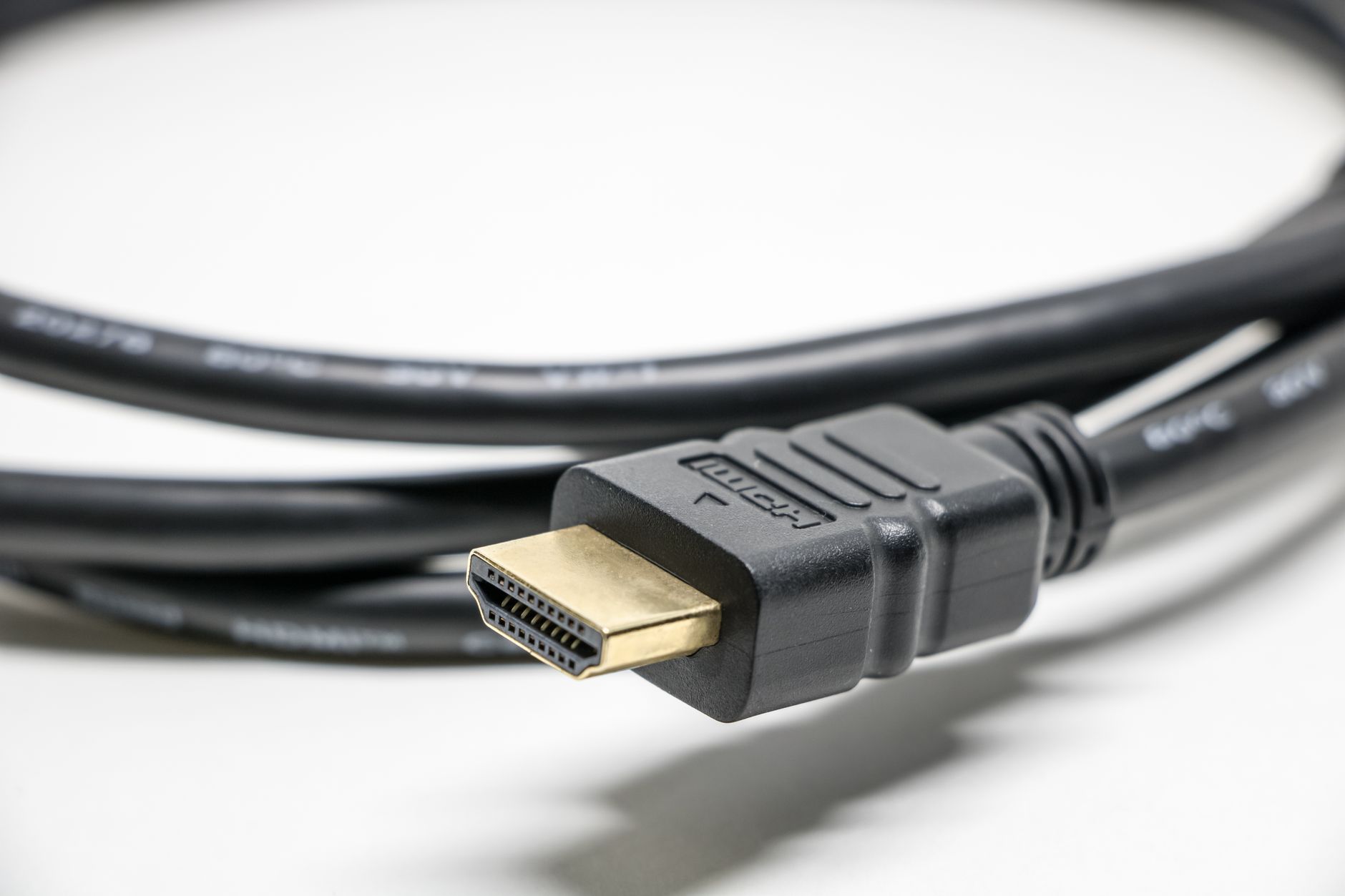
- Use the HDMI cable that came with the PS5, or an Ultra High Speed HDMI cable rated for 4K 120Hz.
- The game has to support 120Hz, too. Many games only offer it in a performance or high frame rate mode, often at a lower resolution than 4K.
Step 1: Find the right HDMI port on your TV
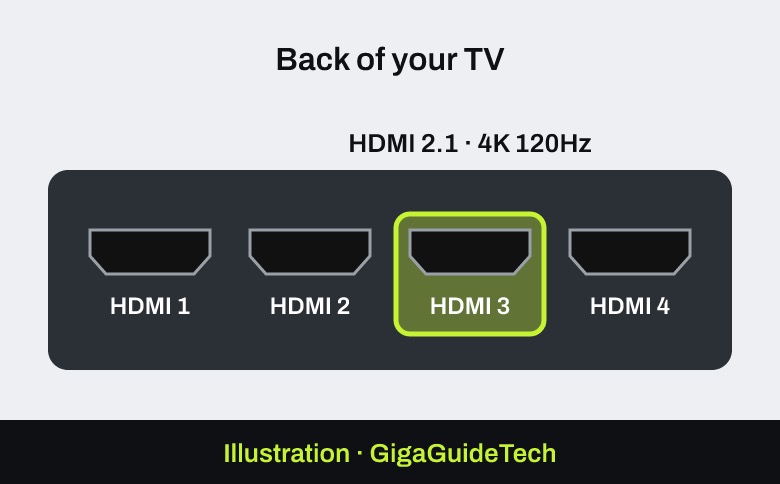
The numbers on your TV’s inputs, like “HDMI 1” or “HDMI 2,” are just labels, not HDMI versions. On many TVs only some inputs support HDMI 2.1, often HDMI 3 or 4, but not always. Look in your TV’s manual or spec sheet for the input that supports 4K 120Hz, and plug the PS5 into that one.
Step 2: Connect the PS5 directly
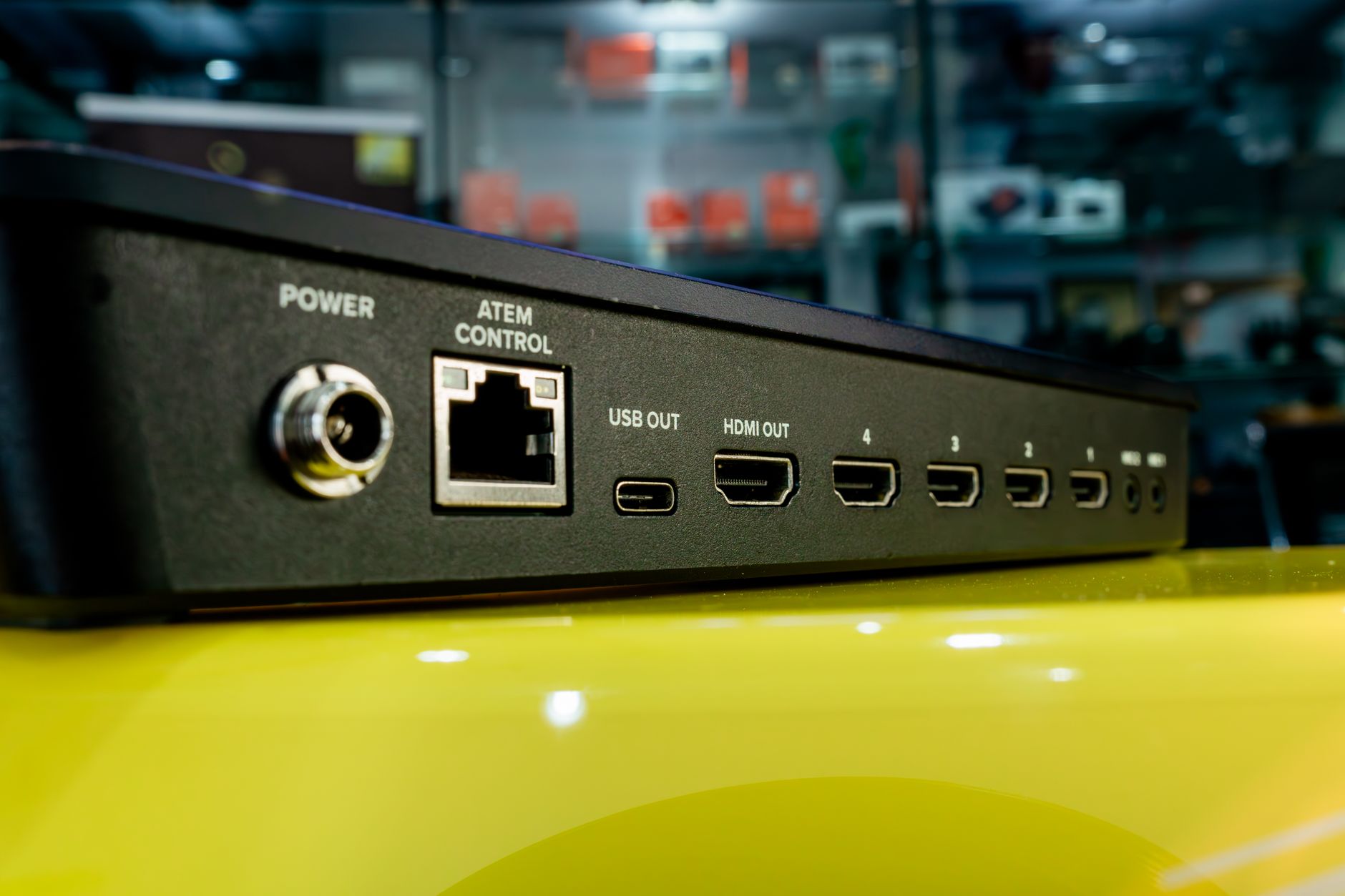
Plug the PS5 straight into the TV. Sony lists a receiver, soundbar or other device in between as one of the things that can stop a 4K 120Hz signal. If you use a soundbar, connect it to the TV instead.
Step 3: Turn on the HDMI 2.1 features on your TV
Many TVs keep their HDMI 2.1 mode off by default. In your TV’s input settings, look for an option such as “Enhanced Features,” “Input Signal Plus” or “HDMI Enhanced Format” for the port you’re using and turn it on. Names vary by brand, so check your TV’s manual. Sony also recommends making sure your TV has its latest firmware.
Step 4: Set up the PS5’s video output
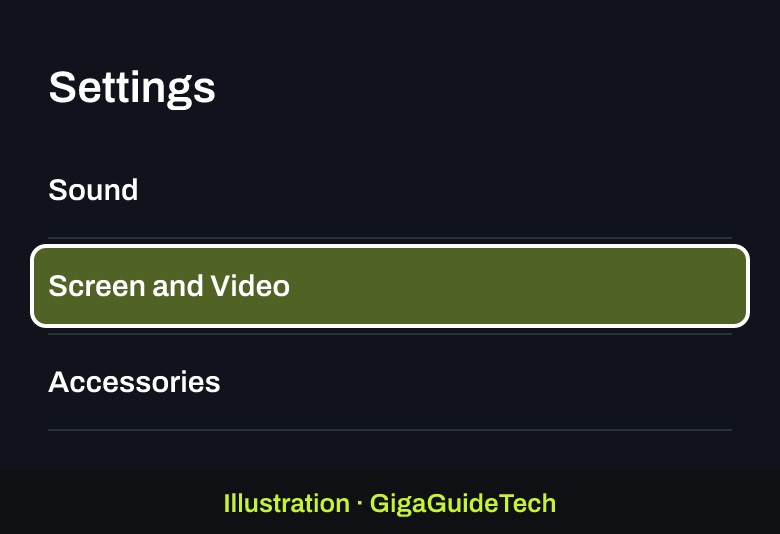
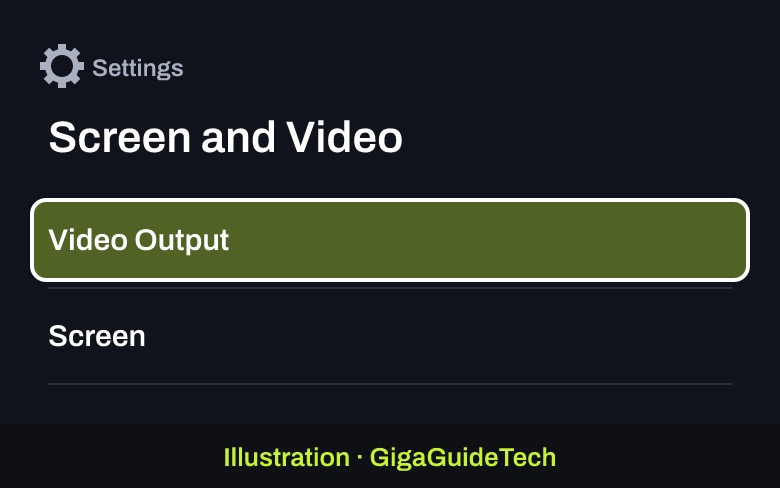
- On the PS5, go to Settings > Screen and Video > Video Output.

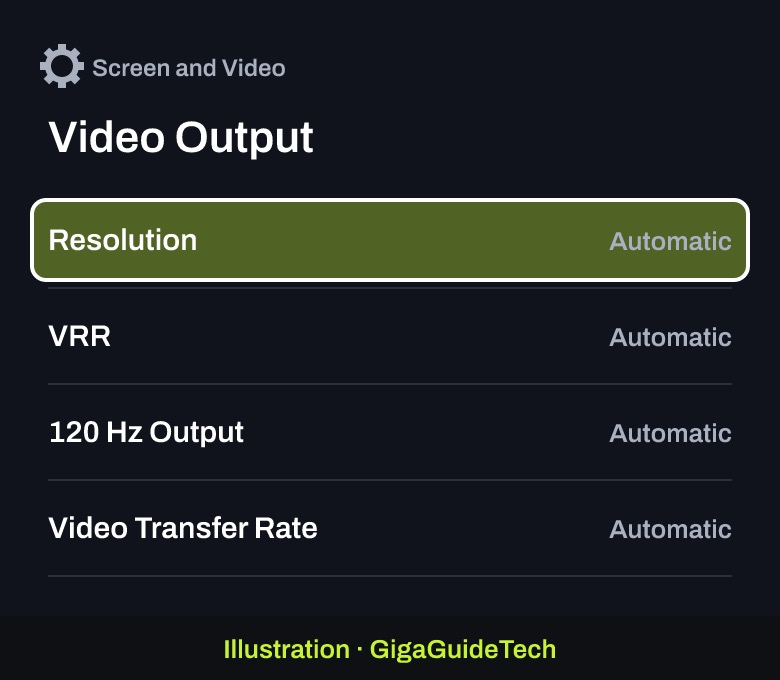
Illustration: Settings > Screen and Video Illustration: Screen and Video > Video Output - Set Resolution to Automatic, which picks the highest resolution your TV supports.
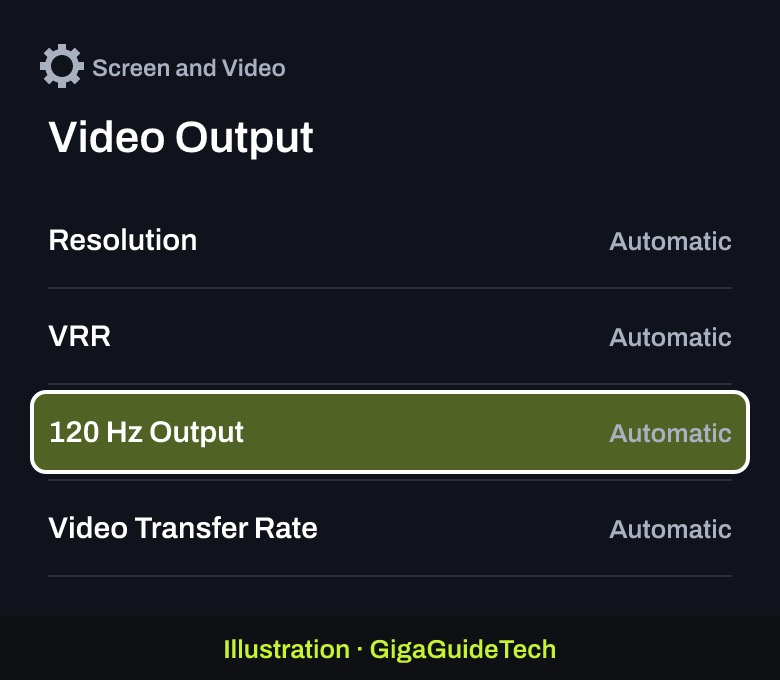
Illustration: Video Output > Resolution: Automatic - Set 120 Hz Output to on (Automatic). Sony says to turn it off only if you see video problems with a monitor or other display.
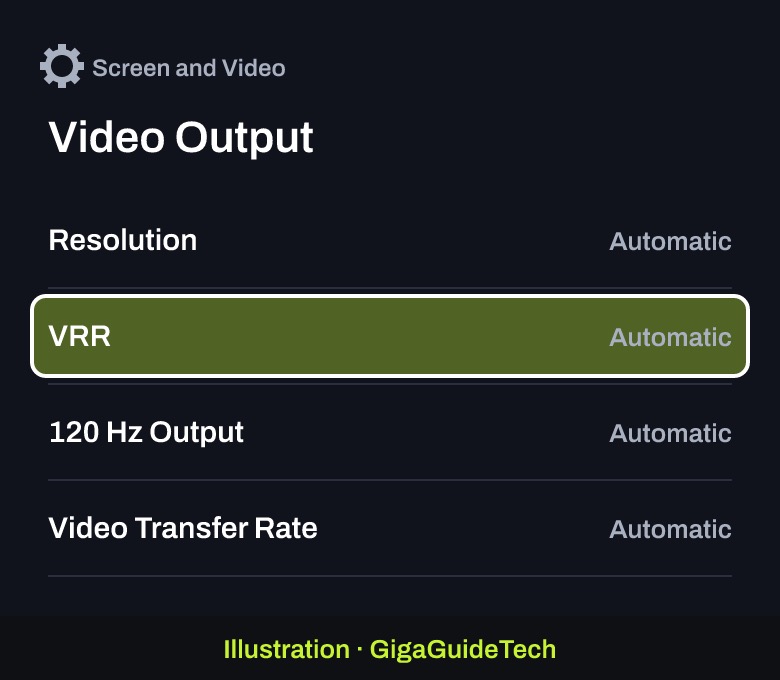
Illustration: Video Output > 120 Hz Output: Automatic - Turn on VRR if your TV supports it, so the refresh rate follows the game in real time. Results vary by TV.
Illustration: Video Output > VRR: Automatic - Leave Video Transfer Rate on Automatic. Setting it to -1 or -2 can fix flickering, but it also blocks 4K 120Hz.
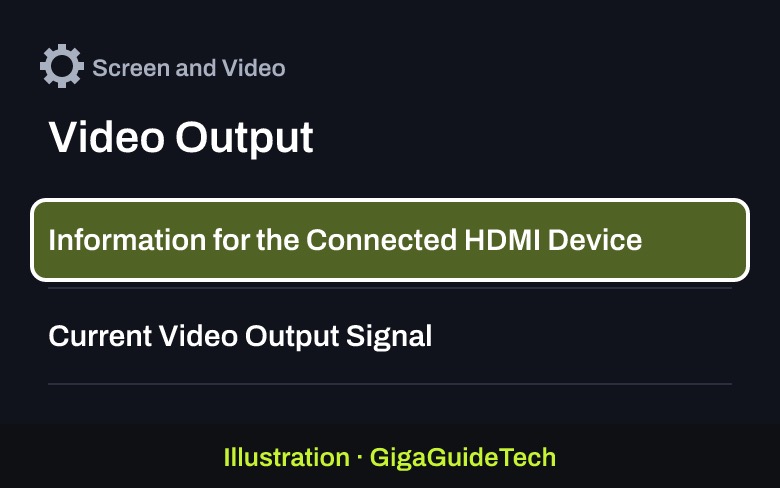
- Open Information for the Connected HDMI Device to see what resolution, VRR and HDR your screen reports, and check Current Video Output Signal to confirm what you’re getting.
Illustration: Video Output > Information for the Connected HDMI Device
Step 5: Turn on 120Hz in the game
Look in the game’s own graphics or video settings for an option like “120Hz mode,” “Performance” or “High Frame Rate.” It’s not always on by default.
If it still doesn’t work
- If the screen goes black or the PS5 only shows 1080p 120Hz, recheck the port, the cable and your TV’s HDMI 2.1 setting.
- Update your TV’s firmware. Sony says some TVs still have trouble with 4K 120Hz and that it’s working with TV makers to improve support.
- On a gaming monitor, check which resolutions and refresh rates work over HDMI specifically; they can differ from DisplayPort.
- If you want low-latency mode off, note that the PS5 switches the TV into it automatically while VRR is on. To fully turn off ALLM, you also have to turn off VRR.
FAQ
Is HDMI 1 better than HDMI 2?
No. The numbers are just input names. What matters is whether that input supports HDMI 2.1 and 4K 120Hz on your specific TV.
Can I get 120Hz without HDMI 2.1?
Sometimes, at lower resolutions like 1080p or 1440p on a compatible display. For 4K at 120Hz, you need HDMI 2.1.
Do I need a new HDMI cable?
Not if you use the one that came with your PS5. Otherwise, use an Ultra High Speed HDMI cable rated for 4K 120Hz.
The bottom line
Plug your PS5 straight into an HDMI 2.1 port with the included cable, turn on your TV’s enhanced HDMI setting, set the PS5 to Automatic resolution with 120 Hz Output and VRR on, and pick a 120Hz mode in games that offer one. If something’s wrong, the Video Output screen shows exactly what signal you’re getting.
Sources: PlayStation Support, Engadget
Where to buy
As an Amazon Associate I earn from qualifying purchases.