Switching from Spotify to Apple Music doesn’t mean rebuilding your library from scratch. Apple Music has a built-in transfer tool that copies your Spotify playlists and saved music into your Apple Music library, and it works on an iPhone, iPad, Android phone or the web. You don’t need a third-party app. Here’s how to transfer your Spotify playlists to Apple Music, step by step.
What you need
- An Apple Music subscription. The transfer only works for subscribers.
- An updated device: an iPhone with iOS 18.4 or later (Apple recommends the latest iOS or iPadOS), an Android phone with the latest Apple Music app, or any computer that can open music.apple.com.
- Your Spotify username and password, so Apple Music can read your library.
- Sync Library turned on on all your devices. On an iPhone, go to Settings > Apps > Music and turn on Sync Library.
Apple says the transfer is provided by a third party and isn’t available in every country or region.
How to transfer Spotify playlists on iPhone or iPad
- Open the Music app and tap your profile photo (the My Account button).
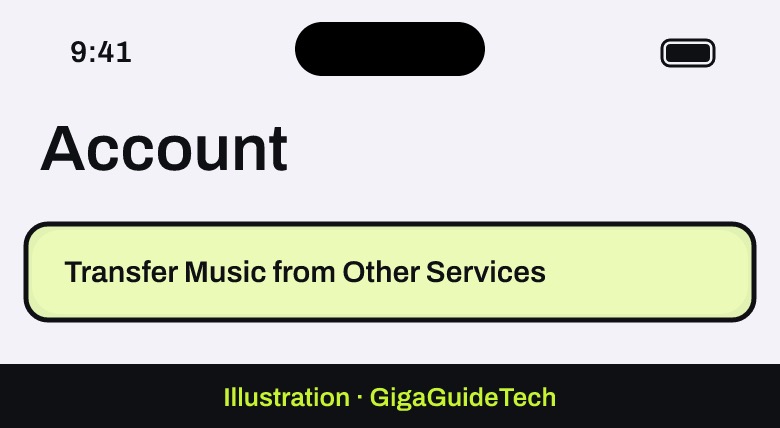
- Tap Transfer Music from Other Services. If you don’t see it, sign in to your Apple Account first.

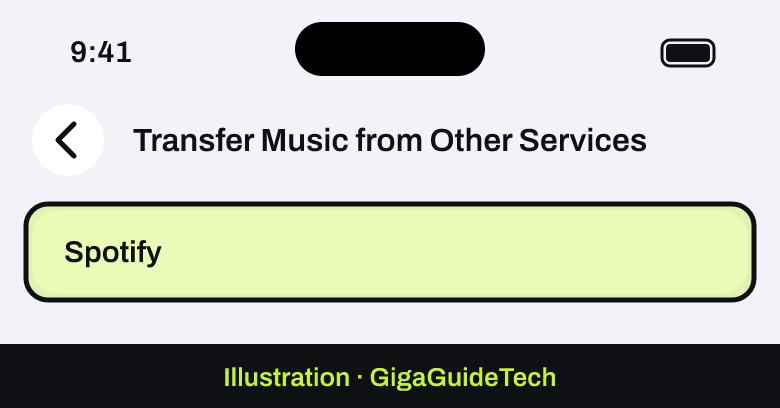
Illustration: Music app > your profile - Choose Spotify from the list of services and sign in to your Spotify account.
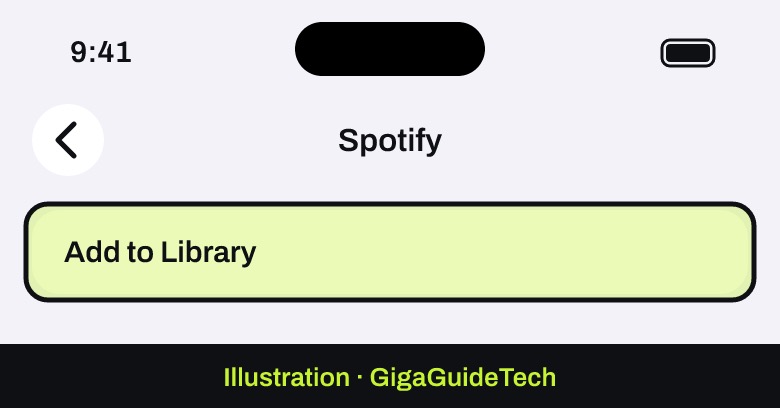
Illustration: Music app > Transfer Music from Other Services - Pick what you want to move, either everything or selected items, then tap Add to Library.
Illustration: Music app > Transfer Music from Other Services > Spotify - Wait while Apple Music matches your songs to its catalog. When it’s done, you’ll see Transfer Complete or Some Music Needs Review.

How to do it on Android
- Open the Apple Music app, tap the More button, then tap Settings.
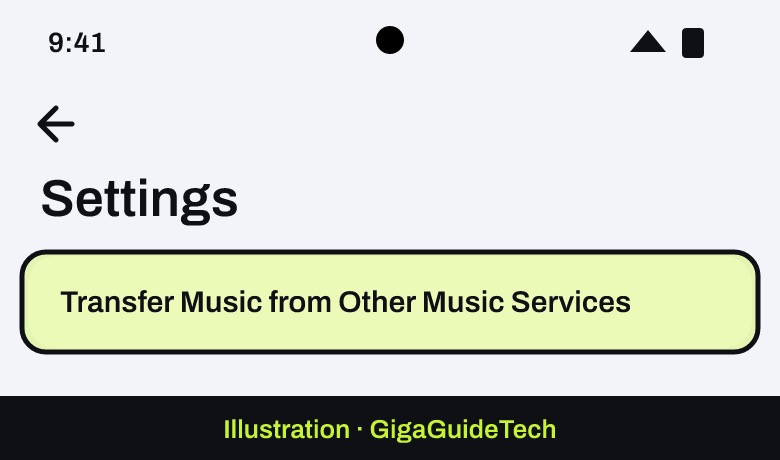
- Tap Transfer Music from Other Music Services.
Illustration: Apple Music app > More > Settings - Choose Spotify, sign in, select what to transfer and tap Add to Library.
Illustration: Apple Music app > More > Settings > Transfer Music from Other Music Services

How to do it on the web
- Go to music.apple.com and sign in with the Apple Account you use for Apple Music.
- Click your photo or monogram in the top-right corner and select Transfer Music.
- Choose Spotify, sign in, pick what to transfer and click Add to Library. Status messages appear at the bottom of the sidebar.
What gets transferred
According to Apple, you can transfer songs, albums, artists and playlists, but what’s available depends on the service you’re leaving. Songs you liked on Spotify show up in your Favorite Songs playlist in Apple Music. Nothing is deleted from Spotify, so all your saved music stays there too.
If some songs didn’t transfer
If you see Some Music Needs Review, Apple Music couldn’t find an exact match for some tracks, such as a live version that isn’t in its catalog. You can pick an alternate version, like a deluxe edition, or ignore the suggestion.
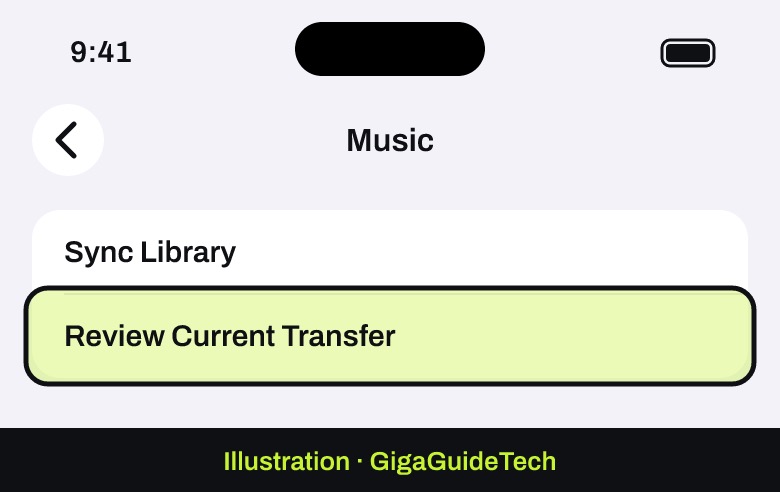
- On iPhone: tap Review Now at the top of the Library tab, or go to Settings > Apps > Music > Review Current Transfer.
Illustration: Settings > Apps > Music > Review Current Transfer - On Android: open Apple Music, tap More > Settings and choose the review option.
Songs with no match at all are listed under Not Available. You have 30 days from the first transfer to finish reviewing, and you can’t start a new transfer on that device until you do. Review on the same device that started the transfer.
Tips for a smooth switch
- Don’t cancel Spotify right away. Keep it until you’ve checked that your important playlists arrived in Apple Music.
- Check explicit content settings. Apple notes that if explicit content is turned off on your Apple device, explicit tracks will be grayed out.
- Finish one transfer before starting another. An unfinished review blocks new transfers on that device.
- Look for your likes in Favorite Songs, not in a playlist named after Spotify.
Setting up a new iPhone at the same time? See our guide on how to transfer everything to a new iPhone. Using AirPods with an Android phone? Read what works and what doesn’t. And if you’re curious about Apple Music’s recent changes, check out its new logo.
Sources: Apple iPhone User Guide: Transfer music from other music services, Apple Support: Transfer your library and playlists to Apple Music, Engadget