This guide is for anyone whose MacBook is not recognizing an external monitor, whether the screen stays completely dark, the Mac only shows its own display, or the monitor disconnects unexpectedly. By the end, you’ll have worked through Apple’s official troubleshooting sequence and either solved the problem or narrowed it down to a hardware or cable issue.
Before you start
- Confirm your display is plugged into a working power outlet and powered on.
- Have the correct video cable on hand (Thunderbolt, USB-C, or HDMI, depending on your ports).
- If you’re using an adapter, make sure it supports DisplayPort Alt Mode, Thunderbolt 3, or Thunderbolt 4.
- Know whether your Mac uses Apple silicon (M1 through M5) or an Intel chip, since Apple silicon models handle accessory permissions differently.
- Keep your macOS version in mind, since the settings app is called System Settings on newer macOS versions and System Preferences on older ones.
- No backups are needed for this process since it does not involve changing files or data.
Step-by-step fix
- Connect your display’s power cable to a power source and turn the display on.
- Connect your display’s video cable to your Mac using the correct port, such as a Thunderbolt or HDMI port. Double-check the port, since some ports look similar but serve different purposes.
- If the cable doesn’t match your Mac’s ports, use a compatible adapter, or switch to a cable that connects directly without one.
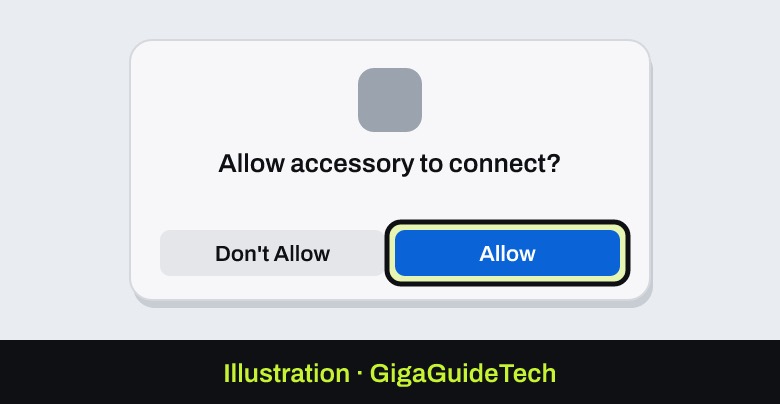
- If you’re on an Apple silicon MacBook and see a prompt asking whether to allow the display accessory to connect, choose to allow it. If you deny the prompt, the display will stay dark.
- If the Mac still doesn’t detect the display, unplug the display and plug it back in, making sure the cable is fully seated in the correct port.
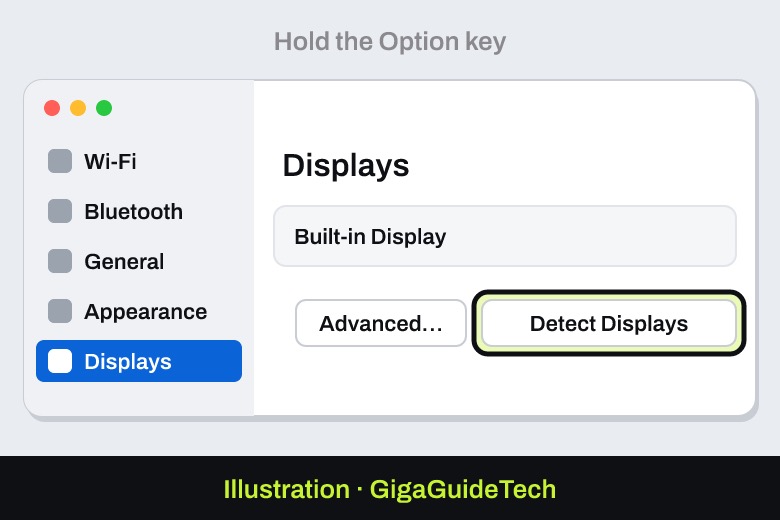
- Open the Apple menu, choose System Settings (or System Preferences on older macOS), then click Displays.
- Press and hold the Option key. The Detect Displays button will appear in place of the Night Shift button. Click Detect Displays.
- If nothing changes, put your Mac to sleep and then wake it up, then check the display again.
- Check your Mac’s supported display specs by going to the Apple menu, choosing System Settings, then Help in the menu bar, then your Mac’s model name and Specifications. Scroll to Display Support or Video Support to confirm your monitor’s resolution and refresh rate are supported.
- If your display is connected through a hub or dock, connect it directly to a port on your Mac instead and test again.
Using a MacBook with the lid closed (clamshell mode)
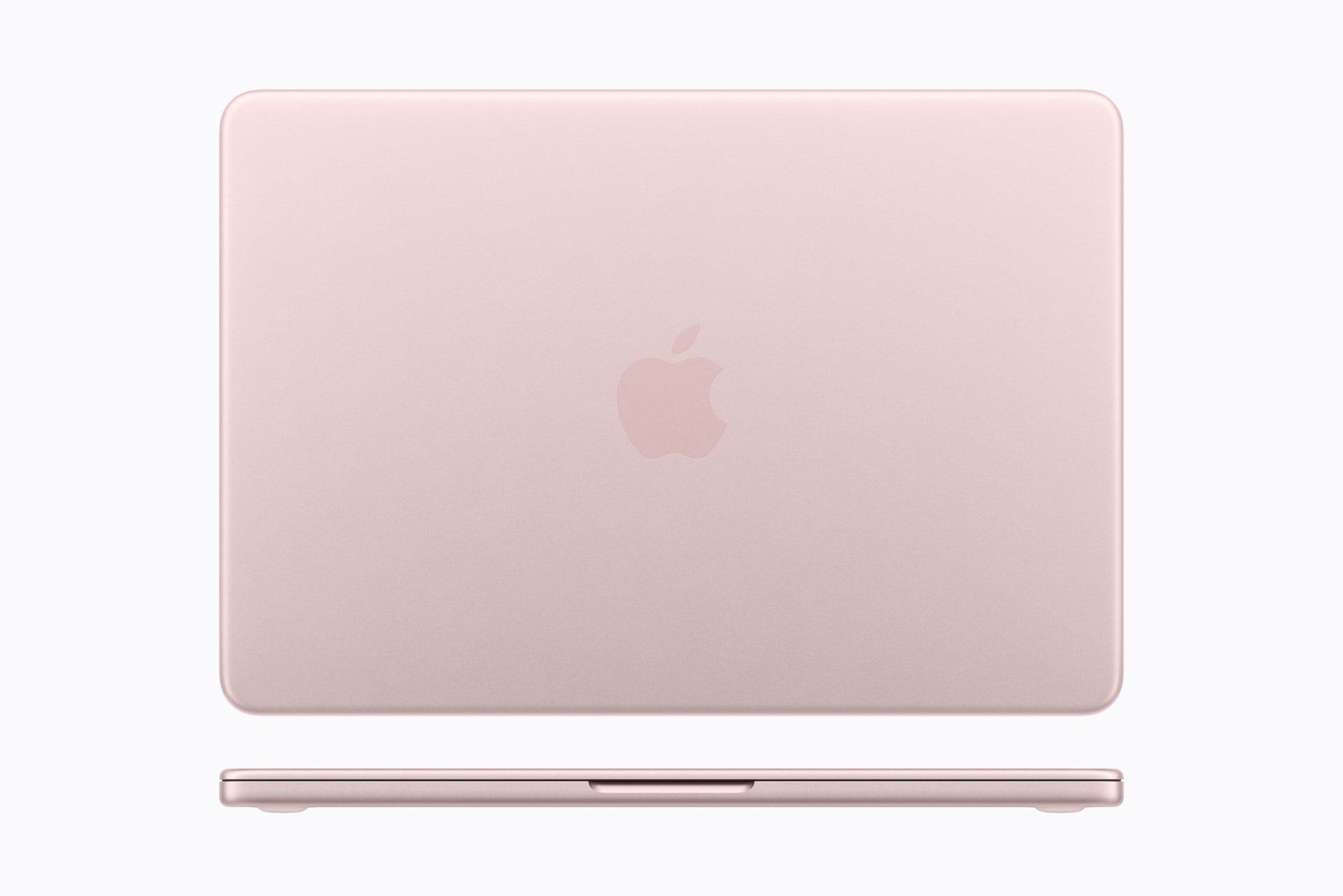
- Close the lid on your MacBook to put it to sleep.
- Connect the power adapter to your Mac and plug it into a power outlet.
- Reconnect your Mac to the external display using the correct video cable.
- Connect a USB keyboard and a mouse or trackpad to your Mac.
- Wait a few seconds, then press a key on the external keyboard or move the mouse or trackpad to wake your Mac.
If it still doesn’t work
If the steps above don’t resolve the issue, Apple’s documentation points to a few remaining checks:
- Make sure your video cable and any adapter actually support your display’s resolution and refresh rate. A mismatched cable or adapter can cause a dark screen, a lower resolution, or a reduced refresh rate.
- Install the latest macOS update. Software updates can affect display detection and also deliver firmware updates for Apple-made displays.
- If you’re using a third-party display, check that it’s running the latest firmware from its manufacturer, and confirm you’re connecting it exactly as described in its included documentation.
- If none of these steps help, Apple recommends contacting Apple Support directly for further assistance.
Don’t attempt to repair the display yourself, since any damage caused this way isn’t covered under warranty.
FAQ
Why does my Apple silicon MacBook ask for permission to connect a display?
Apple silicon Macs (M1 through M5) can prompt you to allow an external display as an accessory before it connects. If you don’t approve this prompt, the display will stay dark, so make sure to allow it when it appears.
Can I use any USB-C adapter to connect an external monitor?
Not all adapters work. Apple specifies that USB-C or Thunderbolt adapters must be compliant with DisplayPort Alt Mode, Thunderbolt 3, or Thunderbolt 4 to properly carry a video signal to your display.
Why does my monitor work when connected directly but not through a dock or hub?
Some hubs and docks introduce compatibility or power issues that prevent a Mac from detecting a display properly. Apple recommends connecting your display directly to a port on your Mac to rule this out.
Does closing my MacBook’s lid stop it from detecting an external monitor?
No, but clamshell mode (using the Mac with the lid closed) requires the Mac to be connected to power and paired with an external keyboard and mouse or trackpad, since there’s no built-in display or keyboard active to wake it otherwise.
The bottom line
Most cases of a MacBook not recognizing an external monitor come down to cable, port, or adapter compatibility, or a missed accessory permission prompt on Apple silicon Macs. Working through Apple’s official sequence, checking cables, forcing display detection, waking the Mac from sleep, and confirming display support in your Mac’s specs, resolves the majority of these issues without needing any unofficial workarounds.
Source: Apple Support
Where to buy
- USB-C to HDMI Adapter: check price on Amazon
- USB-C Multiport Hub: check price on Amazon
- Wireless Keyboard and Mouse Combo: check price on Amazon
As an Amazon Associate I earn from qualifying purchases.