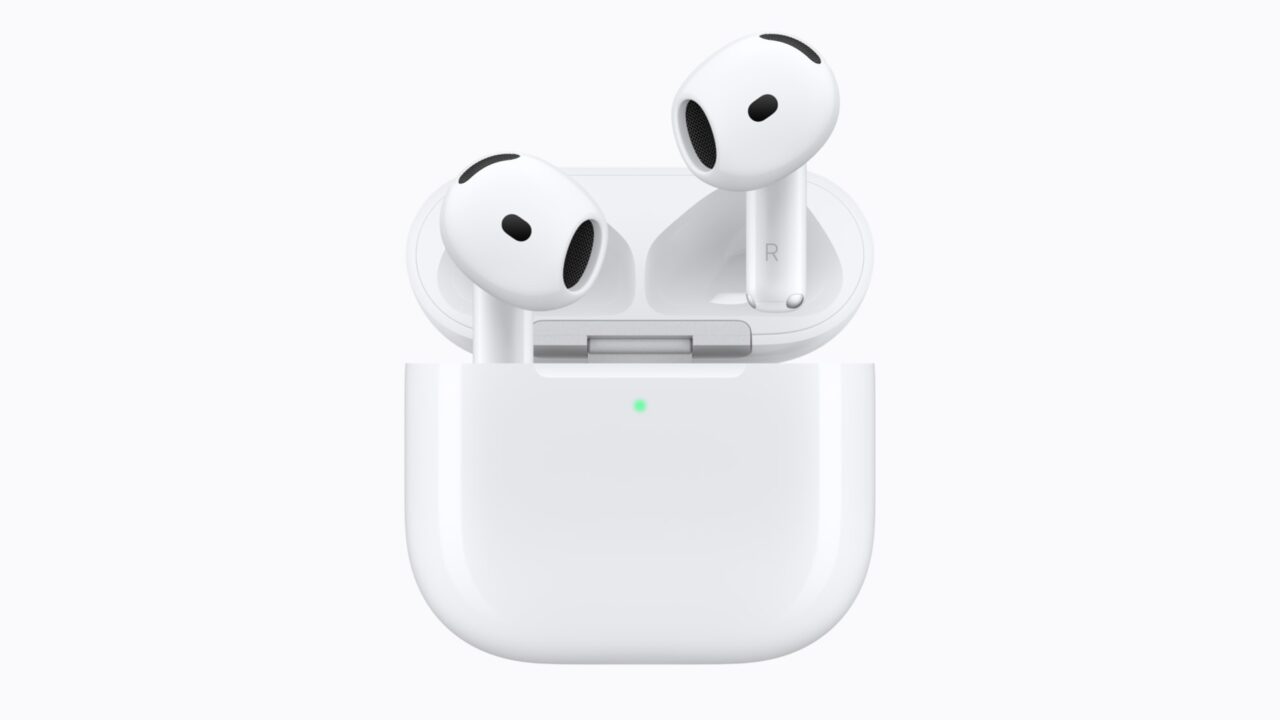
This guide is for anyone whose AirPods, AirPods Pro, or AirPods Max won’t charge properly in their case — whether the case shows no light at all, the earbuds never reach full battery, or charging seems to stop and start. Following these steps in order will help you figure out whether the problem is the cable, the case, a software setting, or something that needs Apple’s attention.
Before you start
- Know your AirPods model — the charging cable type differs (USB-C for AirPods 4, AirPods 5, AirPods Pro 2, and AirPods Pro 3; Lightning or MagSafe/Qi for older models).
- Have your original charging cable and power adapter on hand, or a known-working replacement.
- If you’re troubleshooting AirPods Pro 3, make sure your iPhone or iPad is updated to iOS or iPadOS 26 or later, since that’s when the Optimized Charge Limit feature was introduced.
- A reset will clear any custom settings you’ve made (like ear tip fit test results or button controls), so be ready to set those up again afterward. No personal data is lost.
Step-by-step: diagnose and fix the charging problem
- Place your AirPods in the charging case and close the lid.
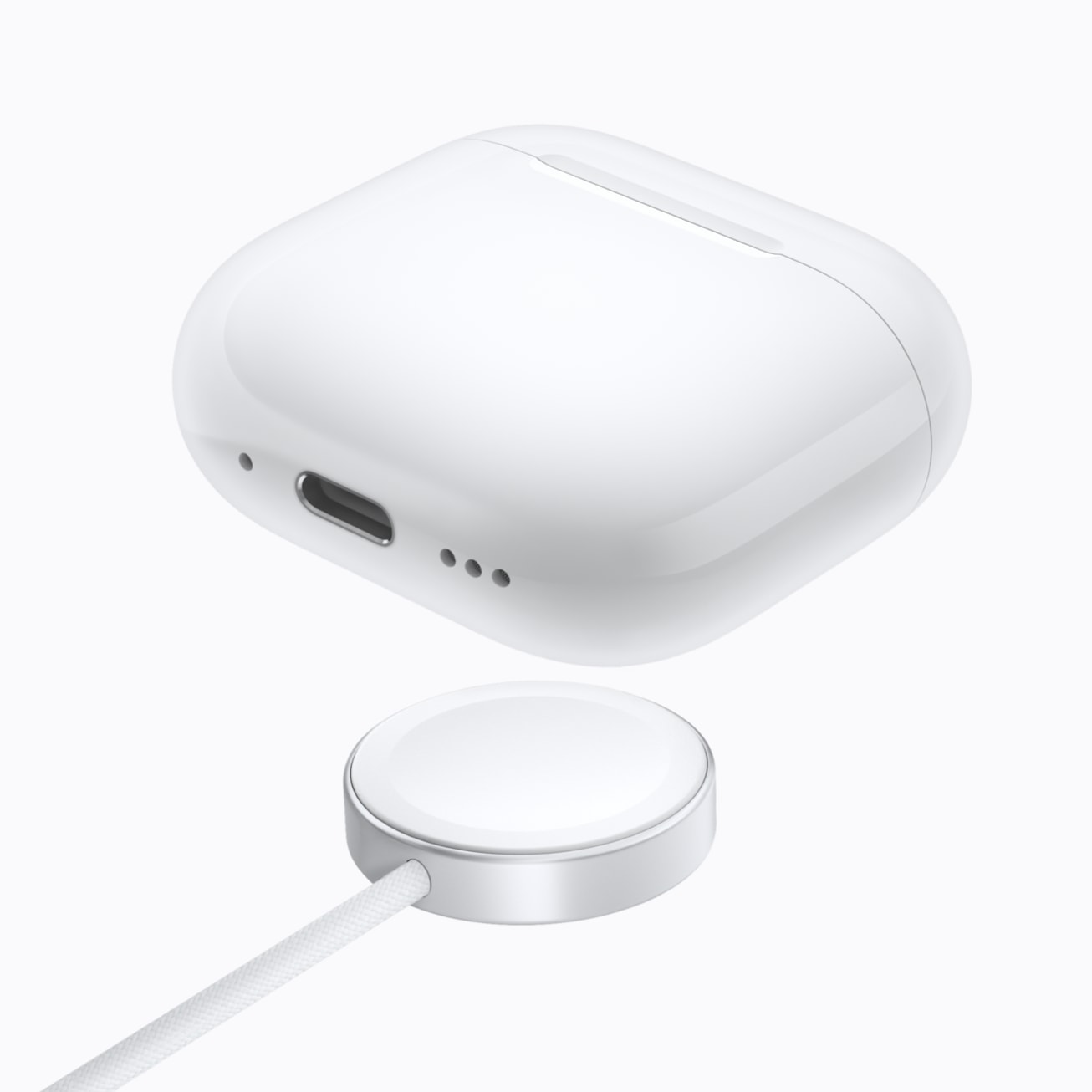
- Connect a Lightning cable or USB-C cable to the charging case, depending on your model, and let it charge for at least 15 minutes. If you have AirPods Max, charge for at least 5 minutes using the cable that came with them, and place them in the Smart Case when not in use to enable ultra-low power mode.
- Check that the charging cable is plugged firmly into both the charging case and the USB power adapter, and that the adapter is properly connected to a working power outlet. A loose connection is one of the most common causes of a case that appears dead.
- If you use a Wireless Charging Case with a Qi-compatible charger, place the case on the pad with the status light facing up. The light should turn on for a few seconds, then turn off while charging continues. If nothing happens, reposition the case on the pad. If it still won’t charge wirelessly, plug in a compatible cable directly to confirm the case itself is working.
- Clean the charging case and charging port to remove any dust, lint, or debris that could be blocking a solid connection. Built-up debris in the port is a frequent culprit for charging failures.
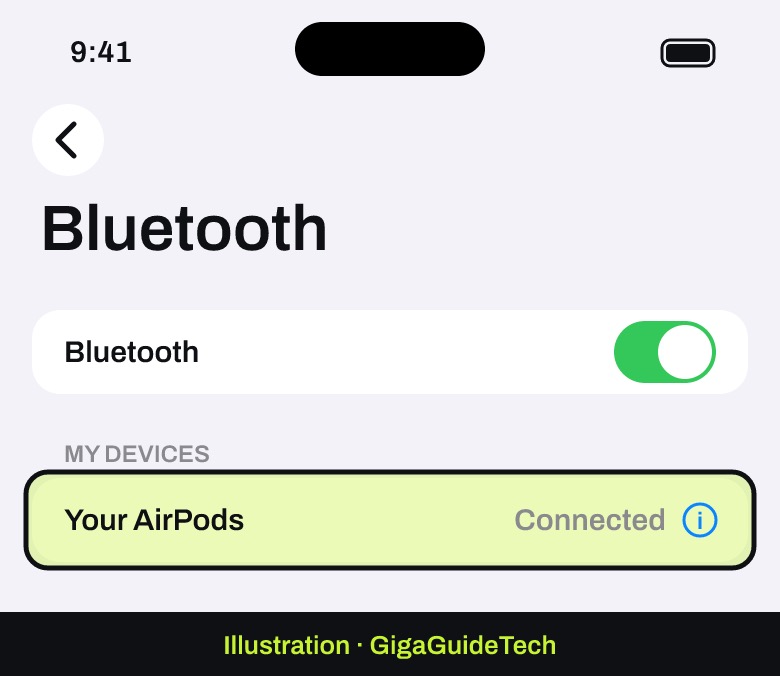
- Open the lid or take your AirPods out of the case, then go to Settings > Bluetooth, tap the name of your AirPods, and tap the Info button to check their current charge status.
Extra step for AirPods Pro 3: check Optimized Charge Limit
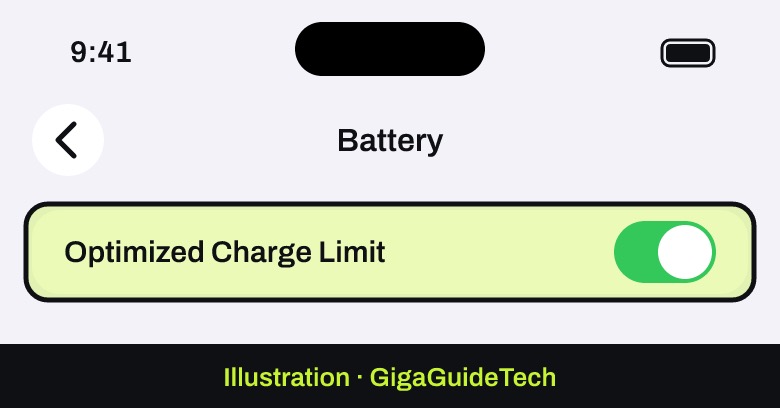
AirPods Pro 3 include a feature called Optimized Charge Limit, which is turned on by default and can slow down how quickly the case reports a full charge. If your AirPods Pro 3 seem to stall before reaching 100%, this setting — not a hardware fault — may be the reason.
- Go to Settings on your iPhone or iPad.
- Tap the name of your AirPods near the top of the screen.
- Tap Battery.
- To charge fully right away, turn off Optimized Charge Limit, then choose Turn Off Until Tomorrow for a temporary override, or Turn Off to disable it entirely.
![Illustration: AirPods Pro 3: Settings > [your AirPods] > Battery](https://gigaguidetech.com/wp-content/uploads/2026/09/airpods-not-charging-case-fix-step-02.jpg)
If it still doesn’t work: reset your AirPods
If your AirPods still won’t charge after checking the cable, cleaning the case, and confirming settings, a full reset can clear up software glitches that prevent charging from being recognized properly. Note that resetting removes any custom settings, which you’ll need to redo afterward.

Resetting AirPods 1, 2, 3, Pro 1, or Pro 2
- Put your AirPods in the charging case, close the lid, and wait 30 seconds.
- On an iPhone or iPad paired with your AirPods, go to Settings > Bluetooth.
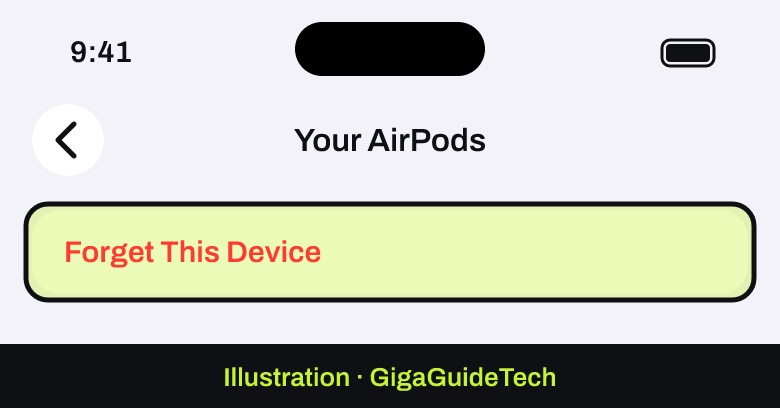
- If your AirPods appear under My Devices, tap the More Info button next to them, tap Forget This Device, then confirm.
- Open the lid of the charging case.
- Press and hold the setup button on the back of the case for about 15 seconds.
- When the status light flashes amber, then flashes white, follow the on-screen steps on your device to reconnect your AirPods.
Resetting AirPods 4, AirPods 5, or AirPods Pro 3
- Put your AirPods in the charging case, close the lid, and wait 30 seconds.
- Open the lid of the charging case.
- Double-tap the front of the case while the status light is on.
- Double-tap again when the status light flashes white.
- Double-tap a third time when the status light flashes faster.
- When the status light flashes amber, then flashes white, follow the on-screen steps to reconnect your AirPods.
When to contact Apple
If you’ve worked through every step above — charging for the full 15 minutes, confirming the cable and adapter, cleaning the ports, checking Optimized Charge Limit if applicable, and performing a full reset — and your AirPods still won’t charge, the issue is likely a hardware fault with the case or earbuds themselves. At that point, the case may need service or replacement, so it’s worth contacting Apple directly rather than continuing to troubleshoot.
FAQ
Why won’t my AirPods case light up at all?
A case that shows no light usually means it isn’t receiving power. Double-check that the cable is fully seated in both the case and the power adapter, try a different outlet, and clean the charging port of any debris before assuming the case is broken.
Can dirt or lint really stop AirPods from charging?
Yes. The charging pins inside the case and the contacts on the AirPods themselves need a clean connection. Even a small amount of pocket lint can be enough to interrupt charging, which is why cleaning the case is one of the official troubleshooting steps.
Will resetting my AirPods delete anything important?
No. A reset doesn’t erase personal data, since AirPods don’t store files or accounts. It does clear custom settings like button assignments or fit test results, so you’ll need to reconfigure those after reconnecting.
Why does my AirPods Pro 3 case seem to stop charging early?
This is often the Optimized Charge Limit feature working as intended, not a fault. It’s on by default starting with iOS or iPadOS 26 and can be turned off temporarily or permanently if you want a full charge right away.
Source: Apple Support
Where to buy
- Apple USB-C Charge Cable: check price on Amazon
- Qi-Certified Wireless Charging Pad: check price on Amazon
- Apple 20W USB-C Power Adapter: check price on Amazon
As an Amazon Associate I earn from qualifying purchases.