
This guide is for anyone who wants to check full disk access on Mac because an app is misbehaving, you’re tightening up your privacy settings, or you’re troubleshooting a security tool that keeps losing its permissions. By the end, you’ll know exactly where to find the list of apps with Full Disk Access, what the setting actually controls, and how to fix the most common problems Apple documents for it.
Full Disk Access is one of several privacy protections built into macOS. It controls whether an app can reach every file on your Mac, including data from other apps like Mail, Messages, Safari, and Home, plus Time Machine backups and certain administrative settings that affect every user account on the machine. Since this is one of the broadest permissions macOS offers, it’s worth reviewing periodically, especially after installing backup tools, security software, or system utilities.
It’s also timely: Apple recently warned that as AI agents become more capable, the risks of granting this level of access “will grow substantially,” and said it will add controls so that apps can only get it through very explicit user action, according to Engadget. Until then, checking which apps already have it is a good habit.
Before you start
- Works on macOS 10.13 and later, since that’s when apps were first required to explicitly request this access.
- The exact menu path depends on your macOS version: System Settings on macOS 13 (Ventura) and later, System Preferences on macOS 12 (Monterey) and earlier.
- You’ll need an admin password to make changes, though simply viewing the list doesn’t require one.
- No data backup is needed for this guide since you’re only viewing and toggling permissions, not deleting files.
How to view the Full Disk Access list
macOS 13 (Ventura) and later
- Click the Apple menu and choose System Settings.
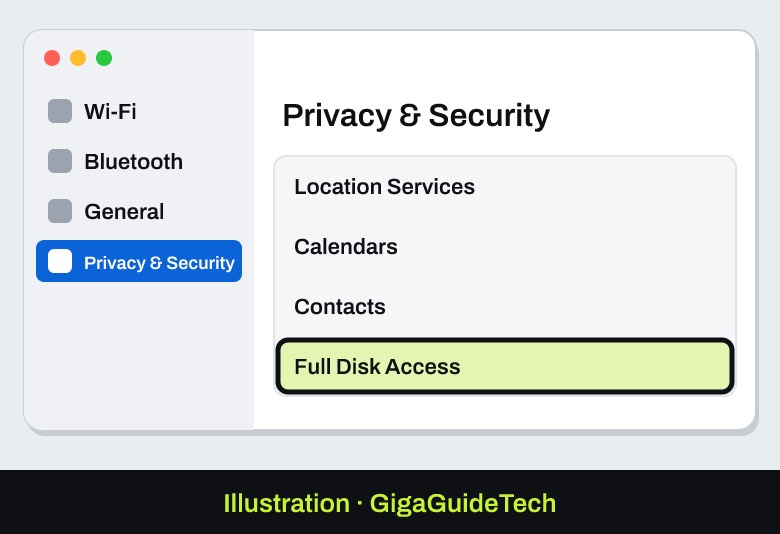
- In the sidebar, select Privacy & Security.
- Scroll down if needed, then click Full Disk Access.
- Review the list of apps and their checkboxes to see which ones currently have access.
macOS 12 (Monterey) and earlier
- Open System Preferences.
- Click Security & Privacy.
- Select the Privacy tab.
- Choose Full Disk Access from the list of privacy options on the left.
Understanding and managing what you see
Once you’re in the Full Disk Access pane, you’ll see a list of apps, each with a checkbox next to it. A checked box means that app currently has full disk access; an unchecked one means it’s listed but currently denied. You can toggle any checkbox to approve or revoke access on the spot.
It’s worth knowing how apps end up on this list in the first place. You can’t add new apps manually just because you want to grant them access preemptively. An app has to request access to a protected area of your Mac first; only then does it appear in this list, where you can turn its access on or off.
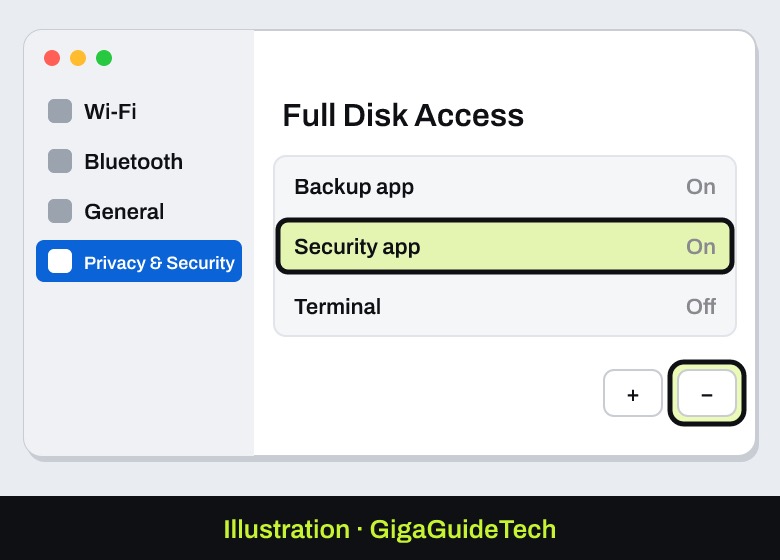
If you want to remove an app entirely rather than just unchecking it, select the app in the list and click the small minus (-) button at the bottom of the pane. Removing an app doesn’t block it forever: if that app tries to access a protected file again later, macOS will simply prompt you again, just like the first time.
If it still doesn’t work
A few issues come up often enough that Apple has documented specific workarounds for them.
The list is empty or won’t accept new apps. Restart your Mac in Safe Mode by holding Shift during startup, then try adding the apps to Full Disk Access while still in Safe Mode. Reboot normally afterward and check whether the apps you added are still listed, then try adding any remaining ones. Keep in mind that a Safe Mode boot can take three to five minutes, since it verifies your startup disk, repairs directory issues if needed, loads only required kernel extensions, blocks startup and login items from opening automatically, and clears system caches.
Permissions get revoked after every restart. This is a known annoyance with some security software. The workaround is to go back into Privacy & Security > Full Disk Access, select the affected app, remove it with the minus (-) button, then re-add it with the plus (+) button. You may need to restart your Mac afterward for the fix to take effect.
FAQ
Can I add an app to Full Disk Access before it asks for permission?
No. Apple says an app has to request access to a protected area of your Mac first. After it asks, it appears in the Full Disk Access list and you can turn its access on or off.
What exactly does Full Disk Access let an app see?
It lets an app access essentially everything on your Mac’s storage, including data belonging to other apps such as Mail, Messages, Safari, and Home, Time Machine backup contents, and certain administrative settings that apply to every user account on the Mac.
Is it safe to remove an app from the list?
Yes. Removing an app just takes away its access; it doesn’t delete the app or any files. If that app genuinely needs the permission again, macOS will prompt you the next time it tries to access a protected area.
Why does my security software keep losing Full Disk Access?
This is a documented quirk with some security products after a restart. The fix is to remove the app from the list with the minus (-) button and re-add it with the plus (+) button, then restart your Mac if the issue persists.
Source: Apple Support