This guide is for anyone whose iPhone keeps asking for a passcode instead of unlocking with a glance, or whose Face ID setup suddenly stopped recognizing them. If Face ID is not working on your iPhone, following these steps in order will help you find the cause, whether it’s a smudged camera, a software glitch, or a setting that needs a reset, and get Face ID working reliably again.
Before you start
- Make sure your iPhone model actually supports Face ID (any iPhone with Face ID instead of a home button, from the iPhone X onward).
- Have your passcode ready. You’ll need to enter it during this process, and resetting Face ID means setting it up from scratch.
- Note that resetting Face ID deletes your existing Face ID data, including the mathematical representation of your face, from the device. This doesn’t affect photos, messages, or other personal data.
- If you wear a mask with Face ID, this feature requires iOS 15.4 or later and only works in portrait orientation on iPhone.
Step-by-step fix
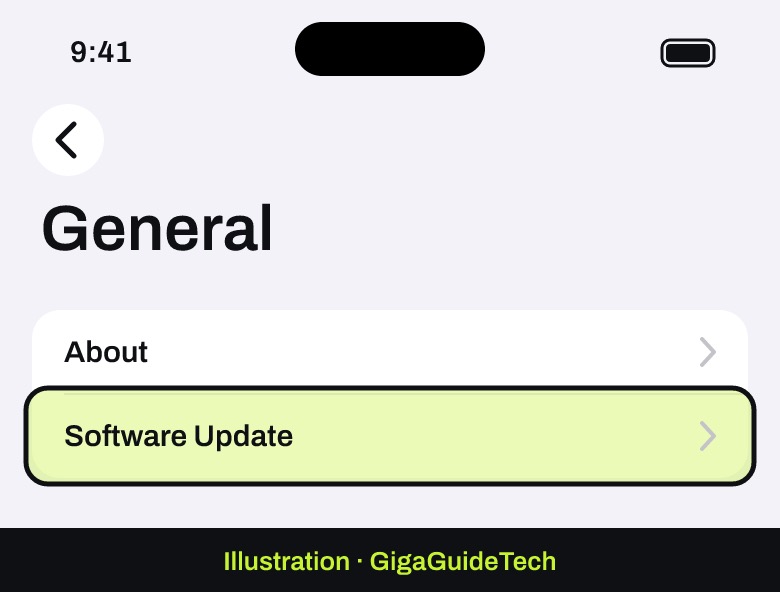
- Update your iPhone to the latest version of iOS. Go to Settings > General > Software Update and install any available update.
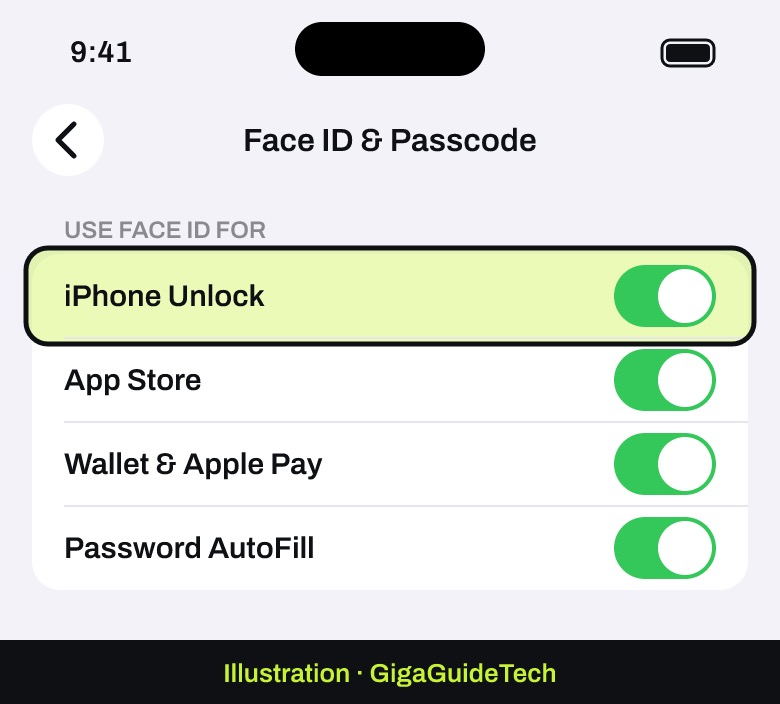
- Check your Face ID settings. Go to Settings > Face ID & Passcode and confirm Face ID is set up and that the specific feature you’re trying to use it with (unlocking, App Store purchases, Apple Pay, and so on) is turned on.
- Remove anything covering the TrueDepth camera at the top of the screen, including smudges, a case that sits too high, or a screen protector that blocks the sensor. On iPhone 18 Pro models, the TrueDepth camera sits toward the top-left corner, so check that area specifically.
- Make sure your eyes, nose, and mouth are all fully visible to the camera, and hold the iPhone at arm’s length or closer, roughly 10 to 20 inches from your face.
- If you’re wearing a face mask and have already set up Face ID with a mask, make sure your eyes aren’t blocked. Try holding the phone a little higher and closer than usual.
- If you’re wearing sunglasses, try removing them. Certain lenses block the infrared light the TrueDepth camera relies on, even though Face ID works fine with many regular sunglasses.
- Restart your iPhone, enter your passcode when prompted, and try Face ID again.
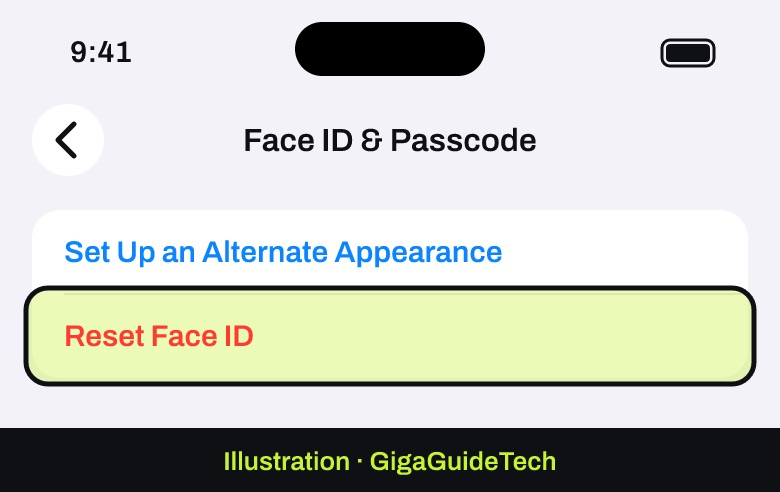
- If none of that works, reset Face ID and set it up again. Go to Settings > Face ID & Passcode, tap Reset Face ID, then tap Set Up Face ID to create a fresh scan.
Face ID with a face mask
Face ID with a mask only works in portrait orientation on iPhone and is not available on iPad at all. If you’re using it on an iPhone 18 Pro Max or similar recent model, make sure you’re holding the phone upright and that your eyes are clearly visible above the mask line.
Orientation differences by model
On iPhone 13 and later, Face ID works in both portrait and landscape orientation. On earlier Face ID iPhones, it only works in portrait orientation while you’re facing the TrueDepth camera directly. iPad, by contrast, recognizes your face in any orientation.
Extra checks for iPhone 18 Pro models
The iPhone 18 Pro models use a new TrueDepth camera, and Apple lists a few extra things to try if Face ID struggles on them. Start by installing iOS 27.0.1 or later from Settings > General > Software Update, since that update includes a Face ID fix for these models. Then:
- Take off any privacy screen protector.
- In low light, remove your glasses or adjust your mask if you are wearing both.
- Remove heavy makeup or beauty masks.
- Avoid strong sunlight shining from behind you.
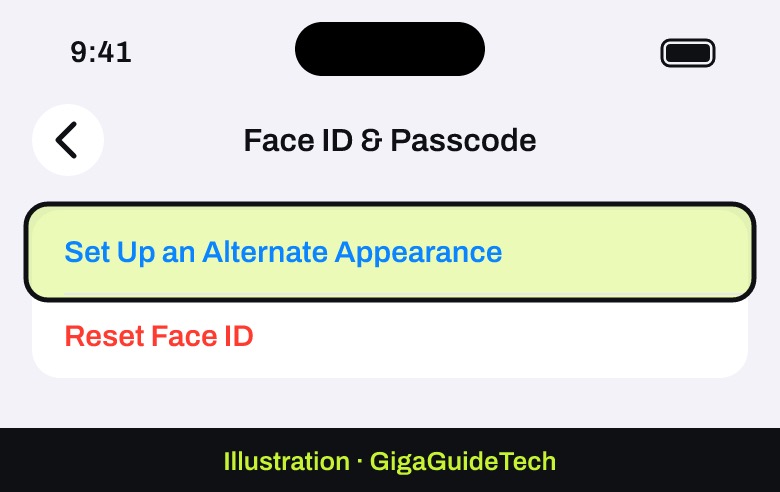
- If you wear clear or prescription glasses, add an alternate appearance while wearing them: go to Settings > Face ID & Passcode > Set Up an Alternate Appearance.
Apple also notes that you might need to enter your passcode more often right after setting up Face ID, because Face ID keeps learning how you look over time.
If it still doesn’t work
If Face ID keeps asking you to reposition your face without ever completing setup, or the front camera doesn’t seem to work at all, this usually points to a hardware issue rather than a settings problem. In that case, Apple recommends having the device looked at by a trained technician, since the TrueDepth camera contains laser components that should only be serviced with genuine parts.
You may also see a specific alert reading “A problem was detected with the TrueDepth Camera. Face ID has been disabled.” This message appears on iPhone X and later, and certain iPad Pro models, when built-in diagnostics detect a fault with the camera hardware. It won’t stop you from using your device otherwise, but Face ID, Animoji, Memoji, and other front-camera features will be unavailable until the device is updated or serviced. If you see this alert, the recommended fix is to have the TrueDepth camera repaired by a trained technician using genuine Apple parts, rather than trying more software resets.
If your Face ID trouble is happening alongside other odd behavior, such as the phone reacting as though liquid got into a port, it’s worth ruling out separate hardware issues too; our guide on fixing a Liquid Detected alert on iPhone covers that specific warning.
FAQ
Does resetting Face ID delete anything else on my iPhone?
No. Resetting Face ID only removes the stored facial data used for recognition. Your photos, apps, messages, and other content are untouched, but you will need to set up Face ID again from scratch.
Can a screen protector or case really break Face ID?
Yes. Anything that partially covers the TrueDepth camera, including a thick screen protector or a case that sits too close to the top edge, can block the sensors enough to cause repeated failures. Removing it is one of the quickest checks to try.
Why does Face ID fail more often when I’m wearing sunglasses?
Some sunglasses are designed to filter out certain wavelengths of light, and that can include the infrared light the TrueDepth camera uses to map your face. If Face ID struggles while you have sunglasses on, take them off and try again.
What does it mean if my iPhone says Face ID has been disabled?
This alert means Apple’s on-device diagnostics found a problem with the TrueDepth camera hardware itself, not a software setting. It’s a safety measure related to the camera’s laser components, and Apple recommends getting the device serviced by a trained technician using genuine parts rather than trying further resets at home.
The bottom line
Most Face ID problems come down to something simple: an outdated iOS version, a smudged or blocked TrueDepth camera, poor positioning, or interference from sunglasses. Working through Apple’s official steps in order, updating software, clearing the camera, checking distance and framing, restarting, and finally resetting Face ID, resolves the vast majority of cases. If the camera repeatedly refuses to complete setup or you see the “Face ID has been disabled” alert, that’s a sign of a hardware fault best left to an authorized repair technician.
Source: Apple Support
Where to buy
- Screen Protector Compatible with iPhone (Camera Cutout, Case-Friendly): check price on Amazon
- Microfiber Lens and Screen Cleaning Cloth Set: check price on Amazon
As an Amazon Associate I earn from qualifying purchases.