This guide is for anyone who wants to check app permissions on their phone to see exactly what data and hardware each app can access, whether that’s your camera, microphone, contacts, or location. By the end, you’ll know how to review permissions by app or by category on both iPhone and Android, including Samsung Galaxy devices, and how to turn off anything you’re not comfortable sharing.
Before you start
- On iPhone, everything below lives in the Settings app under Privacy & Security.
- On a Google Pixel, Google notes that some of these steps work only on Android 11 and up.
- Samsung Galaxy phones use different menu names, covered in their own section below.
- Turning off a permission can stop some app features from working, as Samsung points out.
How to check app permissions on iPhone
By category (Camera, Microphone, Location, and more)
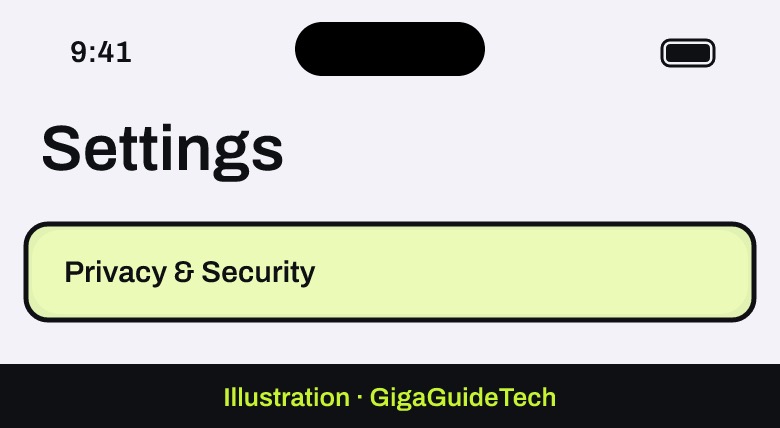
- Open Settings and tap Privacy & Security.

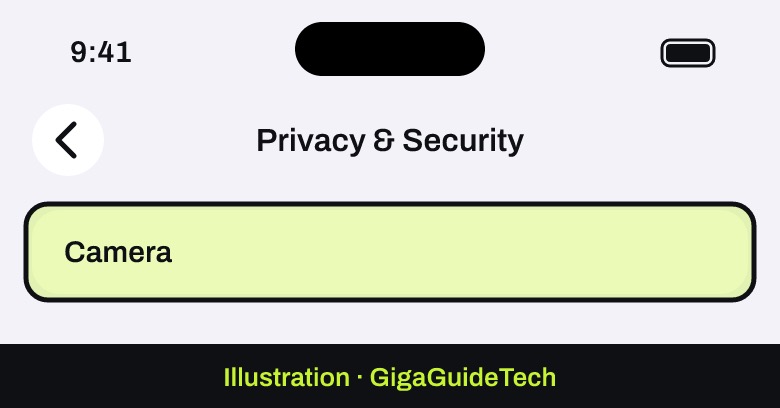
Illustration: Settings > Privacy & Security - Tap a category of information, such as Camera, Microphone, Contacts, Calendars, Reminders, or Motion & Fitness.
Illustration: Privacy & Security > Camera - Review the list of apps that have requested access to that category.
- Turn the toggle on or off next to any app to allow or deny its access.
App Privacy Report
- Go to Settings > Privacy & Security.
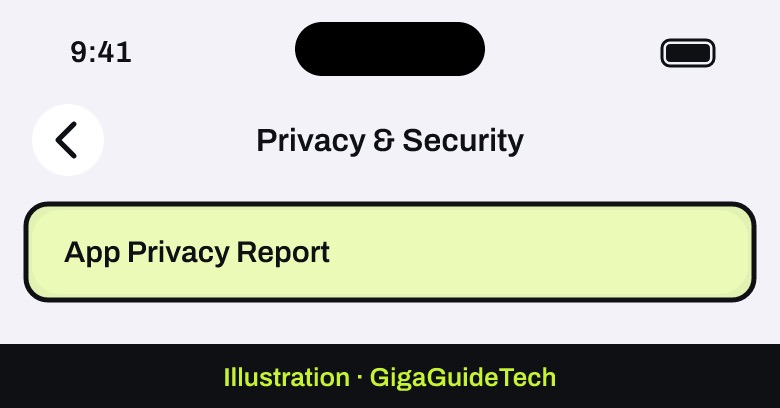
- Scroll down and tap App Privacy Report.
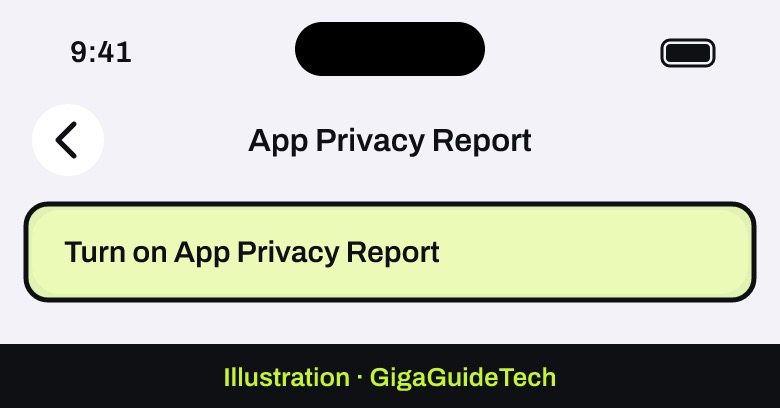
Illustration: Privacy & Security > App Privacy Report - Tap Turn on App Privacy Report.
Illustration: App Privacy Report > Turn on - Apple says the report shows how apps are using the permissions you granted them, plus their network activity.
To turn the report off and delete its data, go back to Settings > Privacy & Security > App Privacy Report and tap Turn Off App Privacy Report.
Checking tracking permissions
- Go to Settings > Privacy & Security > Tracking.
- Review which apps have asked permission to track you across other apps and websites, and switch access on or off for any of them.
How to check app permissions on Android
Method 1: By app
- Open the Settings app.
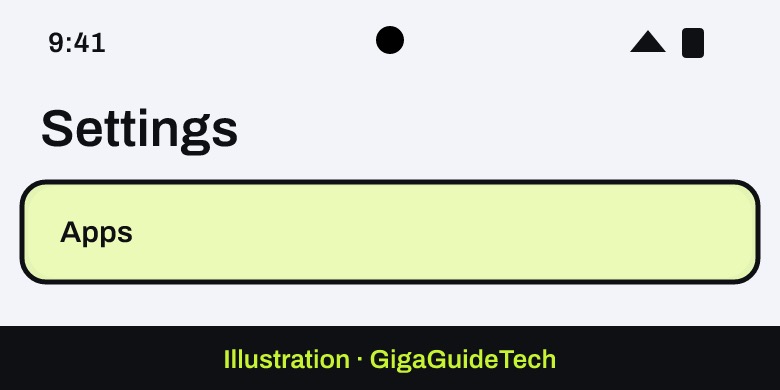
- Tap Apps.
Illustration: Settings > Apps - Tap the app you want to check. If you don’t see it right away, tap See all apps first.
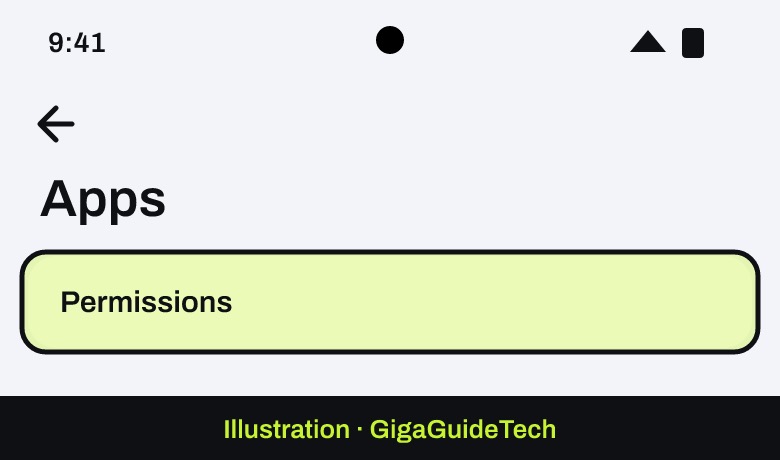
- Tap Permissions to see everything that app has been allowed or denied.
Illustration: Apps > Permissions - Tap any permission, then choose Allow or Don’t allow to change it.
For location, camera and microphone, Google says you may see more choices: Allow only while using the app, Ask every time or Don’t allow, plus All the time for location only.
Method 2: By permission type
- Open Settings.
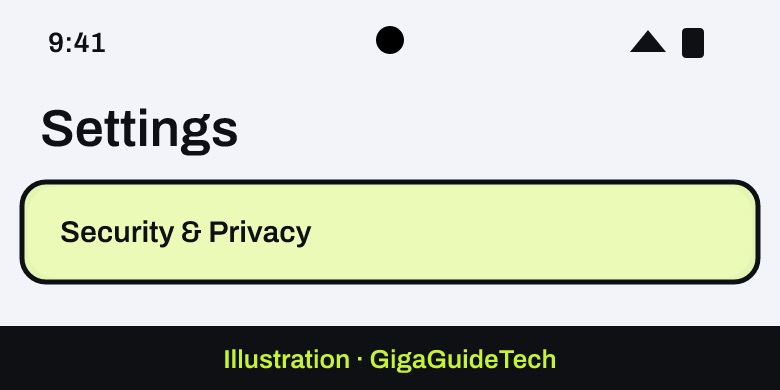
- Tap Security & Privacy, then Privacy, then Permission manager.
Illustration: Settings > Security & Privacy > Permission manager - Tap a permission type, such as Camera, Contacts, Call logs, Files, or Health, Wellness, Fitness, to see every app that has requested it.
Turn off the camera or microphone for every app
- Open Settings.
- Tap Security & privacy, then Privacy, then Privacy controls.
- Turn off Camera access or Microphone access.
Samsung Galaxy phones
Samsung uses the same Permission manager under the hood, just with different menu names.
- Go to Settings and tap Apps.
- Tap the three-dot menu and choose Permission manager to check by permission type, or select an individual app, like YouTube, and tap Permissions to check by app.
- Choose Allow all the time, Allow only while using the app, Ask every time, or Deny as needed.
Menus can shift slightly depending on your Samsung Galaxy model and software version, so exact wording may differ a little from the steps above.
If it still doesn’t work
- On Android: if your app targets Android 11 or later and you haven’t opened it in a few months, the system automatically resets its sensitive permissions to protect your data. You’ll need to grant them again the next time you use the app. On a Pixel, Google lets you control this per app under Unused app settings > Pause app activity if unused.
- On Android: if you denied a permission more than once, the system may stop showing the permission prompt at all, treating repeated denials as “don’t ask again.” In that case, go back into Settings > Apps > the app > Permissions and grant it manually.
- Remember that denying a permission an app truly needs can break features or stop it from working until you allow that permission again.
FAQ
How do I know if an app is using my camera or microphone right now?
On iPhone, a green dot in the status bar means the camera is active, and an orange dot means the microphone is active; a message also appears at the top of Control Center noting recent use.
What’s the difference between checking permissions by app and by category?
Checking by app (or by individual app on Android) shows everything one app can access in a single place. Checking by category, like Camera or Location, shows every app that has requested that specific permission, which is faster if you want to audit one type of access across your whole phone.
Why did an app’s permission reset on its own?
On Android 11 and later, permissions for apps you haven’t opened in a few months are automatically reset to protect your data. You’ll simply be asked to grant them again the next time you use the app.
Does turning off App Privacy Report on iPhone delete my history?
Yes. Turning off App Privacy Report in Settings > Privacy & Security > App Privacy Report clears the report data already stored on your device, so you’ll start fresh if you turn it back on later.
Sources: Apple Support, Google Help, Samsung, developer.android.com