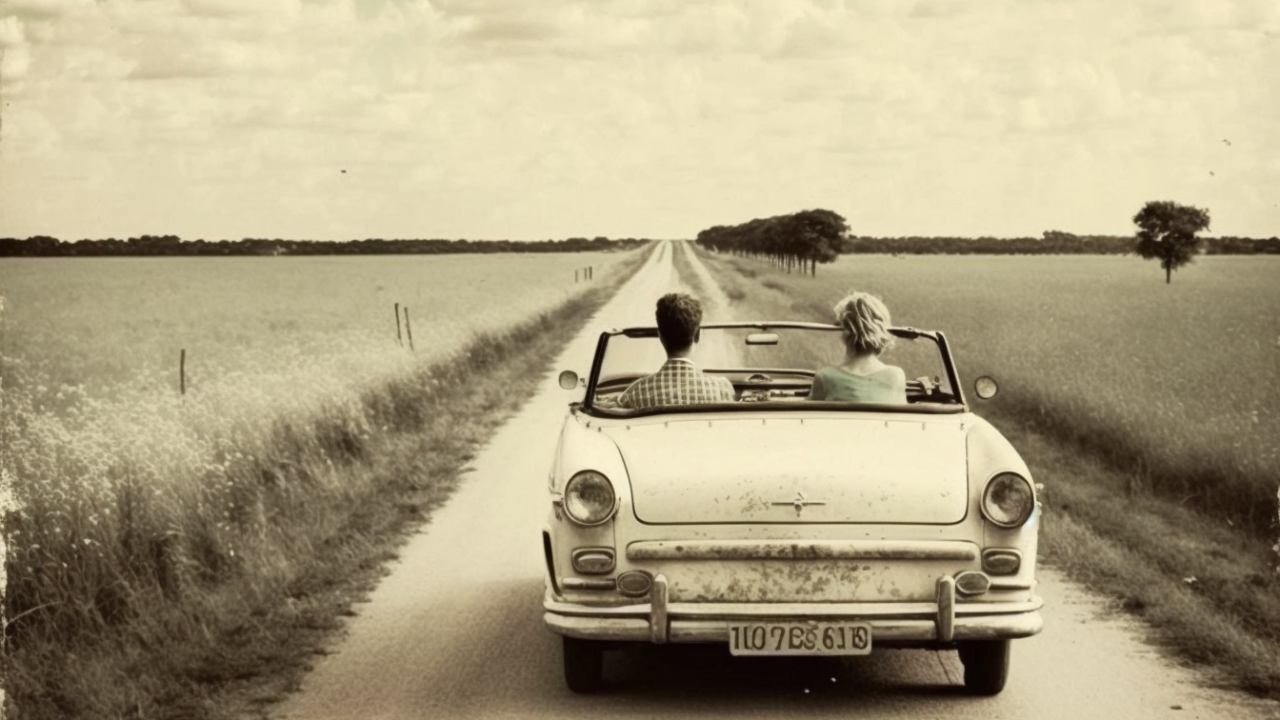
Midjourney is one of the most popular AI image generators: you describe what you want to see, and it creates images (and short videos) from your words. This guide shows you how to use Midjourney today, from choosing a plan to writing your first prompt and editing the results. Midjourney now works mainly on its website, midjourney.com, so you no longer need Discord to get started.
Before you start
- A web browser and an account on midjourney.com.
- A paid subscription: Midjourney doesn’t offer a free plan, so you need to subscribe before you can create images.
- Discord is optional. You can still use Midjourney in its Discord server, but everything in this guide happens on the website.
Step 1: Choose a Midjourney plan
Midjourney has four subscription tiers. All of them renew automatically each month or year until you cancel, and paying for a year upfront gives you a 20% discount.
| Plan | Monthly price | Fast GPU time | Good to know |
|---|---|---|---|
| Basic | $10 | About 3.3 hours a month | Enough to try Midjourney |
| Standard | $30 | 15 hours a month | Unlimited images in Relax mode |
| Pro | $60 | 30 hours a month | Adds Stealth mode for private images |
| Mega | $120 | 60 hours a month | For heavy use |
“Fast” time generates right away, while Relax mode queues your jobs at no extra cost on the Standard plan and above. According to Midjourney, subscribers can use their images in just about any way they want, but companies making more than $1 million a year in revenue need the Pro or Mega plan.
Step 2: Log in and subscribe
- Go to midjourney.com and log in or create an account.
- Pick the plan you want and complete the subscription.
Step 3: Make your first image
- Open the Create page on midjourney.com.
- Click the Imagine bar at the top of the page and type what you’d like to see. This text is your prompt.
- Press Enter (or tap the send button on a phone). Midjourney creates a set of four images, and you can watch them form in real time. When the progress reaches 100%, they’re done.
Step 4: Write better prompts
Midjourney’s own advice is that short, clear prompts usually work best. Instead of a long list of instructions, describe a quick snapshot of your idea. Midjourney’s example: rather than asking it to “show me a picture of lots of blooming California poppies” with a list of extra requests, write something like “Colored pencil illustration of bright orange California poppies.”
- Choose specific words: “gigantic” or “enormous” say more than “big.”
- Use numbers: write “three cats” instead of “cats,” or “a flock of birds” instead of “birds.”
- Describe what you want, not what you don’t: mentioning “no cake” can still make a cake appear. To exclude something, Midjourney has a separate “no” parameter.
- Cover the details that matter to you: the subject, the medium (photo, painting, illustration), the environment, the lighting, the colors, the mood and the composition (close-up, portrait, bird’s-eye view).
Step 5: Refine your images
Click any image on your Create or Organize page to open it and see the Creation Actions:
- Vary: creates new versions of the image with subtle or strong differences.
- Upscale: makes the image larger. Subtle Upscale keeps it the same, while Creative Upscale adds small improvements.
- Remix: lets you change the prompt text or settings and run it again.
- Editor: includes Pan (extend the image in one direction), Zoom Out (add content around all sides) and Vary Region (erase and redo just one part).
- Edit Model: change an image with plain-language instructions, or use reference images for things like keeping a character consistent.
- Use: reuse the image as an image prompt or style reference, or send its prompt back to the Imagine bar.
- Animate: turn the image into a five-second video.
Step 6: Adjust your settings
Click the settings icon in the Imagine bar to change your defaults, including the aspect ratio, the model version, how stylized the results are, Draft Mode, and your GPU speed. Midjourney’s current model is version 8.2. If you’re on the Pro or Mega plan, you can also turn on Stealth mode to keep your images and videos private.
Step 7: Use your own images
You can guide Midjourney with pictures as well as words: image prompts influence the content, composition and colors; style references match the look of another image; the Edit Model works from your images plus text instructions; and a starting frame turns one of your images into a video.
Step 8: Organize and download
The Organize page shows everything you’ve created. From there, you can download, sort and filter your images and videos and group them into folders.
FAQ
Is Midjourney free?
No. You need one of the four paid plans, starting at $10 a month for Basic.
Do I need Discord to use Midjourney?
No. You can do everything on midjourney.com. Discord is still available if you prefer it, and Midjourney’s Discord server is a good place to get prompt tips from the community.
Can I keep my Midjourney images private?
Yes, with Stealth mode, which is only available on the Pro and Mega plans.
Can I use Midjourney images commercially?
According to Midjourney’s plan details, subscribers can use their images in just about any way they want, with one exception: companies with more than $1 million in yearly revenue must be on the Pro or Mega plan. Check the Terms of Service for the full details.
Interested in other AI tools? See how OpenAI doubled ChatGPT usage limits this fall.
Sources: Midjourney: Getting Started Guide, Midjourney: Comparing Plans, Midjourney: Prompt Basics, Midjourney: Modifying Your Creations