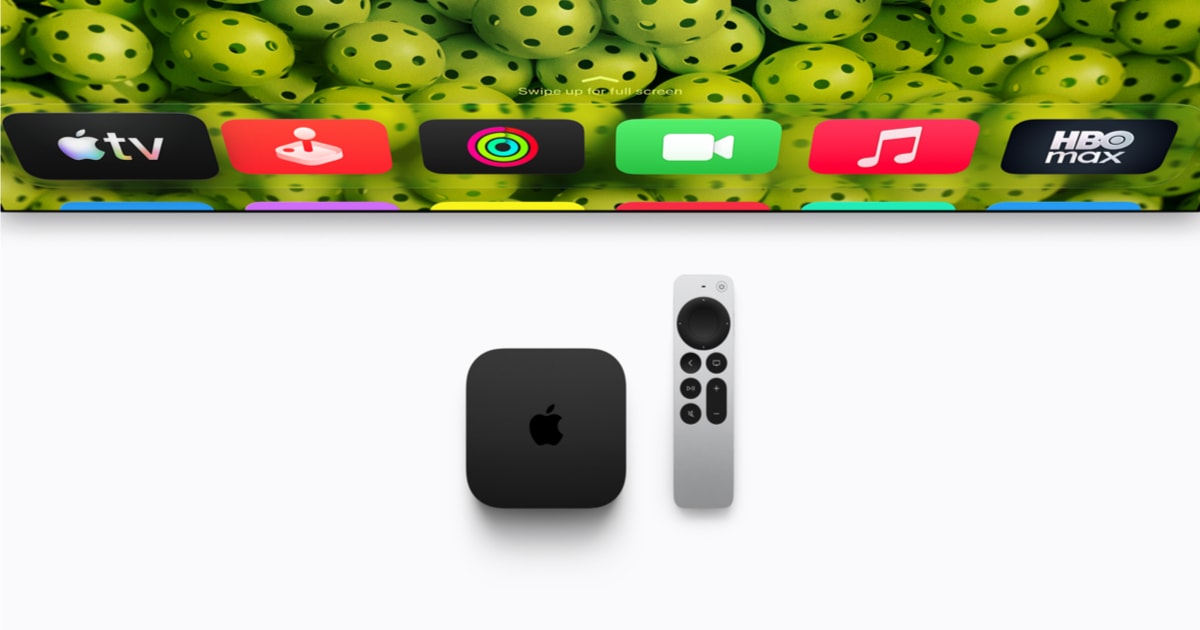
This guide is for anyone who just updated their Apple TV 4K and wants to put the new tvOS 27.2 features to work right away. By the end, you’ll know how to start a FaceTime call from your TV, locate a missing Siri Remote with your iPhone, and understand what the update’s other additions actually do.
Before you start
- You need an Apple TV 4K (2nd generation) or later. tvOS 27.2 is not available on older Apple TV HD models.
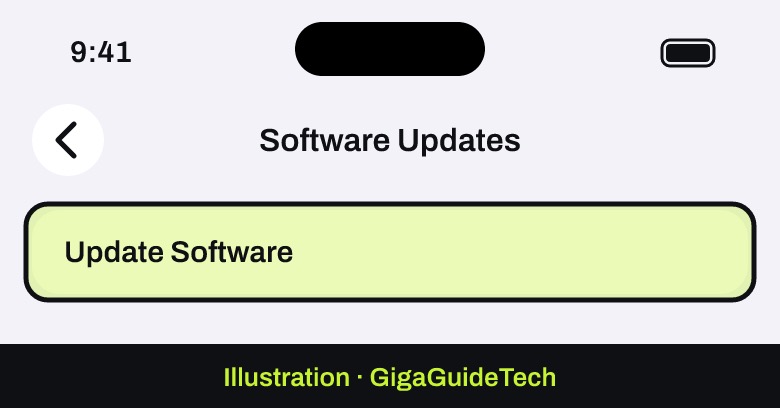
- Update to tvOS 27.2, released October 26, 2026, by going to Settings > System > Software Updates > Update Software on your Apple TV.

Illustration: Software Updates > Update Software - For Find My support, your iPhone needs iOS 17 or later.
- For FaceTime on Apple TV, you’ll need an iPhone or iPad set up as a Continuity Camera.
- No backups are required for this update since it doesn’t involve moving personal data.
What’s new in tvOS 27.2
Apple describes this release as bringing new ways to stay connected with FaceTime, personalize your screen saver, and locate your Siri Remote with Find My, alongside the usual bug fixes and security updates. It builds on tvOS 27, which already added video podcasts, Dynamic Text support, and per-app restrictions in Settings.
How to start a FaceTime call on Apple TV
tvOS 27.2 makes it easier to join calls directly from the big screen through what Apple calls FaceTime links. The exact process for joining a call via a shared link isn’t detailed in Apple’s published support notes, but starting a call from scratch works like this:
- Open the FaceTime app on your Apple TV 4K and connect an iPhone or iPad as a Continuity Camera if you haven’t already.
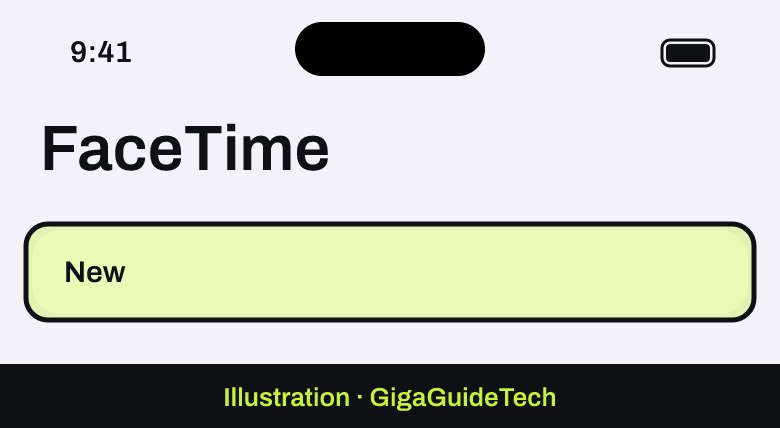
- To start a call, select a recipient from your list of recent FaceTime calls, or select New.
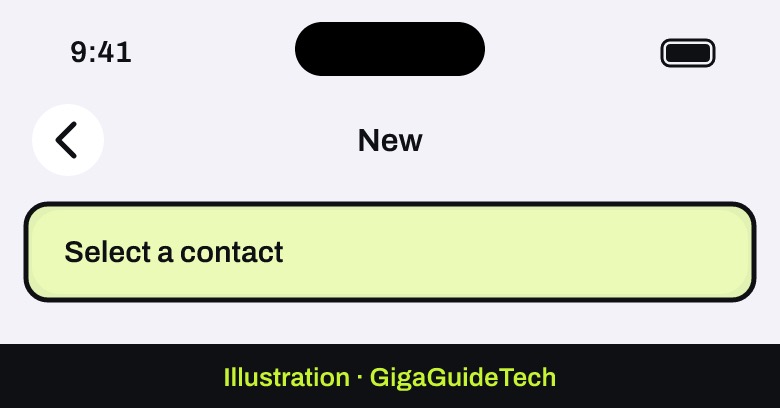
Illustration: FaceTime app - Select a contact, or select more than one contact if you want a group call.
Illustration: FaceTime > New - Choose FaceTime Video or FaceTime Audio to begin the call.
If you’ve received a FaceTime link from someone else, Apple hasn’t published the specific tap-through steps for opening it on Apple TV as of this writing, so the safest route for now is to start or join calls through the FaceTime app itself using the steps above.
How to find a lost Siri Remote with Find My
This is the most fully documented feature in tvOS 27.2, and it only works with the Siri Remote (2nd generation) or later. Here’s how to use it:
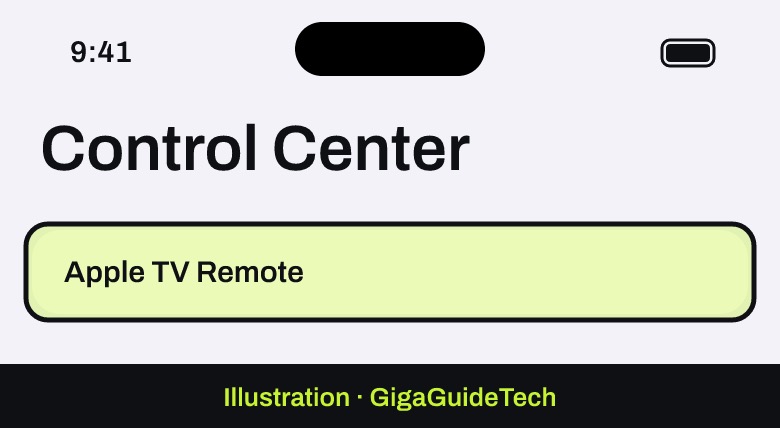
- On your iPhone, swipe to open Control Center, then tap the Apple TV Remote icon.
Illustration: Control Center > Apple TV Remote - Tap the name of the Apple TV 4K at the top of your screen, then tap the Find button for that device’s remote.
Illustration: Control Center > Apple TV Remote - Wait for the notification that your remote has been located.
- Watch for a white dot that grows larger as you move closer to the remote, along with onscreen text telling you if you’re near, far, or here.
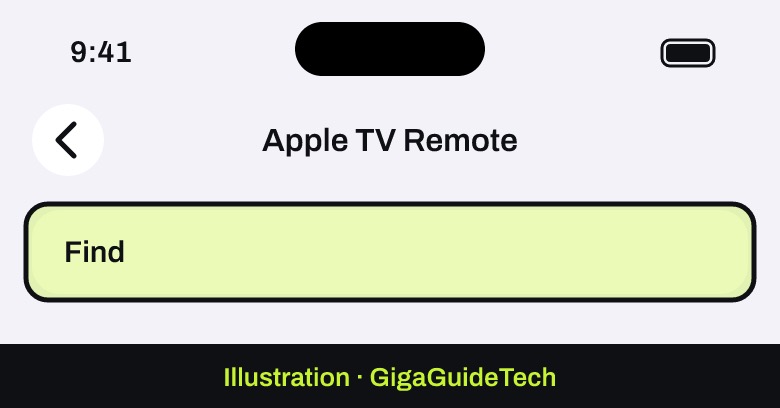
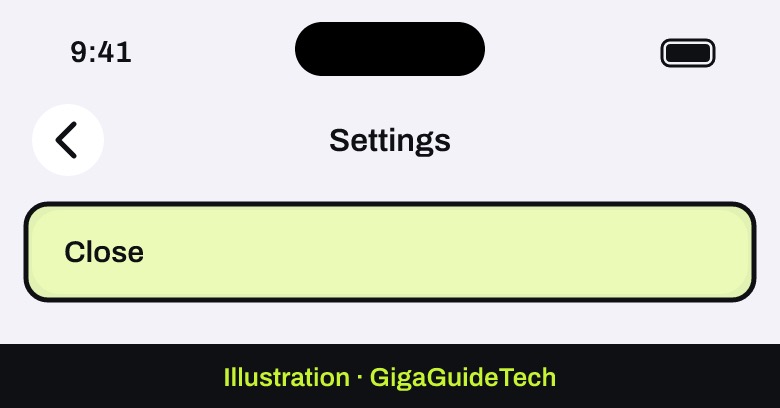
- Tap Close when you’ve found it.
Illustration: Apple TV Remote > Find
You may need to walk around the room for your iPhone to establish a connection with the remote before the distance indicator appears.
Personalizing your screen saver and other additions
tvOS 27.2 also introduces photo personalization for your screen saver, which lets you choose specific photos from your iPhone without sharing your entire photo library with the Apple TV, plus a shuffle option that cycles through different screen saver categories. Apple hasn’t published the exact menu path for setting this up yet, so if you want to try it, check Settings on your Apple TV for a new screen saver option tied to your iPhone, since the precise steps aren’t confirmed in official documentation at this time.
The update also adds sign language interpreter and captioning support, which lets you connect third-party services to your calls. Apple hasn’t released configuration instructions for this feature either, so there’s nothing to walk through yet beyond knowing the capability exists.
If it still doesn’t work
- Make sure your Apple TV 4K is fully updated to tvOS 27.2 under Settings > System > Software Updates.
- Confirm your iPhone is running iOS 17 or later if Find My for the remote isn’t showing up in Control Center.
- If FaceTime won’t start, double-check that your iPhone or iPad is properly connected as a Continuity Camera to your Apple TV.
- If the Find My distance indicator won’t appear, move to a different spot in the room and give your iPhone a moment to reconnect with the remote.
FAQ
Which Apple TV models support tvOS 27.2?
tvOS 27.2 is available for the Apple TV 4K (2nd generation) and later. Older Apple TV HD units aren’t supported.
Do I need a specific Siri Remote for Find My to work?
Yes. Find My support only works with the Siri Remote (2nd generation) or later, and your iPhone needs iOS 17 or later.
Can I join a FaceTime call from a link sent to me on Apple TV?
Apple’s support documentation confirms FaceTime links are part of tvOS 27.2, but it doesn’t yet spell out the exact steps for opening a shared link directly on Apple TV. Starting or joining calls through the FaceTime app itself is the documented method for now.
Where do I turn on photo personalization for the screen saver?
Apple hasn’t published the exact settings path for this feature yet. Check your Apple TV’s screen saver settings after updating, since Apple’s documentation confirms the feature exists even though step-by-step instructions aren’t available.
Source: Apple Support
Where to buy

As an Amazon Associate I earn from qualifying purchases.