If you’ve noticed your AirPods battery draining fast lately, you’re not alone, and Apple has published a handful of official settings and troubleshooting steps that can help. This guide is for anyone using AirPods, AirPods Pro, or AirPods Pro 3 who wants to stretch their battery further day to day, and know exactly what to do if the drain seems abnormal rather than just normal wear.
Before You Start
- An iPhone or iPad with a recent version of iOS or iPadOS (iOS or iPadOS 26 or later is required for AirPods Pro 3’s Optimized Charge Limit)
- Your AirPods paired and connected to that iPhone or iPad
- Your AirPods charging case on hand, since the reset steps involve the case
- No backup needed — resetting your AirPods only clears their paired Bluetooth settings, not any personal data
Turn On Optimized Battery Charging
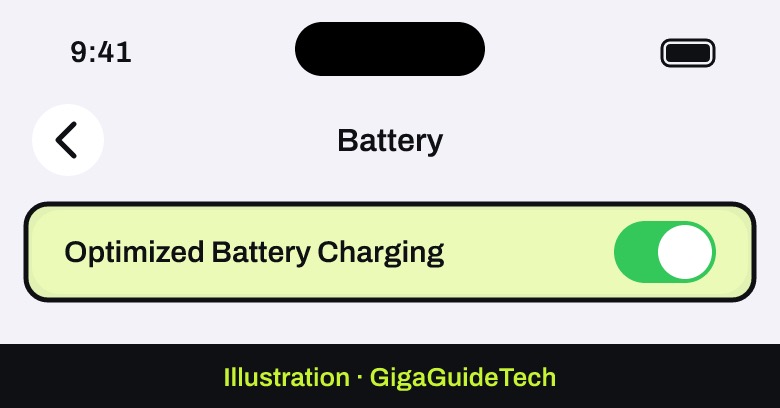
On AirPods Pro and AirPods 3 or later, Optimized Battery Charging is designed to reduce wear on the battery by learning your daily routine and waiting to charge fully until just before you’ll need them. It’s turned on by default, but it’s worth confirming it hasn’t been switched off.
- Wear your AirPods, and make sure they’re connected to your iPhone or iPad.
- Go to the Settings app, tap the name of your AirPods, then tap Battery.
- Check that Optimized Battery Charging is switched on. If you ever need a full charge right away, you can turn it off temporarily from this same screen.
Turn On Optimized Charge Limit (AirPods Pro 3)
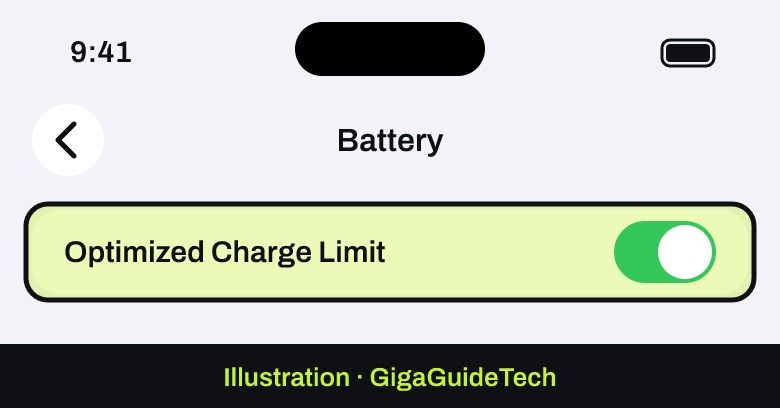
AirPods Pro 3 adds a second setting called Optimized Charge Limit, which is on by default when you set up the earbuds or update to iOS or iPadOS 26 or later. It works alongside Optimized Battery Charging to further protect long-term battery health.

- Wear your AirPods, and make sure they’re connected to your iPhone or iPad.
- Go to the Settings app, tap the name of your AirPods, then tap Battery.
- Leave Optimized Charge Limit on for daily use. If you need a full charge for a specific day, you can turn it off just for that day, or disable it entirely from this screen.
Everyday Habits That Extend Battery Life
Beyond the software toggles, Apple’s own guidance points to a few simple habits that make a real difference over time.
- Put your AirPods back in the case whenever you’re not using them. The case holds multiple full charges, so topping up little and often keeps you covered.
- Keep your AirPods within Apple’s recommended comfort zone of 62° to 72°F (16° to 22°C), and avoid temperatures above 95°F (35°C), which can permanently damage battery capacity.
- Avoid charging in hot environments. Apple notes that software may limit charging above 80% when recommended battery temperatures are exceeded, and that storing a battery somewhere hot can damage it irreversibly even if you’re not actively using it.
- If you always route calls or voice commands through the microphone on just one AirPod, expect that AirPod to drain faster than the other. This is expected behavior tied to microphone use, not a fault.
Reset Your AirPods if the Drain Seems Abnormal
If none of the above explains a sudden or severe drop in battery life, Apple’s official fix is to reset your AirPods. The exact steps depend on which model you own.
AirPods Pro (1st and 2nd generation), AirPods (1st, 2nd and 3rd generation)
- Put your AirPods in their charging case, close the lid, and wait 30 seconds.
- On the iPhone or iPad paired with your AirPods, go to Settings, then tap Bluetooth.
- Open the lid of your charging case.
- Press and hold the setup button on the back of the case for about 15 seconds, until the status light flashes amber, then flashes white.
- Follow the steps on your device’s screen to reconnect your AirPods.
AirPods Pro 3, AirPods 4, AirPods 5
This covers all AirPods 4 models, both AirPods 5 models and AirPods Pro 3, which use a double-tap on the case instead of a setup button.
- Put your AirPods in their charging case, close the lid, and wait 30 seconds.
- On the iPhone or iPad paired with your AirPods, go to Settings, then tap Bluetooth.
- Open the lid of your charging case.
- Double-tap the front of the case while the status light is on.
- Double-tap again when the status light flashes white.
- Double-tap a third time when the status light flashes faster, then follow the on-screen steps to reconnect.
Resetting only clears your AirPods’ paired settings, so you can simply reconnect and reconfigure them afterward with no data loss.
If It Still Doesn’t Work
If you’ve reset your AirPods and the battery is still draining abnormally fast, Apple’s official recommendation is to contact support rather than keep troubleshooting on your own. According to Apple, it’s worth seeking service if any of the following apply:
- The battery drains 20% or more per day even when the AirPods aren’t in use
- One AirPod consistently drains significantly faster than the other, beyond what’s expected from one-sided microphone use
- The battery status shown on your device appears inaccurate
If you’re within 14 days of purchase, Apple may exchange the AirPods outright. Outside that window and outside warranty coverage, Apple offers battery service for a fee. If the issue is specifically about charging rather than drain, it’s also worth checking our guide on how to fix AirPods not charging in the charging case, since a charging problem can look like battery drain at first.
FAQ
Does Optimized Battery Charging reduce my AirPods’ maximum battery life per charge?
No. It’s designed to reduce wear over the long run by limiting how long your AirPods sit at 100%, not to cap how much charge they hold on any single charge.
Why does one of my AirPods drain faster than the other?
If you consistently use the microphone on just one AirPod — for calls or voice assistants, for example — that AirPod will use more power than the other. This is expected and not a sign of a fault.
Will resetting my AirPods delete anything?
No. Resetting clears your AirPods’ paired Bluetooth settings so you can reconnect them, but it doesn’t erase any personal data, since AirPods don’t store data the way a phone or computer does.
How hot is too hot for AirPods?
Apple’s ideal comfort zone is 62° to 72°F (16° to 22°C). Ambient temperatures above 95°F (35°C) can permanently damage battery capacity, and charging in hot conditions can make things worse, so avoid leaving your case in a hot car or direct sun.
The Bottom Line
Most AirPods battery complaints come down to settings and habits: keeping Optimized Battery Charging (and, on AirPods Pro 3, Optimized Charge Limit) turned on, storing your AirPods in the case when you’re not using them, and keeping them away from heat. If battery life still drops abnormally fast after a reset, that points to a hardware issue Apple expects you to resolve through support rather than more settings tweaking.
Sources: Apple, Apple Support
Where to buy


As an Amazon Associate I earn from qualifying purchases.