This guide is for anyone who wants to check your Windows 11 version and make sure their PC is running the latest release. Whether you’re troubleshooting a problem, confirming you’re eligible for a new feature, or an update keeps failing, you’ll learn exactly where to look and what to do next, using only the official steps Microsoft provides.
Before you start
- You’ll need an account with administrator access on the PC.
- Make sure your device has a working internet connection, since it’s required to check for and download updates.
- Confirm you have enough free space. Windows Update will tell you if it needs more room to install an update.
- Back up your important files to an external drive or OneDrive first. A normal update through Windows Update shouldn’t touch your files, apps, or settings, but it’s always worth having a backup in case something goes wrong.
- Keep your PC plugged in during the update process, since interruptions like an accidental restart can cause the installation to fail.
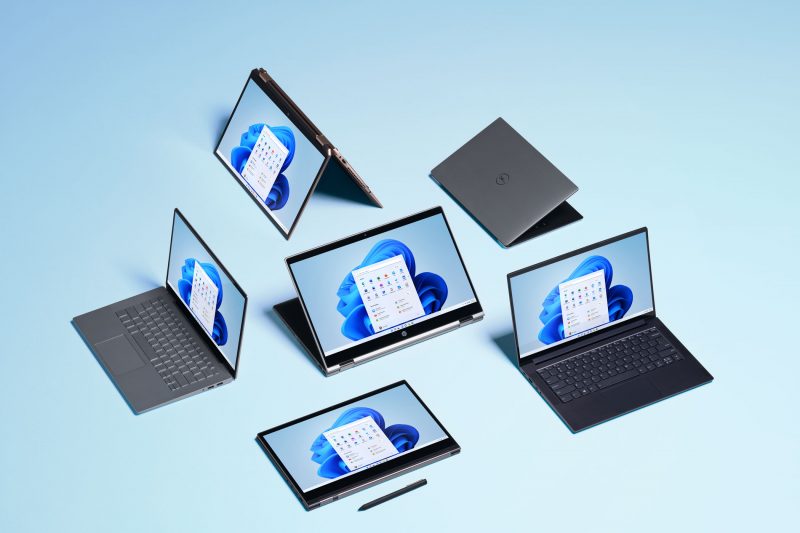
How to check your Windows 11 version
Using Settings
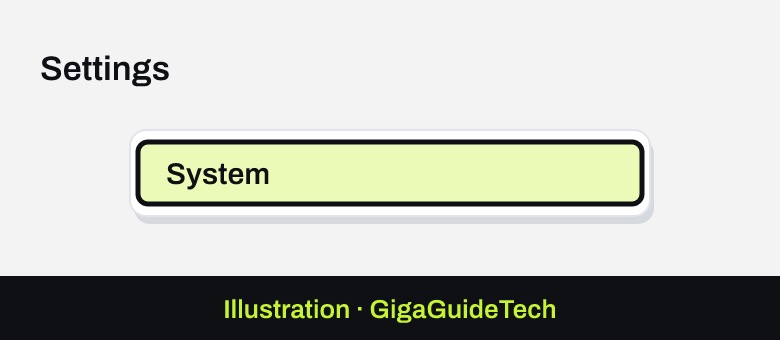
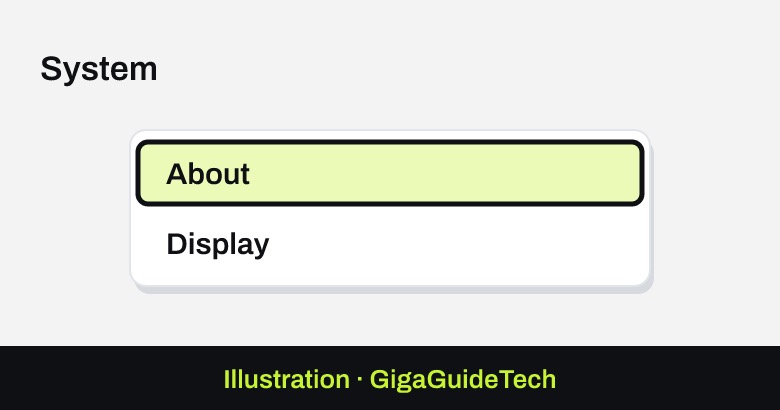
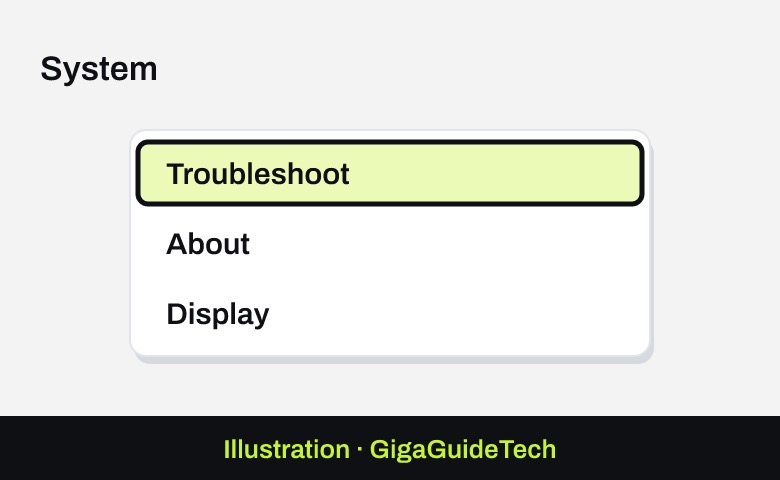
- Select Start > Settings > System, then select About.

Illustration: Settings > System Illustration: System > About - Look under Edition, Version, and OS Build to see exactly what you’re running.
- If Version says 24H2, that version stopped getting security updates on October 13, so update to a newer release.
Using the winver command
- Select the search box on the taskbar and type winver.
- Select winver from the results to open the About Windows dialog, which shows your edition, version, and build number.
Using System Information or Command Prompt
- Type msinfo32 into the search box and open System Information to see detailed version and build data.
- Alternatively, open PowerShell or Command Prompt and run systeminfo | findstr /B /C:”OS Name” /B /C:”OS Version” to get the same information in text form.
How to check for and install updates
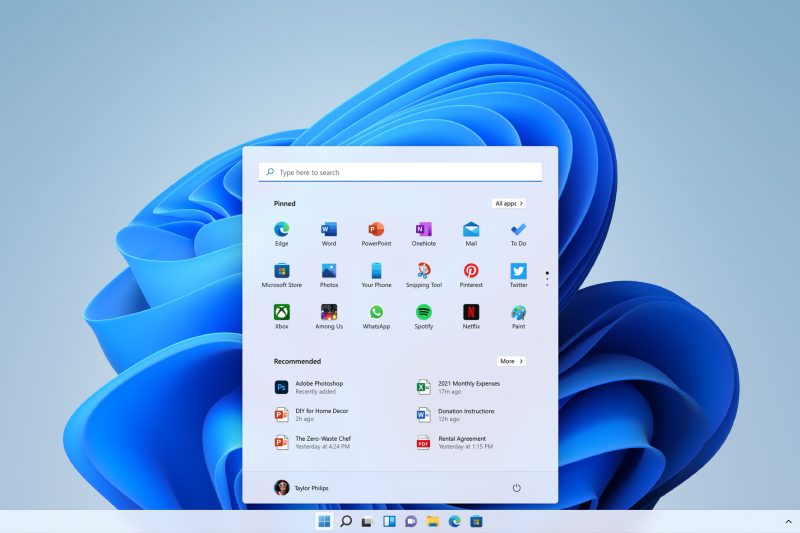
Windows 11 normally downloads and installs updates automatically in the background, so most people won’t need to do anything. If you want to check manually or force an update through, here’s how.
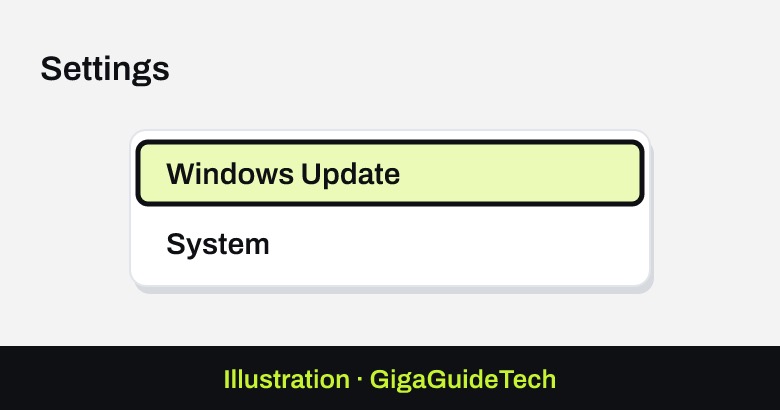
- Select Start > Settings > Windows Update.
Illustration: Settings > Windows Update - Select Check for updates.
Illustration: Windows Update > Check for updates - If an update is available, select Download & install.
- Restart your device if you’re prompted to, so the update can finish applying.
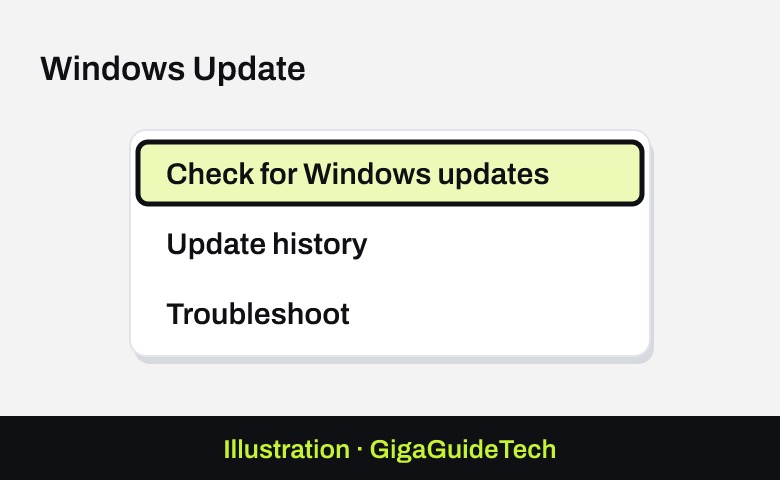
You can review everything that’s already been installed, including anything that failed, by going to Start > Settings > Windows Update > Update history.
If the newest version isn’t showing up automatically under Check for updates, Microsoft also offers the Windows 11 Installation Assistant, a separate tool for manually downloading and installing the latest feature update on a compatible PC. This is different from a clean install from bootable installation media, which wipes the drive and should only be used when you specifically want to start fresh.
If it still doesn’t work
Update failures usually trace back to a handful of common causes: low disk space, a corrupted update cache, incompatible apps, outdated drivers, or third-party security software getting in the way. Work through these official fixes in order.
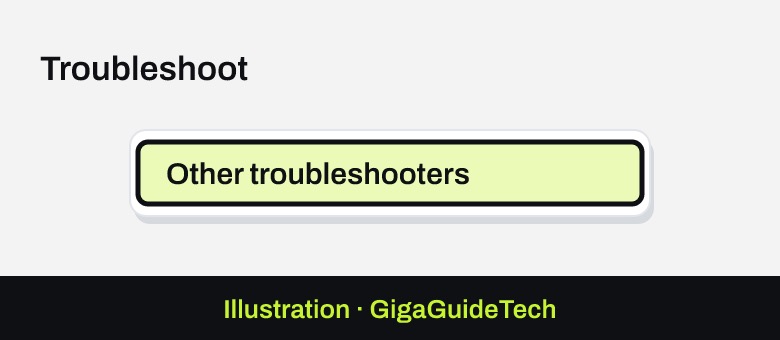
- Run the built-in Windows Update troubleshooter. Go to Start > Settings > System > Troubleshoot > Other troubleshooters, find Windows Update, and select Run.
Illustration: Settings > System > Troubleshoot Illustration: Troubleshoot > Other troubleshooters - Repair system files. Open Command Prompt and run DISM.exe /Online /Cleanup-image /Restorehealth, then follow it with sfc /scannow once that finishes.
- Clear the Windows Update cache. Press Win + R, type services.msc, right-click the Windows Update service and select Stop. Delete the contents of C:\Windows\SoftwareDistribution, then go back and select Start on the service again.
- Free up disk space using the Disk Cleanup tool if storage is the issue.
- Disconnect external drives, docks, and other peripherals you don’t need, keeping only your mouse, keyboard, and display connected.
- Open Device Manager and look for devices marked with a yellow exclamation mark, which can point to a driver conflict blocking the install.
- Update your drivers through Windows Update before trying again, since an outdated driver is a frequent cause of failed installs.
- Temporarily uninstall third-party antivirus or security software, complete the update, then reinstall it afterward.
- If none of this resolves it, check Update history for the specific error code tied to the failed update and use that when contacting Microsoft support.
FAQ
How do I know if my Windows 11 PC meets the requirements for the latest update?
Microsoft’s minimum requirements call for a 1 GHz or faster 64-bit processor with two or more cores, 4 GB of memory, and 64 GB of available storage. If your device was already running Windows 11, it generally still meets these, but very low free disk space can still block a specific update.
Will updating Windows 11 delete my files?
An in-place update through Windows Update is not supposed to affect your personal files, apps, or settings. That said, Microsoft still recommends backing up your files to an external drive or OneDrive beforehand, since there’s always a small risk something could go wrong during the process.
What does it mean if my update fails with an error code?
Different codes point to different problems. For example, codes in the 0xC1900 range often relate to compatibility or pending cleanup from a previous attempt, while 0x8007000d usually points to corrupted update files. You can find the exact code in your update history and look it up for targeted guidance.
My PC isn’t offered the newest version automatically. What should I do?
If Check for updates doesn’t show the newest release, try the Windows 11 Installation Assistant, which lets you manually download and install the latest feature update on a compatible device.
The bottom line
Checking your Windows 11 version takes less than a minute through Settings or the winver command, and keeping it current is mostly automatic. If an update stalls or fails, work through the troubleshooter, cache clearing, and driver checks above before assuming something is seriously wrong, and always keep a backup handy before any major upgrade.
Sources: Microsoft Learn, Microsoft Support
Where to buy
As an Amazon Associate I earn from qualifying purchases.