This guide is for anyone who wants to wipe a Windows PC and start over with a fresh copy of the operating system. A clean install Windows 11 setup erases everything on the drive and reinstalls the OS from scratch, which is the most reliable way to fix persistent slowdowns, corruption, or a cluttered system that upgrades alone can’t solve. By the end, you’ll have a freshly installed, activated copy of Windows 11 ready to configure.
Before you start
- Back up everything you want to keep — photos, documents, saved games, application files. A clean install deletes all content on the drive.
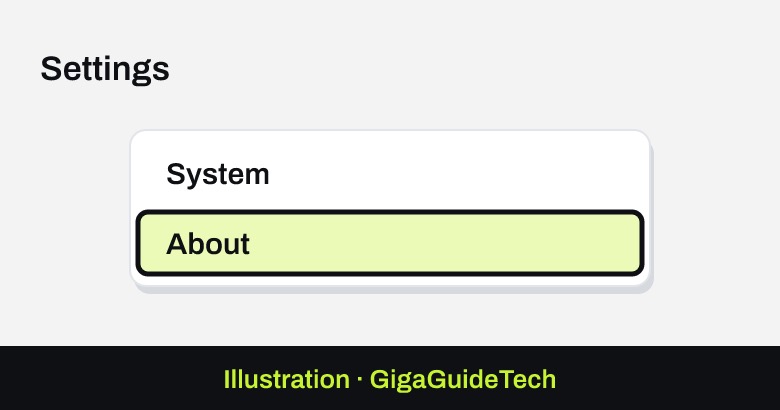
- Check your current Windows edition at Settings > System > About (for example, Windows 11 Pro), so you can reinstall the same edition.

Illustration: Settings > System > About - Grab a blank USB drive with at least 8GB of space. Everything on it will be erased during media creation.
- Confirm your PC meets the minimum requirements: a 64-bit, 1GHz or faster processor with 2 or more cores, 4GB of RAM, 64GB of storage, UEFI firmware with Secure Boot support, TPM 2.0, and a DirectX 12-compatible graphics card.
- Make sure you have a working internet connection, since it’s needed to download the media and activate Windows afterward.
Step 1: Create installation media on a working PC
- Go to the official Windows 11 download page on microsoft.com and, under “Create Windows 11 Installation Media,” select Download Now to get MediaCreationTool.exe. Only use Microsoft’s official tool — never a third-party downloader — to keep the media trustworthy.
- Plug in the USB drive and run the tool as an administrator.
- Accept the license terms.
- Uncheck Use the recommended options for this PC if you want to choose a different language or edition.
- Select your USB drive and choose Next. This formats the drive and copies the Windows installation files onto it.
- Select Finish once the process completes.
Step 2: Boot from the USB drive
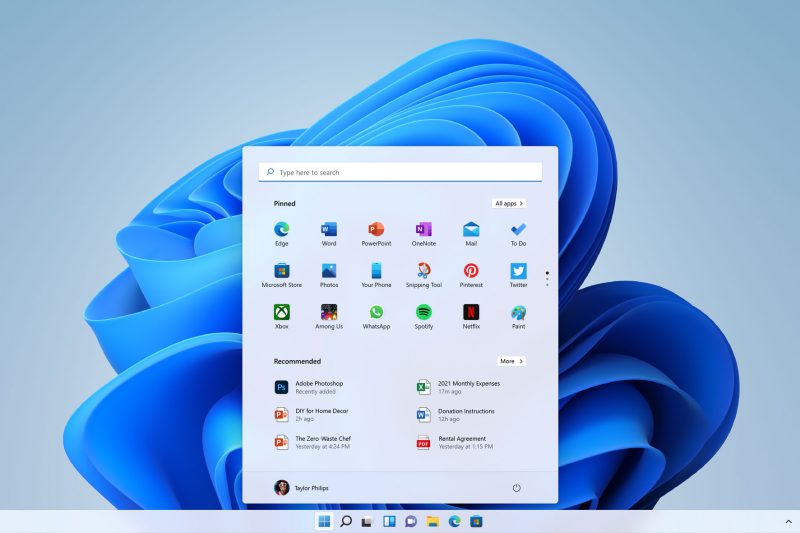
Insert the USB drive into the PC you’re reinstalling, then restart into the Windows Recovery Environment: open the Start menu, select the power icon, hold Shift, and choose Restart. On the blue menu that appears, select Use a device and pick your USB drive.

If that doesn’t work
Restart the PC and choose the option to boot from the USB drive. Depending on the manufacturer, you may need to enter the BIOS/UEFI boot menu manually — check your PC maker’s instructions for the exact key.
On the Windows Setup screen, choose your language, time, and keyboard preferences, then select Install now.
Step 3: Accept the license and pick your edition
- On the Activate Windows screen, select I don’t have a product key if you’re reinstalling the same edition you had before.
- On Select the operating system you want to install, choose the same Windows 11 edition you noted earlier.
- Accept the Microsoft Software License Terms.
Step 4: Choose custom install and set up partitions
- Select Custom: Install Windows only (advanced).
- On the partition screen, select and delete every partition listed under Disk 0 that isn’t already Unallocated Space. Delete partitions one at a time using the Delete button.
- Don’t touch partitions on any other disks, such as Disk 1, if your PC has more than one drive.
- Once Disk 0 shows only Unallocated Space, select it and choose Next to begin installation.
From here, Windows installs itself and restarts the PC several times automatically. Don’t turn off your PC during this process, even if it looks stuck — installation time depends on your hardware and internet speed.
After installation
Your PC will boot into the Out-of-Box Experience, which walks you through setting up Windows 11. Sign in with your Microsoft account during setup so the digital license tied to your account can be applied automatically — Windows should activate itself once you’re connected.
If it still doesn’t work
- Error 0xC1900101-0x20017 (driver-related): unplug all non-essential external devices and drives, remove third-party antivirus software, and update your motherboard’s BIOS firmware. Keeping your drivers updated before you start can prevent this entirely.
- Errors 0x80070070 – 50011/50012/60000: free up more disk space and try again.
- Unbootable after install or repeated failures with multiple drives: Windows Setup can struggle with multi-drive configurations. Try disconnecting non-essential disks, leaving only the target drive connected, and reinstall.
- TPM or Secure Boot errors, or unsupported CPU messages: open tpm.msc to confirm Specification Version 2.0 is present, and check your UEFI firmware to make sure TPM 2.0 and Secure Boot are actually enabled — many motherboards support them but ship with them off. Also confirm CSM/Legacy mode is disabled and the drive is formatted as GPT, not MBR.
- Errors 0x8007042B-0x4000D or 0x800700B7-0x2000a (setup terminated unexpectedly): perform a clean boot into Windows to stop background apps and services from interfering, then retry.
- Corrupted or faulty installation media: recreate the bootable USB using the official Media Creation Tool rather than reusing an old or third-party-made drive.
- Outdated BIOS: update your motherboard firmware from the manufacturer’s support page, then make sure Secure Boot and TPM 2.0 are enabled.
FAQ
Will a clean install delete all my files?
Yes. A clean install formats the drive and removes everything on it, which is why backing up your data beforehand is essential.
Do I need a product key to reinstall Windows 11?
Not if you’re reinstalling the same edition that was already activated on this PC and signed in with your Microsoft account. Selecting “I don’t have a product key” and signing in afterward lets Windows reapply the license automatically.
Can I clean install Windows 11 on an unsupported PC?
Officially, no — the PC needs to meet the minimum requirements, including TPM 2.0, Secure Boot, and a compatible 64-bit processor. Registry-based workarounds exist but are unsupported by Microsoft and come with their own risks, so they aren’t covered here.
How long does a clean install take?
It varies depending on your internet speed and hardware, but expect the PC to restart several times during the process. Avoid turning it off, even if progress appears to stall.
Sources: Microsoft Learn, Microsoft Support
Where to buy
- SanDisk Ultra 64GB USB 3.0 Flash Drive: check price on Amazon
- Seagate Portable External Hard Drive 2TB (for backups): check price on Amazon
- SanDisk Extreme Portable SSD 1TB: check price on Amazon
As an Amazon Associate I earn from qualifying purchases.