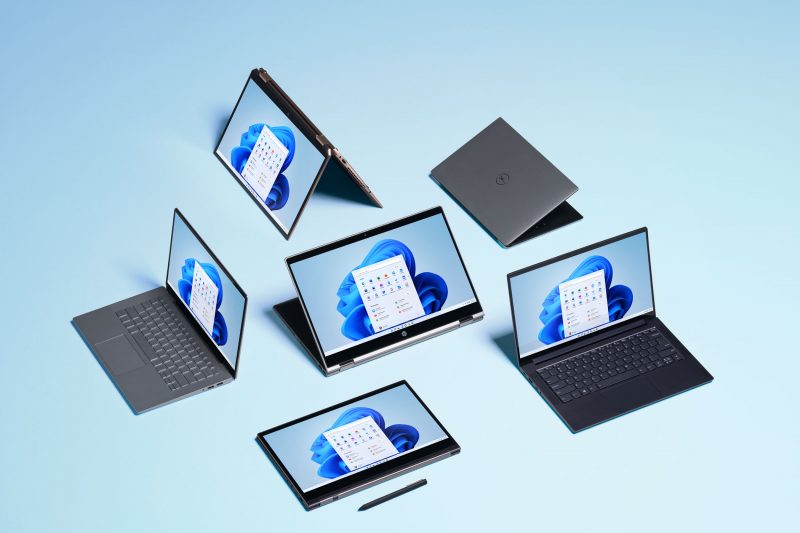
This guide is for anyone setting up a new Windows 11 PC, reinstalling the operating system, or seeing an “activate Windows” watermark who wants their copy properly licensed. By the end, you’ll know how to activate Windows 11 using either a digital license or a 25-character product key, and how to fix the most common errors along the way.
Before you start:
- Your PC must be connected to the internet — activation cannot complete offline.
- You’ll need to sign in with an administrator account on the device.
- Know where you got your copy of Windows 11 (free upgrade, new PC, retail box, digital purchase, or volume license), since this determines whether you need a product key or a digital license.
- If you purchased through the Microsoft Store, have access to the Microsoft account and confirmation email used for the order.
- No files are deleted by activation itself, but if you’re reinstalling Windows as part of this process, back up important files first.
Step 1: Check Whether Windows 11 Is Already Activated
Before doing anything else, confirm your current activation status.
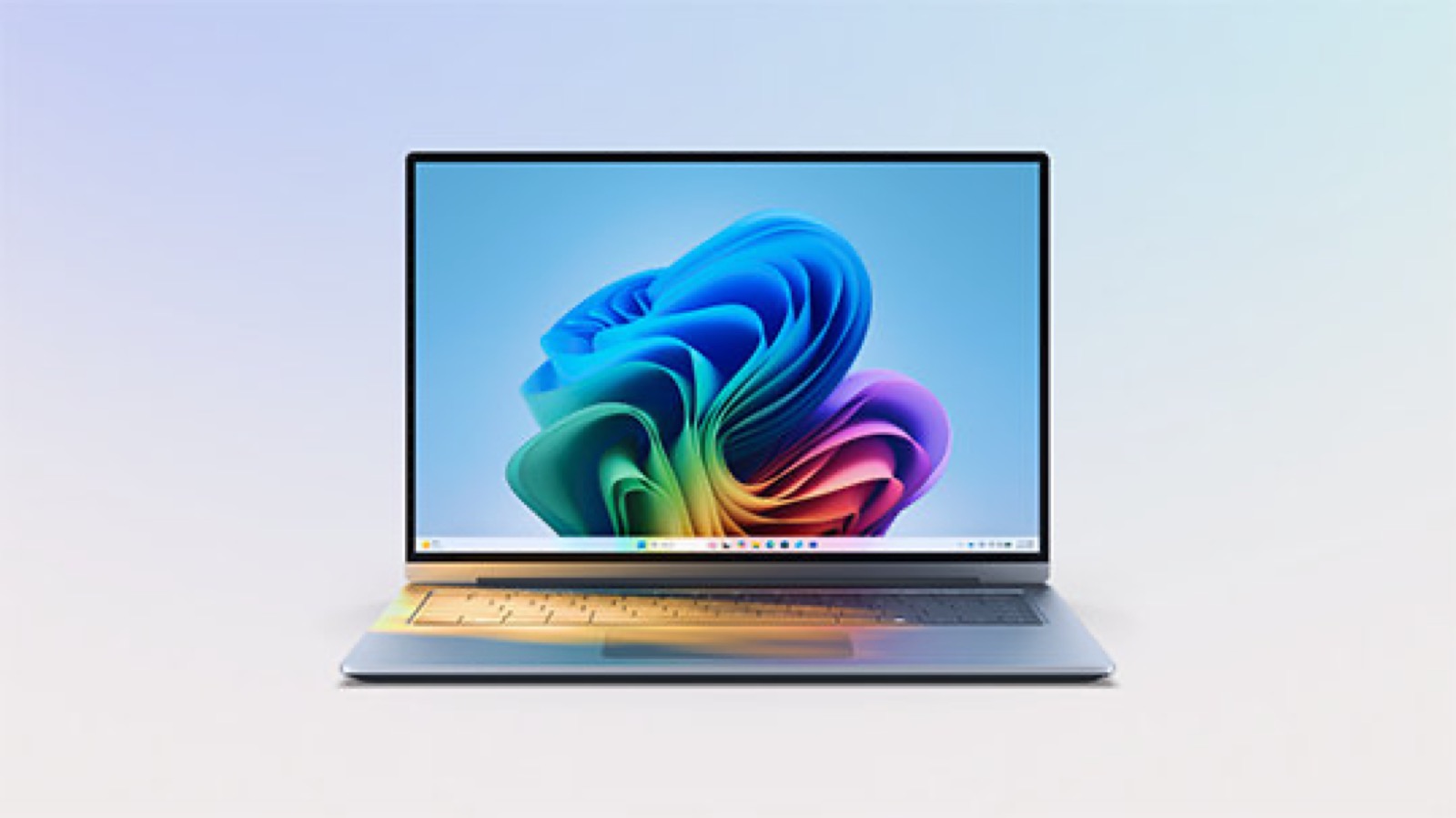
- Select the Start button, then select Settings > System > Activation.

Illustration: Settings - Read the status message shown on the page. You’ll see one of four outcomes: Windows is activated but your Microsoft account isn’t linked; Windows is activated with a digital license but not linked to your account; Windows is activated with a digital license that’s already linked to your account; or Windows is not activated, with an error explaining why.
If your account isn’t linked yet, follow the steps below — linking it now makes future reactivation much easier if you ever change hardware.
Step 2: Find Your Product Key or Digital License
Where you look depends on how you obtained Windows 11:
- If you upgraded for free from a genuine Windows 10 device, you already have a digital license — no key needed.
- If you bought a Windows 11 Pro upgrade through the Microsoft Store, your digital license is tied to the Microsoft account used for the purchase; check your confirmation email.
- If you bought a PC with Windows 11 preinstalled, the product key is on the device packaging or a Certificate of Authenticity (COA) attached to the device.
- If you bought a boxed retail copy, the key is on a label inside the box.
- If you bought a digital copy from an authorized retailer, the key is in your purchase confirmation email or in a digital locker on the retailer’s site.
- If you have a Volume Licensing agreement or MSDN subscription, the key is in the relevant web portal.
Note that Microsoft only keeps a record of your key if you purchased directly from the Microsoft online store; you can check this under your account’s order history.
Step 3: Activate With a Digital License
A digital license doesn’t require entering any code. It’s tied to your hardware and your Microsoft account.
- Make sure your PC is connected to the internet.
- Sign in with the Microsoft account linked to the digital license.
Activation happens automatically once both conditions are met — there’s nothing further to enter.
Step 4: Activate With a Product Key
During a fresh installation
If you’re installing Windows 11 for the first time and have a key, you’ll be prompted to enter it during setup.
After installation
- Select the Start button, then select Settings > System > Activation > Change product key.
- Enter your 25-character product key.
- Follow the on-screen instructions. Make sure your device is online, since activation requires an internet connection.
If you don’t have a key during setup
Select I don’t have a product key on the setup screen to continue without one. Once installed, go to Settings > System > Activation and select Open Store to purchase a digital license.
Step 5: Link Your Microsoft Account to Your Digital License
Linking matters because it lets you reactivate Windows later using the built-in troubleshooter if you make a significant hardware change, such as replacing your motherboard.
- Confirm you’re using an administrator account: select Start, then Settings > Accounts > Your info. You should see Administrator listed under your name.
- Check whether an email address appears — that means you’re signed in with a Microsoft account rather than a local account.
- Go back to Settings > System > Activation, select Add an account, enter your Microsoft account credentials, and select Sign in.
Afterward, the activation page should read “Windows is activated with a digital license linked to your Microsoft account.”
Reinstalling Windows 11 or Changing Hardware
If your device already has a digital license, reinstalling the same edition doesn’t require a product key — if prompted during setup, just select I don’t have a product key, and Windows will activate automatically once you’re online and signed in with the linked account. Be sure Windows is already activated before you start a reinstall.
If you’ve recently replaced significant hardware, such as the motherboard, and your digital license is linked to your Microsoft account, go to Settings > System > Activation > Troubleshoot, select I changed hardware on this device recently, select Next, and sign in with the connected Microsoft account. If you instead have a product key, use Change Product Key to enter it directly.
If It Still Doesn’t Work
Microsoft’s built-in Activation troubleshooter handles most remaining issues. It only appears when your copy isn’t yet activated, and you must be signed in as an administrator to use it. Go to Start > Settings > System > Activation > Troubleshoot.
- Edition mismatch (licensed for Pro, running Home): in the troubleshooter, select Upgrade to Windows 11 Pro, then Start upgrade. This can take a while, and the PC is unusable until it finishes.
- Edition mismatch (licensed for Home, running Pro): Windows should activate automatically with your digital license once installation completes.
- Digital license not yet activated: select Activate Windows, then Activate.
Specific error codes also have documented fixes: 0x803F7001 means no valid license was found — enter a key via Change product key, or purchase one through the Microsoft Store. 0xC004C003 means the key is invalid or already used elsewhere; if the PC came with Windows preinstalled, contact the manufacturer. 0xC004F034 means the key doesn’t match the installed edition. 0xC004C008, 0xC004C770, and 0x803FA071 all point to a key already in use on another device or too many devices — you’ll need a separate key or digital license from the Microsoft Store via Settings > Activation > Go to Microsoft Store.
If a significant hardware change still won’t reactivate after trying the troubleshooter, Microsoft recommends contacting customer support directly for further help.
FAQ
Can I transfer my Windows 11 license to a new PC?
It depends on the license type. OEM licenses that came preinstalled on a device are generally tied to that hardware and can’t move to a new PC. Retail and digital licenses purchased separately are more flexible, but always check the terms of your specific purchase.
Can I use a Windows 7 or 8 key to activate Windows 11?
No. Microsoft blocked this path in 2023. The free upgrade route only ever applied to genuine Windows 10 installations.
Do I need to manually add my product key to my Microsoft account?
There’s no manual process for this. Linking happens automatically once Windows is activated and you’re signed in with a Microsoft account on that device.
What happens if I skip entering a product key during setup?
Windows will install and run in an unactivated state. You can activate later by purchasing a digital license through Settings > System > Activation > Open Store, or by entering a key if you obtain one afterward.
The Bottom Line
Activating Windows 11 almost always comes down to two things: having either a valid 25-character product key or a digital license tied to your Microsoft account, and making sure your PC is online when you try to activate. Linking your Microsoft account early is the single most useful step, since it’s what lets the built-in troubleshooter restore activation automatically after a hardware swap instead of leaving you stuck.
Source: Microsoft Support
Where to buy
- Windows 11 Pro (official retail USB): check price on Amazon
- USB 3.1 Flash Drive 64GB: check price on Amazon
- External Hard Drive for Backups (2TB): check price on Amazon
As an Amazon Associate I earn from qualifying purchases.