This guide is for anyone running Windows 11 who wants to update drivers on Windows 11 to fix a malfunctioning device, add new features, or simply keep their PC running smoothly. By the end, you’ll know how to get driver updates automatically, install them manually from a manufacturer’s website, and troubleshoot the most common failures.
Before you start
- Make sure you’re running Windows 11 and are signed in with an account that has administrator rights (required to install drivers).
- Save your work and close open apps, since some methods require a restart.
- If you’re installing a driver manually, download it directly from the device manufacturer’s support page and confirm it matches your Windows version and system architecture (32-bit or 64-bit).
- A stable internet connection helps, especially for larger downloads like graphics drivers.
Method 1: Update drivers automatically through Windows Update
This is the recommended starting point for most people, since Windows handles the search, download, and installation for you.
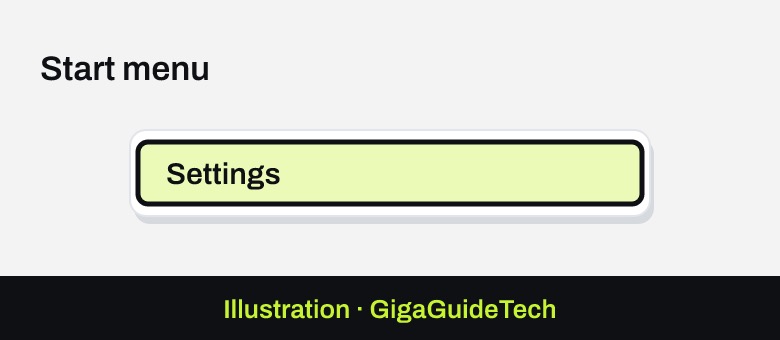
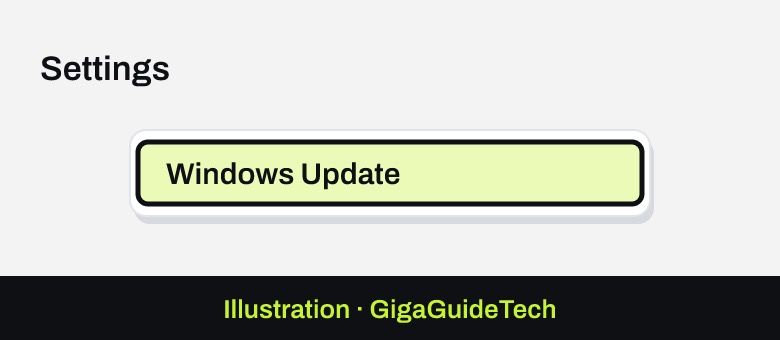
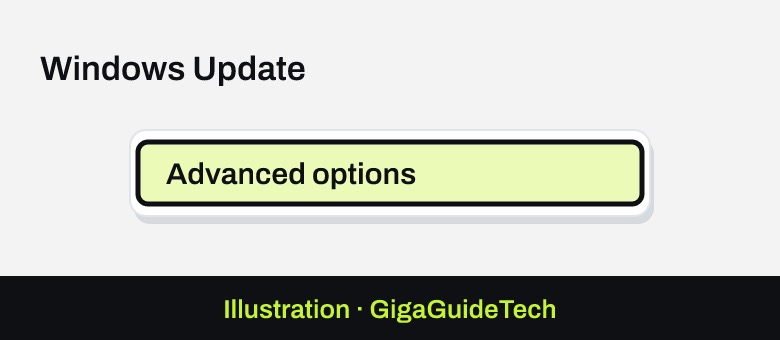
- Select Start, then select Settings > Windows Update > Advanced options.

Illustration: Start > Settings Illustration: Settings > Windows Update Illustration: Windows Update > Advanced options - Make sure Receive updates for other Microsoft products is turned On.
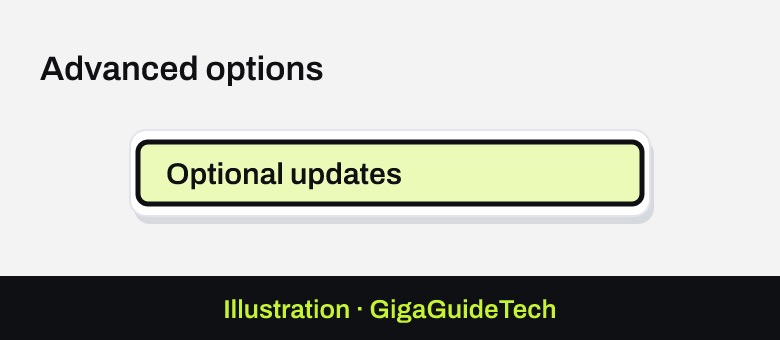
- Under Additional options, select Optional updates.
Illustration: Advanced options > Optional updates - If driver updates are listed, select the ones you want to install, then select Download and install.
- Restart your PC to apply the updates.
Method 2: Update drivers automatically through Device Manager
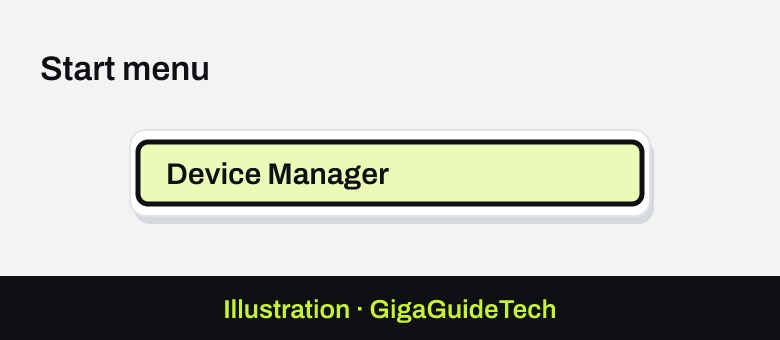
- Right-click on the Start menu and select Device Manager.
Illustration: Start > Device Manager - In the Device Manager window, select the arrow next to the category of device you want to update. For example, expand Printers to update a printer driver, or Sound, video and game controllers for audio drivers.
- Right-click on the device and select Update driver.
- In the Update Drivers window, select Search automatically for updated driver software.
- Windows searches for updated drivers and installs them if any are found.
If Windows doesn’t find anything this way, select Search for updated drivers on Windows update instead, which checks against the full Windows Update catalog.
Method 3: Install a driver manually from a downloaded file
Use this method when the manufacturer’s website offers a newer driver than what Windows Update or Device Manager can find automatically.
- Download the driver from the device manufacturer’s website. Double-check that it matches your Windows version and system architecture, then uncompress it if needed and note where it’s saved.
- Right-click on the Start menu and select Device Manager.
- Expand the category of the device you want to update.
- Right-click on the device and select Update driver.
- Select Browse my computer for drivers.
- In the Browse for drivers on your computer window, select Browse…, locate the folder where the drivers were downloaded, and select OK.
- Confirm the path is correct, then select Next.
- Windows installs the driver if it’s a newer version. If the current driver is already up to date, you’ll see the message The best drivers for your device are already installed.
- Select Close to finish.
Method 4: Reinstall a problem driver
If a device is misbehaving even after an update, reinstalling the driver from scratch can help Windows rebuild a clean install.
- Save your work and close all apps.
- Right-click on the Start menu and select Device Manager.
- Expand the relevant category, such as Display adapters.
- Right-click on the device and select Uninstall device.
- Confirm by selecting Uninstall in the Uninstall Device window.
- Restart your PC by right-clicking Start and selecting Shut down or sign out > Restart.
- After restarting, Windows automatically attempts to reinstall the driver for the device.
If you need manufacturer-specific graphics software
For GPU drivers specifically, it’s often better to go straight to the source instead of relying only on Windows Update. Nvidia users can check the Nvidia website or the Nvidia app, AMD users can use AMD Adrenalin, and Intel users can check the Intel website directly. This is especially relevant after a major Windows feature update, since Microsoft has documented cases where a safeguard hold blocks installing a new Windows version until an affected Nvidia display driver is updated.
If it still doesn’t work
- If Windows Update or Device Manager can’t find an updated driver, check the hardware manufacturer’s website for the latest version compatible with your Windows build.
- If you see a message that a driver “can’t load on this device” and it mentions Memory Integrity, first look for an updated, compatible driver through Windows Update or the manufacturer’s site. Only if no updated driver exists and the device is essential, open Windows Security > Core isolation and turn Memory integrity off, then restart. This reduces your system’s security, so only do it if there’s no other option.
- If the message The best drivers for your device are already installed keeps appearing, it simply means no newer driver is available from the source you searched; try checking the manufacturer’s site directly instead.
FAQ
Do I need to update every driver on my PC?
No. If a device is working fine, there’s generally no need to update its driver. Focus on devices that are having problems, like audio that cuts out, a printer that won’t connect, or a graphics card causing stutter in games.
Will updating drivers delete my files?
Standard driver updates through Windows Update, Device Manager, or a manufacturer’s installer don’t erase personal files. Still, it’s good practice to save your work before any step that requires a restart.
Why does Device Manager say a driver is already up to date when a newer one exists on the manufacturer’s site?
Device Manager checks against Windows Update’s driver catalog first, which isn’t always as current as the manufacturer’s own downloads. In that case, download the driver directly from the manufacturer and install it manually using Method 3.
My audio stopped working after a driver update. What should I check first?
Expand Sound, video and game controllers in Device Manager and try updating or reinstalling the audio driver using the steps above. Updated audio drivers can resolve issues like no sound, distorted playback, crackling, or microphone and headset problems.
Source: Microsoft Support