When iCloud stops working, the first question is simple: is Apple having a problem, or is it just your iPhone? It happened on November 17, when iCloud sign-in, the App Store, Apple Music and Apple Pay ran into trouble for thousands of people. Apple said an internal update caused the outages, and that it wasn’t a cyberattack. Most services were back within hours. This guide shows you how to check Apple’s status in a few seconds, and what to do when the problem turns out to be on your end.
Step 1: Check Apple’s System Status page
Apple keeps a live list of its services at apple.com/support/systemstatus. It covers iCloud features like Mail, Photos, Drive, Notes and Keychain, plus the App Store, Apple Pay, Apple Music and more. Services with a problem are flagged, and Apple adds a short note about what’s affected. During the November 17 outage, for example, the page said that iCloud account sign-in “may be slow or unavailable,” according to Engadget.
- If your service is flagged: the problem isn’t you. Don’t sign out of iCloud, reset your phone or turn off syncing. Wait for Apple to fix it, then check again. Your data syncs once the service is back.
- If everything looks normal: Apple’s page can lag behind the first reports. If lots of people are complaining at once, give it 15 to 30 minutes. If it’s still all clear after that, the problem is probably on your device, so keep going.
Step 2: Check your internet connection
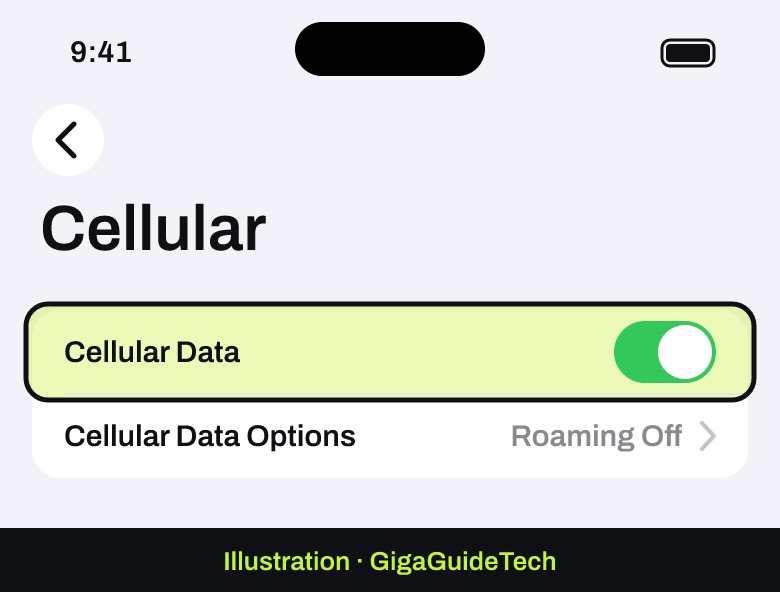
iCloud needs a working connection. Open a website in Safari to make sure you’re online. If iCloud only fails when you’re away from Wi-Fi, Apple says to check that Cellular data is on: open the Settings app, then tap Cellular (or Mobile Data). If your Wi-Fi keeps dropping, follow our guide to fixing an iPhone that keeps disconnecting from Wi-Fi.
Step 3: Make sure you’re signed in to the same Apple Account
Syncing only works between devices that use the same Apple Account. On your iPhone, open Settings and tap your name at the top to see which account you’re using, then check your iPad and Mac. Apple also recommends updating to the latest version of iOS, iPadOS or macOS, because older versions can stop working with some iCloud features.

Step 4: Look for a badge in Settings
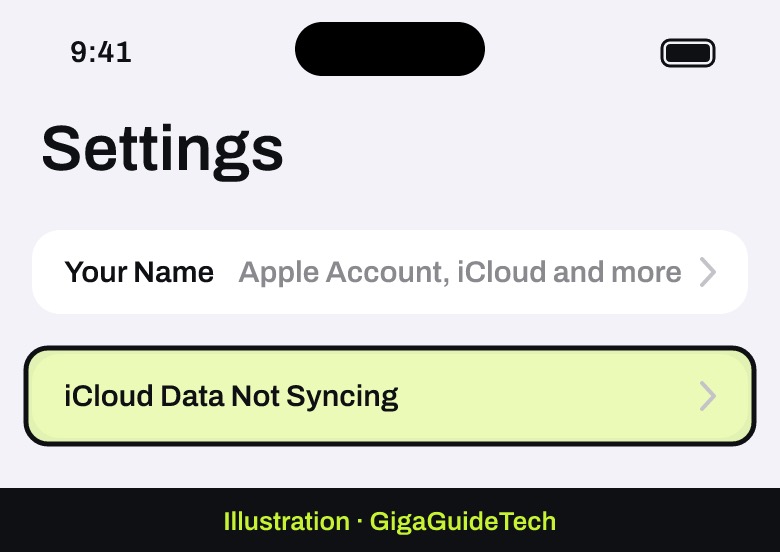
Sometimes your iPhone already knows what’s wrong. If you see an iCloud Data Not Syncing message, Apple says to open Settings and look for a red badge, usually under your name. Tap it, follow the instructions on screen and enter your Apple Account password if you’re asked. If the message keeps coming back after that, Apple suggests contacting Apple Support.
Step 5: Fix the app that won’t sync
If only one app is stuck, check its own setting. These are the three that cause the most trouble.
Photos
- Give it time. Apple says to plug your iPhone into power, connect to Wi-Fi and let it sync overnight. A big library can take that long.
- Check the status message. Open the Photos app, go to Collections and tap the profile button in the corner. Your library status appears under your name.
- What the messages mean: Low Power Mode or Low Data Mode pauses syncing to save battery or data. Low Battery means your charge is below 20 percent. Needs to Cool Down means your iPhone is too warm. If it says your iCloud storage is full, free up iCloud storage or upgrade your plan.
- Don’t turn off iCloud Photos. Apple warns that turning it off restarts the whole syncing process.
Notes
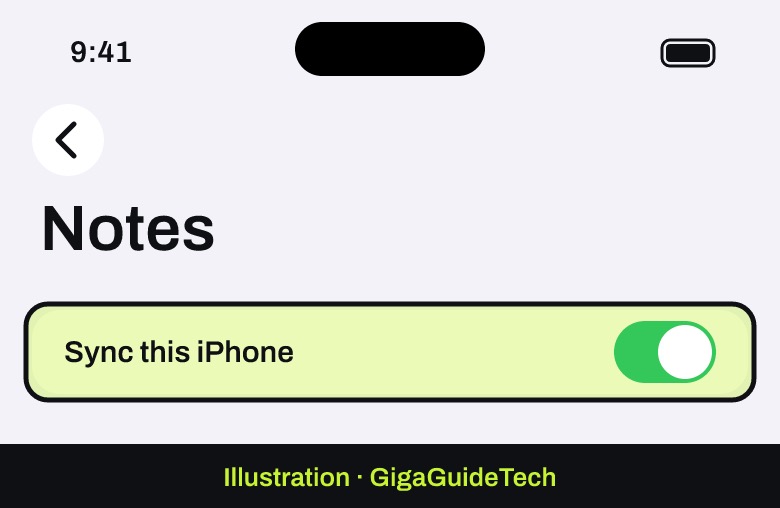
Open Settings, tap your name, tap iCloud, then tap Notes. Make sure Sync this iPhone is on. If your notes still don’t show up, restart your iPhone and check the setting again.
Passwords (iCloud Keychain)
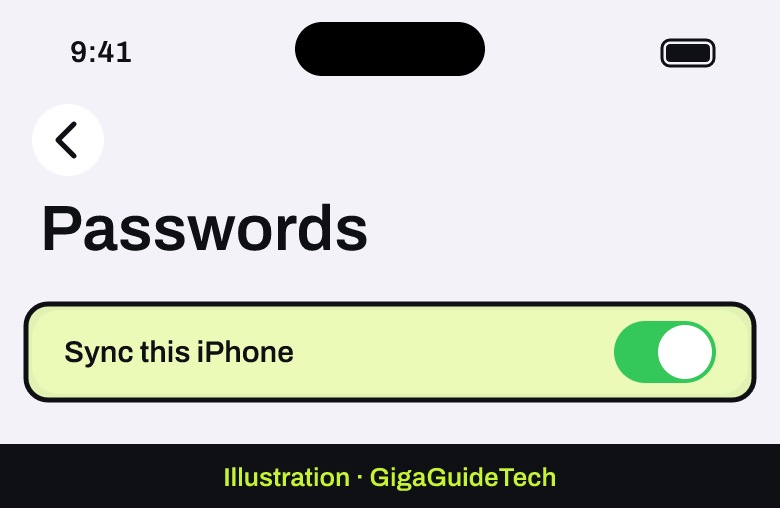
Open Settings, tap your name, then tap iCloud. Under Saved to iCloud, tap Passwords and make sure Sync this iPhone is on. If Safari won’t fill in your passwords, go to Settings > General > Autofill & Passwords and turn on AutoFill Passwords and Passkeys. One thing to know: Apple says passwords aren’t part of iCloud backups because they sync on their own. If you restored a backup and your passwords are missing, check this sync setting first.
If iCloud keeps asking for your password
Repeated password pop-ups are annoying, but they usually have a simple cause. According to Apple, check these:
- You recently restored from an iCloud backup. The restore may not be finished. Stay on Wi-Fi and keep your iPhone charging until it’s done.
- You changed your Apple Account password. Some services may still be using the old one, so sign in again where you’re asked.
- Automatic Downloads are waiting. If content is ready to download, your iPhone may ask for your password to continue.
- A child in your Family Sharing group wants something. If you’re the organizer or a parent, the prompt may be a request to approve a purchase or download.
If you get a message that your Apple Account is locked or disabled, it’s usually because the wrong password was entered too many times. Apple explains how to unlock it on its iCloud sign-in support page.
When to contact Apple
If Apple’s status page is clear, your connection works, you’re on the same Apple Account everywhere and the steps above didn’t help, contact Apple Support from the Apple Support app or support.apple.com. Tell them which service fails and what message you see. That saves time.
Sources: Apple Support (iCloud sign-in, iCloud Photos, Notes, iCloud Keychain, iCloud Data Not Syncing), Engadget, Android Authority