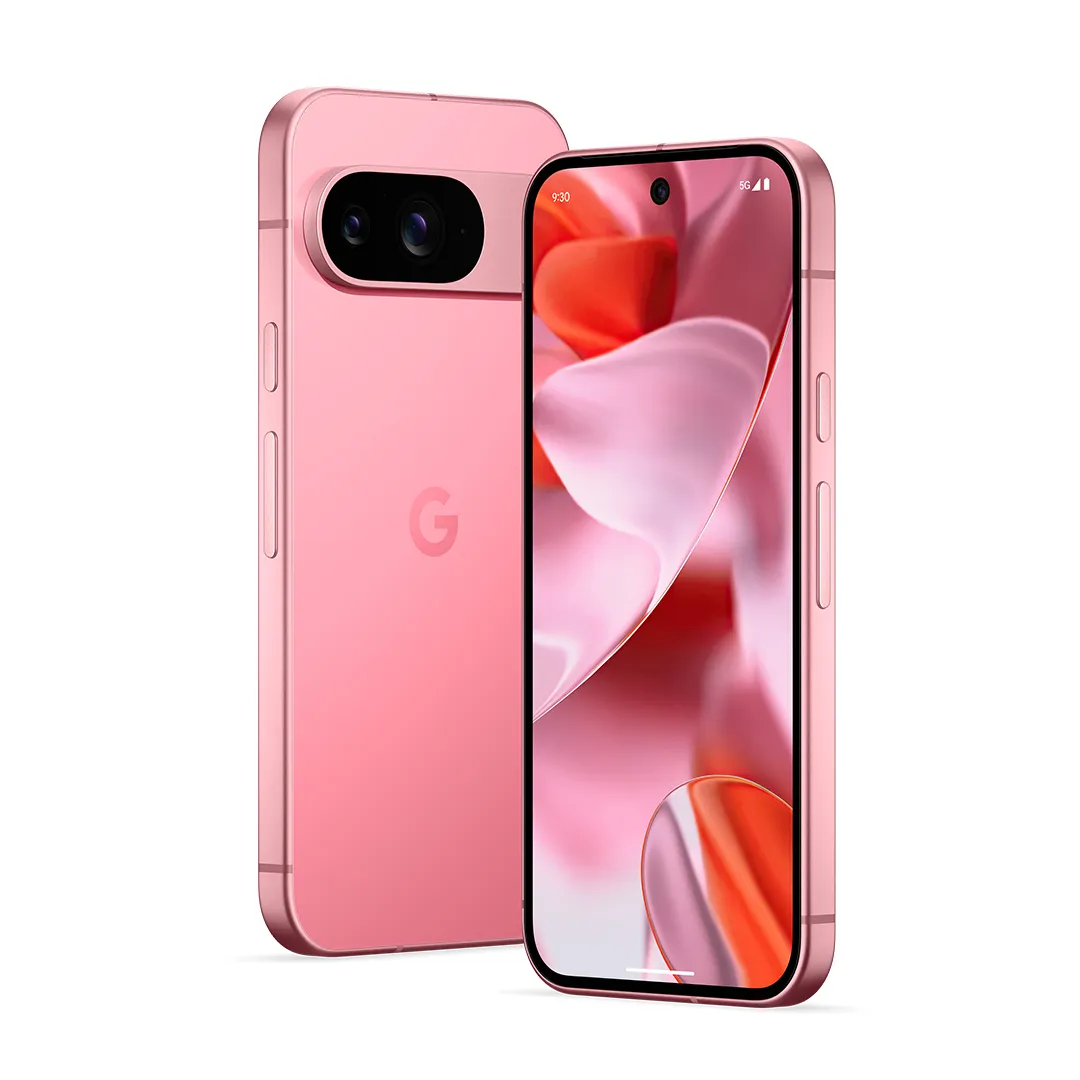
This guide is for anyone with a Google Pixel phone who wants a few extra hours of battery life or a little more control over what Google collects. Below is a list of Android settings to disable on Pixel phones, pulled straight from Google’s own support documentation, along with the exact menu path for each one. By the end you’ll know which toggles are safe to flip, which ones come with trade-offs, and which Google recommends leaving alone.
Before you start
- Have your Pixel unlocked and the Settings app ready; no backup is needed since none of these changes delete data.
- Know your Pixel model and Android version, since a few settings (Quick Tap, Motion Sense) only exist on certain devices.
- If you share a Google Account across multiple devices, remember that turning off Location History affects your account everywhere, not just this phone.
- Turning off Location entirely will stop many apps and features from working properly, so only disable it if you’re comfortable with that trade-off.
Battery-saving settings
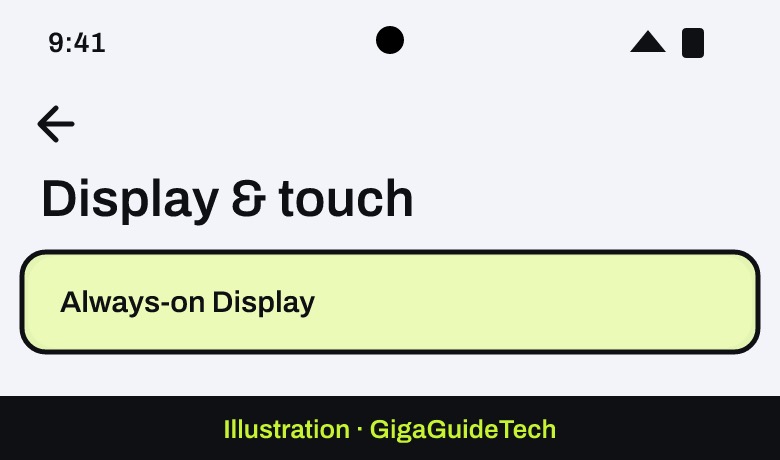
Always-on Display is one of the simplest things to turn off if you want to claw back some battery life, since it keeps part of the screen lit even when the phone is idle.
- Open the Settings app.
- Tap Display & touch.
- Turn off Always-on Display.

Illustration: Settings > Display & touch
For more ways to stretch your battery through the day, see our guide on how to make your phone battery last longer.
You may also see guides suggesting you disable Adaptive Battery or Adaptive Charging. Google’s own documentation recommends keeping both on: Adaptive Battery learns your usage patterns to limit drain from apps you rarely open, and Adaptive Charging slows overnight charging to protect long-term battery health. If you still want to turn them off, they live under Battery > Battery Saver > Adaptive Battery and Battery > Adaptive preferences > Adaptive charging, but expect faster battery wear or slightly less efficient background app behavior.
Location and privacy settings
Location-related settings are where most of the privacy wins are, but they also carry the biggest functional trade-offs. Start with the broadest switch and work down to the more specific ones.
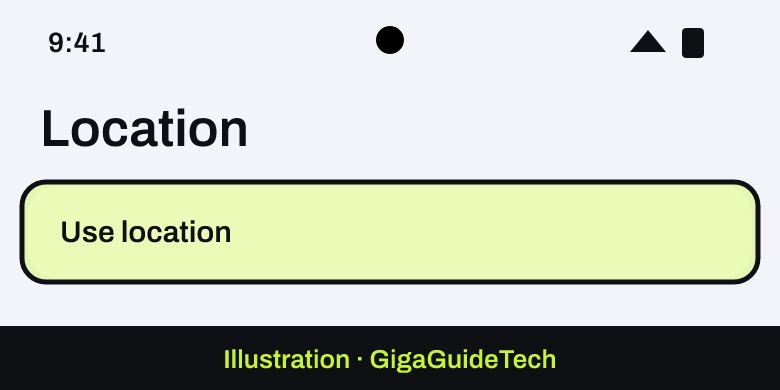
- Open the Settings app and tap Location.
- At the top, turn off Use location to disable location for the entire device. Apps and services won’t be able to get your device’s location, though you may still see local results and ads based on your IP address.
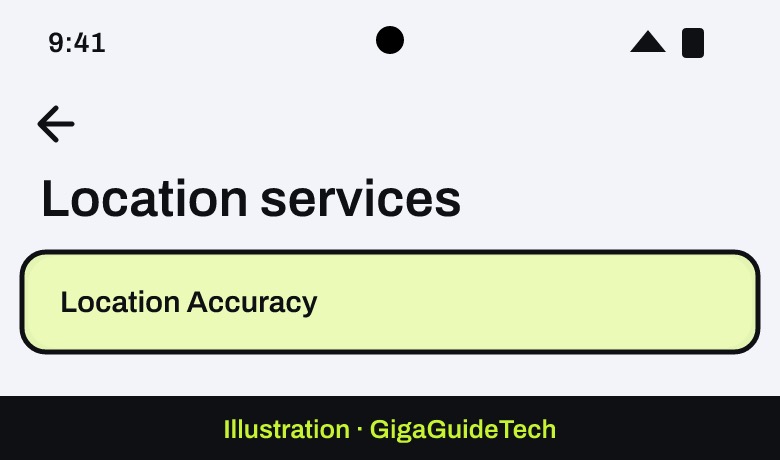
Illustration: Settings > Location - To keep location on for apps but stop Google from refining it with Wi-Fi and Bluetooth data, go to Location > Location services > Location Accuracy and turn off Improve Location Accuracy instead.
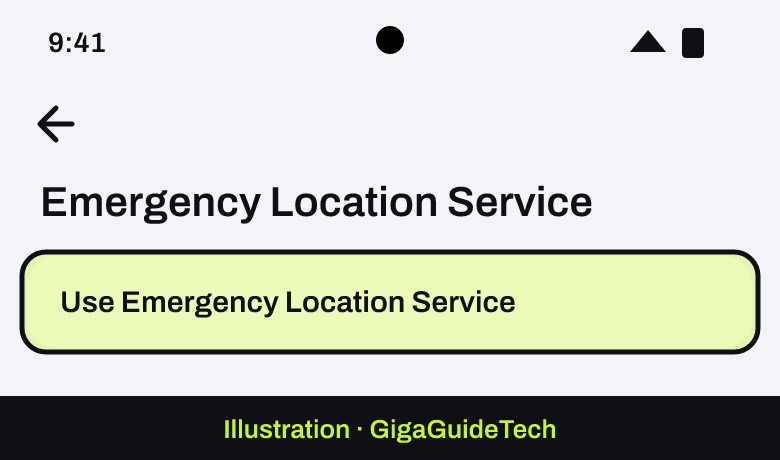
Illustration: Settings > Location > Location services - To disable the feature that shares your location with emergency services automatically, go to Location > Location services > Emergency Location Service and turn off Use Emergency Location Service.
Illustration: Settings > Location > Location services > Emergency Location Service
Android 12 and later vs. Android 11 and earlier
On Android 12 and up, the accuracy toggle is simply called Location Accuracy under Location > Location services. On Android 11 and earlier, the same setting is tucked under Location > Advanced > Location Accuracy.
Two more settings worth checking live under System > Rules: Always allow location for rules and Automatically suggest rules. Turning both off stops the Rules feature from using your location or analyzing your habits to suggest automations.
Diagnostics and account-level tracking
Two settings control data collection that isn’t tied to any one feature. The first is Usage & Diagnostics, found under Settings > Privacy > Usage & diagnostics; turning it off stops the phone from sending Google data about performance and app usage. The second is Location History, a Google Account setting (off by default) that builds a personal Timeline of places you’ve visited. You can manage it through your account’s Activity controls online, or in the Google Maps app by tapping your profile picture, then Your timeline > More > Settings and privacy, and toggling it off under Location settings. Keep in mind that turning off Location History alone doesn’t stop every Google service from saving location data if other activity controls, like Web and App Activity, remain on. If you’d rather tackle Google’s broader ad personalization settings at the same time, our guide on how to stop Google from using your Gmail and Photos data for ads covers those controls in detail.
Lock screen and home screen settings
At a Glance is the widget at the top of your home screen that shows weather, commute times, and similar cards based on your activity. You can turn off the whole thing or just the personalization behind it.
- Touch and hold the date at the top of your home screen.
- Tap Settings, then At a Glance settings.
- Turn off Use At a Glance to disable the widget entirely, or leave it on and toggle off individual topics like commute, sports, or weather under “Customize.”
Illustration: Home screen > At a Glance settings - To limit what personal data feeds the widget, go back to the same menu and adjust the options under “Manage Personalization,” including the “Sensitive content on lockscreen” setting for notifications.
Note that turning off At a Glance removes all of its cards, but the date itself still displays on the lock screen.
Gesture and sensor settings (device-specific)
Quick Tap (Pixel 4a 5G and later)
- Open Settings.
- Tap System > Gestures > Quick Tap.
- Turn off Use Quick Tap to stop double-tapping the back of the phone from triggering actions like screenshots.
Illustration: Settings > System > Gestures > Quick Tap
Motion Sense (Pixel 4 only)
- Open Settings on a Pixel 4.
- Tap System > Motion Sense.
- Turn off individual gestures, such as Silence interruptions.
Illustration: Settings > System > Motion Sense
Motion Sense only works in a handful of approved regions, including the US, Canada, Singapore, Australia, Taiwan, Japan, and most of Europe, so travelers may see it stop working even without touching the setting.
If it still doesn’t work
- If a setting won’t stay off, check for pending Android or Pixel system updates, since some toggles reset after a major update.
- If battery life doesn’t noticeably improve after disabling Always-on Display or Quick Tap, check Settings > Battery for the apps actually draining power, since background apps are usually the bigger factor.
- If Location-dependent apps stop working as expected after you turn off device location, turn Use location back on and disable accuracy features individually instead.
- If a privacy setting like Usage & Diagnostics reappears as on, sign out of and back into your Google Account, or contact Google Support through the Pixel’s built-in help if the issue persists.
FAQ
Will turning off Location stop every app from working?
Many apps rely on location for core features like maps, weather, and local search, so turning off Use location entirely will break those. If you only want less precise tracking, disable Location Accuracy instead of the main Location toggle.
Does turning off At a Glance remove the date from my lock screen?
No. Disabling Use At a Glance removes the weather, commute, and other cards, but the date itself still shows at the top of the home and lock screen.
Should I turn off Adaptive Battery to save more power?
Google doesn’t recommend it. Adaptive Battery is designed to extend battery life by learning which apps you use least and limiting their background activity; turning it off can reduce battery life rather than improve it.
Is Location History on by default on my Pixel?
No, Location History is off by default for every Google Account and has to be turned on manually through Google Maps or your account’s Activity controls before it starts building a Timeline.
Source: Google Help