If your phone struggles to make it through the day — or you just want its battery to age well — this guide is for you. It walks through the official settings from Apple, Google, and Samsung to help you make your phone battery last longer, whether you carry an iPhone, a Pixel, or a Galaxy device.
Before You Start
- Check your software version: Apple’s Adaptive Power needs iOS 26 on an iPhone 15 Pro or later (it’s on by default on iPhone 17, iPhone 17 Pro, iPhone 17 Pro Max, and iPhone Air). On Android, Adaptive Battery and Charging optimization need Android 11 or later on Pixel, and some steps work only on Android 13 and up.
- No data will be lost by changing any of these settings, but adjusting a charge limit will change how quickly your phone reaches 100%.
- Give learning features time: Adaptive Power needs about 7 days to learn your habits, Optimized Battery Charging needs about 14 days and at least 9 long charges in one location, and Pixel’s Adaptive Charging also needs roughly 14 days.
Extend iPhone Battery Life
Apple’s battery tools differ slightly depending on your iPhone model.
iPhone 15 and later (including iPhone 17 and iPhone Air)
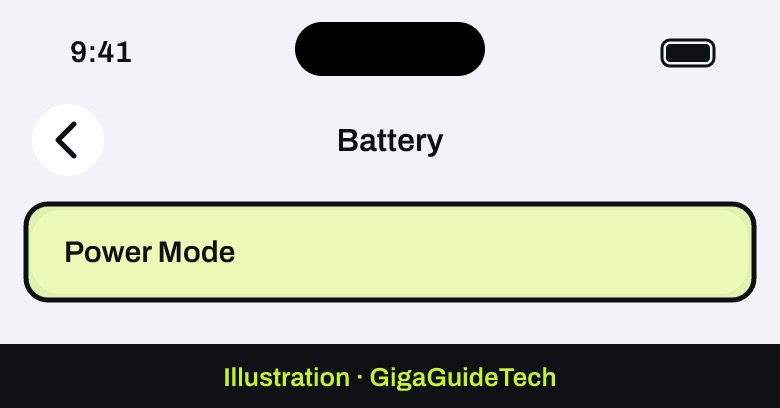
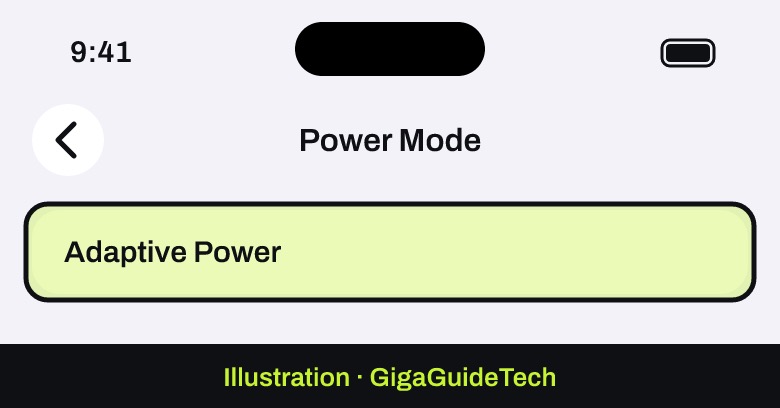
- Go to Settings > Battery > Power Mode and turn on Adaptive Power. This can lower brightness, limit background activity, and automatically turn on Low Power Mode at 20 percent battery.

Illustration: Settings > Battery > Power Mode Illustration: Settings > Battery > Power Mode - In the same menu, tap Low Power Mode whenever you need an extra boost; it turns off automatically once your iPhone charges back to 80 percent.
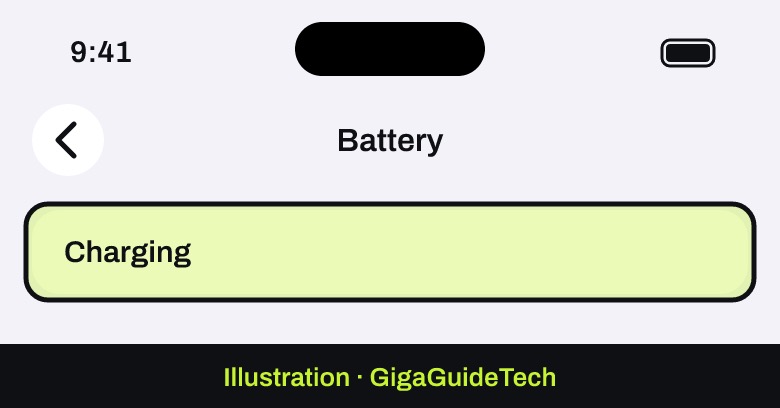
- Go to Settings > Battery > Charging and choose a charge limit between 80 and 100 percent. Leaving it at 100 percent keeps Optimized Battery Charging available, which delays the last stretch of charging so your iPhone spends less time sitting at a full charge.
Illustration: Settings > Battery > Charging
iPhone 14 and earlier
- Go to Settings > Battery > Low Power Mode to turn it on when your battery is getting low.
- Go to Settings > Battery > Battery Health & Charging and turn on Optimized Battery Charging.
General iPhone settings worth checking
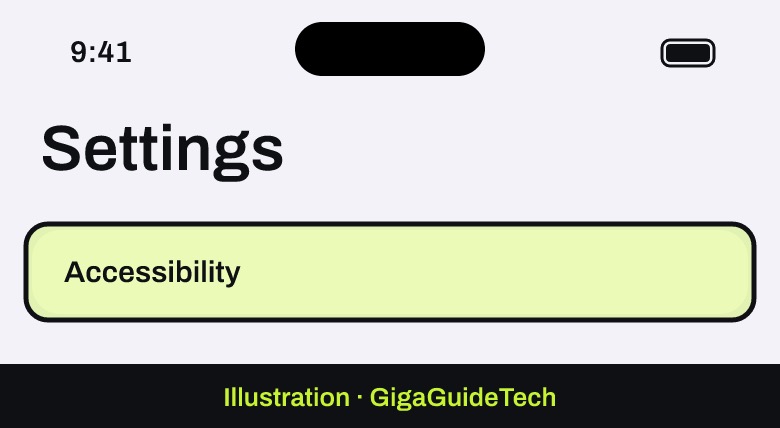
- Open Settings > Accessibility > Display & Text Size and turn on Auto-Brightness.
Illustration: Settings > Accessibility > Display & Text Size - Open Settings > General > Background App Refresh and set it to Wi-Fi or Off instead of Wi-Fi & Cellular Data.
- Open Settings > Privacy & Security > Location Services and turn off location access for apps that don’t need it.
- If your iPhone supports it, go to Settings > Cellular > Cellular Data Options > Voice & Data and choose 5G Auto so the phone switches to LTE when 5G isn’t noticeably faster. Using Wi-Fi instead of cellular also saves power, though if your iPhone keeps dropping its connection, it’s worth fixing separately — see our guide on how to fix an iPhone that keeps disconnecting from Wi-Fi.
- Open Settings > Battery and review any suggestions or Insights listed above the Daily Usage chart, along with the Battery Health section to confirm your battery isn’t flagged for service.
Extend Battery Life on Android (Google and Pixel)
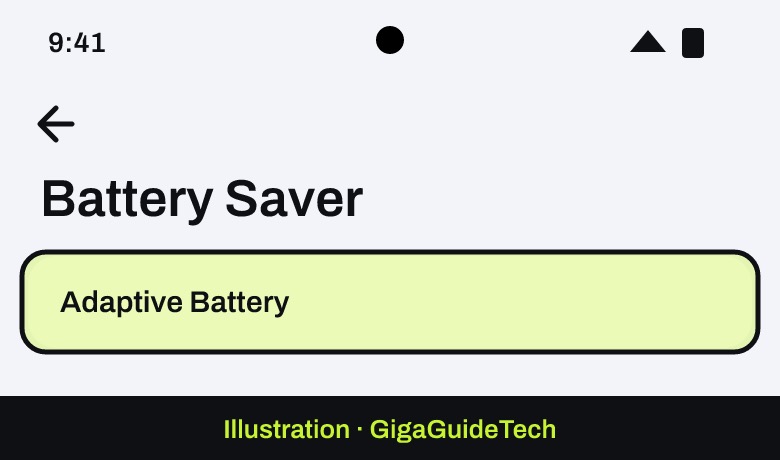
- Open Settings > Battery > Battery Saver, tap Adaptive Battery, and turn on Use Adaptive Battery so apps you rarely use run less in the background.
Illustration: Settings > Battery > Battery Saver - In the same Battery Saver screen, set a schedule so it turns on automatically, or let it switch on at a chosen percentage.
- On Pixel, go to Settings > Battery > Battery health > Charging optimization and turn on Use charging optimization; on Pixel 6a and later, you can also tap Limit to 80% to cap charging for long-term battery health.
- Open Settings > Display & touch and turn on Adaptive brightness and Dark theme, then lower Screen timeout and turn off Always-on Display and Smooth Display if you have them.
- Turn off Bluetooth and Location access when you’re not using them, and switch on Airplane mode if you know you won’t have signal for a while. On Pixel 4a 5G and later, you can also toggle Use adaptive connectivity under Settings > Network & internet.
- Open Settings > Battery > Battery usage to check which apps are using the most power, and keep background usage set to Optimized for each app.
Extend Battery Life on Samsung Galaxy
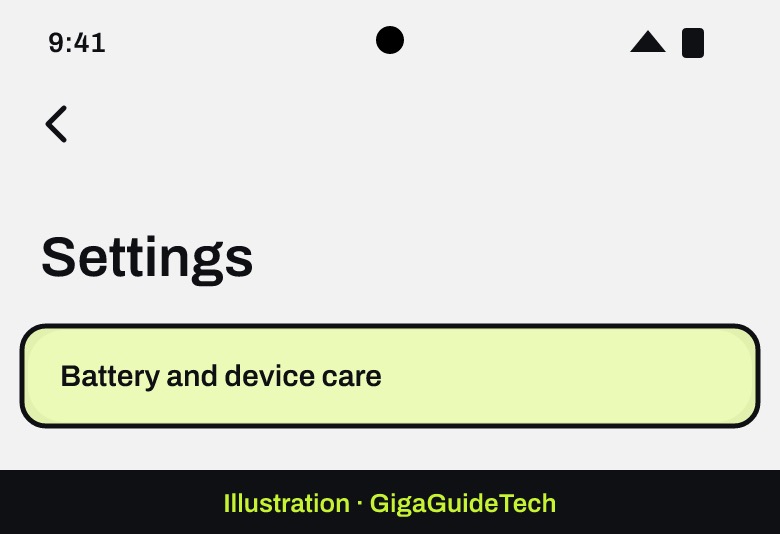
- Open Settings > Battery and device care and tap Optimize now to flag apps with high background battery use.
Illustration: Settings > Battery and device care - Tap Battery, then the battery graph, select an app, and choose Put to sleep or Put in deep sleep for apps you don’t use often; use Background usage limits to manage several apps at once.
- Turn on Power saving mode from Battery and device care > Battery when you need to stretch a low charge — it restricts background Wi-Fi and mobile data and turns off features like Always On Display.
- Lower your screen timeout, reduce brightness, and switch to a dark-tone wallpaper or theme from the Display settings, and enable Adaptive Brightness if available.
Protect Long-Term Battery Health
These habits don’t change your battery percentage today, but they slow down how much capacity your phone loses over time.
- Charge iPhone in ambient temperatures around 62–72°F (16–22°C) and avoid charging above 95°F (35°C); Android guidance recommends charging around 25°C (78°F).
- If your phone gets noticeably hot while charging, take it out of its case first.
- For storage longer than 30 days, keep the phone at roughly 50 percent charge in a cool, dry place.
- Charging overnight is fine — both iPhone and Pixel stop automatically at 100 percent and only resume once the level drops a few percent.
- Occasionally let the battery drop below 10 percent and then charge fully overnight so the phone’s capacity readings stay accurate. Pixel also needs a full charge roughly every 10th cycle, even with the 80 percent limit turned on — leave it plugged in for at least 30 minutes after it shows 100 percent.
If It Still Doesn’t Work
- Check battery usage details (iPhone: Settings > Battery; Android: Settings > Battery > Battery usage) for warnings like “Background Activity” or “No Mobile Coverage and Low Signal,” which point to the real cause of the drain.
- On Pixel 6 and later, open Settings > Battery > Battery diagnostics > Battery draining too quickly for a built-in check.
- Force stop a misbehaving app under Settings > Apps > See all apps > the app > Force stop. This isn’t available for every app, and stopping essential system apps can cause other problems. If your phone also feels sluggish rather than just draining fast, it may point to a broader performance issue — see our guide on fixing freezing or slowness on your smartphone.
- Install any pending software and app updates. A little extra drain right after an update is normal while the phone finishes optimizing in the background.
- Check your Battery Health screen. If iPhone shows “Service” next to Battery Health, or a Pixel 8a or later shows “Reduced” capacity, the battery itself may need replacing.
FAQ
Does Low Power Mode or Battery Saver damage my battery?
No. These modes reduce background activity, animations, and sometimes brightness to use less energy; they don’t affect the battery’s hardware. iPhone turns Low Power Mode off automatically once it charges back to 80 percent.
Should I charge my phone to 100% every time?
Not necessarily. Optimized Battery Charging on iPhone and Charging optimization on Pixel are both designed to delay the final stretch of a charge so the phone isn’t sitting at 100 percent for long periods, which reduces wear. You can still raise the charge limit or tap the “Charge Now” or “Charge to full” option when you need a full battery sooner.
Why is my phone draining faster after an update?
This is expected for a short while. Google notes it’s normal for a Pixel to use more battery right after a software update because the phone is busy optimizing the new software; usage should settle back to normal afterward.
How do I know if my battery needs replacing?
Check the battery health screen for your device. On iPhone, a “Service” label next to Battery Health means a replacement is worth considering. On Pixel 8a and later, a “Reduced” capacity reading means Google recommends replacing the battery. Most Pixel phones are rated to retain about 80 percent capacity for around 800 charge cycles, or 1,000 cycles on Pixel 8a and later.
Sources: Apple, Apple Support, Google Pixel Help, Samsung
Where to buy
- Anker Portable Charger Power Bank: check price on Amazon
- USB-C Fast Charging Cable: check price on Amazon
As an Amazon Associate I earn from qualifying purchases.