This guide is for anyone whose iPhone or Android phone has started lagging, stuttering, or freezing up during everyday use. Follow the steps below in order, and by the end you should have a slow or freezing phone running noticeably smoother again, whether the fix turns out to be a simple restart or a deeper storage clean-up.
Before you start:
- Know roughly how much free storage you have — on iPhone, under 1 GB free can cause slowdowns; on Android, problems often start once you drop below 10% free space.
- Have your Apple ID or Google account password handy in case you get signed out during troubleshooting.
- If you may need to reset your phone later in this guide, back up your data first (via iCloud, Google account, or Samsung Smart Switch) since a factory reset erases everything.
- Check which software version you’re running, since menu names can shift slightly between updates.
Step 1: Restart Your Phone
A restart clears temporary glitches and is the fastest thing to try first, especially if the screen is unresponsive.
iPhone
- Press and quickly release the volume up button.
- Press and quickly release the volume down button.
- Press and hold the side button.
- When the Apple logo appears, release the side button.
On an iPhone 7, press and hold the volume down button and the Sleep/Wake button together until the Apple logo appears. On an iPhone 6s, hold the Sleep/Wake button and the Home button together instead.
Android (general)
If the phone is frozen with the screen still on, hold down the power button for about 30 seconds to force a restart.
Samsung Galaxy
- Swipe down from the top right of the screen to open the Quick panel.
- Tap the Power off icon.
- Tap Restart.
If the device is frozen and the restart menu won’t appear, press and hold the Side key and Volume down key together for more than 7 seconds until it restarts on its own.
Step 2: Check and Free Up Storage
A nearly full phone is one of the most common causes of lag on both platforms.
iPhone
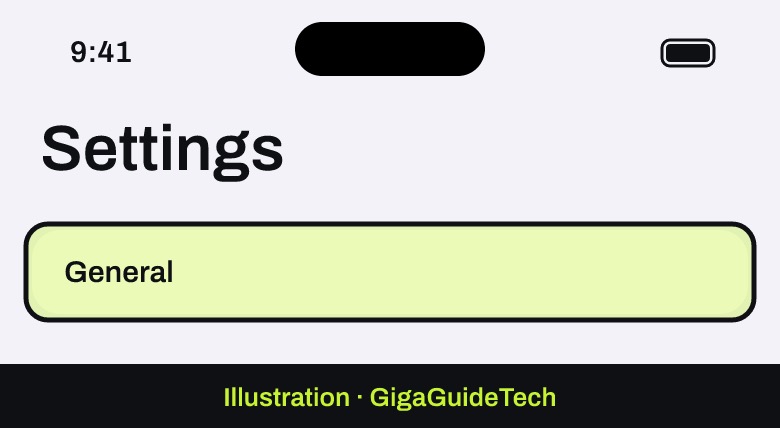
- Open Settings.
- Tap General.

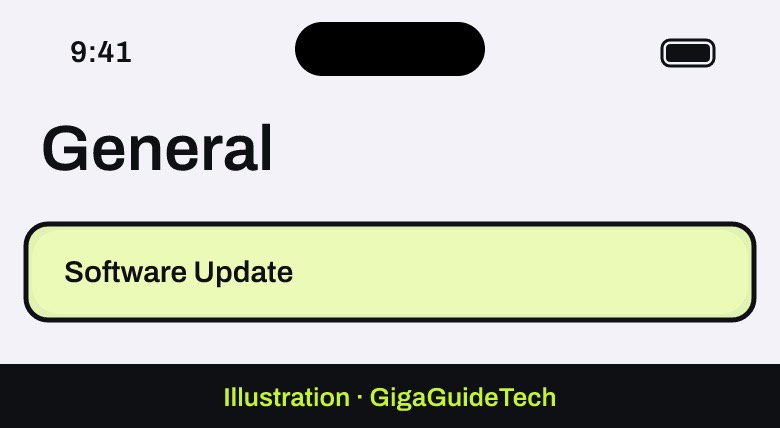
Illustration: Settings - Tap [Device] Storage to see what’s taking up space.
Illustration: Settings > General
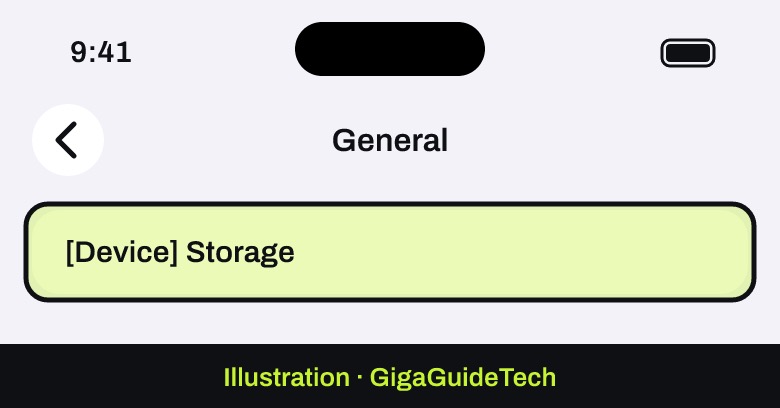
Apple recommends keeping at least 1 GB of free space. Tap any app in the list and choose to Offload App (keeps your data but removes the app itself) or Delete App (removes everything). If iCloud is the bottleneck, our guide on how to free up iCloud storage when it’s full covers the rest.
Android (general)
Open the Settings app and check your available storage. Performance issues tend to appear once you’re below 10% free space, so delete unused apps, photos, or downloads if you’re close to that line.
Samsung Galaxy
- Open Settings and tap Device care.
- Tap Storage.
- Review what’s using space and delete unnecessary files or apps.
Step 3: Close Background Apps and Clear Memory
iPhone
- Swipe up from the bottom of the screen and pause (or double-click the Home button on older models) to open the app switcher.
- Find the app you want to close.
- Swipe up on its preview to close it.
Apple notes that force-closing apps unnecessarily can actually slow your iPhone down, since reopening a closed app means reloading all its data from scratch — so use this only when an app is clearly misbehaving.
Android (general)
- Open your phone’s Settings app.
- Tap Apps, then See all apps.
- Tap the problem app, then Force stop, then OK.
Samsung Galaxy
- Tap the Recent button.
- Tap Close all.
To clean up memory specifically, go to Settings > Device care > Memory > Clean now.
Step 4: Install Pending Software and App Updates
Android (general)
- Open your phone’s Settings app.
- Near the bottom, tap System > Software update (on some phones you’ll tap About phone first).
- Follow the on-screen steps if an update is available.
Samsung Galaxy
On One UI 8.5 or later, go to Settings > Software update > Check for updates. On One UI 8.0 or earlier, go to Settings > Software update > Download and install.
iPhone
Go to Settings > General > Software Update and install anything pending.
On Android, it’s also worth checking app updates directly: open the Google Play Store, tap your profile icon at the top right, tap Manage apps & devices, and update everything listed under “Updates available.”
Step 5: Check Battery Health and Power Settings
Apple explains that iPhones can run slower in very hot or cold conditions, so moving your phone to a more moderate temperature can help on its own. Battery age also plays a role, since rechargeable batteries lose capacity and peak performance over time.
iPhone
- Open Settings.
- Tap Battery.
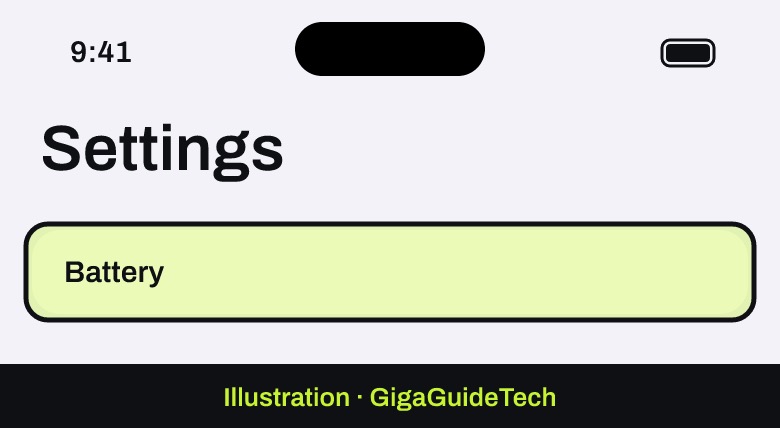
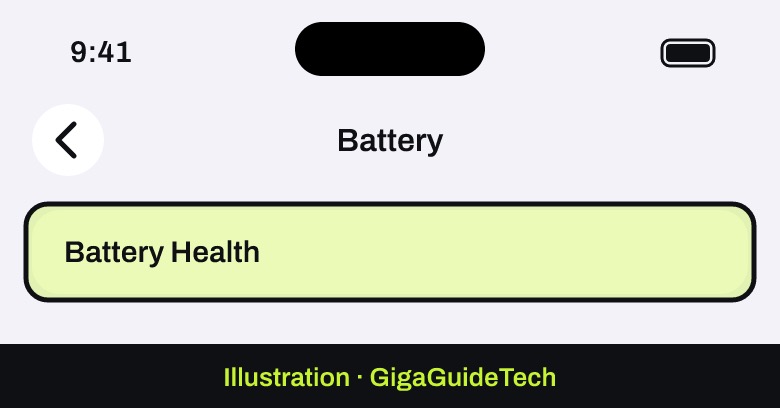
Illustration: Settings - Tap Battery Health to see if a replacement is recommended.
Illustration: Settings > Battery
While you’re there, check whether Low Power Mode is switched on under Battery, since it intentionally limits performance to save power. If you don’t need the extra battery life right now, turning it off can restore full speed. For more background on keeping a phone’s battery in good shape, see our guide on how to increase smartphone battery life.
Step 6: Try Safe Mode on Android
If the phone is still sluggish after the steps above, a downloaded app may be the culprit. Safe mode temporarily disables all downloaded apps and loads only the software that came with the phone.
Samsung Galaxy
- Press and hold the Power button (or open the Quick settings panel and tap the Power icon on devices without a dedicated button) until the Power menu appears.
- Touch and hold Power off until the Safe mode icon appears.
- Tap Safe mode to restart into it. You’ll see “Safe mode” displayed at the bottom of the screen if it worked.
If the problem disappears in Safe mode, a downloaded app is to blame. Restart the phone normally, then remove recently installed apps one at a time, restarting after each removal, until the issue stops happening.
If It Still Doesn’t Work
If none of the steps above help, a factory reset is the official last resort, since it wipes the phone back to its original state. Back up everything first, because this erases all data unless it’s saved elsewhere.
- Android (general): Back up your phone, then perform a factory data reset. Apps and their data will be removed, though anything stored in your Google Account can be restored afterward. If a downloaded app caused the problem, reinstalling it could bring the issue back.
- Samsung Galaxy: Back up your data using Smart Switch or a cloud account, then go to Settings, search for Factory data reset, tap it, tap Factory data reset again, then Reset. You may be asked for your Samsung account or lock screen password.
- iPhone: back up to iCloud or your computer first, then follow our step-by-step guide to performing a factory reset on your iPhone.
If a reset doesn’t resolve things, it’s worth checking in with your device manufacturer directly, since the exact cause may be hardware-related and beyond what software troubleshooting can fix.
FAQ
Will restarting my phone delete anything?
No. A normal or forced restart simply reboots the software and doesn’t remove apps, photos, or settings.
How much free storage should I keep on my phone?
Apple recommends keeping at least 1 GB free on iPhone. On Android, performance tends to suffer once you drop below about 10% of total storage free, so it’s worth clearing space before you get close to that point.
Does closing apps in the background actually speed up my phone?
Not always. Apple specifically notes that force-closing apps you’re not actively having trouble with can slow your iPhone down, since reopening them later takes longer. It’s best used only on an app that’s genuinely frozen or misbehaving.
Will a factory reset fix a slow or freezing phone for good?
It often does, since it clears out accumulated clutter and misbehaving apps. However, if you reinstall the same app that caused the original problem, the slowdown or freezing can return, so it’s worth testing the phone for a while before restoring everything from a backup.
Sources: Apple Support, Google Help, Samsung
Where to buy
- SanDisk Ultra 128GB microSDXC Memory Card: check price on Amazon
- Anker USB-C to USB-C Charging Cable: check price on Amazon
As an Amazon Associate I earn from qualifying purchases.