This guide is for anyone who needs to factory reset an iPhone before selling, trading in, or giving it away, or who needs to wipe a device that’s frozen, locked out, or acting up. By the end, you’ll know how to erase your iPhone from its own settings, through a computer, or using recovery mode when the screen won’t respond, and you’ll know what happens to your data along the way.
Before you start
- Back up your iPhone first. A factory reset erases everything, including photos, messages, contacts, Face ID or Touch ID data, saved passwords, and Apple Pay cards.
- If you plan to restore from a backup afterward, make sure the backup is recent and that you know its date.
- Know your Apple Account password. You’ll need it to sign out of Find My and complete the erase.
- If you suspect your iPhone was tampered with or has malicious software on it, don’t restore from a backup afterward, since that can reinstall the same problem.
- If you’re resetting because of a forgotten passcode, you’ll need iOS 15.2 or later, Find My previously turned on, and an active Wi-Fi or cellular connection.
Method 1: Erase directly on the iPhone
This is the simplest option if your iPhone is working normally and you can unlock it.
- Go to Settings.
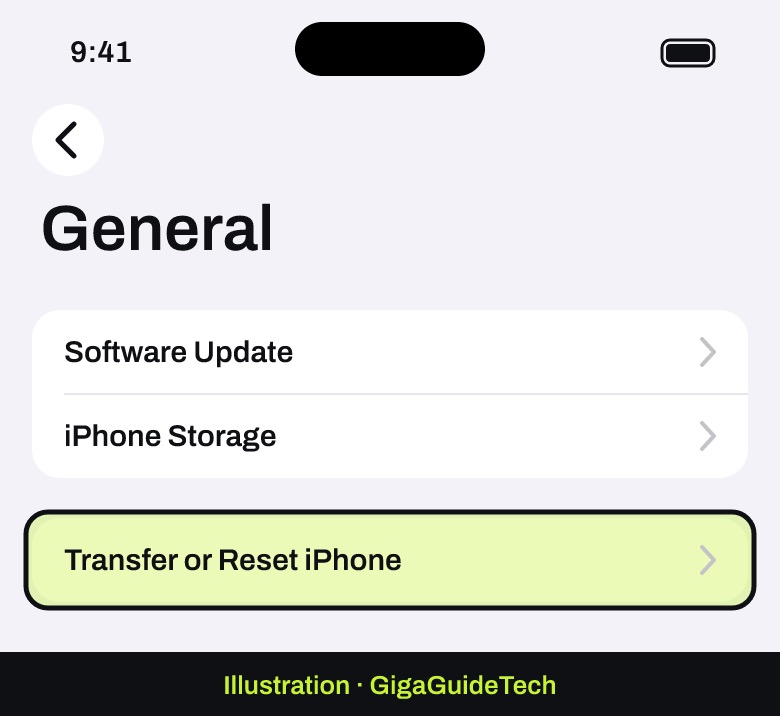
- Tap General.
- Tap Transfer or Reset [device].
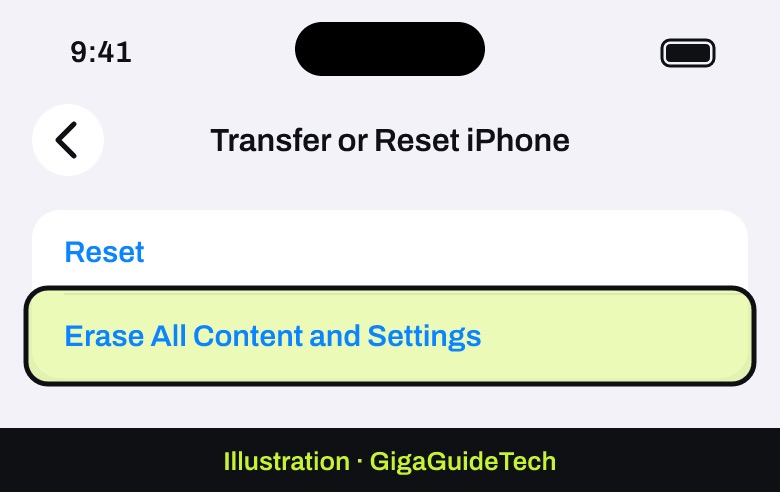
- Tap Erase All Content and Settings.
- Tap Continue.
- Choose whether to keep or delete your eSIM. If you erase it, you’ll need to contact your carrier to reactivate your cellular plan.
- Enter your device passcode.
- Wait for your backup to finish, if you chose to make one.
- Enter your Apple Account password.
- Tap the done button on your keyboard.
- Wait for the device to reset. When it’s finished, the Hello screen appears.
Method 2: Restore using a computer
Use this method if your iPhone needs a clean software install alongside the reset, or if you prefer working from a Mac or PC. Make sure your computer is updated and, if you’re using iTunes on an older PC, that you have the latest version.
Before restoring, go to Settings → tap [Your Name] → tap Find My → tap Find My [device] → turn Find My [device] off, then enter your Apple Account password.
On a Mac
- Connect your iPhone to your computer.
- If an “Allow accessory to connect?” alert appears, click Allow.
- Open Finder.
- Select your iPhone when it appears.
- Click Restore [device]. Sign out of Find My first if you haven’t already.
- Click Restore to confirm. Your computer erases the iPhone and installs the latest iOS version.
On a Windows PC
- Open the Apple Devices app.
- Select your iPhone in the sidebar, and select Trust [your device] if prompted.
- Select General.
- Select Restore and follow the onscreen instructions.
Keep in mind that your iPhone may need to download a software update before the restore can finish, and this can take more than 15 minutes depending on your connection.
Method 3: Recovery mode for an unresponsive iPhone
If your iPhone is stuck on the Apple logo with no progress bar, shows a “Connect to computer” screen, keeps restarting into Recovery Assistant, or your computer says it’s in recovery mode already, you’ll need to trigger recovery mode manually. The steps depend on which iPhone you have, a process we also cover for putting an iPad into recovery mode since the concept works the same way.
iPhone 8 or later, including iPhone SE (2nd generation and later)
- With your iPhone connected to the computer, press and quickly release the Volume Up button.
- Press and quickly release the Volume Down button.
- Press and hold the side button until you see the “Connect to computer” screen.
iPhone 7 and iPhone 7 Plus
- Press and hold the top (or side) button and the Volume Down button at the same time.
- Hold both buttons until the “Connect to computer” screen appears.
iPhone 6s or earlier (including iPhone SE 1st generation)
- Press and hold both the Home button and the top (or side) button at the same time until you see the recovery screen.
Method 4: Reset without a computer when you forgot your passcode
Apple added this option in iOS 15.2 for iPhones with Find My turned on and an active internet connection. It won’t work without both of those enabled beforehand.
iOS 17 and later
- From the Lock Screen, keep entering the wrong passcode until the “[Device] Unavailable” screen appears.
- When available, tap Forgot Passcode?. This option only shows up if you have an active Wi-Fi or cellular connection and Find My turned on.
- On the Security Lockout screen, tap Start [Device] Reset to confirm.
- Enter your Apple Account password to sign out of your account on the device.
- Tap Erase [Device] to permanently delete all data and settings.
- When the device restarts, follow the onscreen instructions to set it up again, restore from a backup if you have one, and choose a new passcode.
iOS 15.2 and iOS 16
On these versions, an Erase [Device] option appears automatically once you’re locked out, connected to Wi-Fi or cellular, signed into your Apple Account, and have Find My turned on.
If it still doesn’t work
- If the on-device erase won’t complete, make sure you’ve signed out of Find My first; it’s the most common reason a reset or restore gets blocked.
- If recovery mode download exceeds 15 minutes and your device exits the recovery screen, let the download finish, then turn off your iPhone and start recovery mode again.
- If a button doesn’t work or sticks, making recovery mode impossible to trigger, Apple notes you may need a service appointment instead.
- If you’ve forgotten your Apple Account password on top of everything else, you’ll need to go through account recovery first, which can take several days before you regain access.
FAQ
Does a factory reset delete everything, including Face ID data?
Yes. Erasing all content and settings removes Face ID and Touch ID data, your passcode, saved passwords, messages, photos, apps, and media. If Face ID itself is acting up rather than the whole device, it’s worth checking our guide on fixing Face ID that isn’t working before wiping the phone entirely.
What’s the difference between “Erase All Content and Settings” and “Reset All Settings”?
“Reset All Settings” only returns things like network settings, keyboard dictionary, location settings, and Apple Pay cards to their defaults — it doesn’t delete your photos, messages, or apps. A true factory reset, by contrast, erases all data on the device.
Does erasing my iPhone delete my eSIM?
No, restoring an iPhone doesn’t automatically delete your eSIM. However, you’re given the option to erase it during the reset process, and if you do, you’ll need to contact your carrier to reactivate your plan.
Can I reset my iPhone if I forgot both my passcode and my Apple Account password?
It’s more involved. You’ll first need to go through Apple’s Apple Account recovery process, which can take several days for security reasons, before you can use the passcode-forgotten reset option.
Sources: Apple Support, Apple Support (recovery mode)
Where to buy
As an Amazon Associate I earn from qualifying purchases.