
This guide is for anyone with a Samsung Smart TV who wants to stop Samsung TV from tracking what you watch by turning off Viewing Information Services (Samsung’s Automatic Content Recognition, or ACR, feature) and the interest-based ad settings tied to it. By the end, you’ll have withdrawn consent for viewing tracking, limited ad personalization, and know which related settings are worth checking too.
Before you start
- Have your Samsung Smart Remote and TV powered on and ready.
- Know that menu names and paths vary by TV model year (2020–2021 models differ from 2022–2025 models) and by region, so your screens may not match these labels exactly.
- No backup is needed. Turning these settings off does not delete any personal content, apps, or saved data; it only changes tracking and advertising consent.
- If your exact menu wording doesn’t match what’s listed below, look for the closest equivalent, since Samsung itself uses slightly different phrasing across support regions.
Step 1: Withdraw consent in Privacy Choices
This is the path Samsung documents for current TVs. It’s where you turn off Viewing Information Services (Samsung’s name for ACR, the feature that recognizes what you watch) and interest-based ads.
- Press the Home button on your Smart Remote.

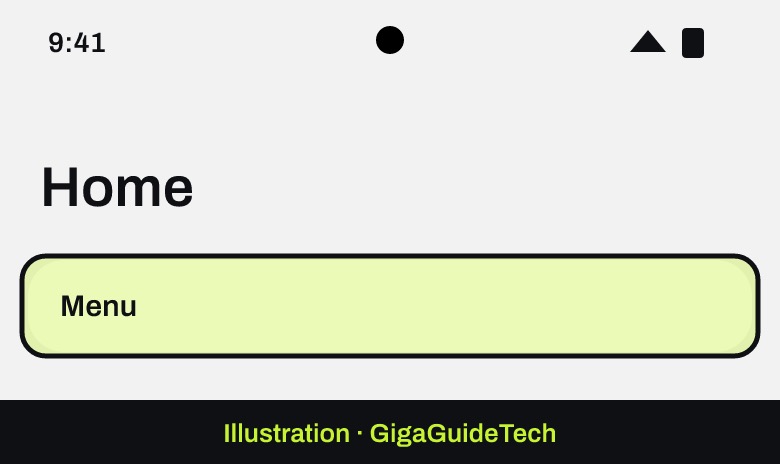
Illustration: Home - Navigate to Menu using the left button, then select Privacy Choices.
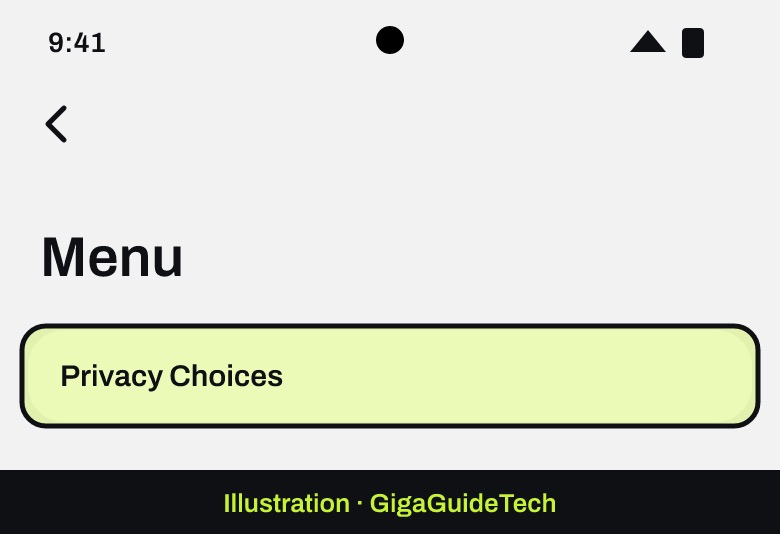
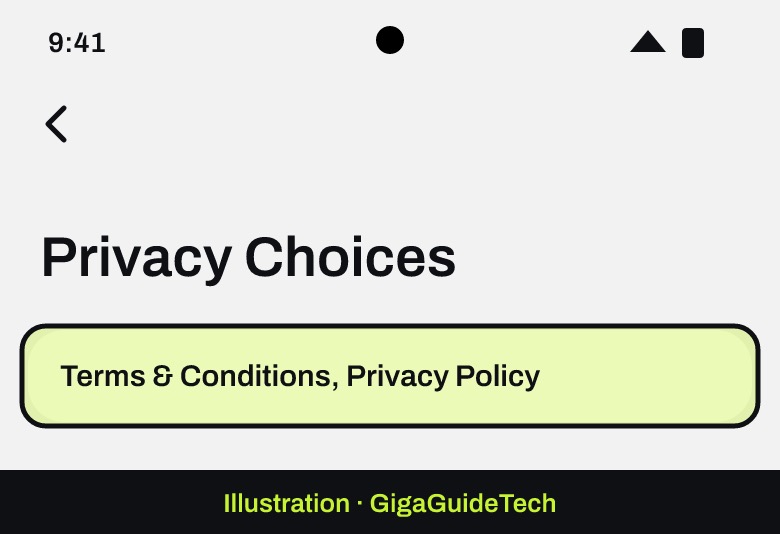
Illustration: Home > Menu Illustration: Menu > Privacy Choices - Select Terms & Conditions, Privacy Policy.
- Use the directional buttons to go to View details and press Select to read the terms for each item, such as Viewing Information Services and Interest-Based Advertisement.
- Navigate to the item you want to turn off and press Select to withdraw your agreement.
- Select OK to save the changes.
Samsung notes that some features may stop working if you decline data access.
On older menus: Terms & Privacy
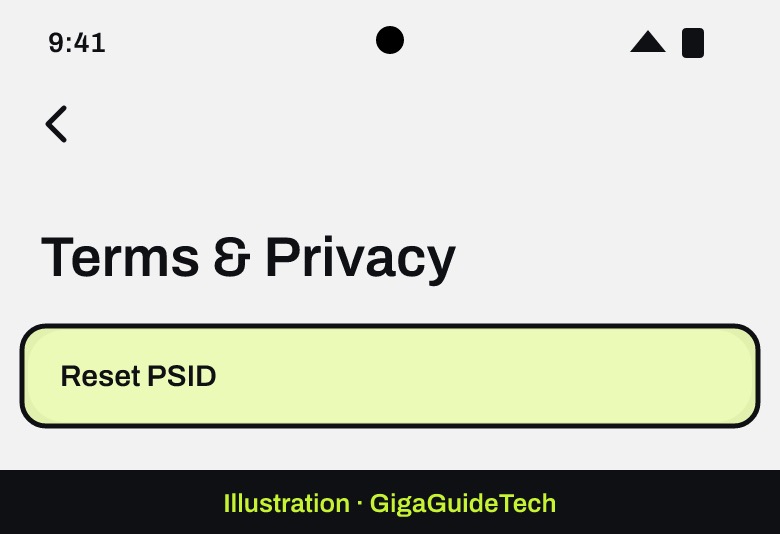
Samsung’s support pages don’t document this path, but owners of older models report finding the same consents under Settings > General (or General & Privacy) > Terms & Privacy. There, uncheck I consent to Viewing Information Services and I consent to Internet-based Advertisements. Some owners also use Reset PSID in the same menu to reset the TV’s advertising ID.
Step 2: Turn off voice recording review
If your TV has Bixby voice control, Samsung’s support page lists two privacy switches for recordings:
- Open Settings and select All Settings.
- Select Advanced Features > Voice > Bixby Settings.
- Go to the Privacy tab.
- Turn off Allow Audio Recording Review and Allow voiceprint review.
Step 3: Turn off the AI assistant if you don’t use it
On TVs with Samsung’s Vision AI Companion, Samsung says you can cancel its agreement:
- Press and hold the Home button for 2 seconds to open the Vision AI Companion home screen.
- Go to Settings and press Select.
- Select Terms & Conditions, then View Details.
- Select Disagree, then Disagree again to confirm.
Step 4: Stop Smart Hub from opening on its own
This doesn’t change tracking, but it keeps the promotional Smart Hub screen from popping up every time you turn on the TV.
- Press Home and go to Settings.
- Select General > Smart Features.
Illustration: Settings > General > Smart Features - Turn off Autorun Smart Hub.

What to expect after turning these off
Turning these off doesn’t make ads disappear entirely. Once you opt out, you’ll stop seeing personalized or targeted ads, but you may still see default, non-personalized ads, Samsung TV Plus promotions, and general home screen recommendations. You may also notice that the content and recommendations shown on your TV become less relevant to your viewing habits, since that personalization is exactly what these settings control. Apps from other companies, like streaming services, can also collect their own data under their own privacy policies.
If it still doesn’t work
Samsung’s documentation doesn’t list a formal troubleshooting path if these settings fail to stick, but a few things are worth trying. Double-check that you selected Disagree or unchecked the consent boxes rather than just viewing the details, since simply opening the terms doesn’t withdraw consent on its own. If you recently updated your TV’s firmware, revisit the Terms & Privacy menu afterward. There’s no official warning that updates reset these preferences, but it’s a setting worth rechecking periodically. If the menu labels genuinely don’t match any of the paths above, your TV’s model year or region may use different wording, and the closest matching item in your Settings or General menu is usually the right place to look.
FAQ
Does turning off Viewing Information Services stop all ads on my Samsung TV?
No. It stops ads from being personalized to your viewing habits, but you’ll likely still see some default or non-targeted ads, Samsung TV Plus content, and general promotions on the home screen.
Will disabling these settings delete anything or affect my saved apps?
No. Disabling Viewing Information Services and ad tracking only changes your consent preferences. It doesn’t require a backup and doesn’t cause any loss of personal content, installed apps, or saved settings.
Does Samsung actually watch or record what’s on my screen?
According to Samsung, no. The company states it does not record or watch any of the content displayed on your Smart TV. Viewing Information Services instead tracks things like which programs you watch, how long you watch them, your Smart TV identifiers, and your IP address.
Why do my menu names look different from this guide?
Samsung’s own support pages use inconsistent labels, such as “Terms & Privacy” versus “General & Privacy,” depending on the TV’s model year and region. If your exact wording doesn’t match, look for the closest equivalent menu covering terms, privacy, or ads.
The bottom line
Withdraw your consent for Viewing Information Services and interest-based ads in Privacy Choices, turn off voice recording review in Bixby Settings, and switch off the AI assistant if you don’t use it. You’ll still see some ads, but your TV will stop personalizing them based on what you watch. For the background, read our story on a researcher’s claims about Samsung TV tracking.
Sources: Samsung (ACR), Samsung (privacy settings), Samsung (Smart Hub)