This guide is for anyone who feels their music, calls, or videos sound muffled, quiet, or inconsistent through Bluetooth or wired headphones on an Android phone. If you want to improve audio quality on Android without buying new hardware, the steps below cover the official settings built into stock Android, Pixel phones, and Samsung Galaxy devices, plus what to do if a codec or headset still sounds off.
Before you start:
- Your phone should be running Android 8.0 or later to access Bluetooth codec options such as AAC, aptX, aptX HD, and LDAC.
- Have your wired or Bluetooth headphones ready, since several settings only appear once a device is connected.
- Know whether your headphones actually support a higher-quality codec (aptX, aptX HD, LDAC, or LC3) — the phone can only use what the headset supports.
- Keep your phone updated. Newer Android and One UI versions add codec support and fix audio bugs, so updating your Samsung Galaxy phone to Android 17 is worth doing before chasing other fixes.
- No personal data is at risk in these steps, but changes made in Developer options can affect sound output until you revert them, so note your current settings before experimenting.
Pair Your Headphones Correctly First
Before adjusting any advanced settings, make sure your headphones are connected the standard way. Wired headphones with a USB-C or 3.5mm connector route audio automatically once plugged in. For Bluetooth headphones:
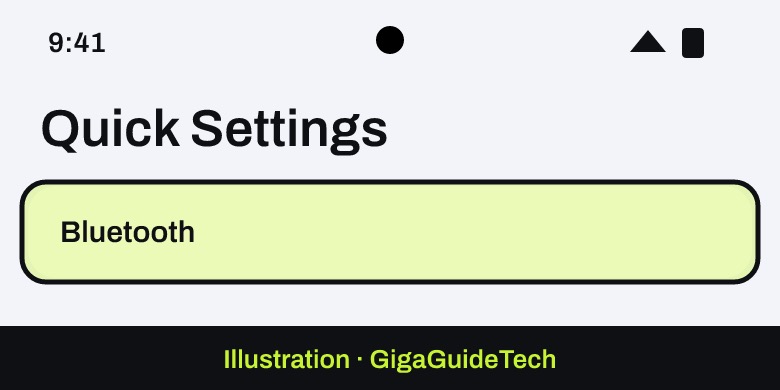
- From the top of the screen, swipe down to open the quick settings panel.
- Tap Bluetooth.

Illustration: Quick Settings > Bluetooth - Touch and hold Bluetooth.
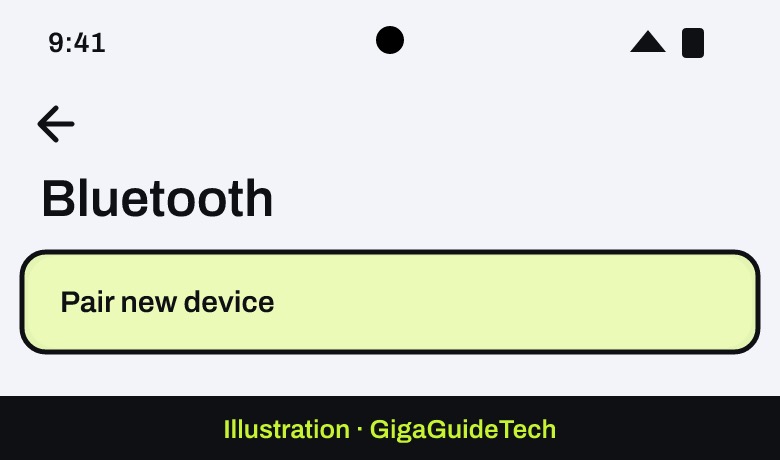
- Tap Pair new device. If you don’t see this option, check under “Available devices” or tap More and then Refresh.
Illustration: Bluetooth > Pair new device - Tap the name of your headphones to pair them.
- Follow the on-screen instructions to finish pairing.
Turn On Built-In Sound Enhancements
On Pixel Phones
Pixel phones include Sound Amplifier, a tool that works with wired or Bluetooth headphones to boost quiet sounds and reduce background noise.
- Open your phone’s Settings app.
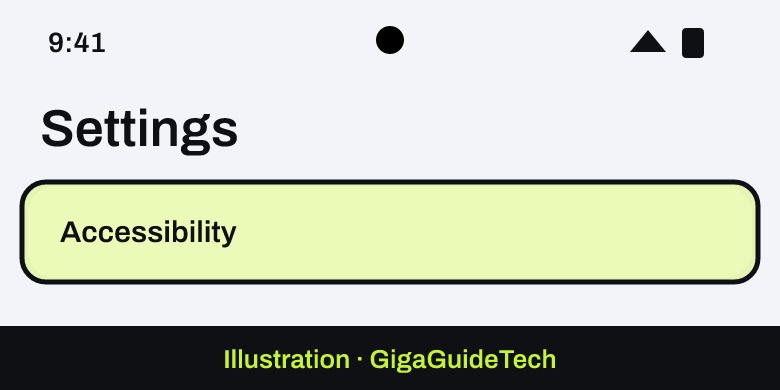
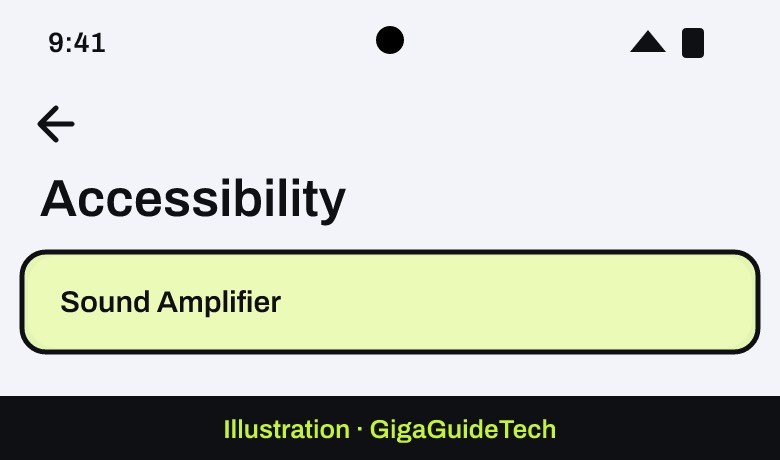
- Tap Accessibility, then Sound Amplifier, then Open Sound Amplifier.
Illustration: Settings > Accessibility > Sound Amplifier Illustration: Accessibility > Sound Amplifier - Connect your wired or wireless headphones.
- Tap Phone mic to adjust “Noise reduction,” “Boost quiet sounds,” and the low/high frequency sliders.
- Tap Adjust ears separately if you want independent left/right tuning (for Bluetooth headphones, this only affects media, not the mic).
For clearer speech, Google recommends setting the noise reduction slider above 90 percent, and using noise-canceling wired headphones for the most reliable results, since some Bluetooth headsets introduce delay or lower quality.
Pixel also has Adaptive Sound, found under Settings > Sound & vibration > Adaptive Sound, but this only tunes the phone’s own speaker, not headphone output.
On Samsung Galaxy Phones
Samsung’s One UI includes a dedicated audio tuning menu with more options than stock Android.
- Open Settings and tap Sounds and vibration.
- Scroll down and tap Sound quality and effects.
- Tap Equalizer and choose a preset (Normal, Pop, Classic, Jazz, Rock) or select Custom to adjust bass, treble, and vocals manually.
- Turn on UHQ upscaler if you’re using wired earphones, to enhance the resolution of music and video.
- Turn on Dolby Atmos for simulated surround sound, or add it to your quick settings panel if it isn’t visible.
- Tap Adapt sound, choose your age group, or tap Personalize your sound and take the hearing test to build a custom profile.
When Galaxy Buds are connected, the Sound Quality and Effects menu automatically swaps Dolby Atmos for a 360 Audio option tuned to earbuds like the Galaxy Buds3 Pro, which support spatial sound. Keep in mind that some of these effects only work with headphones attached and are not supported by every sound source.
Samsung phones running Android 7 or later also auto-enable Samsung Scalable Codec when paired with compatible Bluetooth headphones. It adjusts bitrate on the fly to avoid dropouts when Wi-Fi interference is high, but only if your headphones support it.
Pick a Better Bluetooth Codec in Developer Options
Android 8.0 and later let A2DP-compatible phones use codecs beyond the basic SBC standard, including AAC, aptX, aptX HD, and LDAC, each offering better quality than SBC when the headphones support it. To access these controls:
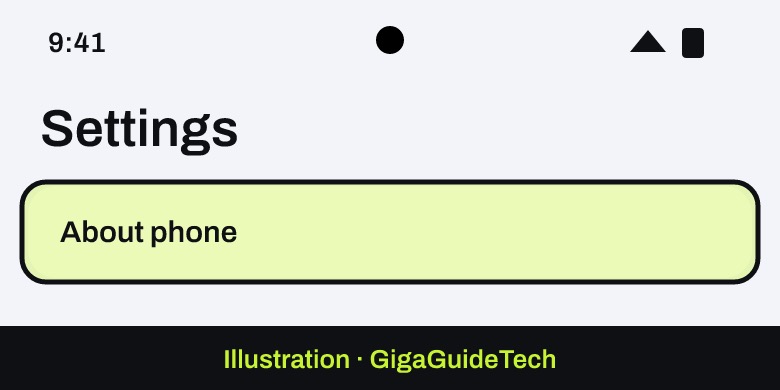
- Open Settings and tap About phone (or About tablet).
Illustration: Settings > About phone > Build number - Find the Build number (on some phones it’s under “Android version” or “Software information”).
- Tap Build number seven times until you see a confirmation that Developer options are enabled.
- Go back to Settings > System > Developer options and look for the Bluetooth audio settings, where you can choose the codec, sample rate, bits per sample, and channel mode.
Not every codec will appear, since manufacturers need separate licenses for some proprietary options like aptX HD or LDAC. If you’d rather not touch Developer options, Android 8.0 also added a simpler per-device toggle: go to Settings > Connected devices > Bluetooth, tap the gear icon next to your headphones, and clear the HD Audio checkbox to disable high-definition codecs for that device, or leave it checked to keep them on. This setting is saved per headset and persists across reconnections.
Make Sure Audio Is Routing the Way You Want
Android also lets you classify each Bluetooth accessory, which affects how audio and spatial sound features behave:
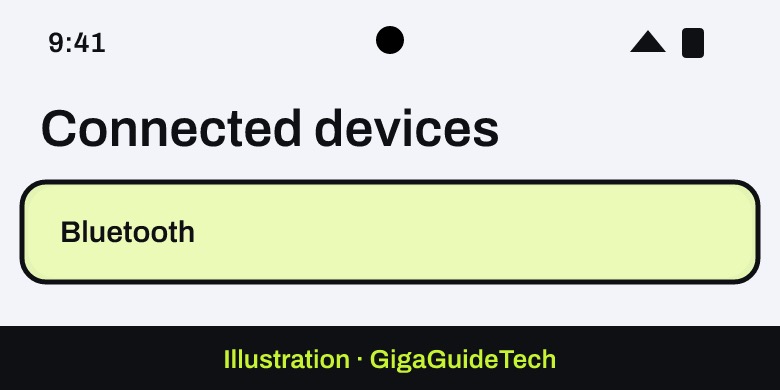
- Open Settings and tap Connected devices.
- Under “Media devices,” select your headphones’ settings.
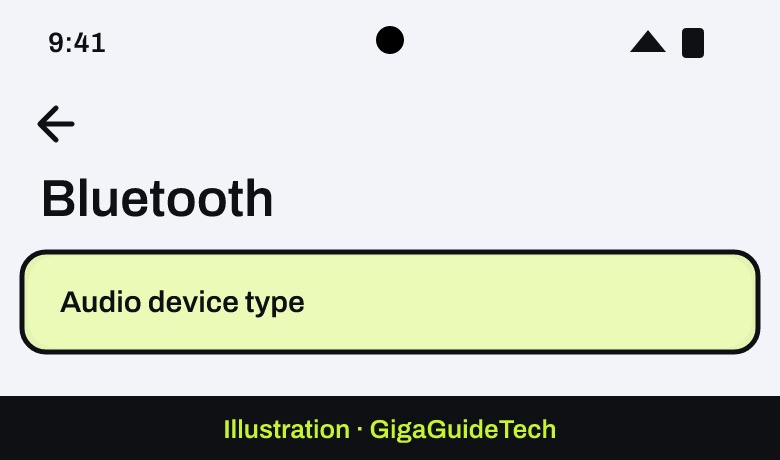
- Choose an Audio device type: Not set, Speaker, Headphones, Car, Hearing device, or Other.
Illustration: Bluetooth > Audio device type
Setting this correctly helps features like spatial audio and loudness measurement work as intended. If you use a car Bluetooth system or external speaker, also check that Media audio and Phone audio are both turned on under that device’s Bluetooth settings, since one can be switched off without you realizing it. Samsung users who want navigation audio on the phone speaker while music plays through a car or headset can set this up under Settings > Sounds and vibration > Separate app sound.
If It Still Doesn’t Work
- Try a different pair of headphones, ideally wired, if Bluetooth audio still sounds delayed or compressed — official guidance notes that some Bluetooth headsets simply have lower quality or more latency than others.
- If a codec setting keeps resetting every time you reconnect your headphones, use the per-device HD Audio toggle described above instead of the Developer options codec picker, since it’s designed to persist.
- Double-check that both your phone and your headphones actually support the codec you’re trying to use — aptX HD and LDAC require hardware support on both ends, not just a phone setting.
- If you’re on Android 13 or later, confirm your headphones support Bluetooth LE Audio and its LC3 codec, which is more efficient and higher quality than older SBC connections, and allows sharing audio between two sets of headphones.
FAQ
Does LDAC or aptX HD drain my battery faster?
Higher-quality codecs use more processing power and bandwidth than SBC, so some extra battery drain during playback is expected, though the exact impact depends on your phone and headphones.
Why does my Bluetooth audio sound worse than my wired headphones?
Bluetooth audio quality depends on the codec both devices support and can be affected by interference or hardware limitations. Official guidance notes wired, noise-canceling headphones generally give more consistent results than Bluetooth.
What is Bluetooth LE Audio, and do I need it?
Bluetooth LE Audio, supported from Android 13 onward, uses the LC3 codec to deliver high-fidelity sound with lower battery use than classic Bluetooth, and lets you share audio with a second pair of compatible headphones. You’ll need headphones that specifically support LE Audio to use it.
Why did my codec choice disappear after I reconnected my headphones?
On some devices, codec selections made in Developer options don’t persist across reconnections. Using the per-device HD Audio toggle under your headphones’ Bluetooth settings is a more reliable way to keep a setting in place.
The Bottom Line
There’s no single switch that maximizes audio quality on every Android phone, but combining the right codec, a properly configured equalizer, and correct device settings gets you noticeably closer to what your headphones are capable of. Start with the built-in enhancements on your phone, check your Bluetooth codec and HD Audio settings, and fall back to wired headphones when a Bluetooth connection just isn’t cutting it.
Sources: Google Help, android.com, source.android.com, developer.android.com, Samsung
Where to buy

- Sony WH-1000XM5 Wireless Headphones (LDAC support): check price on Amazon
- Sennheiser IE 200 Wired Earphones: check price on Amazon
As an Amazon Associate I earn from qualifying purchases.