Fake delivery texts, “your account is locked” messages, robocalls about car warranties: spam calls and texts never seem to stop, and they get worse around the holidays. You can’t make them disappear completely, but your phone has built-in tools that silence most of them before they bother you. Here’s how to block spam calls and texts on an iPhone and on Android, step by step.
Before you start: save the numbers that matter
Most of these filters treat any number that isn’t in your contacts as “unknown.” Apple recommends adding important numbers first, like family, your kids’ school and your doctor’s office, so their calls always ring through. Take two minutes to save them before you turn anything on.
Step 1: Screen or silence unknown callers (iPhone)
Go to Settings > Apps > Phone and scroll to Screen Unknown Callers. You’ll see three choices:
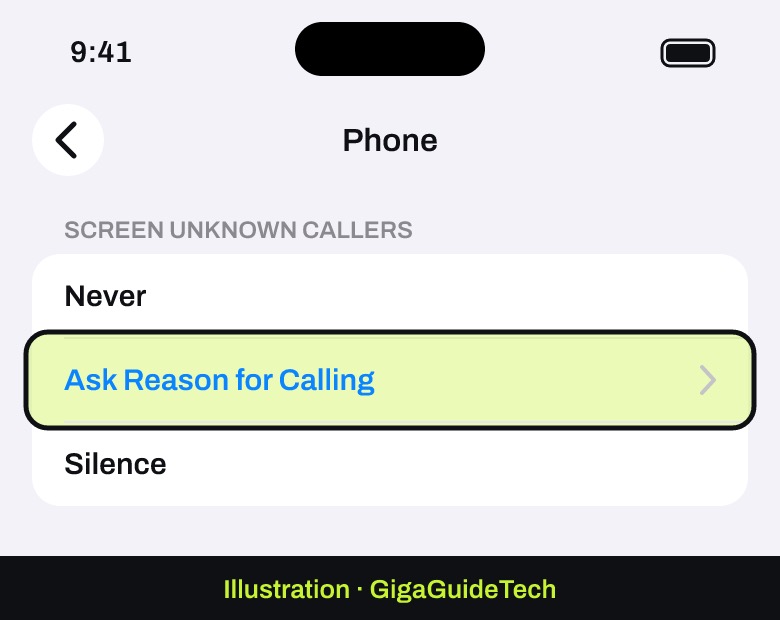
- Never: calls from unsaved numbers ring like any other call.
- Ask Reason for Calling: your iPhone asks the caller why they’re calling before your phone even rings. Real people can answer; automated robocalls usually can’t.
- Silence: calls from unsaved numbers go straight to voicemail.
Apple notes that calls aren’t screened while you’re roaming, and that call screening turns off for 24 hours after you call emergency services.
Step 2: Turn on call filtering (iPhone)
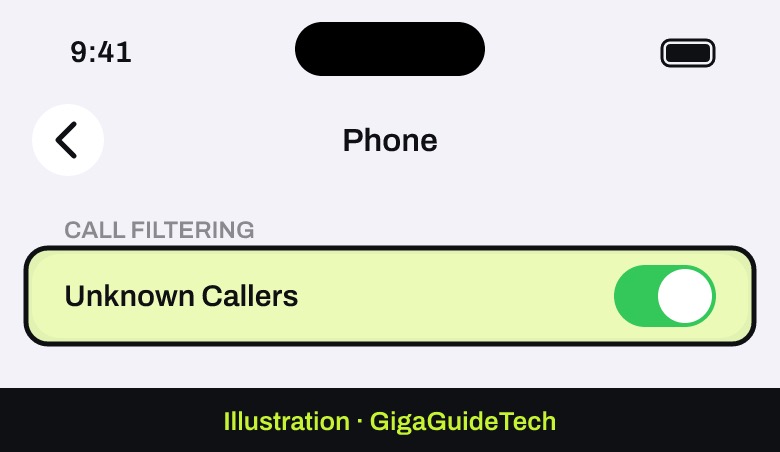
In the same Settings > Apps > Phone screen, scroll down to Call Filtering:
- Turn on Unknown Callers to move missed calls and voicemails from unknown numbers into their own list, away from your main call history.

Illustration: Settings > Apps > Phone > Call Filtering: turn on Unknown Callers - Turn on the spam filter to keep likely spam calls in a separate Spam list.
To check those lists later, open the Phone app, tap the Filter button and choose Unknown Callers or Spam.
Step 3: Screen texts from unknown senders (iPhone)
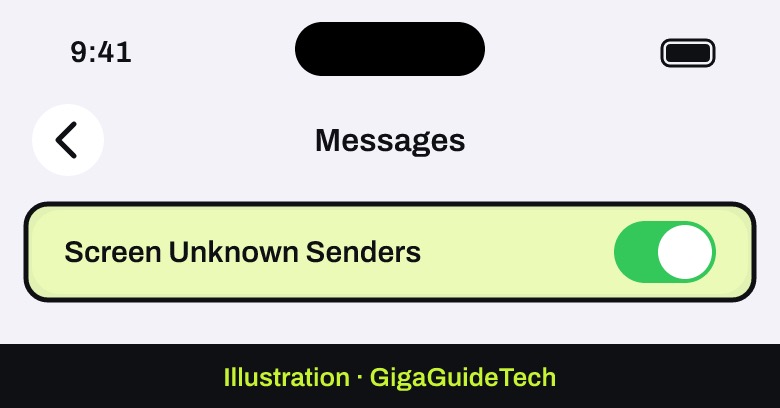
Go to Settings > Apps > Messages and turn on Screen Unknown Senders. According to Apple, texts from numbers you don’t know then land in a separate Unknown Senders list instead of your main inbox. Time-sensitive messages, like verification codes, still notify you by default.
If a real person or business ends up there, open the conversation and tap Mark as Known. Just replying doesn’t move them out of the list.

Step 4: Turn on spam protection for calls (Android)
On phones that use the Phone by Google app, including Pixel phones and many other Android models:
- Open the Phone app.
- Tap More options (three dots) > Settings > Caller ID and spam.
- Make sure See caller ID & spam is on. Google says it’s on by default.
- Turn on Filter spam calls. Filtered calls won’t ring or send you missed-call alerts, but they still appear in your call history and can leave voicemail.
On newer Pixel phones with automatic Call Screen, you won’t see “Filter spam calls”; blocking spam is one of the Call Screen options instead. Samsung Galaxy phones have their own Phone app, where you’ll usually find similar caller ID and spam settings in the app’s settings.
Step 5: Report spam texts in Google Messages (Android)
Google Messages has built-in spam detection. When a spam text slips through, open the conversation and choose to block and report it. Google explains that reporting a conversation as spam also blocks the sender and moves it to your Spam & blocked folder. Reporting is optional: you can just block the number if you prefer.
Step 6: Block a specific number
- iPhone: open the call in your Phone app or the conversation in Messages, tap the number or name at the top, and choose Block Caller or Block Contact.
- Android (Phone by Google): in your call history, touch and hold the call, then tap Block or Report spam. If a call from someone you know gets flagged by mistake, open it and tap Not spam, then Unblock.
Blocking one number at a time helps, but spammers switch numbers constantly. That’s why the automatic filters in Steps 1 to 5 do most of the work.
Step 7: Report spam texts to your carrier and the FTC
The Federal Trade Commission recommends forwarding unwanted texts to 7726 (it spells SPAM). This helps your wireless provider spot and block similar messages. You can also use your phone’s “report junk” option, and report text scams at ReportFraud.ftc.gov.
Step 8: Check your carrier’s tools
The FTC also points out that many wireless providers offer their own call and text blocking tools or services, and some call-blocking apps can filter texts too. Check your carrier’s app or website to see what’s included with your plan before paying for anything extra.
What not to do
- Don’t reply to a text you don’t recognize. The FTC warns that replying to unexpected messages could lead you into a scam.
- Don’t tap links in surprise texts about packages, tolls, bank accounts or prizes. Go to the company’s app or website yourself instead.
- Don’t call back unknown numbers that left no voicemail.
Quick checklist
- Save important numbers to your contacts.
- iPhone: Screen Unknown Callers, Call Filtering and Screen Unknown Senders.
- Android: Caller ID and spam on, plus Filter spam calls or Call Screen.
- Report and block spam texts in Messages.
- Forward spam texts to 7726 and report scams to the FTC.
- Never reply to or tap links in unexpected texts.
Scammers love big news stories, too. See how they’re using the FBI and USDA hacks as bait, and before you shop this week, read how to spot fake deals and scam stores.
Sources: Apple Support (calls), Apple Support (messages), Phone app Help, Google Messages Help, FTC