Your phone has a SIM card, your bill is paid, and yet the top of the screen says No Service or Searching. No calls, no texts, no mobile data. It’s a common problem, and it usually has a simple cause: a network outage, a setting that got switched off, a loose SIM or an account issue with your carrier. Here’s how to fix it on an iPhone or an Android phone, starting with the quickest steps.
First: what the message means
“No Service” or “Searching” means your phone isn’t connected to your carrier’s cellular network. If you see SOS or “SOS only” instead, Apple says your iPhone can’t use your carrier’s network for normal calls, but it can still make emergency calls through other networks.
Before you change any settings, check two things:
- Is it just you? If people around you on the same carrier have no signal either, it’s probably an outage or a coverage gap. Check your carrier’s website or app (over Wi-Fi) for outage alerts.
- Are you in a dead zone? Basements, elevators, rural roads and big concrete buildings block signal. Google suggests moving to a different spot, or going outside, and checking again.
Step 1: Turn Airplane Mode on and off
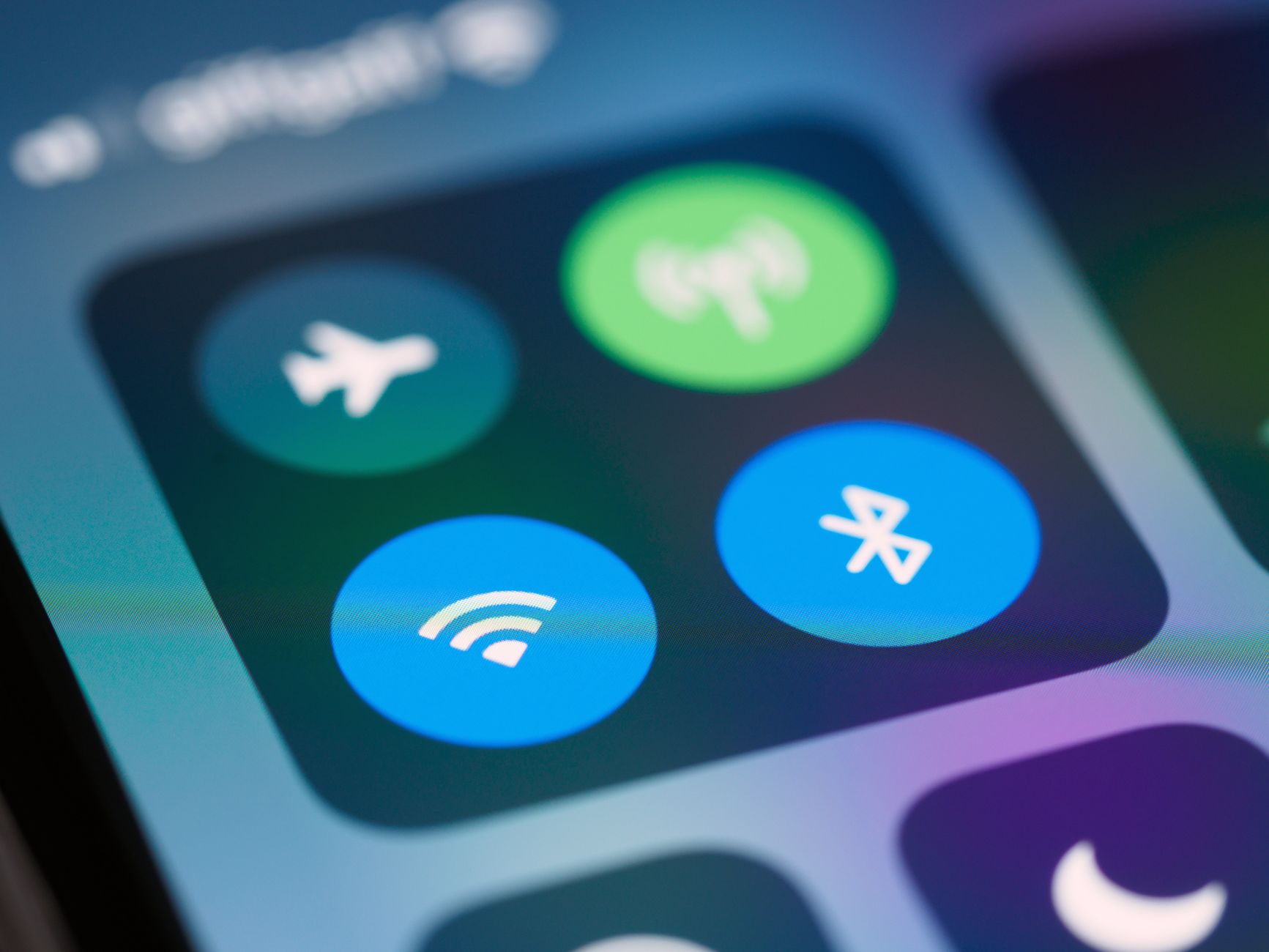
This forces your phone to drop and reconnect to the network, and it fixes a surprising number of “No Service” problems.
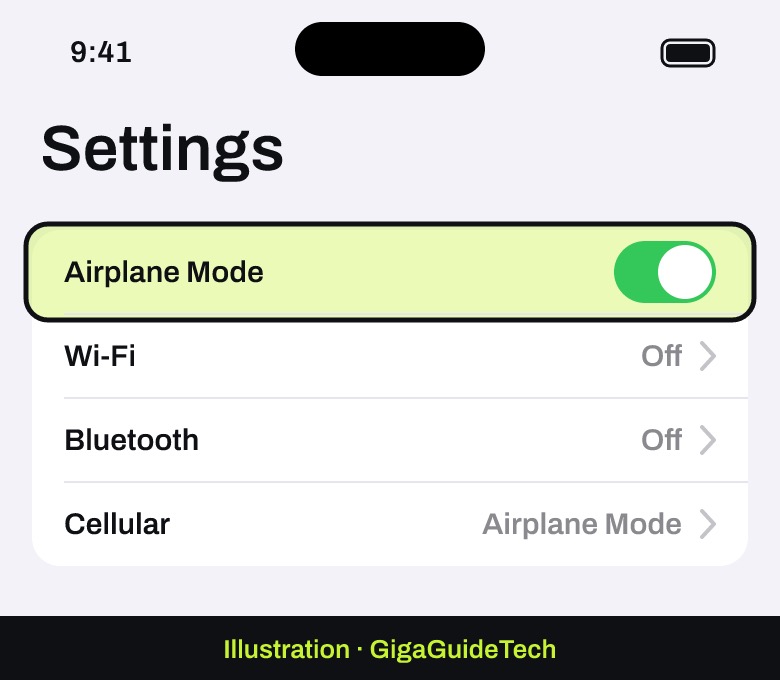
- iPhone: open Settings, turn on Airplane Mode for at least 15 seconds, then turn it off. That’s Apple’s own advice.

Illustration: iPhone Settings: turn Airplane Mode on for 15 seconds, then off - Android: swipe down from the top of the screen, tap Airplane mode, wait about 10 seconds, then tap it again.
Step 2: Restart your phone
If Airplane Mode didn’t help, turn the phone off completely and back on. A restart clears temporary glitches in the part of the phone that talks to the cellular network.
Step 3: Make sure your line is turned on
If you use two SIMs, an eSIM, or recently switched carriers, the line you need may simply be turned off.
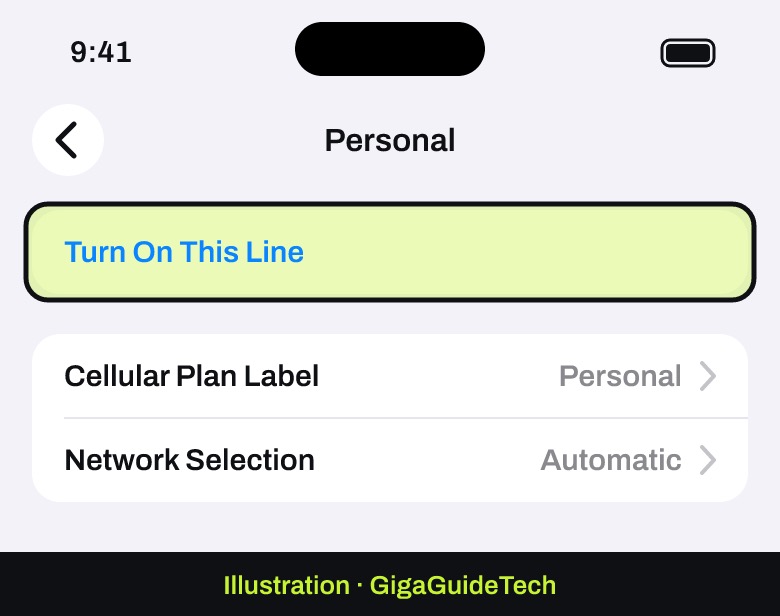
- iPhone: go to Settings > Cellular and tap your line. If it’s off, tap Turn On This Line.
Illustration: Settings > Cellular > your line: tap Turn On This Line - Android (Pixel): go to Settings > Network & internet > SIMs, pick your carrier, and make sure Use SIM and Mobile data are both on. Google notes that if your carrier name is gray with the message “No SIM,” the SIM is missing or inactive.
On other Android phones, like Samsung Galaxy models, the same switches are usually under Settings > Connections > SIM manager.
Step 4: Take out the SIM card and put it back
A SIM that has shifted slightly or has dust on it can stop connecting. Use the SIM tool (or a small paperclip) to pop out the tray, take out the card, and look at it. If it’s dirty, Google recommends wiping it with a microfiber cloth. Put it back and wait a minute.
If the SIM is bent, damaged, doesn’t fit the tray, or came from another phone, ask your carrier for a new one. Using an eSIM? There’s nothing to reseat, so skip to the next step, and contact your carrier if the eSIM doesn’t appear at all.
Step 5: Update your phone and carrier settings
- Update the software. On iPhone, go to Settings > General > Software Update. On Android, look in Settings > System > Software update (the name varies by brand).
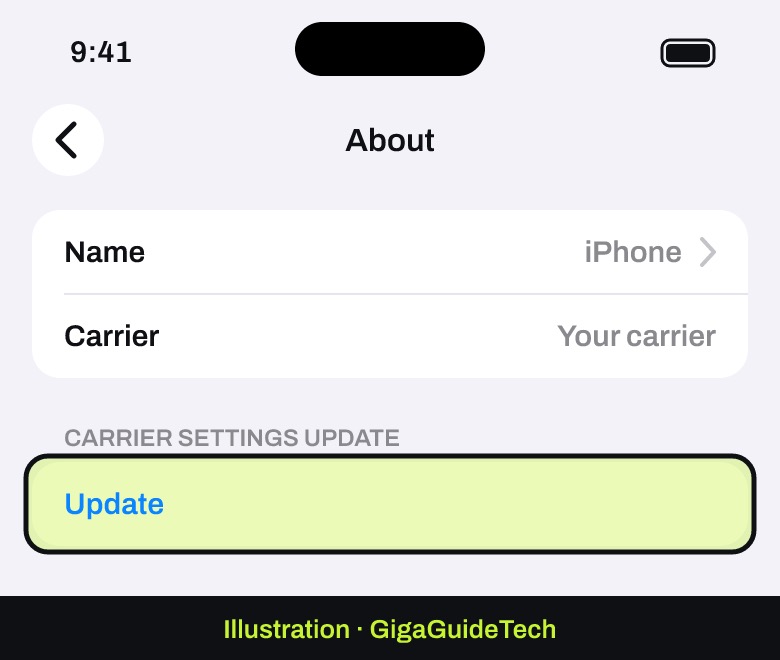
- iPhone carrier settings: connect to Wi-Fi, go to Settings > General > About and wait a few seconds. If a carrier settings update is available, you’ll see an option to install it. Apple says you also need new carrier settings whenever you put in a SIM from a new carrier.
Illustration: Settings > General > About: install a carrier settings update if one is offered
Step 6: Check your network type and roaming
- Older networks: many carriers have shut down their 3G networks. If you see No Service on an iPhone 5s, 5c or older, Apple says to contact your carrier to discuss your options. On an iPhone 6 or later, go to Settings > Cellular > Cellular Data Options and make sure Enable LTE is on.
- Android network type: on a Pixel, go to Settings > Network & internet > SIMs and set the preferred network type to one your carrier supports, such as 5G.
- Traveling abroad? Turn on Data Roaming in your cellular settings, and check that your plan includes international service.
Step 7: Reset your network settings (last resort)
This wipes your phone’s network settings and starts fresh. It doesn’t delete your photos or apps, but it can erase saved Wi-Fi passwords and Bluetooth pairings, so have your Wi-Fi password handy.
- iPhone: Settings > General > Transfer or Reset iPhone > Reset > Reset Network Settings.
- Pixel: Settings > System > Reset options > Reset mobile network settings.
Step 8: Call your carrier
If you still have no service, the problem may be on your carrier’s side. Apple suggests asking your carrier to:
- Confirm your account is active and in good standing.
- Check for outages in your area.
- Make sure your phone isn’t blocked from the network and is set up with the right plan.
- Tell you if your country requires IMEI registration for a phone bought abroad.
Both Apple and Google also offer built-in diagnostics. On iOS 18 or later, the Apple Support app can run diagnostics on your iPhone. On a Pixel 11 in the US, go to Settings > Device health & support and tap Call diagnostics or Mobile data diagnostics. If your carrier finds nothing wrong, the phone itself may need repair.
Quick checklist
- Check for an outage or a dead zone first.
- Airplane Mode on for 15 seconds, then off.
- Restart the phone.
- Make sure your line or SIM is turned on.
- Reseat the SIM card, or ask for a new one.
- Update the software and carrier settings.
- Check LTE, network type and roaming.
- Reset network settings, then call your carrier.
Is your phone also shutting down on its own? Read why your iPhone keeps turning off. Pixel owners can also check the Android settings worth turning off.
Sources: Apple Support, Pixel Phone Help