
Your iPhone shows 20 percent battery, and then the screen goes black. Or it shuts off in the cold, or in the middle of a video call. An iPhone that turns off by itself is frustrating, but the cause is usually one of a few things, and Apple’s own support pages explain most of them. Here’s how to figure out why your iPhone keeps turning off and what to do about it, from free fixes to knowing when it’s time for a new battery.
Why iPhones turn off unexpectedly
According to Apple’s battery and performance guide, unexpected shutdowns are most likely when:
- The battery charge is low.
- The battery is old. Apple calls it “a higher chemical age.” Every rechargeable battery wears out over time and charge cycles.
- It’s cold. Apple says using an iPhone in very cold conditions can temporarily shorten battery life and “could cause your device to turn off.”
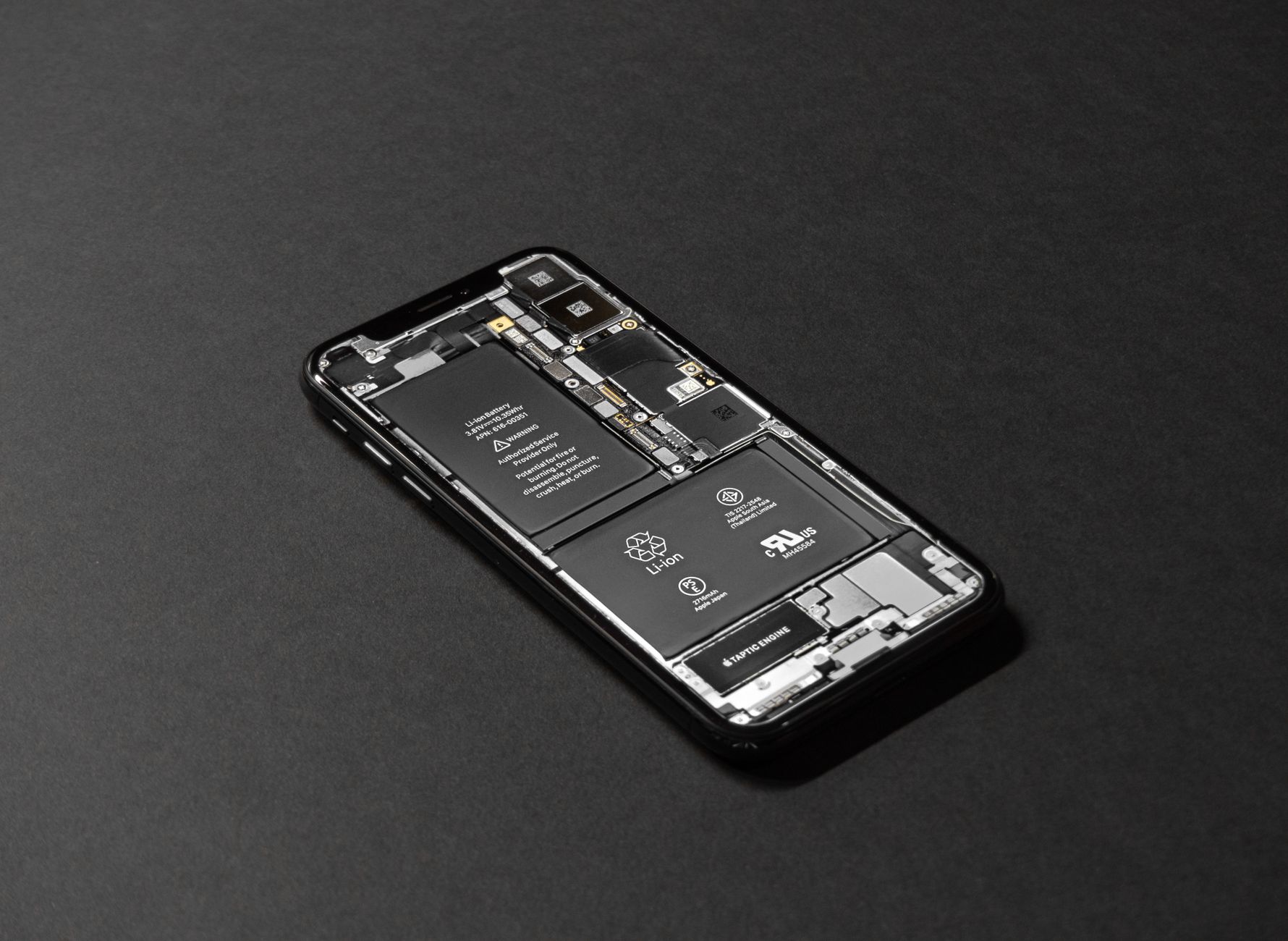
The reason is power, not just battery percentage. An aging battery can’t deliver bursts of power as well as it used to. When your iPhone suddenly needs a lot of power, for example to launch the camera or a game, a worn battery can’t keep up, and the phone shuts down to protect its parts. That’s why an old iPhone can turn off at 20 or 30 percent.
Step 1: Check your Battery Health
This is the most useful check, and it takes 10 seconds:
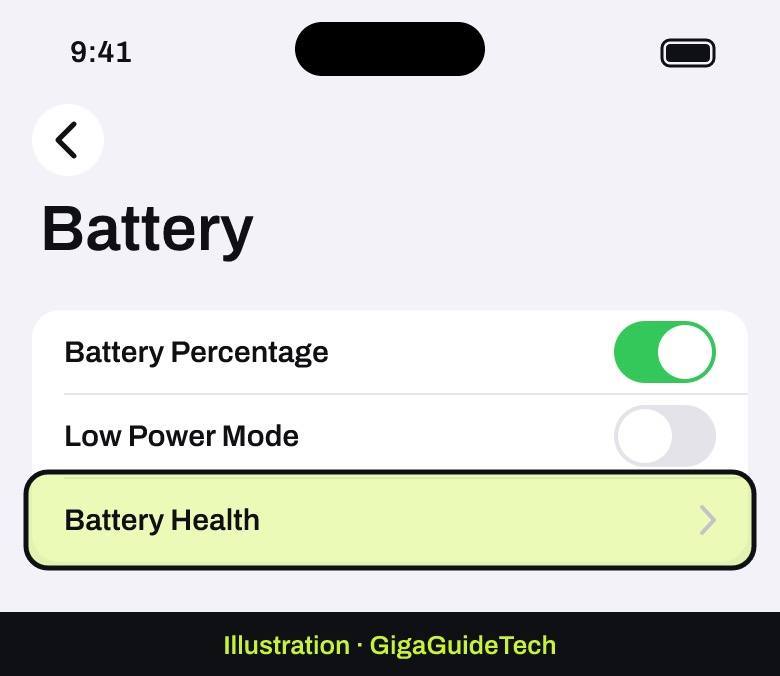
- Open the Settings app, then tap Battery.
- Tap Battery Health.

Illustration: Settings > Battery: tap Battery Health
Look at two things. Maximum Capacity shows how much charge the battery holds compared to when it was new. Peak Performance Capability tells you whether the battery can still deliver full power. Apple lists these messages:
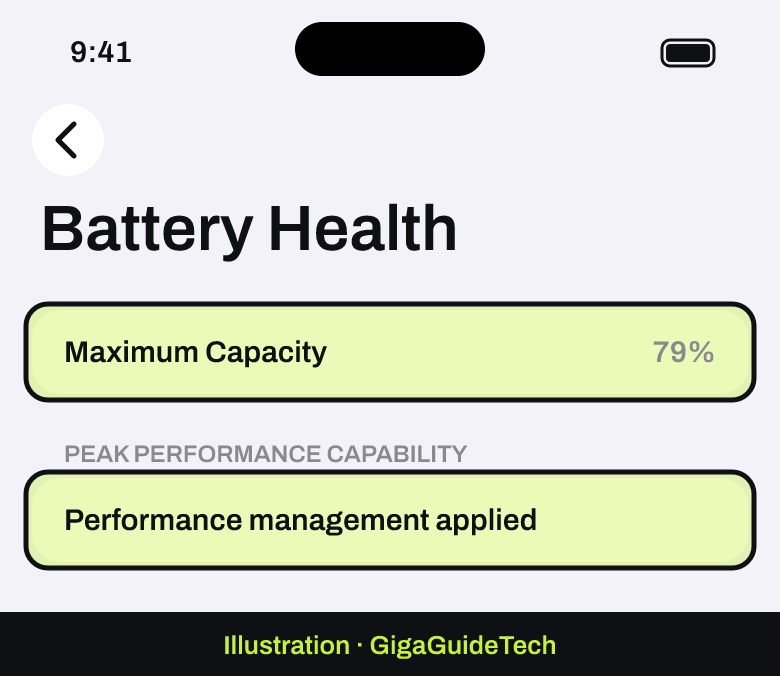
- “Your battery is currently supporting normal peak performance.” The battery isn’t the problem. Skip to Step 3.
- “This iPhone has experienced an unexpected shutdown because the battery was unable to deliver the necessary peak power.” This confirms the battery caused a shutdown. Your iPhone has turned on performance management, which slows some tasks slightly to prevent more shutdowns.
- “Your battery’s health is significantly degraded.” Apple says an Apple Authorized Service Provider can replace the battery to restore full performance. Apple adds that this message doesn’t mean the battery is unsafe.
Step 2: Understand performance management (and don’t turn it off)
After a battery-related shutdown, iOS manages performance to stop it from happening again. Apple says you might notice apps opening more slowly, lower frame rates while scrolling, a dimmer screen or slightly lower speaker volume. Calls, photo and video quality aren’t affected.
You can turn performance management off on the Battery Health screen, but you probably shouldn’t. Without it, the shutdowns are likely to come back. Apple notes that if your iPhone shuts down unexpectedly again, the feature turns itself back on. The real fix for an aging battery is a new battery.
Step 3: Watch the temperature
Apple says iPhones are designed for temperatures between 32º and 95º F (0º to 35º C). Outside that range, your iPhone may change how it works to protect itself:
- In the cold: the battery drains faster and the phone can turn off. Battery life returns to normal once the iPhone warms up, so keep it in an inside pocket on cold days.
- In the heat: charging may slow or stop, the screen may dim or go black, and you may see a “Temperature: iPhone needs to cool down” warning. Don’t leave your iPhone in a parked car or in direct sun for long.
If a temperature warning screen appears, Apple says to turn off the iPhone and let it cool down before you use it again.
Step 4: Restart it and update iOS
If the battery and temperature check out, a software problem may be to blame. Start with the basics:
- Force restart your iPhone. On an iPhone with Face ID, Apple says to press and quickly release the volume up button, press and quickly release the volume down button, then press and hold the side button until the Apple logo appears. That can take more than 10 seconds.
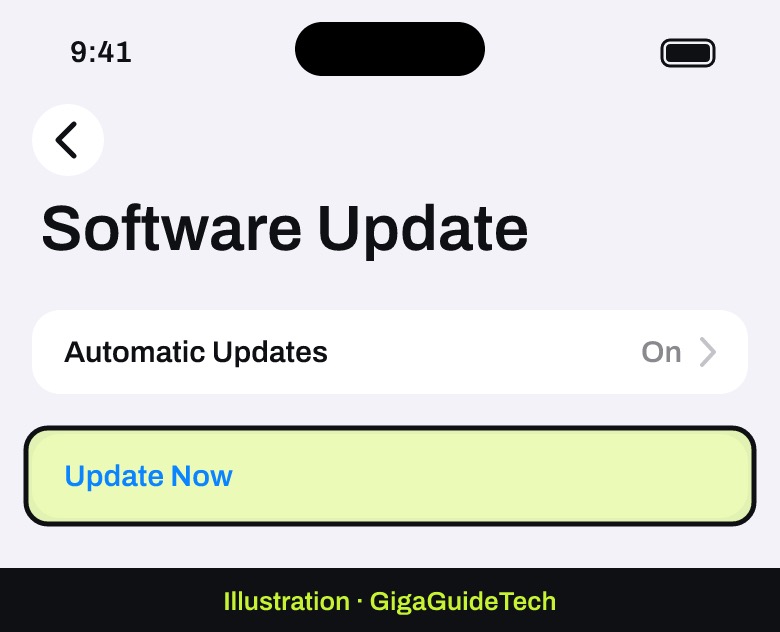
- Update iOS. Go to Settings > General > Software Update and install anything available. Updates often fix bugs that cause crashes and restarts.
Illustration: Settings > General > Software Update: install any available update - If it won’t turn back on, plug it in and let it charge for a while before trying again. Apple’s guide for an unresponsive iPhone walks through what to try next.
Step 5: Replace the battery when it’s time
If Battery Health shows a degraded battery or confirms a shutdown, a battery replacement is usually the fix that actually works. A new battery restores full peak performance, and performance management is no longer needed. Use Apple or an Apple Authorized Service Provider so you get a genuine battery. Apple’s Battery Health screen may show “Unable to verify” for batteries it can’t confirm are genuine, and the health information may then be inaccurate.
Quick checklist
- Turns off at low percentages? Check Battery Health first.
- Turns off in the cold? Keep it warm; it’s normal outside 32º F.
- Turns off when hot or charging? Cool it down and charge out of the sun.
- Battery looks fine? Force restart and update iOS.
- Battery degraded? Get it replaced.
If your iPhone also feels slow, read how to fix a slow or freezing phone. If you’re thinking about replacing it instead, here’s how to move your data to a new iPhone.
Sources: Apple Support (battery and performance, operating temperatures, force restart, unresponsive iPhone)