GTA 6 came out today, and big games aren’t cheap. The good news: if there are two consoles in your house, or several people with their own accounts on one console, you don’t have to buy the same digital game twice. Both PlayStation and Xbox let you choose one console where everyone can play the games you bought. Here’s how game sharing works on PS5 and Xbox Series X|S, how to turn it on, and the risks of sharing with someone outside your home.
How game sharing works
Each platform lets you pick one console as your main one. Sony calls it Console Sharing and Offline Play, and Microsoft calls it your home Xbox. On that console, anyone who uses it can play the digital games you bought, even when you’re not signed in and even when the console is offline.
You can only have one at a time. That’s the catch: you choose one console, not several.
Step 1: Turn on Console Sharing on a PS5
PlayStation says Console Sharing and Offline Play is turned on automatically on the first PS5 you sign in to. To turn it on for a different PS5:
- On the PS5 you want to share, sign in with your account.
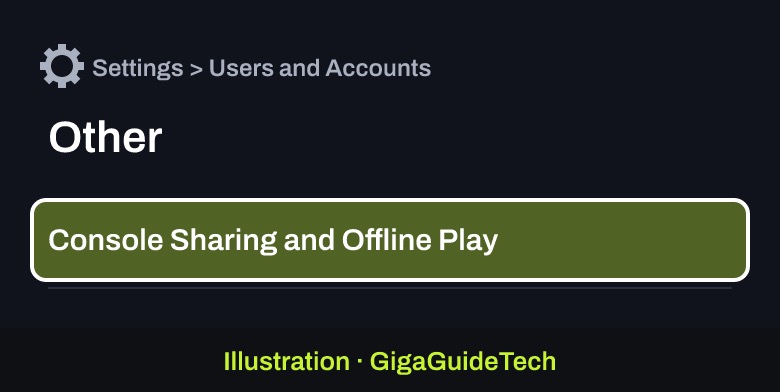
- Go to Settings > Users and Accounts > Other > Console Sharing and Offline Play.

Illustration: PS5: Settings > Users and Accounts > Other - Select Enable.
Illustration: PS5: select Enable to share your games on this console
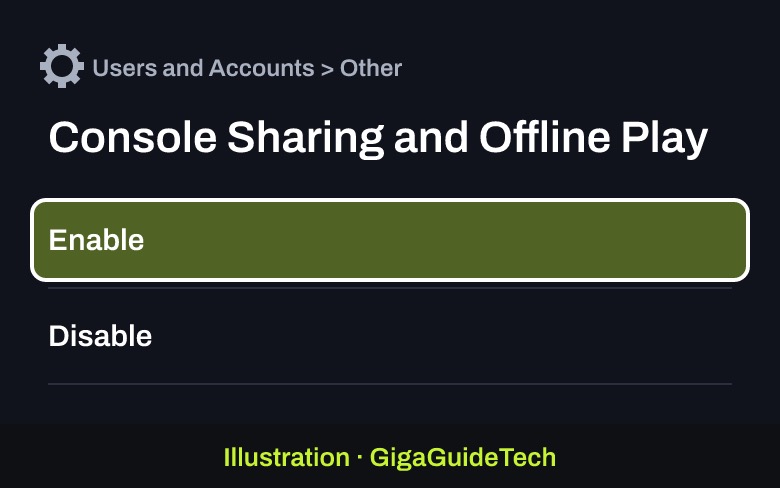
If it’s already on for another PS5, turn it off there first. Once it’s on, anyone who uses that PS5 can play your games and media, even offline, and get some of your PlayStation Plus benefits, according to PlayStation’s support page.

Step 2: Make it your home Xbox
On Xbox Series X|S, sign in on the console you want to share, then open Settings > General > Personalization > My home Xbox and select Make this my home Xbox, as Engadget describes.
A few rules from Microsoft’s support page:
- Only one home Xbox at a time. If you use more than one, Microsoft suggests picking the one you play on most.
- Five switches a year. You can change your home Xbox up to five times in any one-year period, and Xbox Support can’t give you more.
- Game Pass is shared too. Anyone who signs in to your home Xbox with their own profile can use your Game Pass subscription.
- A reset clears it. If you reset the console and remove everything, you’ll need to set it as your home Xbox again.
The best setup for a family with two consoles
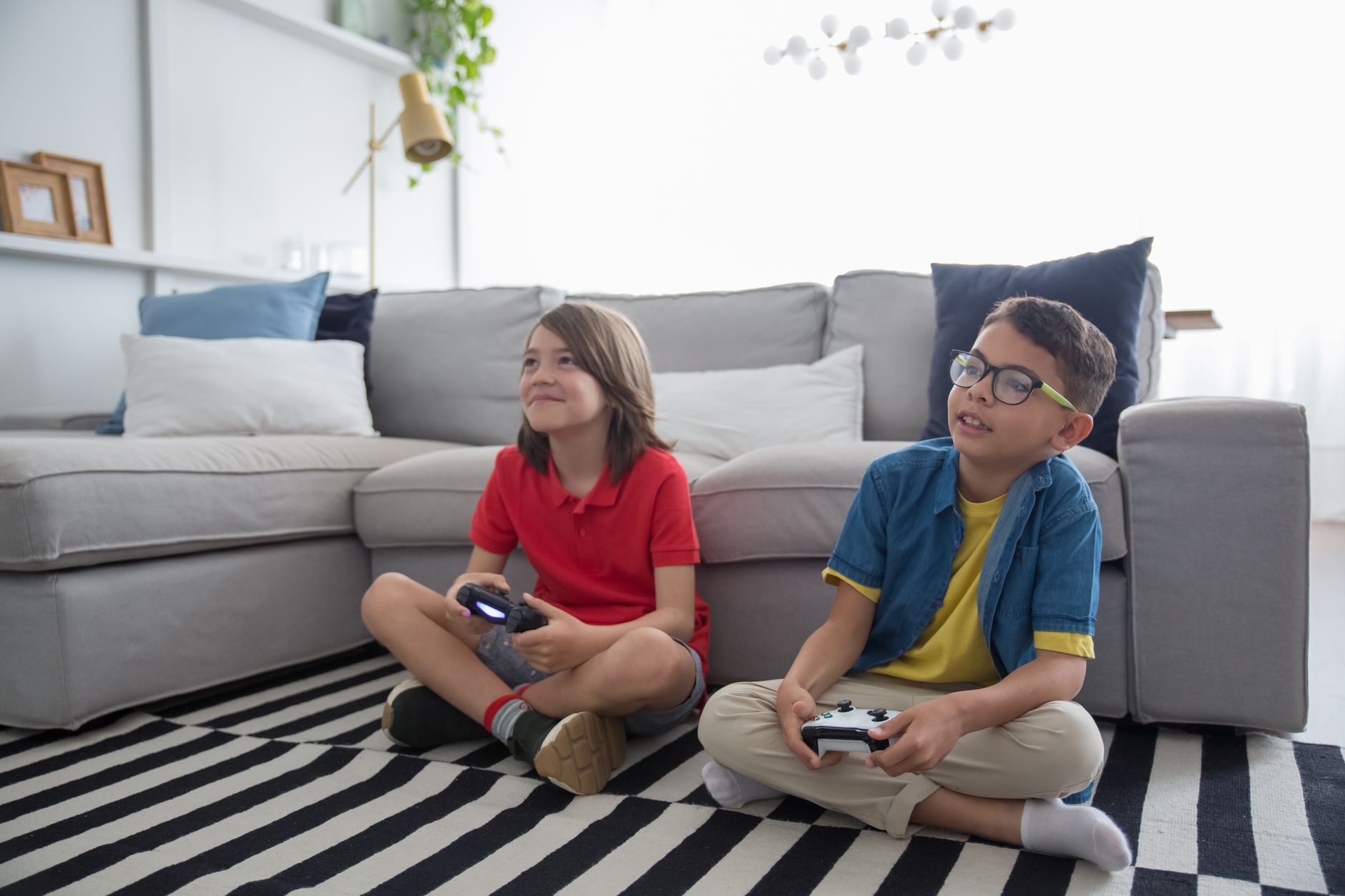
Set the console the rest of the family uses, say in the kids’ room or the den, as your PS5 sharing console or your home Xbox. Everyone there can play your games without your account being signed in. On your own console, you can still play your games whenever you sign in with your account and you’re online. That way one purchase covers both consoles.
Sharing with a friend: know the risks
Some people use game sharing to split the cost of a game with a friend who has their own console. To do that, you have to sign in to your account on your friend’s console, as Engadget explains. That means handing over your password, so think it through:
- They get more than one game. Your friend can download any game in your library, and keeps access until you change your password, Engadget notes.
- Protect your payment details. Anyone with your password could make purchases with your saved card. Turn on two-step verification and consider removing saved cards before you share.
- One sign-in at a time. You can’t use the same account on two consoles at once, so your friend needs to switch back to their own account after starting a download.
- Undoing it takes time on PS5. If you lose access to that console, PlayStation lets you deactivate all devices remotely from Account Management, but only once every six months.
Our advice: only share with people you’d trust with your wallet, like close family.
Shared games won’t open?
PlayStation suggests checking these first:
- Make sure the person who bought the game is the one who turned on Console Sharing.
- Check the PlayStation status page for outages, and make sure your PS5 has the latest system software. Here’s how to update your PS5.
- Restart your console, or turn off your router for at least five minutes and turn it back on.
- If it’s a PlayStation Plus game, make sure the subscription is still active.
- A padlock icon next to a game usually means a license or network problem.
Still getting GTA 6 set up? See how to get it ready to play and how it runs on Xbox Series X vs Series S.
Sources: PlayStation Support, Xbox Support, Engadget