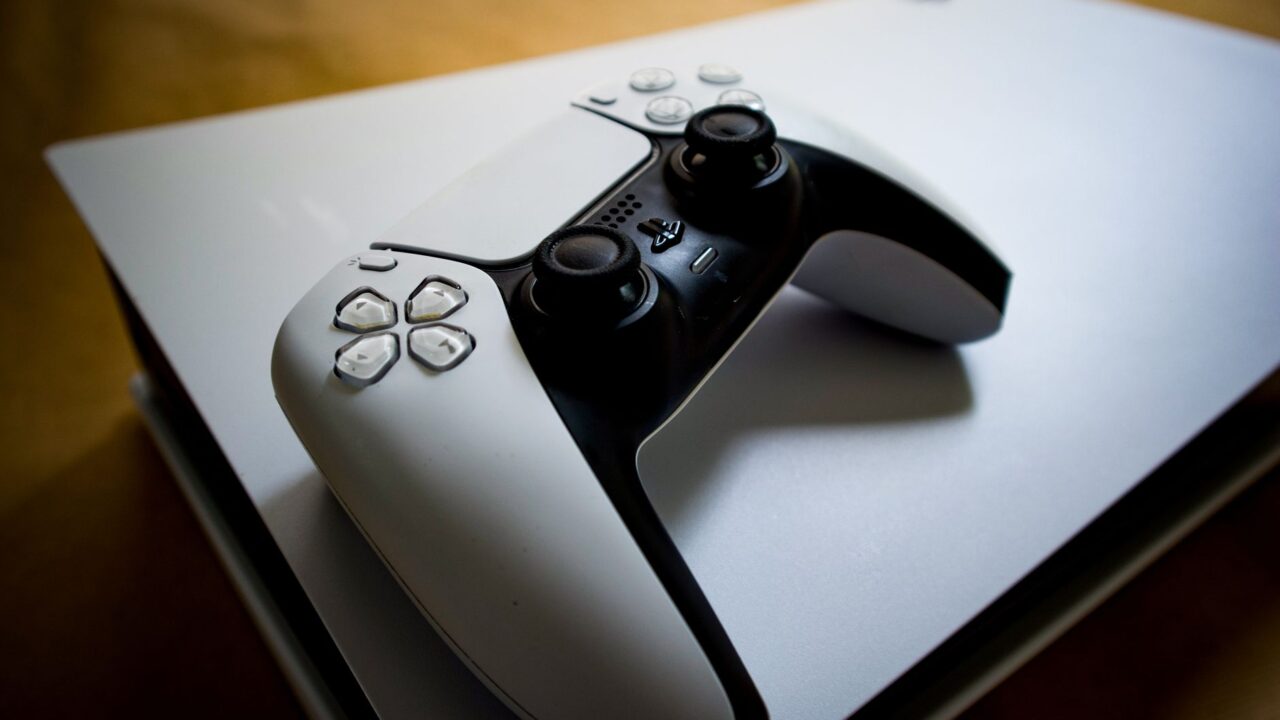
If you’re about to play GTA VI on a PS5, update your console first. PlayStation Support says a new PS5 system software update is required before you can play the game, and it recommends downloading it before midnight on November 19, Engadget reports. According to IGN, cited by Engadget, it’s version 14.23, about 1.27 GB, with “security fixes to the system software.” Updating takes a few minutes. Here’s how to do it, how to keep your PS5 updated automatically, and what to do if the update gets stuck.
Step 1: Check for an update and install it
These steps come from PlayStation’s support page:
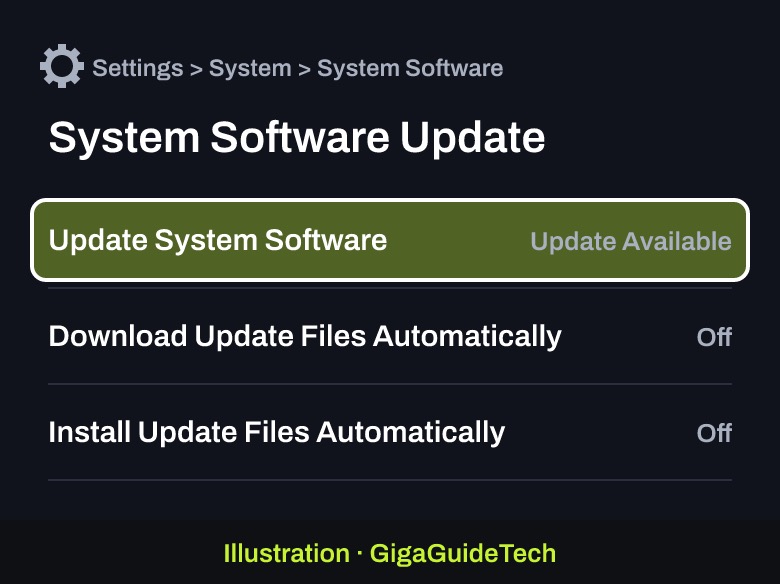
- Go to Settings > System.
- Select System Software > System Software Update and Settings. You’ll see Update Available if there’s a newer version.
- Select Update System Software and follow the prompts. Your PS5 downloads the update, installs it and restarts.

Illustration: PS5: Settings > System > System Software > System Software Update and Settings
Keep the console on while it installs. PlayStation warns that turning it off during the installation can damage it.
Step 2: Turn on automatic updates
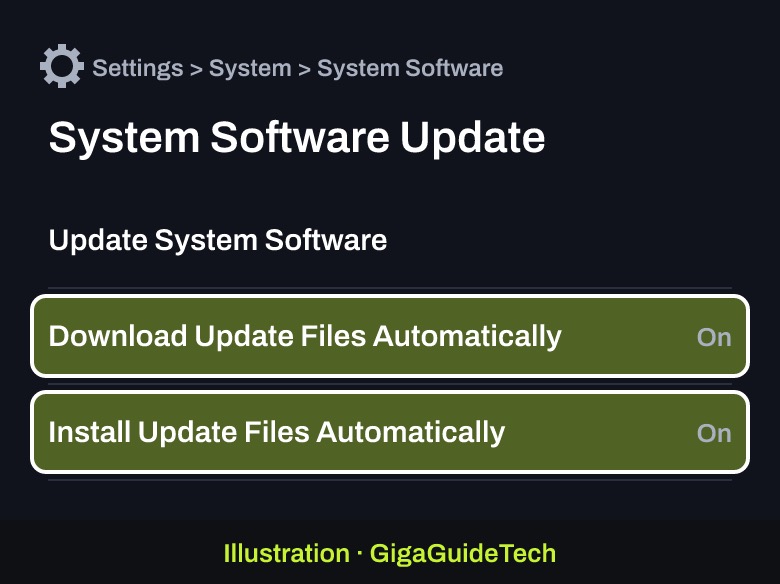
In the same System Software Update and Settings menu, you can let your PS5 handle future updates for you. Turn on Download Update Files Automatically and Install Update Files Automatically. Updates then download and install while the console is in Rest Mode, so you’re not stuck waiting when you sit down to play.
For Rest Mode downloads to work, your PS5 has to stay online while it rests. Our GTA 6 day-one guide shows where to find that setting, plus how to pre-load the game.
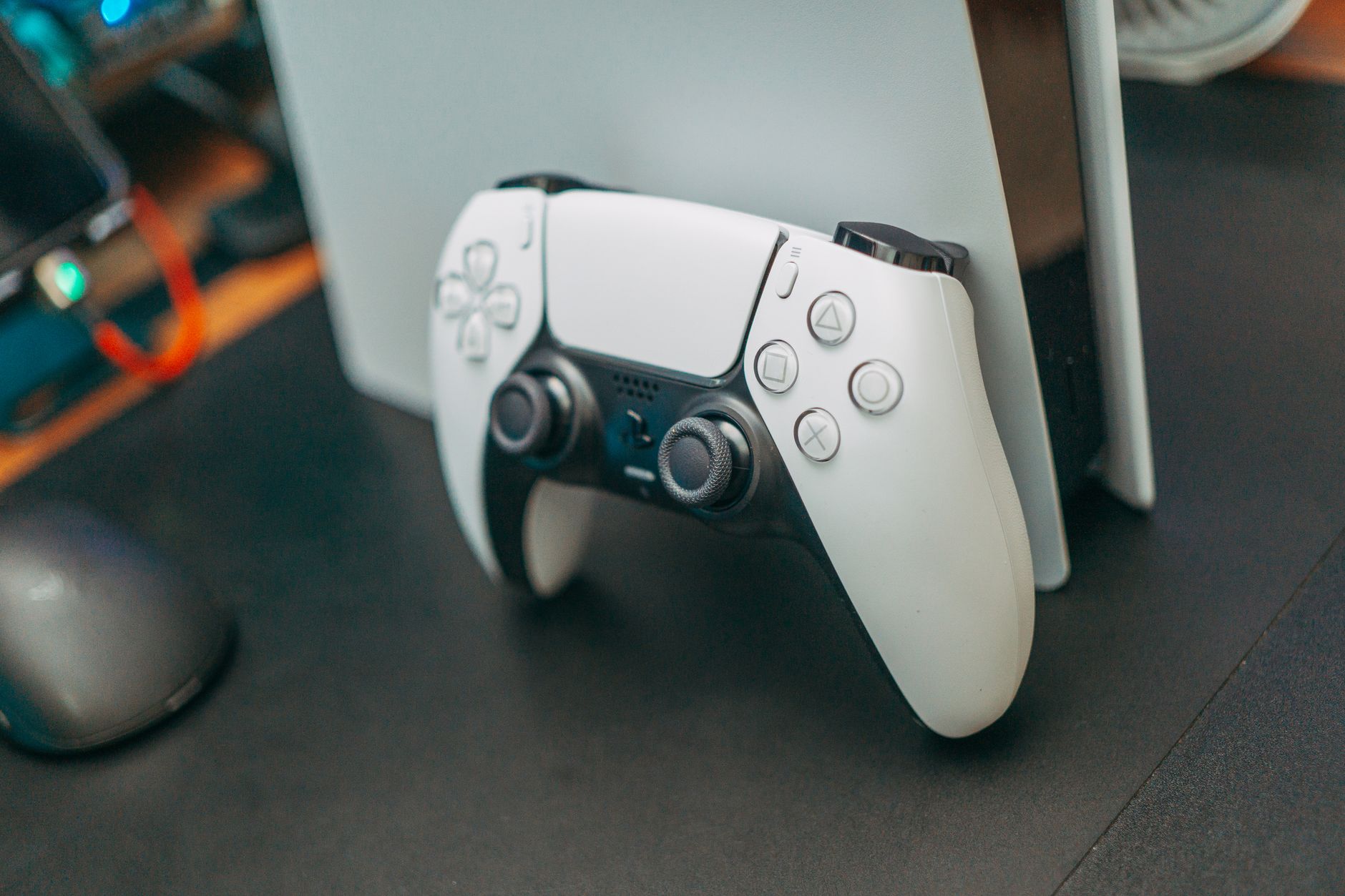
Step 3: If the update is stuck, restart the download
If the download stops or shows an error, PlayStation says to try it again:
- Press the PS button on your controller to open the control center.
- Select Downloads/Uploads.
- Highlight the system software update, select View Error Info, then select Try Again.
Still failing? Check whether PlayStation Network is down before you try anything else. Sony posts outages on the PlayStation Network status page. On November 18, for example, an outage made it hard to launch games and use network features, according to Android Authority, before Sony reported all services operational again that afternoon.
Step 4: If it still fails, update from a USB drive
When the download fails again and again, PlayStation offers a backup: download the update on a computer and install it from a USB drive.
- Turn off your PS5.
- On a PC or Mac, take a USB drive formatted as FAT32 or exFAT. Create a folder named PS5, and inside it, a folder named UPDATE.
- Download the PS5 update file from PlayStation’s support page and save it in the UPDATE folder as PS5UPDATE.PUP. You need about 1.1 GB of free space.
- Plug the USB drive into your PS5.
- Start the PS5 in Safe Mode: press and hold the power button, and let go after the second beep.
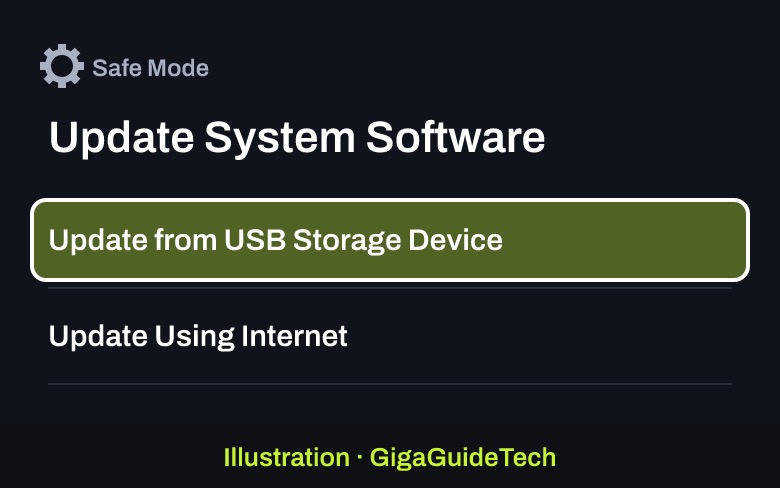
- Select Update System Software, then Update from USB Storage Device > OK.
Illustration: PS5 Safe Mode: choose Update System Software, then Update from USB Storage Device
If your PS5 doesn’t find the file, check the names. PlayStation says the folder names and file name must be typed in capital letters, exactly as above.
What not to do
- Don’t choose “Reset PS5 (Reinstall System Software)” in Safe Mode unless you mean it. PlayStation says reinstalling the system software deletes all the data on your console. That’s a factory reset, not an update.
- Don’t use update files from other websites. PlayStation says to use only the official file from Sony. Other files can stop the console from working properly and can void your warranty.
- Don’t update right before or after a power outage, and don’t unplug the console during an install.
Ready for GTA 6?
Once your PS5 is updated, make sure the game itself is ready. GTA 6 takes up to 212 GB, so you may need to free up space first. Here is how to get GTA 6 ready to play on day one. If your TV doesn’t show 4K at 120Hz, you may also want to check whether your PS5 is in the wrong HDMI port.
Sources: PlayStation Support, Engadget, Android Authority