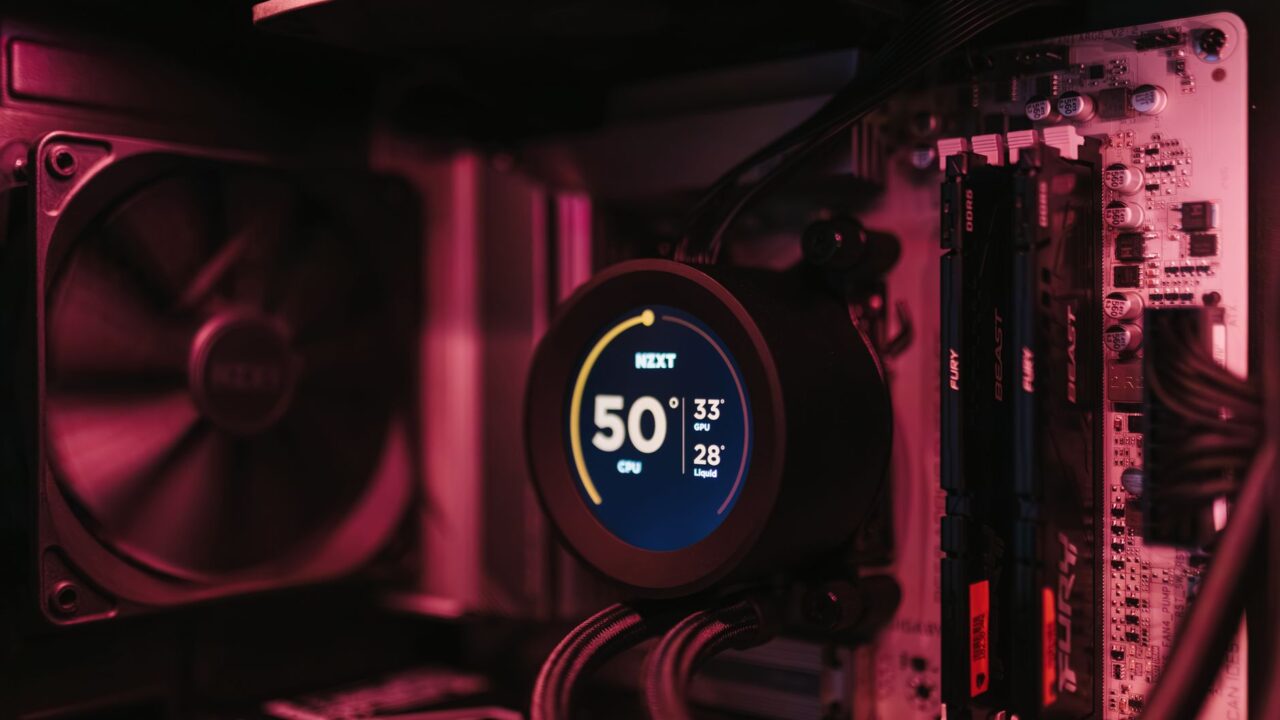
This guide is for anyone who wants to check CPU temperature on Windows — whether you’re worried about a laptop running hot, troubleshooting random shutdowns, or just curious how hard your processor is working under load. By the end, you’ll know which official tool applies to your chip, how to open it, and what to do if the numbers don’t show up at all.
Before you start
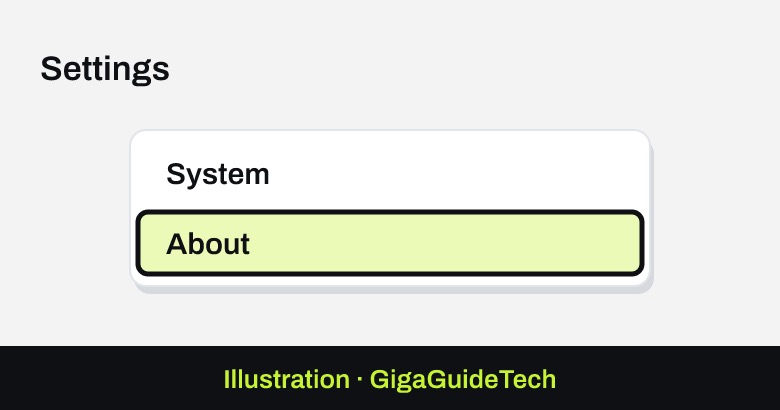
- Find out whether your PC has an Intel or AMD processor, and its exact model name, in Settings > System > About.

Illustration: Settings > System > About - For Intel chips, full monitoring in Intel® Extreme Tuning Utility (Intel® XTU) is built for processors whose model number includes the letters K, KF, HK, X, or XE. Intel XTU runs on 64-bit Windows 10 and the processors it officially supports.
- On a desktop, overclocking-related monitoring in Intel XTU needs a motherboard built for full overclocking, such as one with a chipset starting with the letter Z.
- For AMD chips, you’ll use AMD Software: Adrenalin Edition or AMD Ryzen™ Master, both free from AMD.
- You’ll need administrator permissions to install either tool.
- No personal data is at risk, but if you’re reinstalling Intel XTU after a problem, you should remove old program folders first (details below), so it’s worth knowing where your files are before you start.
How to check CPU temperature on an Intel processor
Using Intel® Extreme Tuning Utility (Intel® XTU)
- Confirm your processor’s model number includes K, KF, HK, X, or XE — for example, an unlocked chip like the Intel Core Ultra 9 285K. Other Intel chips, and OEM systems, may show limited or no data in XTU.
- Download and install Intel® Extreme Tuning Utility from Intel’s official site.
- Launch Intel® Extreme Tuning Utility.
- In the System Monitor area, click the Menu icon (the three horizontal lines).
- Select the parameters you want to display, including Temperature, alongside frequency, graphics frequency, and memory frequency if you want the full picture.
Intel XTU also includes a built-in safeguard: if your CPU temperature reaches or exceeds its maximum intended threshold, the chip automatically reduces performance — known as thermal throttling — until it cools back down. Seeing this kick in is a clear sign your temperatures are running too high.
How to check CPU temperature on an AMD processor
Using AMD Software: Adrenalin Edition
- Click Start on the taskbar, type AMD Software, and open the app from the best match.
- Type Metrics into the search box inside AMD Software and select the Performance Metrics result.
- By default, performance metrics appear in grid view. Click the view icon if you’d rather switch to list view.
- Look for CPU Temperature, which is reported in Celsius (°C).
- Personalize the display by selecting only the parameters you want to keep an eye on.
AMD Ryzen™ Master offers similar real-time monitoring, including per-core clock rates, temperature, and voltages with average and peak readings, so either tool will get you the information you need.
Any Intel or AMD PC: Using HWiNFO
If your Intel chip is not supported by Intel XTU (most non-K processors are not), the free tool HWiNFO reads CPU temperature on almost any Intel or AMD PC.
- Download HWiNFO from its official site, hwinfo.com, and install it.
- Open HWiNFO and choose Sensors-only when it asks how to start.
- Find CPU Package on an Intel processor, or CPU (Tctl/Tdie) on an AMD Ryzen processor. That is your CPU temperature in °C.
If it still doesn’t work
- If controls or readings in Intel XTU are greyed out, it usually means your motherboard or processor configuration doesn’t support real-time monitoring for that control — some motherboard makers restrict access to certain settings.
- On an OEM (pre-built) system, check the manufacturer’s own BIOS and monitoring tools, since some OEMs use their own overclocking software that may not play nicely with Intel XTU.
- If Intel XTU is misbehaving after an update, uninstall it, delete leftover Intel XTU folders, and remove the directory at c:\program files\Intel\Intel(R) Extreme Tuning Utility (being careful not to touch other program folders) before installing the latest version. Also double-check your Windows version is supported by that release.
- Windows itself has no built-in feature for checking CPU temperature, so if neither Intel XTU nor AMD Software gives you a reading, your processor or motherboard combination may simply not expose that data to third-party software — in that case, your motherboard manufacturer’s own utility, or the readings shown in your BIOS/UEFI setup screen, may be your only option. Be careful in there: changing BIOS settings incorrectly can stop your computer from booting properly.
FAQ
Does Windows have a built-in CPU temperature monitor?
No. There is no official, built-in feature in Windows for everyday users to check CPU temperature. Microsoft’s thermal monitoring tools (like Windows Performance Analyzer) are aimed at system designers and engineers, not general use, so you need a free tool such as Intel XTU, AMD Software or HWiNFO instead.
Which tool should I use, Intel XTU or AMD Ryzen Master?
It depends entirely on your processor brand. Intel XTU is built for Intel Core processors, with full support reserved for unlocked K, KF, HK, X, and XE models. AMD Ryzen Master and AMD Software: Adrenalin Edition cover AMD Ryzen processors instead.
Why are some settings or readings greyed out in Intel XTU?
This happens when your specific motherboard and processor combination doesn’t allow real-time access to that control. Motherboard manufacturers can intentionally restrict certain overclocking and monitoring features, which is more common on non-overclocking boards or OEM systems.
Can I check CPU temperature directly in the BIOS?
Many BIOS/UEFI setup screens do display hardware temperatures, though there’s no single official menu path since it varies by motherboard brand. If you go this route, be careful: incorrectly changing other BIOS settings while you’re in there can prevent your PC from starting up properly.
The bottom line
There’s no shortcut built into Windows for this — to properly check CPU temperature on Windows, you’ll need a free monitoring tool: Intel XTU or AMD Software for your chip’s brand, or HWiNFO for almost any PC. Once installed, both tools are quick to set up and give you a clear, real-time view of how hot your chip is running, which is especially useful if you’re chasing a stability issue or just want peace of mind.
More PC guides: See all our PC building guides — build, upgrade and fix your gaming PC.
Where to buy


As an Amazon Associate I earn from qualifying purchases.