Family and friends are coming over, and within five minutes someone asks the big question: “What’s the Wi-Fi password?” Instead of digging out the router and reading a long string of random letters, you can share it in seconds. iPhones can send the password to another Apple device with a single tap, and both iPhone and Android phones can show a QR code that guests simply scan with their camera. Here’s how to do each one.
Option 1: Share the password from your iPhone with one tap
If your guest has an iPhone, iPad or Mac, this is the easiest way, and they never even see the password. First, Apple says to check these things:
- Both devices have the latest software.
- Wi-Fi and Bluetooth are turned on on both, and Personal Hotspot is off.
- Each person is signed in to their own Apple Account.
- Each person has the other’s Apple Account email or phone number saved in Contacts.
Then:
- Make sure your iPhone is unlocked and connected to your Wi-Fi network.
- Ask your guest to open Wi-Fi settings and tap the name of your network.
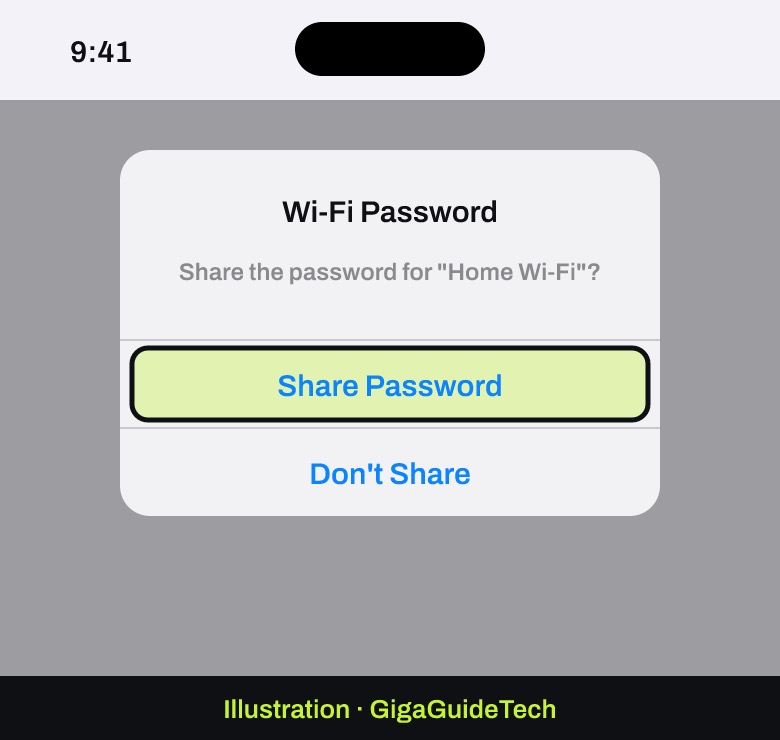
- A message appears on your iPhone. Tap Share Password, then tap Done.

Illustration: When your guest taps your network, your iPhone offers to share the password
Their device joins the network automatically. If the message doesn’t appear, Apple suggests restarting both devices and trying again. The devices also need to be close to each other.

Option 2: Show a Wi-Fi QR code from your iPhone
This works for guests with Android phones, people who aren’t in your contacts, or anyone the one-tap method doesn’t work for. According to Apple’s iPhone guide:
- Open the Passwords app on your iPhone.
- Tap Wi-Fi. Your current network appears at the top, along with networks you’ve joined before.
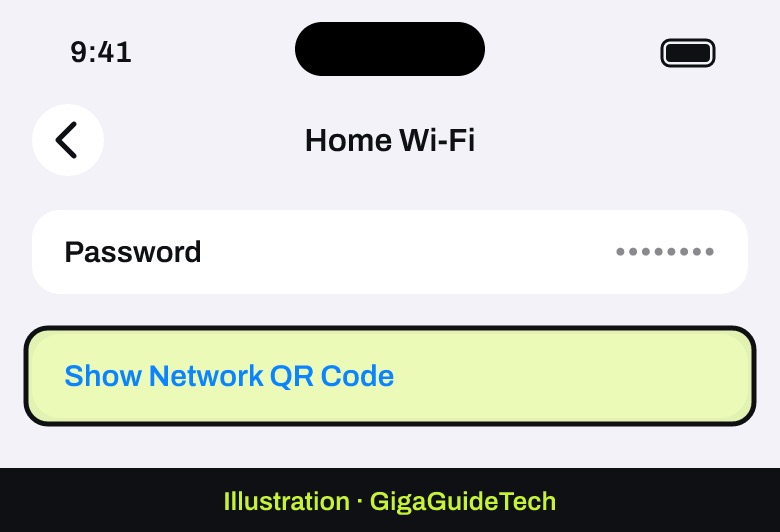
- Tap your network, then tap Show Network QR Code.
Illustration: Passwords app > Wi-Fi > your network: tap Show Network QR Code
Your guest points their phone’s camera at the code and taps the notification to join. On the same screen you can also see the password itself, if you’d rather read it out.
Option 3: Share a Wi-Fi QR code from an Android phone
Google explains that Android phones can create a QR code for the network you’re connected to:
- Open Settings and go to Network & internet > Internet (on some phones, just Wi-Fi).
- Tap your network, or the settings icon next to it.
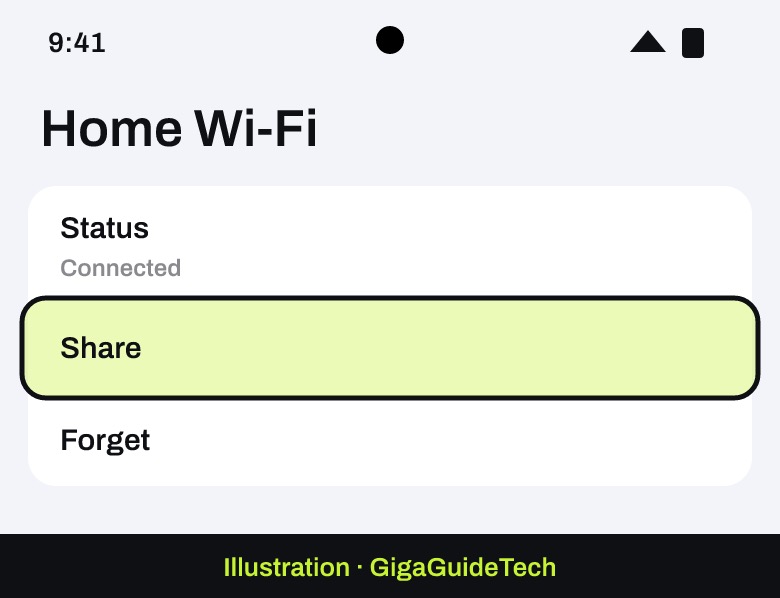
- Tap Share. You may need to confirm with your fingerprint, face or PIN.
Illustration: Android: Settings > Network & internet > Internet > your network: tap Share
Your phone shows a QR code, and Google says anyone who scans it with another device can join the same network. On Samsung Galaxy phones, look for a QR code button in the network’s Wi-Fi settings instead. Some steps only work on Android 12 and up.
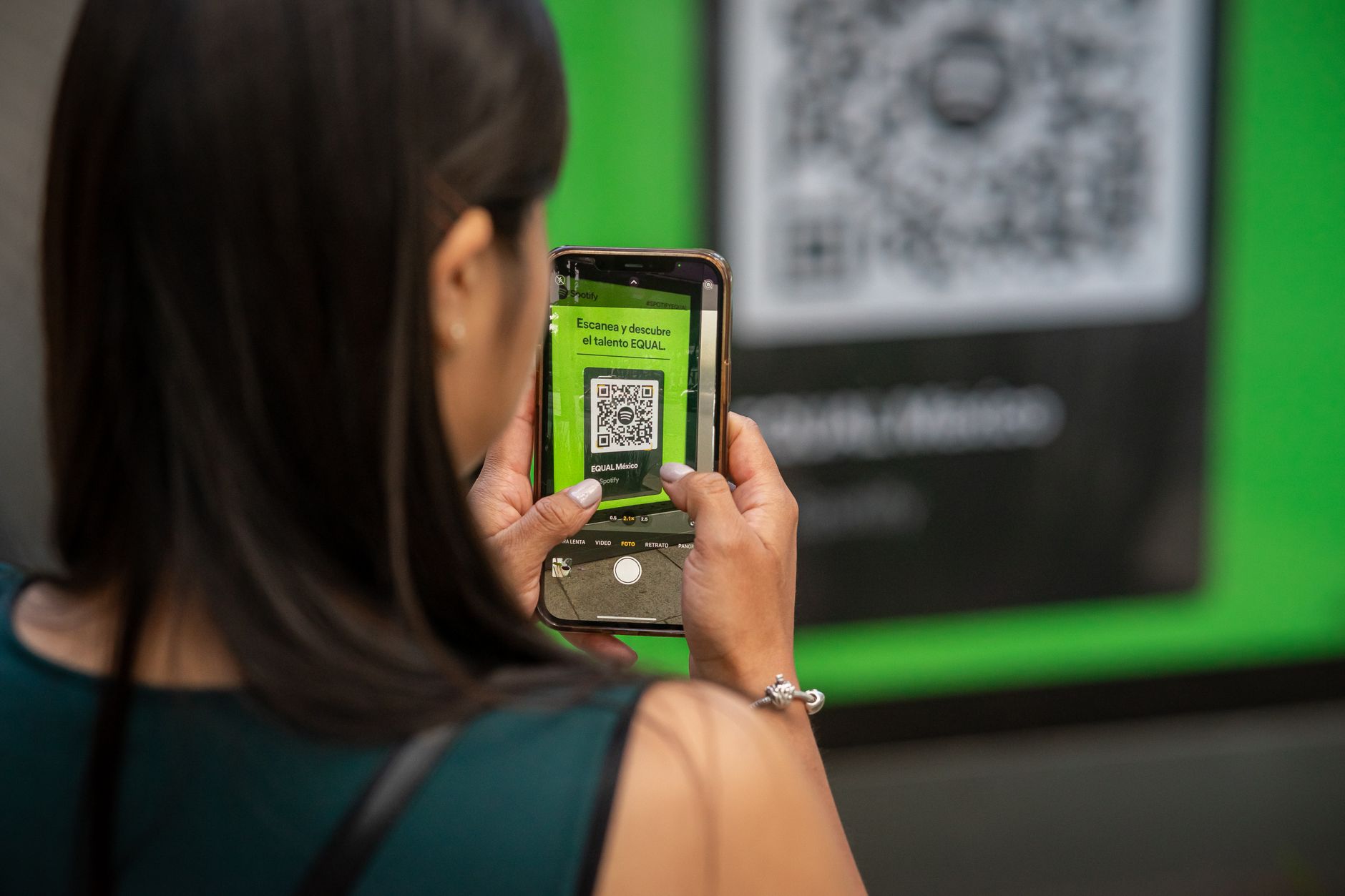
How guests scan the code
- iPhone: open the Camera app, point it at the QR code and tap the Wi-Fi notification that appears.
- Android: open the camera or Google Lens and point it at the code. On many Android phones you can also tap the QR icon on the Wi-Fi screen to scan it.
If sharing doesn’t work
- No pop-up on your iPhone? Make sure your iPhone is unlocked, close to your guest’s device and connected to the same network, and that each of you is saved in the other’s contacts. Restart both devices and try again.
- The QR code won’t scan? Turn up your screen brightness, hold the phones a little farther apart and make sure the whole code is visible.
- Still stuck? Apple’s last suggestion is the simplest: have your guest type the password manually. You can find it on the same Passwords app screen.
Tips for hosting guests
- Set up a guest network. Most routers let you create a separate guest Wi-Fi network in their app. Guests get online without your main password, and you can turn it off after the holidays.
- Print the QR code. Take a screenshot of it and print it or show it on a tablet near the door, so visitors can join on their own.
- Treat the QR code like a password. Anyone who scans it can join your network, so only share it with people you trust.
- Change your password after a big party if you shared it with a lot of people you won’t see often.
Is the Wi-Fi acting up with everyone online? See our guide on what to do when your smart TV keeps losing Wi-Fi, which also covers router fixes. And if family is planning to hand down an old phone, read how to prepare a phone before giving it away.
Sources: Apple Support, iPhone User Guide, Android Help