Getting a new phone for the holidays? Your old one is probably worth something, whether you trade it in, sell it or hand it down to someone in the family. But before it leaves your hands, you need to move your data off it, disconnect it from your accounts and wipe it clean. Skip a step and you could lose photos, get stuck with a rejected trade-in, or leave your personal information on a phone a stranger now owns. Here’s how to prepare an iPhone or Android phone the right way.
Step 1: Back up your phone
Erasing a phone deletes everything on it, so make a fresh backup first.
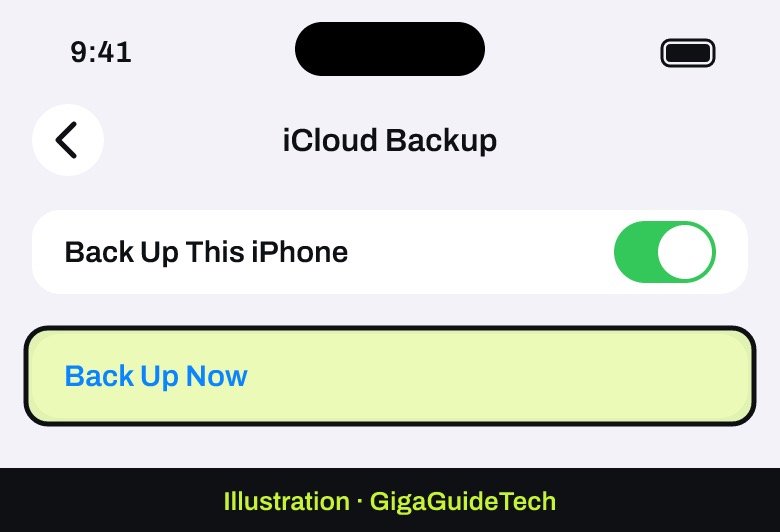
- iPhone: go to Settings > [your name] > iCloud > iCloud Backup and tap Back Up Now. You can also back up to a computer with the Finder on a Mac or the Apple Devices app on Windows.

Illustration: Settings > [your name] > iCloud > iCloud Backup: tap Back Up Now - Android: Google explains that apps and their data are removed in a reset, and only what’s saved in your Google Account can be restored. Check your phone’s Settings app for the Google backup option, and make sure your photos have finished uploading to Google Photos or another service.
Step 2: Move your data to the new phone
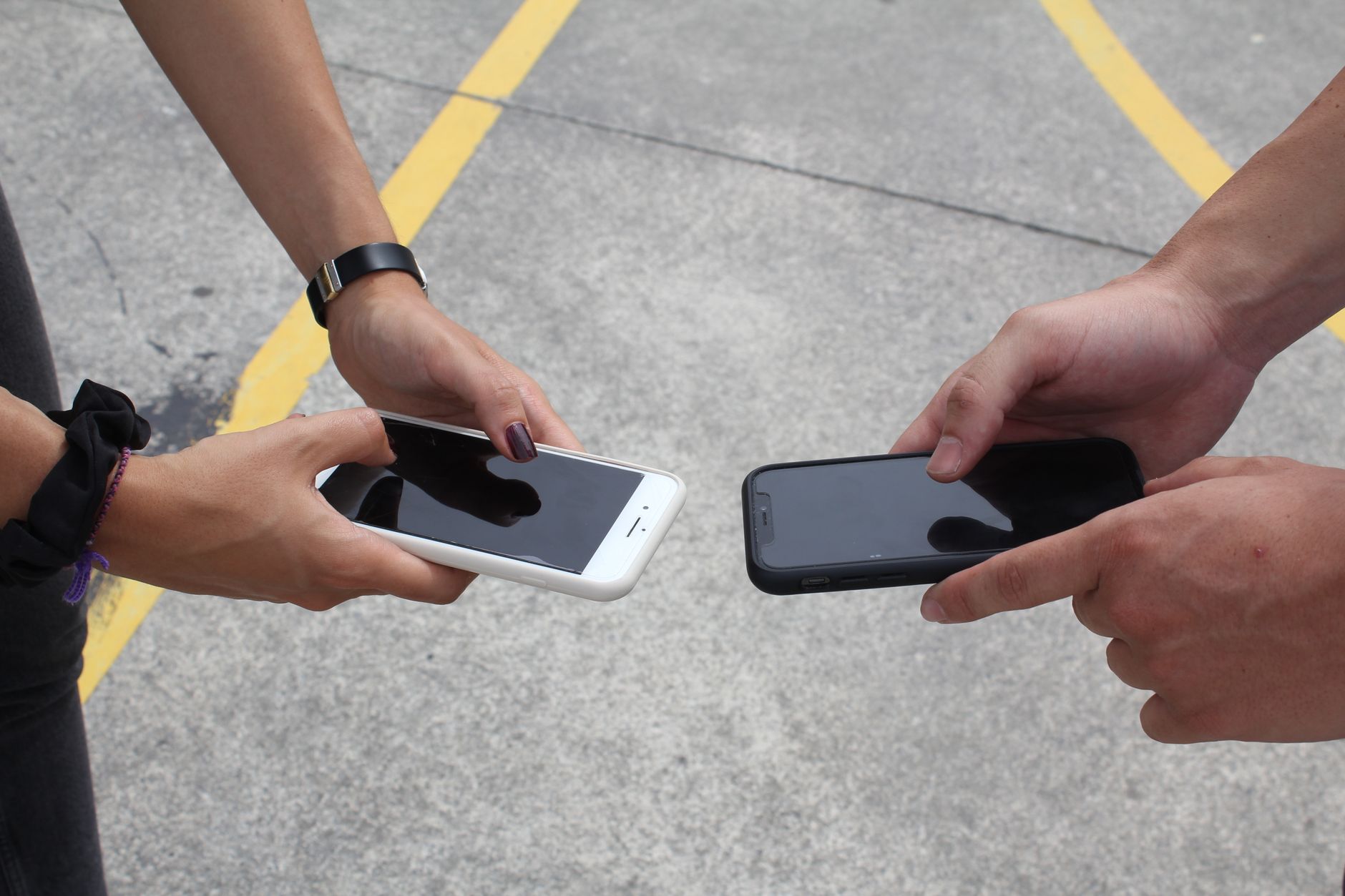
If you already have your new phone, set it up before you erase the old one. On iPhone, Apple recommends Quick Start, which copies your data automatically when you place the two phones next to each other. Our guide on how to transfer everything to a new iPhone walks through every option. New Android phones offer to copy your data from the old phone during setup.
One more thing: if your phone number is changing, Apple says to add the new number as a trusted phone number for your Apple Account first, so you don’t lose access to two-factor codes.
Step 3: Disconnect your watch, cards and plans
- Unpair your Apple Watch if it’s paired with the iPhone you’re getting rid of. Android users should also disconnect any smartwatch tied to the old phone.
- Remove your payment cards from Apple Pay or Google Wallet.
- Deal with AppleCare: Apple says you can cancel your AppleCare plan or transfer it to the new owner.
- Switching from iPhone to Android? Deregister iMessage, or texts from iPhone users may not reach your new phone.
Step 4: Check for unfinished repairs (iPhone trade-ins)
Go to Settings > General > About and look for Parts and Service History. Apple says that if a part shows Finish Repair next to it, you need to finish that repair before you can trade in the phone.
Step 5: Sign out of your Apple Account (iPhone)
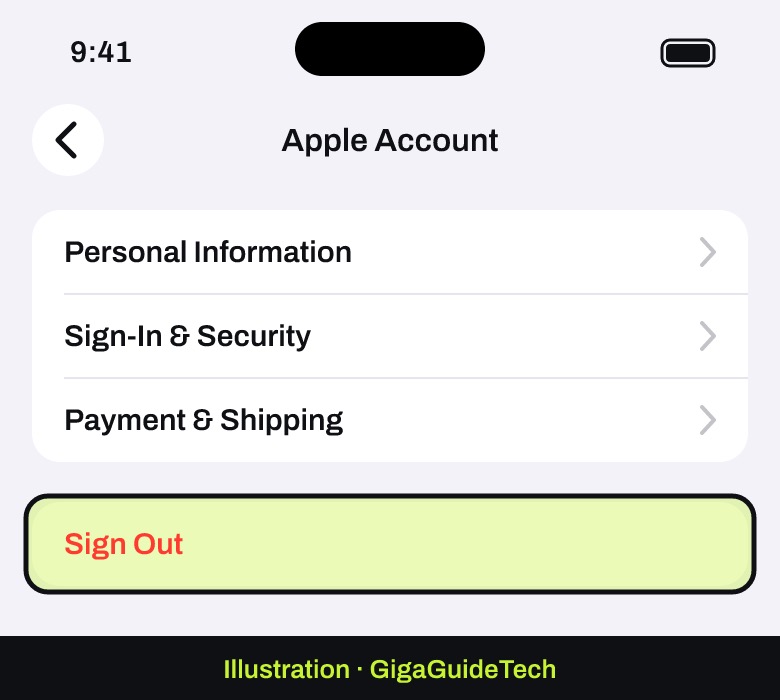
Go to Settings > [your name], scroll down and tap Sign Out. Enter your Apple Account password when asked; this turns off Find My. If you’re trading in at an Apple Store, Apple suggests making sure you know your password before you go. With Stolen Device Protection on, changing it at the store can mean a one-hour security delay.
Step 6: Erase your iPhone
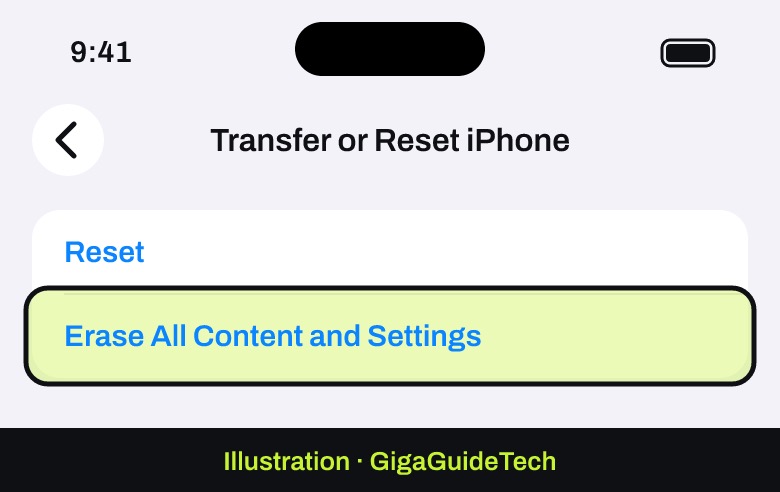
Go to Settings > General > Transfer or Reset iPhone and tap Erase All Content and Settings. Enter your passcode if asked. According to Apple, this completely erases the phone, including your cards, photos, contacts and apps, and turns off Find My and Activation Lock. Your iCloud data stays safe in iCloud.
If your phone uses an eSIM and you’re selling it, choose to erase the eSIM too when your iPhone asks.
Step 7: Remove your Google account and reset your Android phone
- Know your passwords. Google says to make sure you know your Google Account password and your screen lock PIN, pattern or password before resetting. If you recently changed your Google password, wait 24 hours before you reset.
- Remove your Google account. Open Settings, tap Accounts (sometimes called Passwords & accounts) and remove your Google account. Apple warns that if you trade in an Android phone without signing out, it can affect your trade-in.
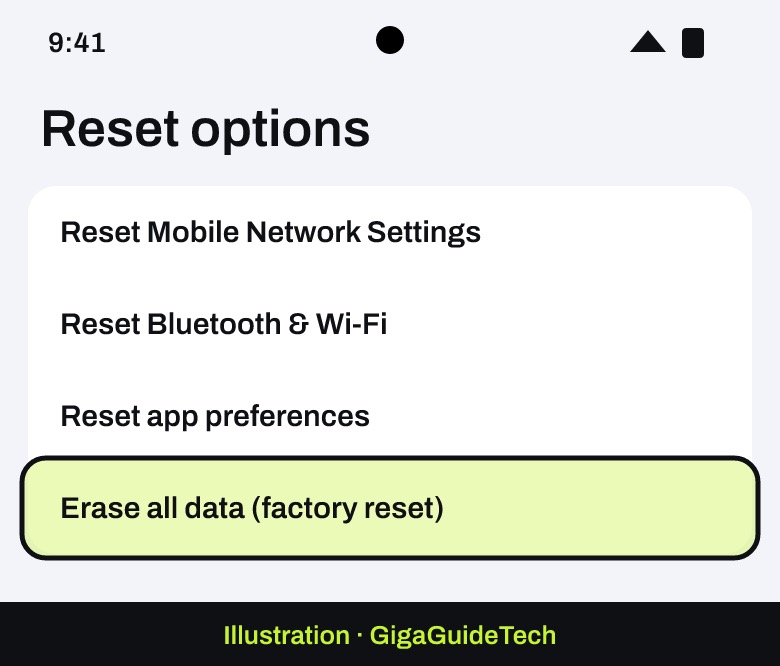
- Factory reset. On most phones, you’ll find the reset in the Settings app, often under System > Reset options > Erase all data (factory reset). Menus vary by brand, so check your manufacturer’s support site if you don’t see it.
Illustration: Android: Settings > System > Reset options > Erase all data (factory reset); menus vary by brand
Step 8: Pull out your SIM card and accessories
Remove any SIM card and memory card, plus your case and screen protector. Apple asks for this on Android trade-ins too. If your carrier uses eSIM only, contact them for help moving your service to the new phone.
Already gave the phone away?
Apple says you can ask the new owner to erase it using the steps above. If you can’t, sign in at iCloud.com, open Find Devices and erase it remotely. Changing your Apple Account password also stops the new owner from accessing your iCloud data.
Quick checklist
- Back up and move your data to the new phone.
- Unpair your watch and remove your payment cards.
- iPhone: finish any repairs, sign out of your Apple Account and erase the phone.
- Android: remove your Google account, then do a factory reset.
- Take out your SIM card, memory card and case.
Shopping for the new phone this week? Read our tips on how to spot real Black Friday discounts before you buy.
Sources: Apple Support, Android Help