This guide is for Galaxy phone owners who want to use Samsung Wireless PowerShare to top up a pair of Galaxy Buds, a Galaxy Watch, a Galaxy Ring, or even a friend’s phone without carrying a separate charger. By the end, you’ll know how to turn the feature on, use it correctly, and fix the most common reasons it refuses to work.
Before you start
- Your Galaxy phone must be one that supports sharing power: Galaxy S10 series and newer, Note 10 and Note 20 series, and the Galaxy Z Fold and Z Flip foldables. Note that the Galaxy A series, XCover series, and Galaxy Tab series cannot share power.
- The phone doing the sharing needs at least 30 percent battery and should not be plugged into a charger.
- The device being charged must support Qi wireless charging. Samsung confirms this works with Galaxy Buds, Galaxy Watch models (except the Watch7 and Watch Ultra), the Galaxy Ring, older Galaxy phones like the S7 through S9 and Note8/Note9, and most other Qi-compatible devices, though results with non-Samsung gear can vary.
- Remove any thick third-party case or cover from both devices, and make sure the backs of each device are clean and dry.
- No backup is needed since this feature doesn’t touch your data, but menu names can vary slightly depending on your software version and carrier.
How to turn on Wireless PowerShare
Method 1: Quick Settings panel
- Make sure the phone that will share power is charged to at least 30 percent.
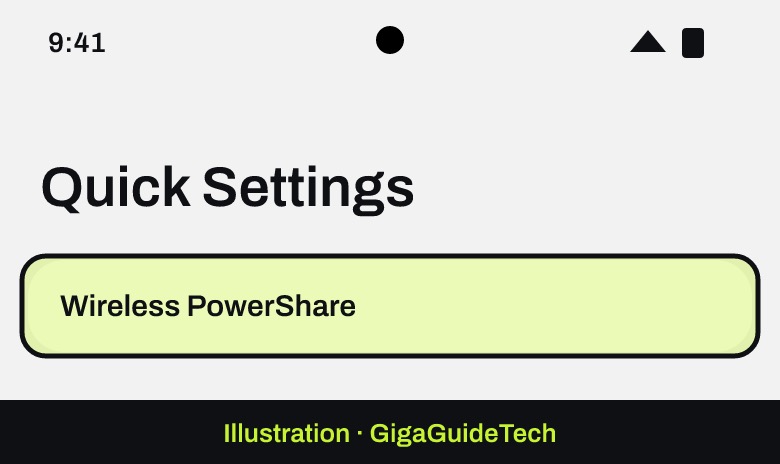
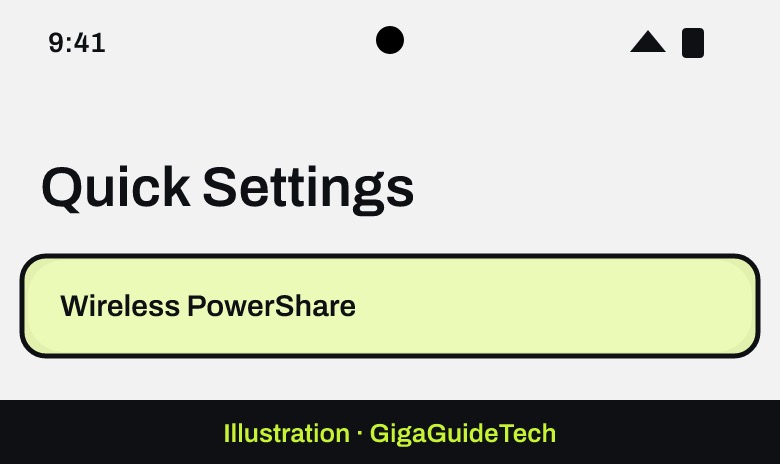
- Swipe down from the top right corner of your screen to open the Quick settings panel.
- Tap the Wireless PowerShare icon.

Illustration: Quick Settings panel Illustration: Quick Settings > Wireless PowerShare
If you don’t see the icon, you’ll need to add it first.
Adding the PowerShare icon to Quick Settings
- In the Quick settings panel, tap the ‘+’ icon (the last icon in the row).
Illustration: Quick Settings > '+' icon - Find the Wireless PowerShare icon and drag it into an empty slot.
On some software versions, the path is slightly different: tap the pencil icon, tap Full Edit, select Wireless power sharing, then tap Done.
Method 2: Settings menu
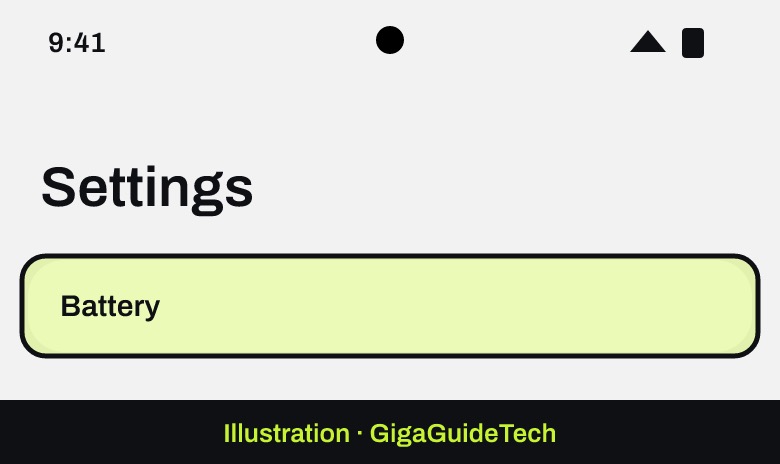
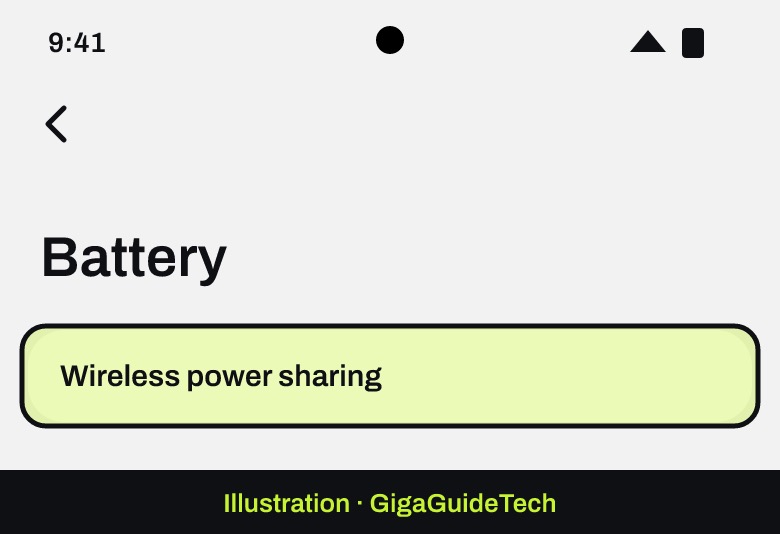
- Open Settings and tap Battery.
Illustration: Settings > Battery - Tap Wireless power sharing.
Illustration: Settings > Battery > Wireless power sharing - Tap the switch to turn the feature on.
How to charge a device with PowerShare
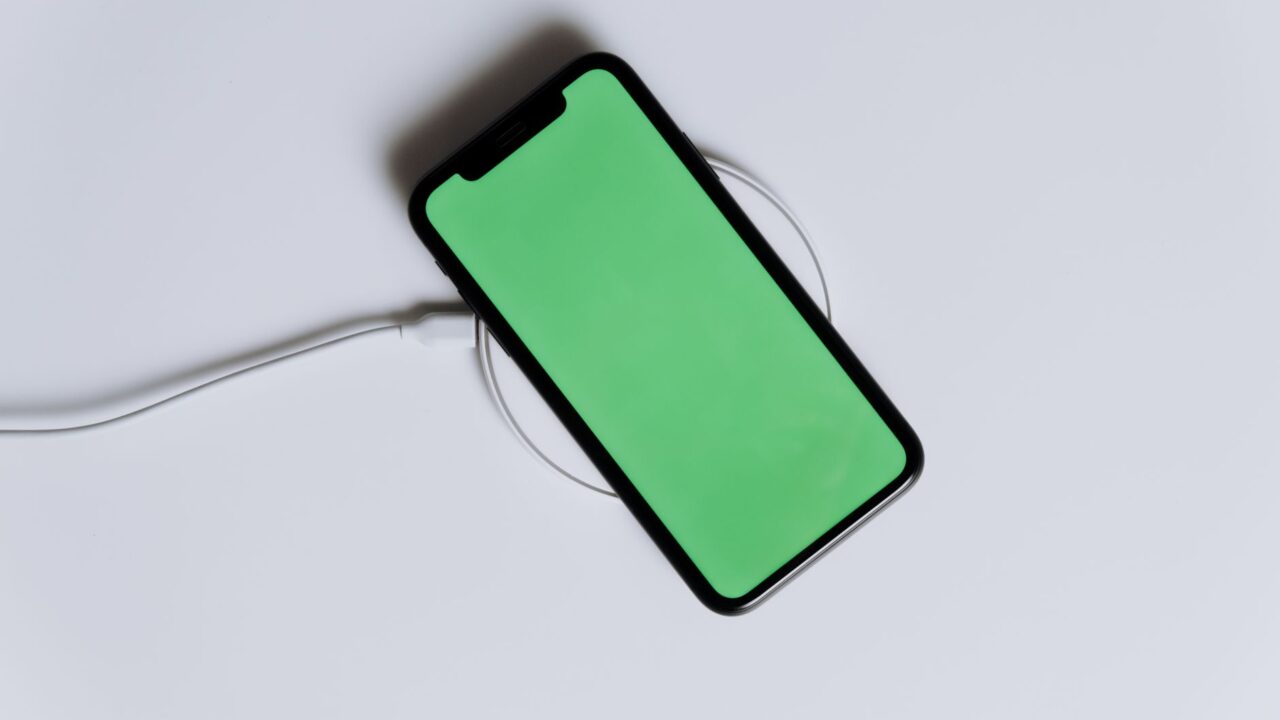
- Place your Galaxy phone and the device you want to charge back to back, with the two devices’ backs touching.
- Wait for confirmation that the devices are connected. Depending on the device, you’ll either see an on-screen prompt you can tap “OK” to dismiss, or the sharing phone will vibrate and play a tone. The light on the back of the phone will turn red while charging is active.
- To stop charging, simply separate the two devices.
PowerShare automatically switches off after 60 seconds if it doesn’t detect another device, so don’t worry about it draining your battery if you forget to turn it off.
You can also keep your own phone plugged into its charging cable while it shares power with another device at the same time, though Samsung notes this may reduce charging speed on both ends.
If it still doesn’t work
- Check the battery level. If the sharing phone has less than 30 percent charge and isn’t plugged in, PowerShare won’t turn on, and it will stop automatically if the battery drops too low during use.
- Remove thick cases. PowerShare won’t work through particularly thick cases, and some case materials block charging entirely.
- Reposition the devices. Because charging coils sit in different spots depending on the device, slowly slide the two devices until they align. If an on-screen illustration appears, use it to help line them up, and keep the devices centered on each other without moving them once charging starts.
- Disconnect wired earphones. If you have wired earphones plugged into your phone, place the phone in landscape orientation on the other device; charging may fail if it’s in portrait orientation.
- Clean both surfaces. Dust, dirt, or moisture on the backs of either device can interrupt charging.
- Close foldables first. If you’re using a Galaxy Z Fold, close it before starting PowerShare.
- Let devices cool down. PowerShare will shut off if either device gets too warm, which can happen when both are charging at once.
- Check your charging accessory. If a non-standard charger or USB cable is connected to the sharing phone, wireless charging may become unavailable.
- Confirm compatibility. PowerShare only reliably works with Qi-compatible devices; some third-party Qi accessories still may not charge properly.
FAQ
Why does my phone’s battery drop faster than the device I’m charging gains?
Samsung notes that the battery percentage on the sharing phone won’t necessarily match the percentage gained on the charged device, since some energy is lost in the wireless transfer.
Can I charge my phone while it’s sharing power with another device?
Yes, you can plug your phone into its charging cable while PowerShare is active, but Samsung warns the charging speed on either device may decrease or charging may not work properly, depending on the charger.
Will using PowerShare affect my calls or data connection?
It can. Samsung notes that using Wireless PowerShare may affect call reception or data services depending on your network environment.
Can I charge a non-Samsung phone or earbuds with PowerShare?
In most cases yes, as long as the device supports the Qi wireless charging standard, though Samsung notes that compatibility with other manufacturers’ devices and certain cases or accessories isn’t guaranteed.
The bottom line
Wireless PowerShare is a handy feature for topping up your Galaxy Buds, Watch, or Ring without digging out another charger, and it works for compatible phones too. Most failures come down to a low battery, a thick case, poor alignment, or a wired headset getting in the way, so working through that checklist will solve the vast majority of issues. If your phone still won’t share power after trying everything here, it’s worth double-checking that your specific model actually supports the feature, since not every Galaxy device does.
Source: Samsung
Where to buy


As an Amazon Associate I earn from qualifying purchases.