This guide is for PS5 owners who want to see who’s talking in PS5 voice chat without guessing by voice. Sony’s system update 26.06-14.00.00 added a speaker indicator that shows the name of whoever is talking right on your screen. By the end of this guide you’ll have it turned on and placed where you want it.
Before you start
- Any PS5 console works: the standard PS5, the Digital Edition and the PS5 Pro.
- Your console needs system software 26.06-14.00.00 or later. To check, go to Settings > System > System Software.
- You need to be in a voice chat, such as a party or an in-game chat, because the option lives on the voice chat card.
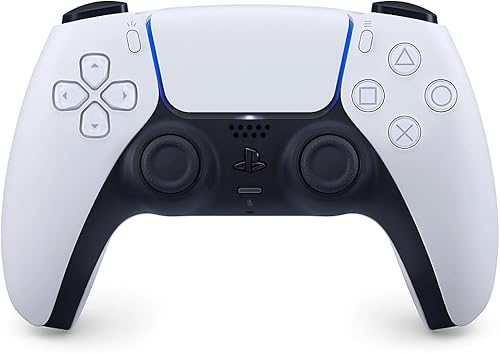
- No headset is required to try it: the DualSense controller has a built-in microphone.

How to turn on Display Who’s Speaking
- Join or start a voice chat.
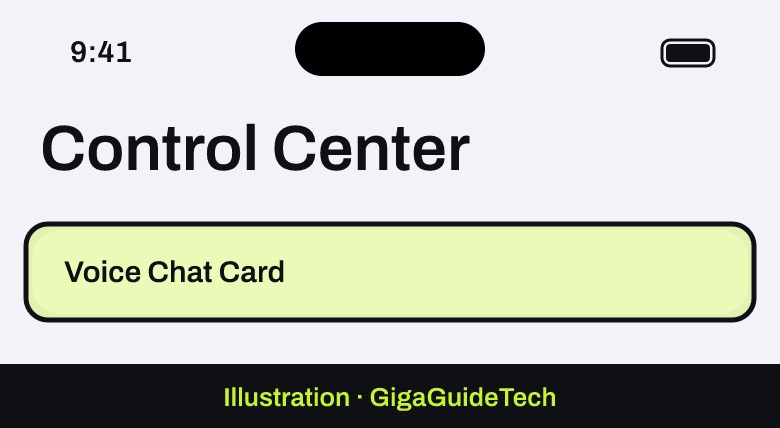
- Press the PS button to open the control center, then select the voice chat card.

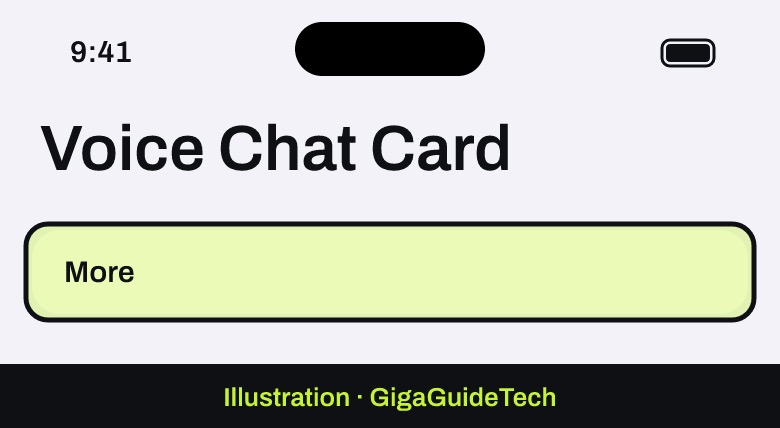
Illustration: Control Center > Voice Chat Card - Select More.
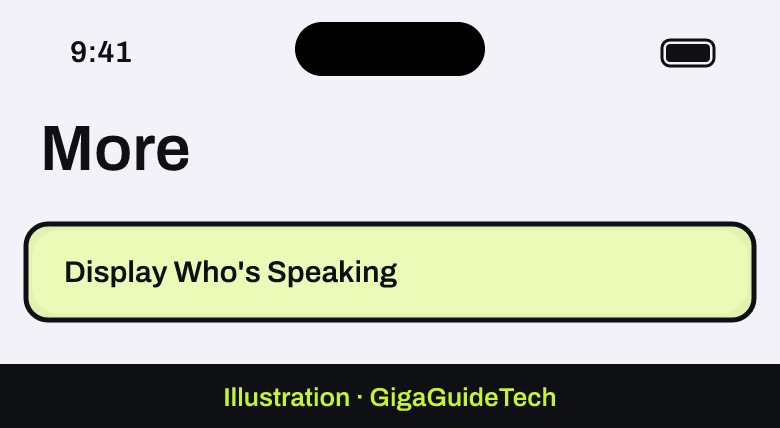
Illustration: Voice Chat Card > More - Select Display Who’s Speaking.
Illustration: More > Display Who's Speaking - Turn on Display Names. From now on, the name of whoever is talking appears on screen.
Illustration: Display Who's Speaking > Display Names - To move the indicator, select Position and choose where it should appear.
Illustration: Display Who's Speaking > Position
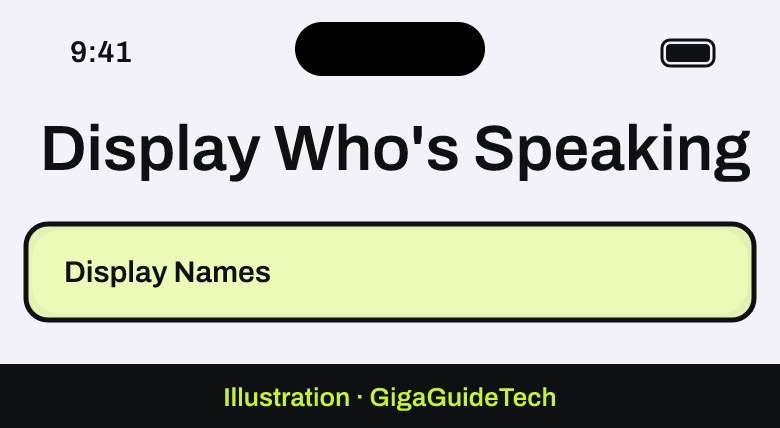
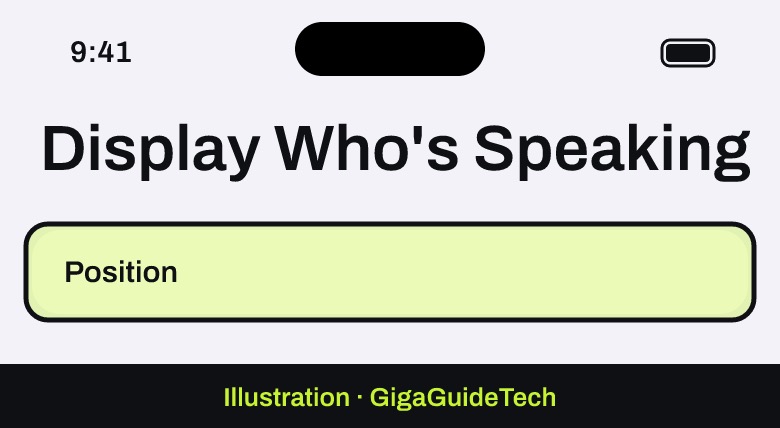
To hide the names again, go back to the same menu and turn off Display Names.
If it doesn’t work
- The option isn’t there. Update the console under Settings > System > System Software, then restart it.
- You can’t find the card. The voice chat card only appears in the control center while you’re in a voice chat.
- No name shows up. Make sure Display Names is on, and that the person speaking isn’t muted.
FAQ
Does it work on the standard PS5?
Yes. Sony lists Display Who’s Speaking in the 26.06-14.00.00 update for PS5 consoles, not as a PS5 Pro exclusive. The “PS5 Pro only” note in that update applies to the enhanced PSSR image setting.
Does it work in party chat and in-game chat?
Sony describes it as working whenever you’re in a voice chat, so you’ll find it on the voice chat card in both cases.
Can I choose where the names appear?
Yes, with the Position option in the same menu.
The bottom line
Update your PS5, open the voice chat card, and go to More > Display Who’s Speaking > Display Names. It takes less than a minute, and group chats get much easier to follow. For more console tips, see our guide to getting 4K at 120Hz on your PS5.
Source: PlayStation (system software 26.06-14.00.00 notes)
Where to buy

As an Amazon Associate I earn from qualifying purchases.