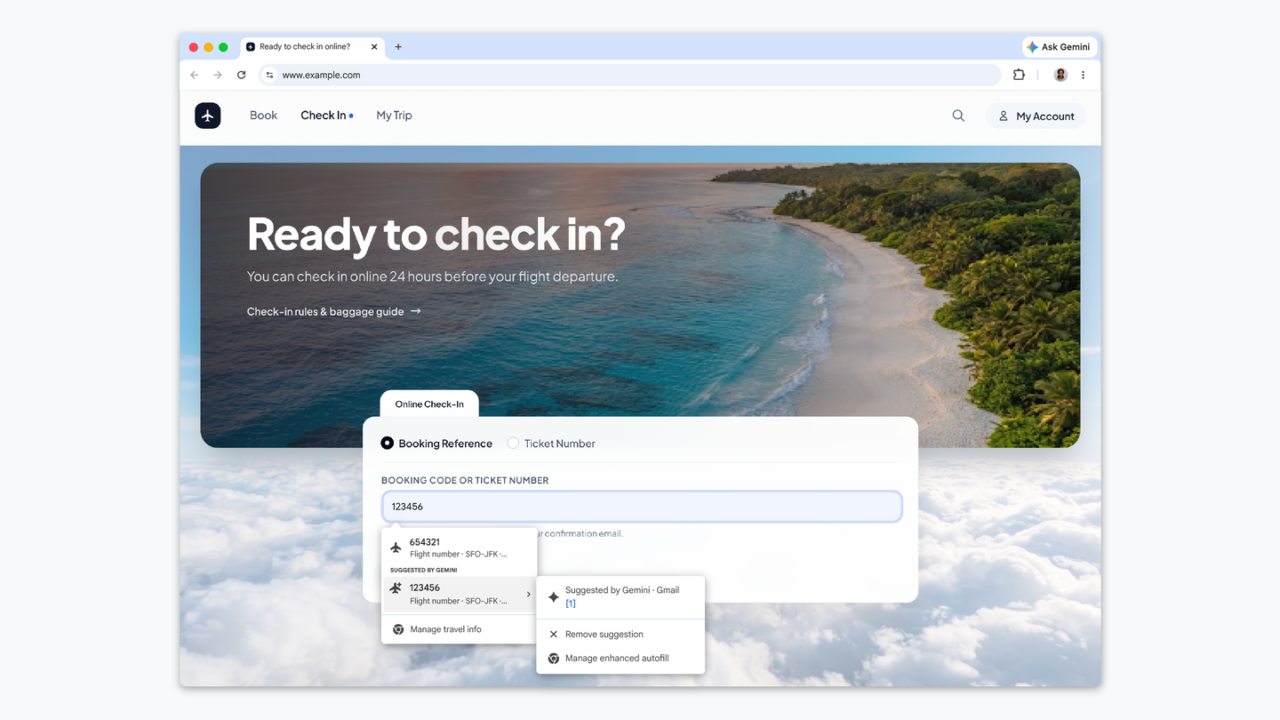
This guide is for Chrome users who want to understand and use Chrome autofill suggestions from Gmail — including the newer Enhanced Autofill feature that pulls details like flights, orders and vehicles out of your inbox to speed up form filling. By the end, you’ll know what data Chrome can and can’t take from Gmail, how to turn Enhanced Autofill on if you qualify, and how to check exactly where a suggestion came from.
Before You Start
- You must be signed in to your Google Account in Chrome for any autofill suggestions, including those from your Google Account profile, to appear.
- Enhanced Autofill — the feature that actually reads data out of Gmail — is currently limited to users in the US who are 18 or older and have opted into Gemini Personal Intelligence.
- Update Chrome to the latest version. Enhanced Autofill is available on desktop, Android and iOS.
- No backup is needed. This only changes settings and doesn’t touch your saved passwords, files or messages.
What Chrome Can (and Can’t) Pull From Gmail
It helps to separate two very different things that both get called “autofill.” Basic Chrome autofill, available on every platform, fills your name and email using your Google Account profile — the info stored at myaccount.google.com/personal-info — not your Gmail contact list or inbox.
The feature that actually touches Gmail is called Enhanced Autofill. It uses data from your Gmail account, such as flights, vehicles and orders, to fill out matching fields for you. Think order confirmations, flight bookings or vehicle paperwork that landed in your inbox — not a general list of email addresses you’ve emailed in the past. These suggestions show up with a Gemini spark icon in a dropdown, so you can tell them apart from your regular saved autofill data.
How to Turn On Enhanced Autofill
On Android
- Open Chrome on your Android device.
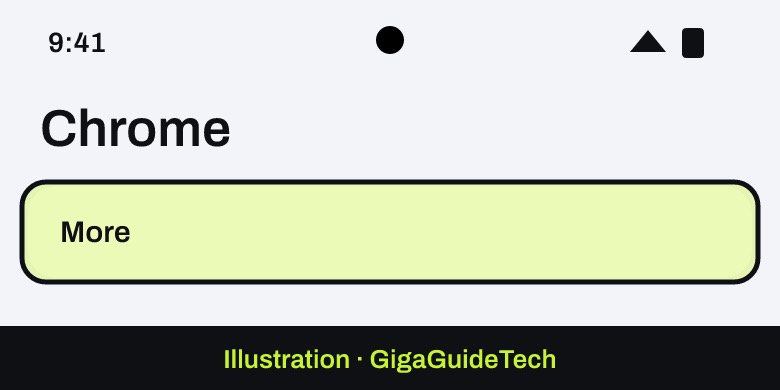
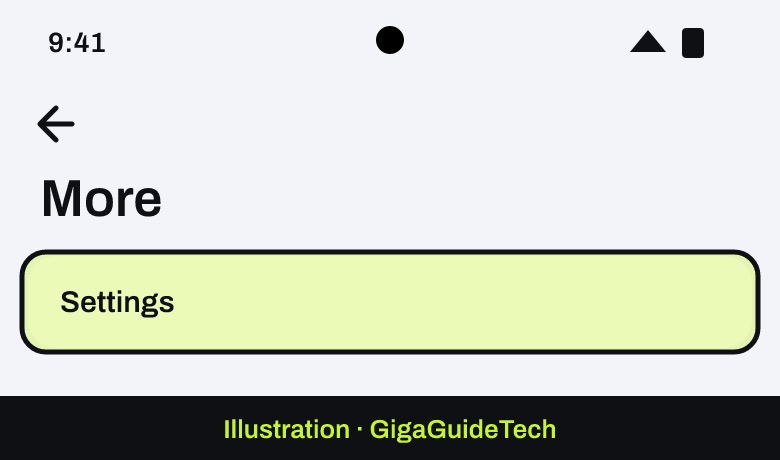
- At the top right, tap More and then Settings.

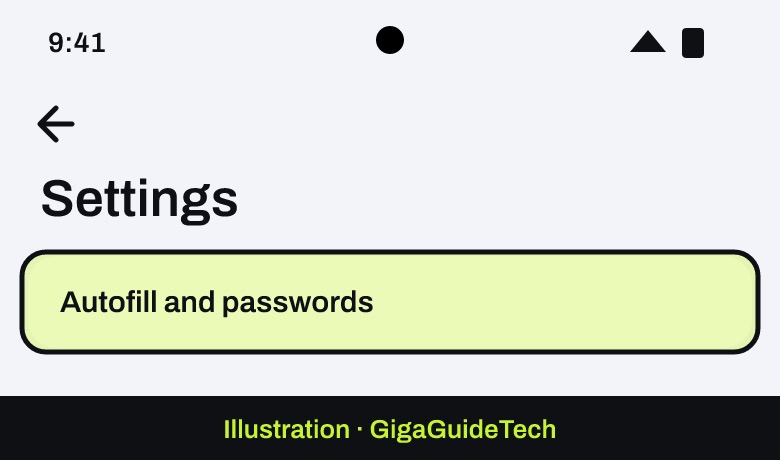
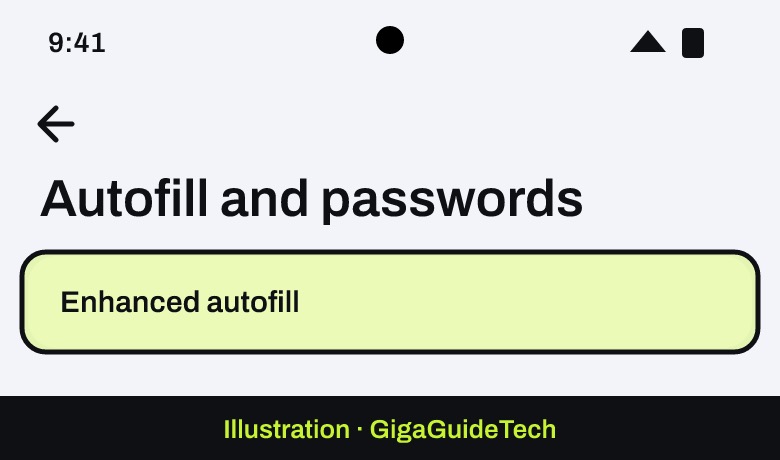
Illustration: Chrome > More > Settings Illustration: Chrome > More > Settings - Tap Autofill and passwords.
Illustration: Chrome > More > Settings > Autofill and passwords - Under “Autofill settings,” select Enhanced autofill.
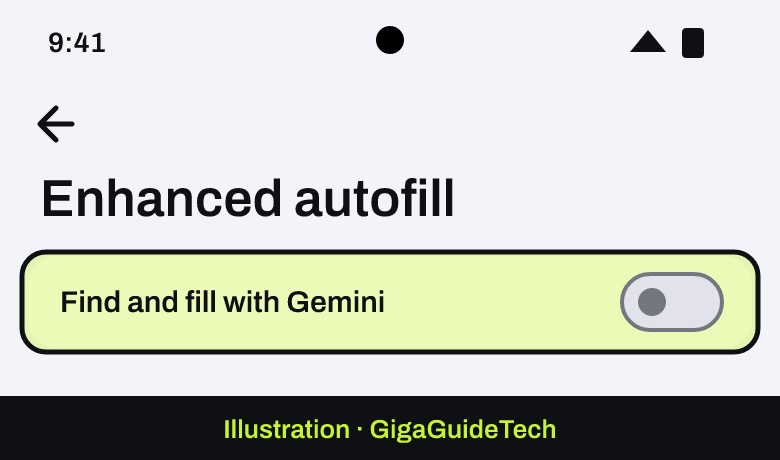
Illustration: Chrome > More > Settings > Autofill and passwords > Enhanced autofill - Turn Find and fill with Gemini on or off.
Illustration: Chrome > More > Settings > Autofill and passwords > Enhanced autofill > Find and fill with Gemini
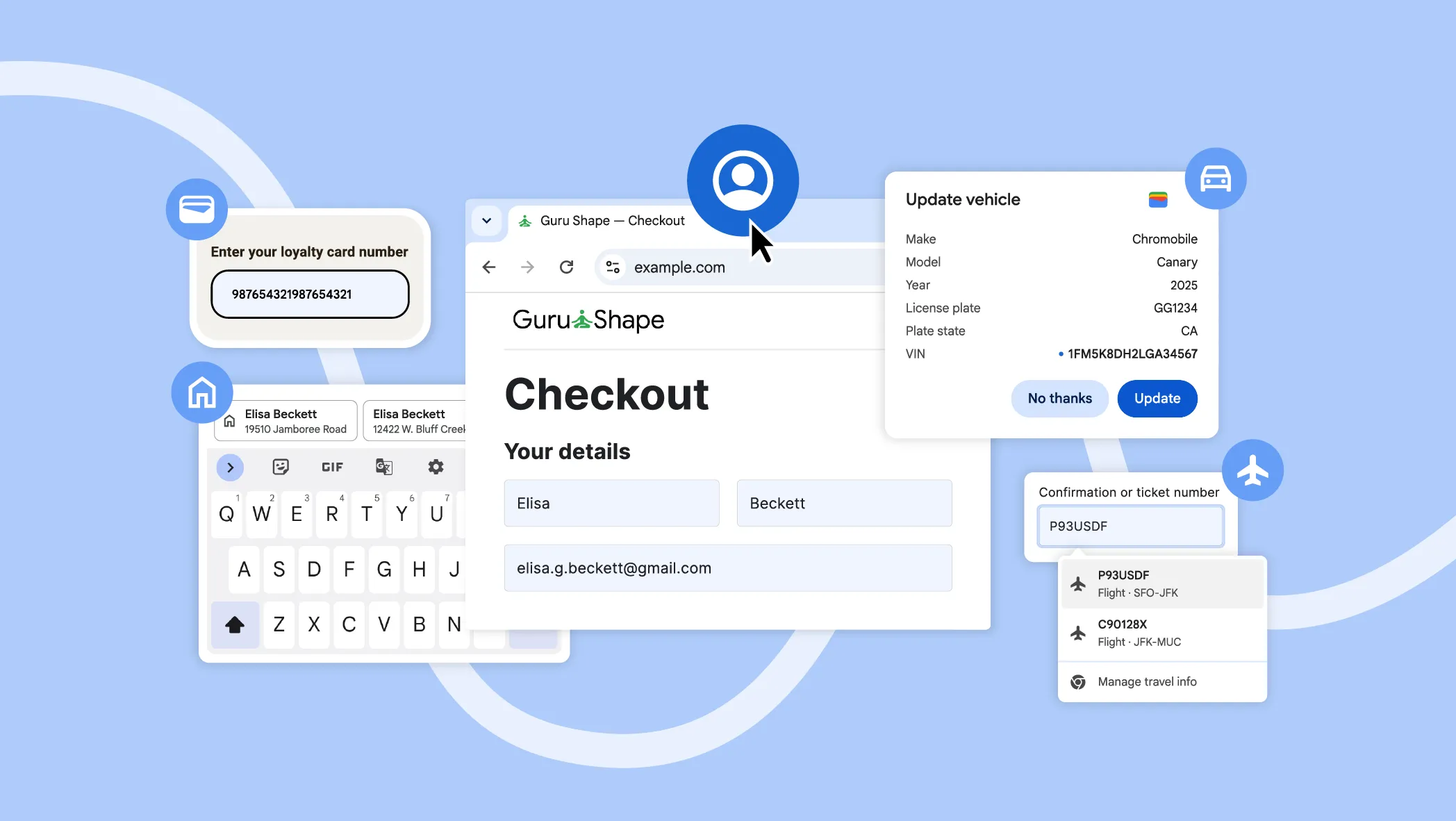
Enhanced Autofill is also available on desktop and iOS for eligible users, through the same general Settings and then Autofill and passwords area, with the same Enhanced autofill switch. If you don’t see the option at all, it most likely means you haven’t opted into Gemini Personal Intelligence yet, or your account or region isn’t currently eligible.
How to Use and Verify a Gmail-Based Suggestion
- Tap a form field on a website, such as one asking for a flight number, order number or vehicle detail.
- If Chrome has matching data from Gmail, a suggestion chip with the Gemini icon will appear on the bar above your keyboard.
- Tap the chip to fill the field, or touch and hold it to see more options.
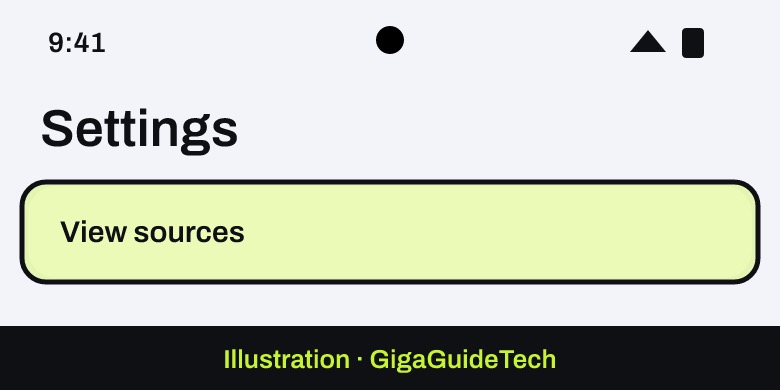
- To confirm where the data came from, touch and hold the suggestion chip and tap View sources.
Illustration: Form field > suggestion chip > View sources - Tap the link to the original source. The relevant email will open in Gmail in a new tab.
This “view sources” step is worth using the first few times a suggestion appears, since it shows you exactly which email the information was pulled from.
Manage the Name and Email Chrome Uses From Your Account
If the basic autofill suggestion for your name or email is wrong or outdated, it’s coming from your Google Account profile rather than Chrome itself.
- Go to myaccount.google.com.
- Tap Personal info.
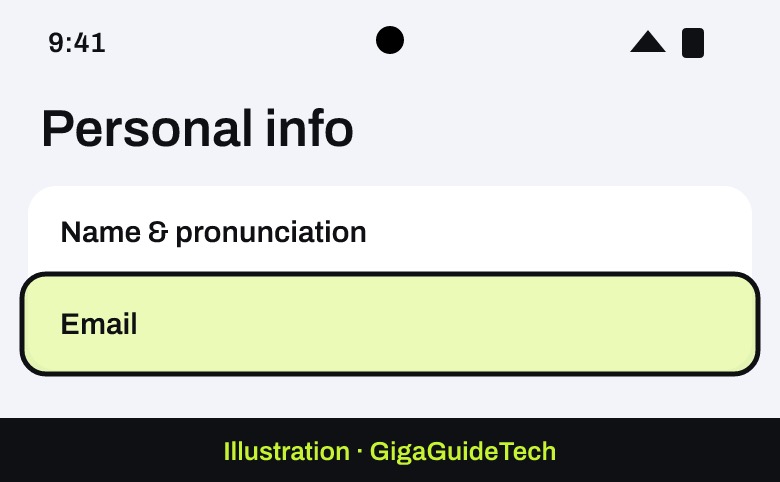
- Tap Name & pronunciation or Email.
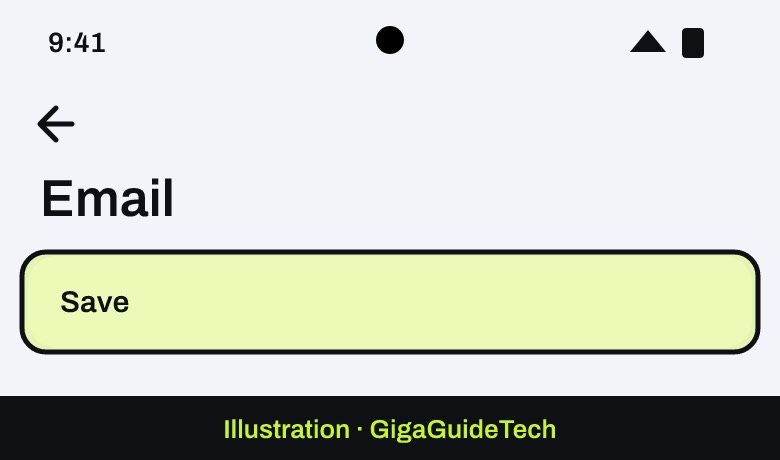
Illustration: myaccount.google.com > Personal info - Make your edit and tap Save.
Illustration: myaccount.google.com > Personal info > Email
Any change here is automatically reflected in Chrome’s autofill settings, so there’s nothing extra to update inside Chrome itself.
If It Still Doesn’t Work
- Check that “save and fill” is turned on for the type of info you want autofilled. This is on by default for Google Password Manager, payments, contact info, identity docs and travel — if someone previously turned it off, autofill won’t work for that category.
- Confirm your account meets Enhanced Autofill’s eligibility rules: US-based, 18 or older, and opted into Gemini Personal Intelligence.
- Make sure Chrome is updated to the latest version.
- Remember that info pulled from Gmail can’t be edited directly in Chrome. If a suggestion looks wrong, the fix has to happen in the source email itself.
- Know that removing a suggestion inside Chrome doesn’t delete the original email, but deleting the original email will remove the suggestion from Chrome.
FAQ
Does Chrome autofill pull from my Gmail contacts?
No. Standard Chrome autofill uses your Google Account profile name and email, not your Gmail contact list. Enhanced Autofill goes further by extracting specific data like flights, vehicles and orders directly from emails, but it still isn’t pulling a general contacts list.
Why don’t I see Enhanced Autofill in my Chrome settings?
It’s currently limited to US users who are 18 or older and have opted into Gemini Personal Intelligence, on desktop, Android or iOS. If you don’t meet those requirements, the option won’t appear yet.
Can I edit what Chrome pulls from my Gmail?
Not directly. Info sourced from Gmail can’t be edited inside Chrome. You can remove a suggestion from Chrome, but that doesn’t delete the underlying email, and only deleting the email itself removes the suggestion.
Source: Google Help