This guide is for anyone whose smart bulbs, plugs, speakers, displays or hub keep dropping off Wi-Fi, no matter how many times they reconnect. By the end, you should have a stable connection again, or at least know which part of your setup — the router, the hub, or the device itself — is actually causing the problem. The exact steps depend on which ecosystem you use, so jump to the section for Google Home, Apple Home or Samsung SmartThings.
Before you start
- Make sure your phone has the latest version of the relevant app (Google Home, Apple Home or SmartThings) and that your phone’s own operating system is up to date.
- Confirm that other devices on your network can get online. If nothing can connect, the problem is your router or modem, not your smart home gear.
- Have your Wi-Fi network name and password ready, and double-check you’re typing the password correctly — this is one of the most common causes of repeated drops.
- Restarting a device or hub doesn’t delete anything, but if you reset one you’ll have to set it up and reconnect it again, so set aside a few minutes per device.
Quick fixes to try first
These steps apply no matter which smart home platform you use, and they solve the majority of disconnection issues on their own.
- Restart your router and modem: unplug them from power for about one minute, then plug them back in and wait for them to fully reconnect.
- Restart the smart home device itself by unplugging it for 10 to 20 seconds, then plugging it back in and waiting one to two minutes.
- Move the device closer to your router or hub — Google, for example, recommends keeping its speakers and displays within 15 to 20 feet (4 to 6 meters) of the router.
- Force close and reopen the companion app on your phone, then turn your phone’s Wi-Fi off and back on before trying to reconnect the device.
- If your router broadcasts both 2.4 GHz and 5 GHz bands, try connecting the device to each one separately, since many smart home gadgets only support 2.4 GHz.
Platform-specific steps
Google Home, Nest and Google Wifi devices
- Check that the speaker or display is plugged into a wall outlet and powered on.
- Confirm your Wi-Fi password is correct when prompted during setup.
- If you use a Nest Wifi or Google Wifi mesh system, unplug the modem and all Wi-Fi points, wait until every light is off, then plug in the modem alone and wait about two minutes for it to fully power on before reconnecting the router and additional points one at a time.
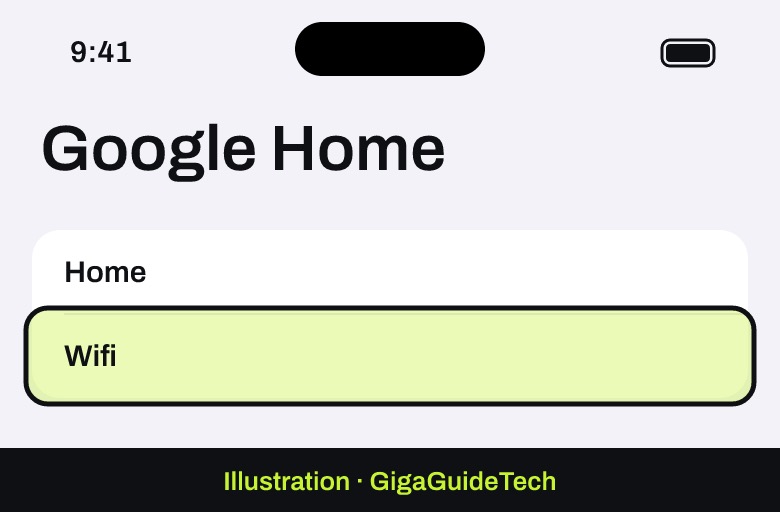
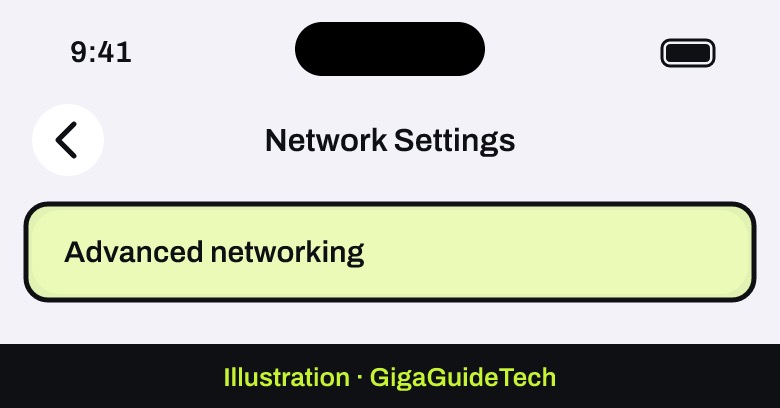
- If devices show as offline in the app, open Google Home, tap Home, then Wifi, then Network Settings, then Advanced networking, and turn off IPv6.

Illustration: Google Home > Home > Wifi > Network Settings Illustration: Google Home > Home > Wifi > Network Settings > Advanced networking - If a single mesh point or router shows offline, touch and hold its tile in the app, select Settings, scroll down, and choose Restart network.
- If problems persist, factory reset the Wi-Fi device and wait for the light to indicate it’s ready for setup, then set it up again from scratch.
Devices disconnected after setting up a new Nest Wifi or Google Wifi network
- If you kept the same network name and password as your old router, make sure the old router’s Wi-Fi is turned off or renamed so devices aren’t still trying to connect to it.
- To make the switch seamless, rename your old router’s network to something like “OldNetwork-old” in its settings, then change your new Nest Wifi or Google Wifi network name to match your original old network name exactly in the Google Home app.
- If you chose a new network name and password, you’ll need to find the Wi-Fi settings on each individual smart device and update them one by one.
Apple Home (HomeKit and Matter) accessories
- Update your iPhone, iPad or Mac, and make sure it’s on the same Wi-Fi network as your accessories.
- Turn on Bluetooth on your iPhone or iPad, then restart any accessories that aren’t responding. You may have to take the batteries out and put them back in.
- Check the manufacturer’s app for a firmware update for the accessory. If it doesn’t respond in that app either, you may need to reset it.
- Restart your home hubs (HomePod, HomePod mini or Apple TV) and any third-party bridges by unplugging them and plugging them back in.
- For third-party Thread accessories, unplug them or remove their batteries for 5 minutes, then reconnect them and wait about 10 minutes for the Thread network to settle.
- If accessories from several brands stop responding at once, also restart your modem and router, and check for VPN apps or third-party security software that could be interfering.
- As a last resort, open the accessory in the Home app, scroll down to its settings and select Remove Accessory, then reset it following the manufacturer’s instructions and add it back.
Samsung SmartThings devices
- If the device has an LED indicator, an orange or red light means there’s a problem with the device itself.
- For plugged-in devices, disconnect them from power for two minutes before reconnecting; for battery-powered devices, remove the battery for 30 seconds, reinsert it, and try fresh batteries if the issue continues.
- Check for updates to the SmartThings app and to any manufacturer app the device uses.
- Move the device closer to the hub, or add a range extender if it’s too far away.
- Keep the hub away from your Wi-Fi router and other wireless electronics like cordless phones, since they can cause interference; avoid stacking the hub directly on the router.
- For Zigbee-based devices, change your router’s Wi-Fi channel to 1, 6, or 11, since overlapping channels can interfere with the hub’s Zigbee radio.
- Check that both the hub and the device are on the same Wi-Fi network, using an Ethernet connection to the router if needed.
- Delete the troublesome device from the SmartThings app and re-add it; if that fails, reset the device and try again.
If it still doesn’t work
If you’ve gone through the steps above and devices are still dropping off Wi-Fi, try creating a temporary mobile hotspot on your phone and connecting the device to it instead of your home network. If the device connects fine to the hotspot, the problem is with your home network, modem, or internet provider rather than the device itself — it’s worth contacting your internet provider or checking your router for firmware updates. If the device can’t connect to the hotspot either, the device itself is likely at fault, and you should contact the manufacturer’s support for your specific platform (Google, Apple or Samsung).
FAQ
Why do my smart home devices keep disconnecting after I change my Wi-Fi password?
Devices store your old network credentials and keep trying to reconnect using them. You’ll need to either match your new network’s name and password to the old one, or update each device individually with the new Wi-Fi details through its app.
Should my smart home devices use the 2.4 GHz or 5 GHz band?
Most smart home devices only support 2.4 GHz, and constantly switching between bands on a combined network name can cause repeated drops. If your router lets you split the bands into separate network names, connecting smart home gear to the 2.4 GHz band specifically tends to be more stable.
Can placing my hub too close to the router cause disconnections?
Yes. According to Samsung’s guidance for SmartThings, placing a hub directly on top of or very close to a Wi-Fi router can cause interference, so it’s better to keep some distance between them, using an Ethernet cable if the hub supports a wired connection.
The bottom line
Most smart home Wi-Fi dropouts come down to a handful of causes: an overloaded or interfering router, outdated app or firmware, a device placed too far from its hub, or leftover network credentials after a password change. Working through the quick fixes first — restarting your router and the device, checking distance, and confirming the password — resolves the issue for most people. If devices still won’t stay connected, the platform-specific steps above, and the mobile hotspot test, will usually tell you whether the fault lies with your home network or the device itself.
Sources: Google Help, Samsung, Google Nest Wifi Help, Apple Support
Where to buy


As an Amazon Associate I earn from qualifying purchases.