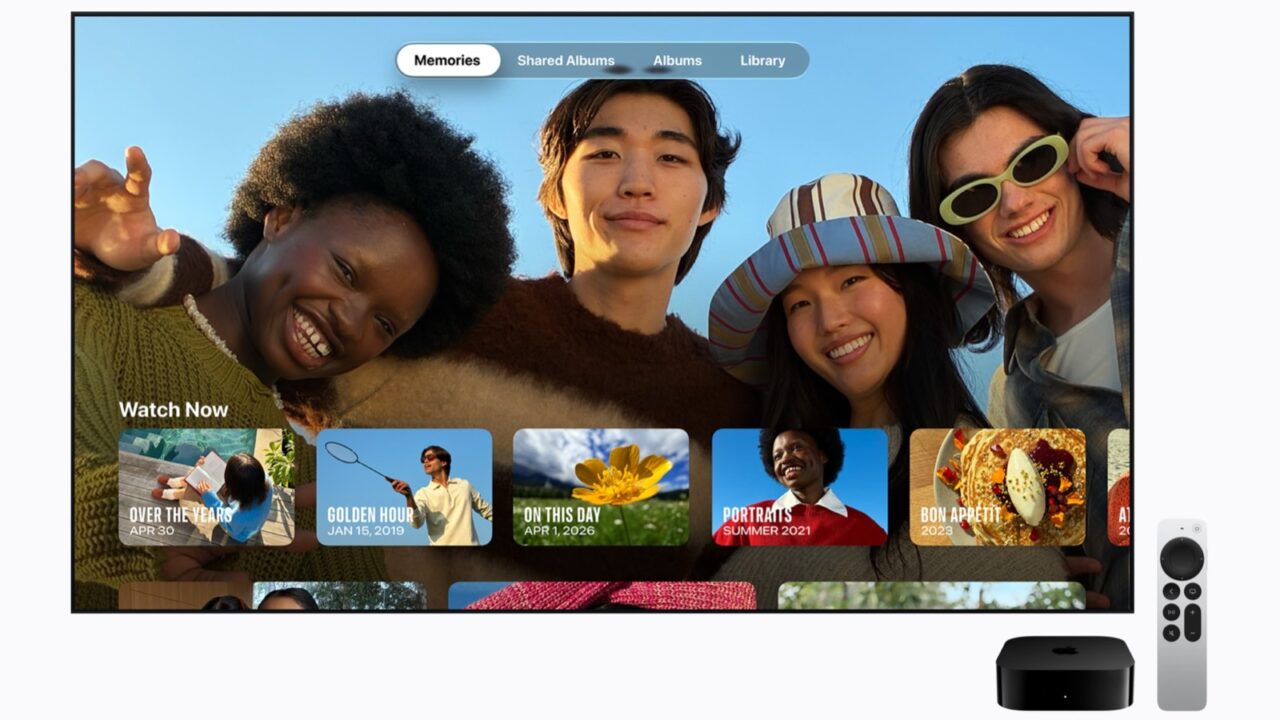
Just got the new Apple TV 4K? Setup is guided on screen, and if you have an iPhone or iPad nearby, it can handle much of it for you. Here’s how to set up an Apple TV 4K step by step, from plugging it in to updating it, turning on surround sound with HomePod speakers and getting Siri AI ready.
What you need
- A TV with an HDMI port. Any HD or 4K TV works. To get the full picture and sound quality, Apple recommends a TV that supports 4K, HDR or Dolby Vision, and a Dolby Atmos sound system.
- An HDMI cable. It’s sold separately. For a 4K HDR TV, Apple says you need an Ultra High Speed HDMI cable.
- Internet: a Wi-Fi network (know its name and password) or an Ethernet cable.
- An Apple Account for apps, purchases and services like Apple Music.
- Optional: your iPhone or iPad for faster setup. Apple says you need an iPhone with iOS 9.1 or later or an iPad with iPadOS 13 or later.
Step 1: Connect the Apple TV 4K
- Connect one end of the HDMI cable to the HDMI port on the Apple TV 4K and the other end to an HDMI port on your TV.
- Plug the power cord into the Apple TV 4K and into an outlet.
- Turn on your TV and select the HDMI input the Apple TV is connected to, if it isn’t selected already.

Step 2: Follow the setup on screen
- Use the Siri Remote to follow the onscreen instructions for your internet connection, signing in to your cable or satellite provider (optional) and more.
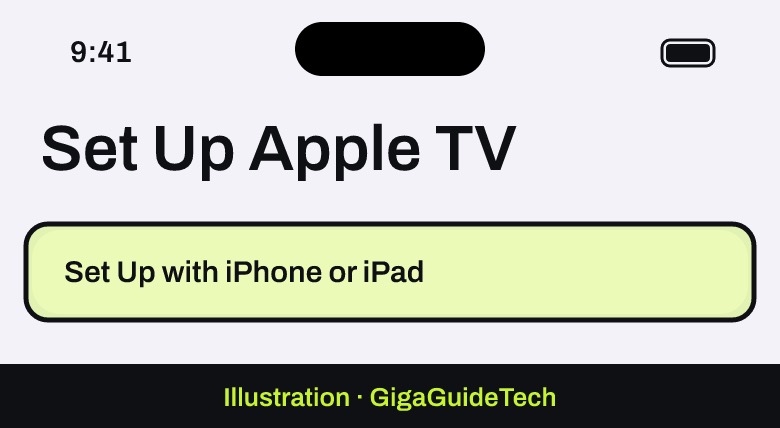
- To save time, choose Set Up with iPhone or iPad when you’re prompted, and follow the instructions to set up the Apple TV automatically with your iPhone or iPad.

Illustration: Apple TV: setup screen
Step 3: Update tvOS
A new Apple TV may not have the latest software out of the box, and some apps and features need it.
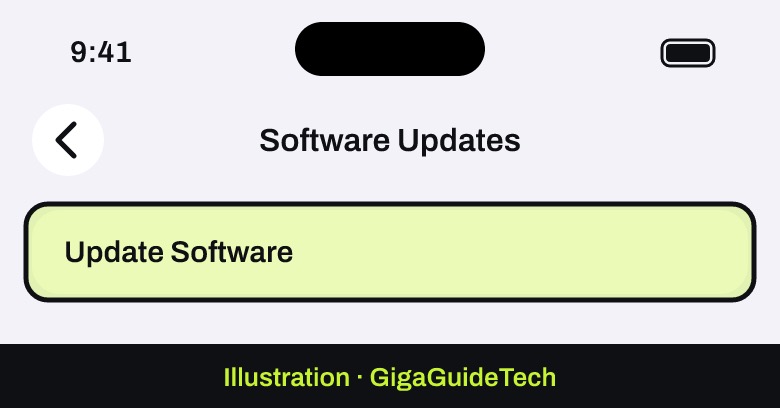
- Go to Settings > System > Software Updates.
- Select Update Software. If an update appears, select Download and Install and don’t unplug the Apple TV while it updates.
Illustration: Apple TV: Settings > System > Software Updates
If YouTube shows an error on the new model, see how to fix YouTube on the new Apple TV 4K.
Step 4: Set up surround sound with HomePod (optional)
With the Apple TV 4K (4th generation), you can use four HomePod speakers as a surround sound system: four HomePod (2nd generation), four HomePod mini 2, or two HomePod (2nd generation) in front with two HomePod mini 2 in the rear. Make sure the Apple TV and the speakers are assigned to the same room and are on the same network.
- Place the front speakers on either side of the TV, at least 4 feet apart (Apple suggests around 8 feet), and the rear speakers behind your seats, around 6 to 12 feet apart.
- On the Apple TV, go to Settings > Video and Audio > Audio Output and select Create Surround Group.
Illustration: Apple TV: Settings > Video and Audio > Audio Output - Follow the onscreen placement instructions, then select Start Tuning. The Apple TV plays sounds through each speaker and your TV to calibrate the levels and timing for your room.
Illustration: Apple TV: Create Surround Group


Using just one HomePod or a stereo pair? Go to Settings > Video and Audio > Audio Output and choose it as the default audio output instead.
Step 5: Get Siri AI ready
Siri AI, Apple’s new conversational Siri, is available as a beta in tvOS 27.2 on the Apple TV 4K (2nd generation and later). The new 4th-generation model also has built-in microphones for hands-free requests, so you don’t need to pick up the remote. According to Apple, a few things have to be in place:
- The owner of the home in the Home app needs an iPhone or iPad that supports Apple Intelligence, running the latest software.
- Siri AI has to be turned on on that device and set to a supported language.
- Siri AI isn’t initially available in the EU on iOS, and some features may not be available in every region or language.

What to do next
- Add profiles so you can share the Apple TV with the people in your household.
- Download your streaming apps, like Netflix, Hulu and HBO Max, from the App Store.
- Learn to find the remote: the new Siri Remote works with Find My. Here’s how to find a lost Apple TV remote.
Still deciding whether the new model is worth it? See what Apple launched on November 13.
Sources: Apple Support: Set up Apple TV 4K, Apple Support: Update Apple TV 4K software, Apple Support: Use HomePod for home theater sound, Apple TV 4K User Guide