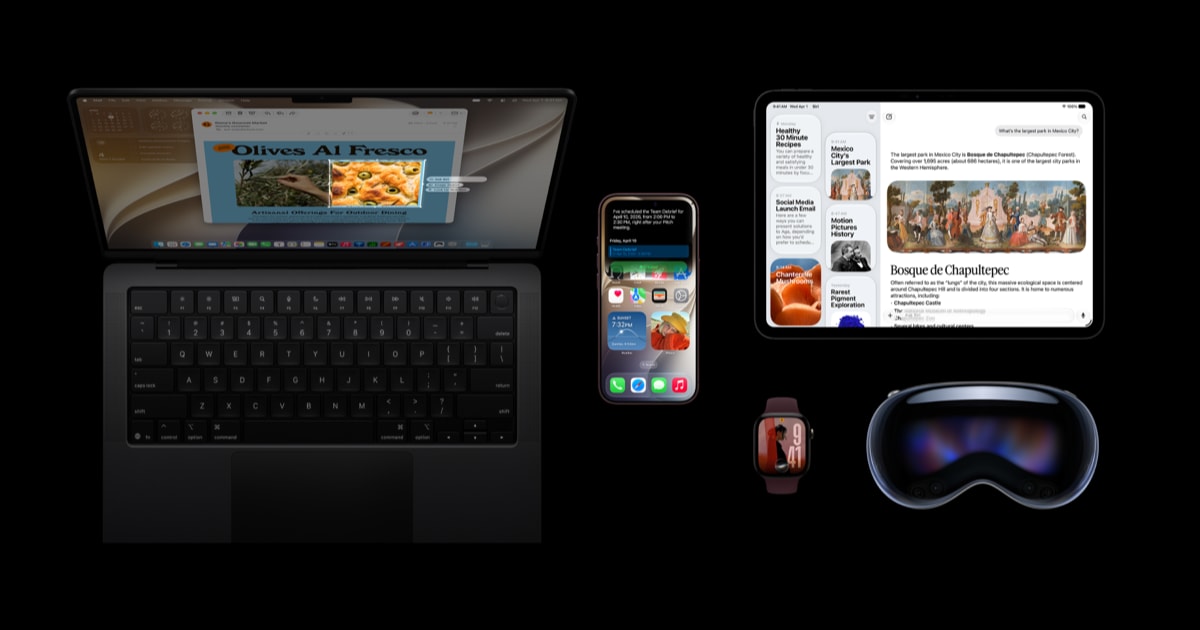
This guide is for iPhone owners who want to install iOS 27 beta to try Apple’s upcoming features before they arrive for everyone else. By the end, you’ll know how to enroll in the Apple Beta Software Program, download the beta safely, and fix the most common installation errors — all using Apple’s own troubleshooting steps.
Before You Start
- A compatible iPhone running iOS 16.4 or later (iOS 27 supports iPhone 11 and newer, including every model through the iPhone 18 Pro Max).
- A free Apple Account (your iCloud login works) to sign up for the Apple Beta Software Program.
- A full backup of your iPhone made before installing the beta, since beta backups may not work with older, stable versions of iOS.
- Roughly 3.5–10GB of free storage space available after the beta download completes.
- A stable Wi-Fi connection — a personal hotspot or VPN can interrupt the download.
- Ideally, a secondary iPhone that isn’t your daily driver, since beta software can be unstable and may break apps that haven’t been updated for it.
Enroll in the Apple Beta Software Program
- On your iPhone, open Safari and go to beta.apple.com.
- Sign in with your Apple Account.
- Accept the Apple Beta Software Program Agreement.
- Find iOS 27 among the available betas and enroll your device.
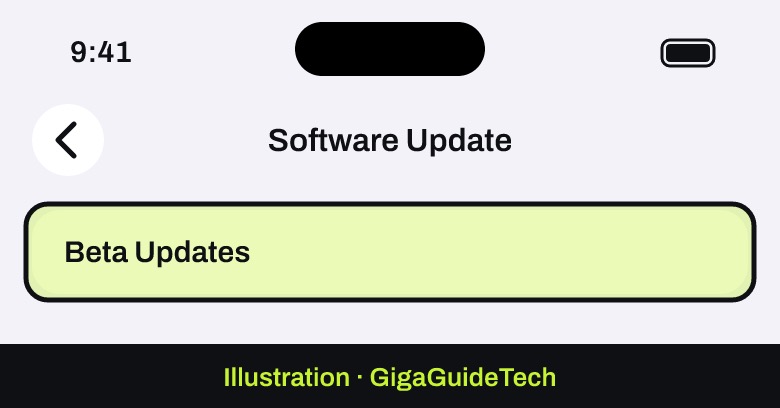
If you’re a paid Apple Developer Program member, you can instead go to Settings > General > Software Update > Beta Updates and choose the developer beta, as long as you’re signed in with the same Apple Account you use on the Apple Developer website.
Install the iOS 27 Beta
If Your iPhone Is Running iOS 16.4 or Later
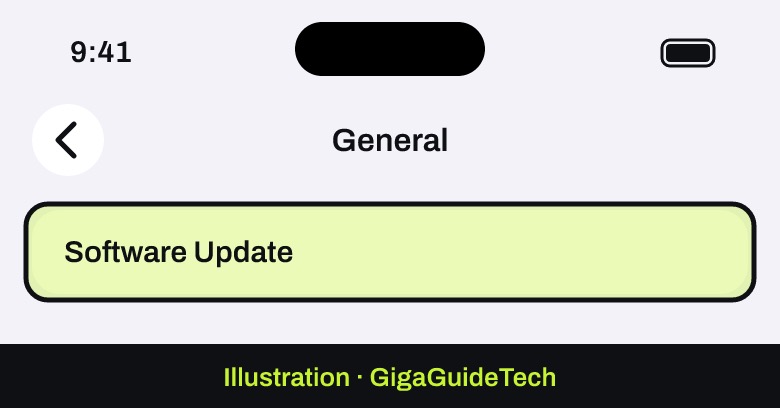
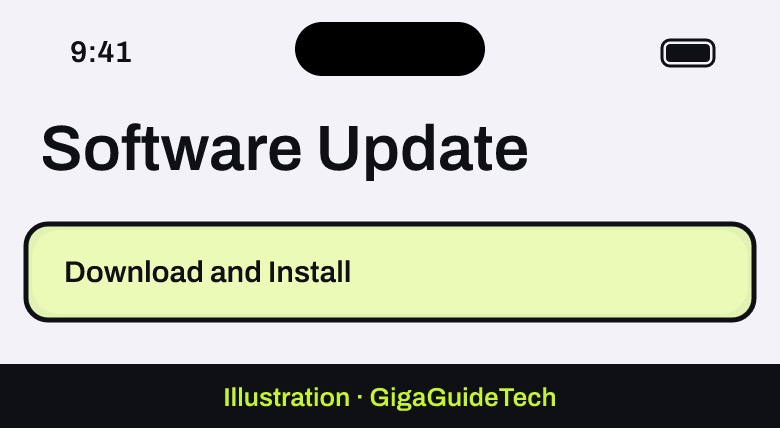
- Go to Settings > General > Software Update.

Illustration: Settings > General > Software Update - The iOS 27 beta should now appear as an available update.
- Tap Download and Install.
Illustration: Settings > General > Software Update - Stay connected to Wi-Fi throughout the download and installation.
- Follow the on-screen instructions; your iPhone will restart during installation.
If Your iPhone Is Running iOS 16.3.1 or Earlier
- Download the configuration profile from the Apple Beta download page, either directly on your iPhone or by saving it on a computer and emailing it to an account on your device.
- Open the profile in Mail (if emailed) and follow the installation instructions.
- Connect your iPhone to a power source and to Wi-Fi.
- Go to Settings > General > Software Update to download and install the beta.
If It Still Doesn’t Work
Apple’s own troubleshooting documentation points to a handful of recurring causes for an “Unable to Install Update” error:
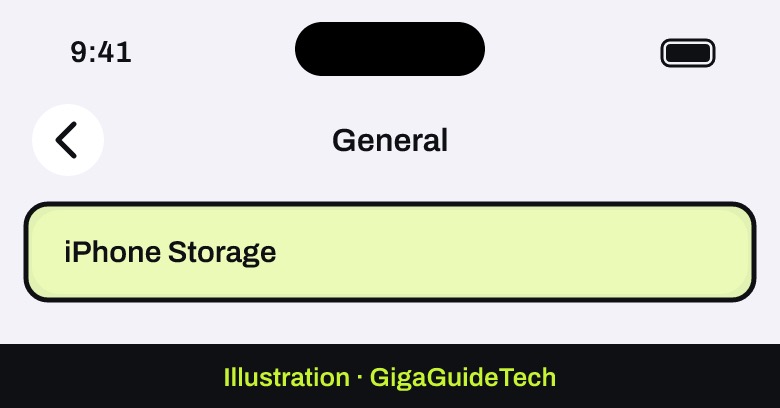
- Not enough storage. Free up at least 3.5–10GB beyond the download size — check Settings > General > iPhone Storage to see what’s taking up space, or free up iCloud storage that might be syncing data.
Illustration: Settings > General > iPhone Storage - Connectivity problems. Switch Wi-Fi networks if you can, avoid a personal hotspot, remove any VPN apps or profiles, and restart your router. If your iPhone keeps dropping its connection entirely, it’s worth working through the steps to fix an iPhone that keeps disconnecting from Wi-Fi before trying again.
- A locked or low-power device. Unlock your iPhone first (locked devices can throw Error 4037), make sure it isn’t in Low Power Mode, and charge it to at least 50 percent.
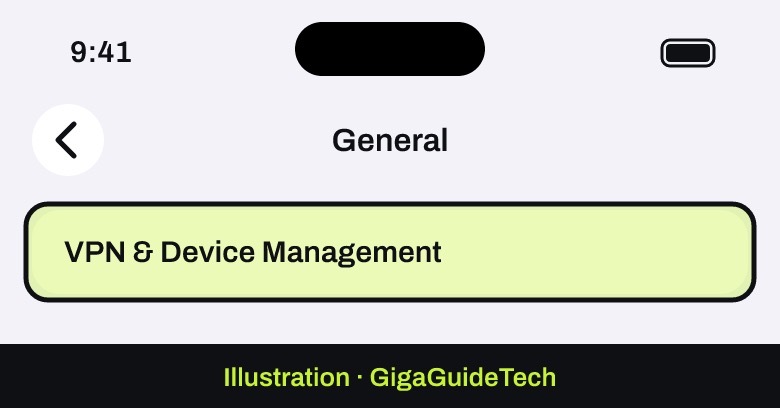
- A leftover beta profile. Check Settings > General > VPN & Device Management for an old beta configuration profile and remove it, since it can block regular software updates.
Illustration: Settings > General > VPN & Device Management - An undeleted previous beta installer. Look in Settings > General > iPhone Storage for a leftover iOS installer from an earlier beta and delete it.
- If you see “The required resource can’t be found,” this can point to unauthorized software modifications; restoring the device to factory settings on a computer is the official fix.
- If installation hangs on “Verifying update…,” wait at least 15 minutes before force-restarting, then reconnect to Wi-Fi and try again.
Apple does not offer official support, online or in store, for problems caused by beta software. If you need AppleCare’s help, you’ll first have to restore your iPhone to a publicly released version of iOS.
Turning Off Beta Updates or Downgrading
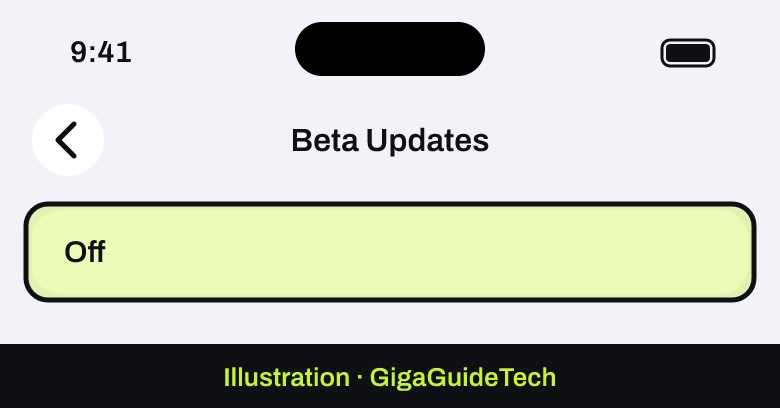
To stop receiving beta updates without removing anything, go to Settings > General > Software Update > Beta Updates and tap Off.
To remove the beta entirely and return to a released version of iOS, connect your iPhone to a computer with the latest Finder or iTunes, put it into recovery mode, and choose Restore. This erases the device and installs the current public version of iOS, so you’ll need an archived backup made before you installed the beta — a process similar to how you’d put an iPad into recovery mode and restore it. Backups made while running the beta may not be compatible with older iOS versions, so don’t count on your most recent backup if it was created after installing iOS 27 beta.
FAQ
Will installing iOS 27 beta void my warranty?
The source documentation doesn’t address warranty terms directly, but Apple does warn that beta software can cause apps to malfunction and that there’s no official support for beta-related issues, so it’s best treated as separate from your normal warranty coverage.
Can I go back to a stable version of iOS after installing the beta?
Yes, but only by erasing your iPhone and restoring it from a computer, and only if you have a backup made before you installed the beta. A backup created while running iOS 27 beta may not restore properly on an older, public release.
Do I need a paid developer account to try iOS 27 beta?
No. The Public Beta Program at beta.apple.com is free and open to anyone with an Apple Account. A paid Apple Developer Program membership is only required for the separate developer beta track.
Why does my iPhone say there isn’t enough storage to install the update?
The beta needs roughly 3.5–10GB of free space in addition to the download itself. Clear out unused apps, photos, or videos in Settings > General > iPhone Storage before retrying.
Sources: Apple, Apple Support
Where to buy
- Anker USB-C to Lightning Cable: check price on Amazon
- SanDisk 1TB Portable SSD: check price on Amazon
- Anker 20W USB-C Wall Charger: check price on Amazon
As an Amazon Associate I earn from qualifying purchases.