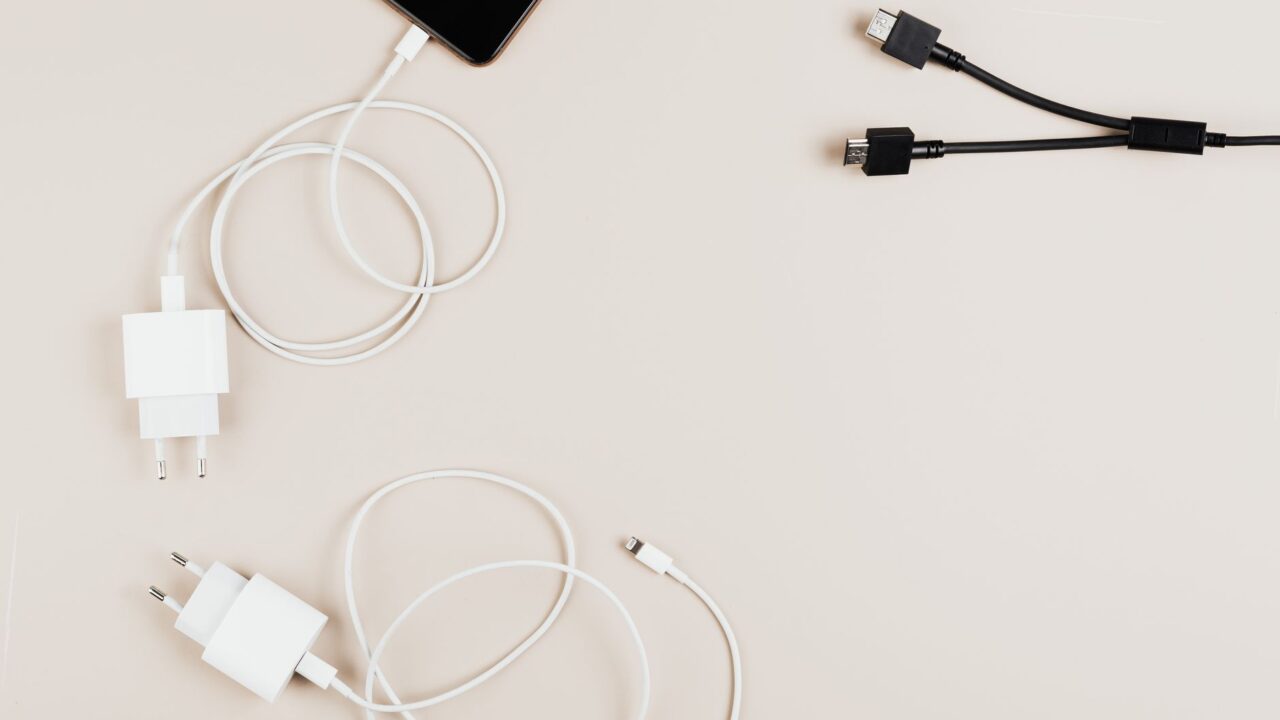
If you just got a warning about liquid detected in iPhone connector after plugging in your charger, this guide is for you. It walks through Apple’s official steps for drying the port safely, explains why charging is blocked, and shows how to keep your iPhone powered while you wait. It applies to iPhone XS, iPhone XS Max, iPhone XR and later, which are the models that include liquid detection for Lightning and USB-C connections.
Before you start
- You need an iPhone XS, XS Max, XR or newer — older models don’t show this alert.
- Set aside time. Drying can take 30 minutes in a best case and up to 24 hours in a stubborn one.
- Have a Qi-certified wireless charger nearby if you rely on your phone during the day.
- No data is at risk from these steps, so you don’t need a backup — but a phone that runs flat is a phone you can’t use, so plan ahead.
- Don’t reach for rice, a hairdryer, compressed air or a cotton swab. All four can make things worse, and we explain why below.
What the alert actually means
Your iPhone has sensed liquid in the connector itself, on the cable’s contacts, or in the accessory you plugged in. Charging and accessory connections are suspended until everything is dry. It is a protective measure, not a sign that your phone is already damaged.
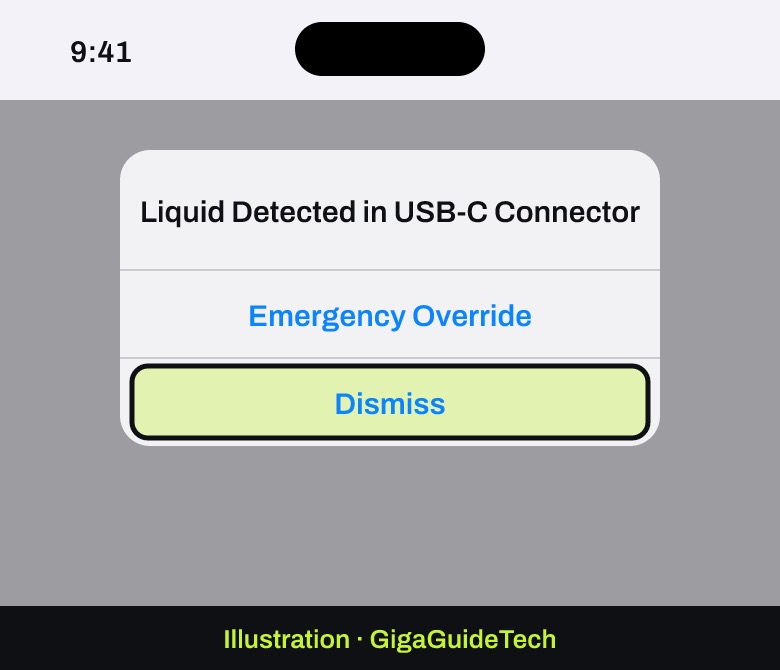
You may see one of four different messages depending on what you plugged in:
- Charging not available — shown when you connect a Lightning charger and liquid is detected.
- Liquid Detected in USB-C Connector — shown when you connect a charger or accessory using a USB-C to USB-A cable.
- Liquid detected in Lightning Connector — shown when you connect a Lightning accessory that doesn’t charge the phone.
- Liquid Detected — shown when you connect a USB-C accessory.
Why does Apple bother blocking it? Because pushing current through wet pins can corrode the contacts on either the connector or the cable. That corrosion is permanent, and it shows up later as a port that charges intermittently or stops recognising accessories entirely. The alert is cheaper than a repair.
Step by step: drying the connector
- Unplug the cable from your iPhone straight away, then unplug the other end from the power adapter or accessory.
- Hold the iPhone with the connector facing downward and tap it gently against your hand to shake out excess liquid.
- Leave the iPhone somewhere dry with some airflow — a room with a fan or an open window is ideal, a sealed drawer is not.
- Wait at least 30 minutes, then try charging with your Lightning or USB-C cable, or reconnecting the accessory.
- If the alert appears again, there is still moisture in the connector or beneath the pins on the cable. Leave the iPhone in that dry, airy spot for up to a full day. You can keep testing periodically; full drying can take up to 24 hours.
- Once the phone is dry but still refuses to charge, unplug the cable from the adapter, unplug the adapter from the wall if you can, then reconnect both and try again.
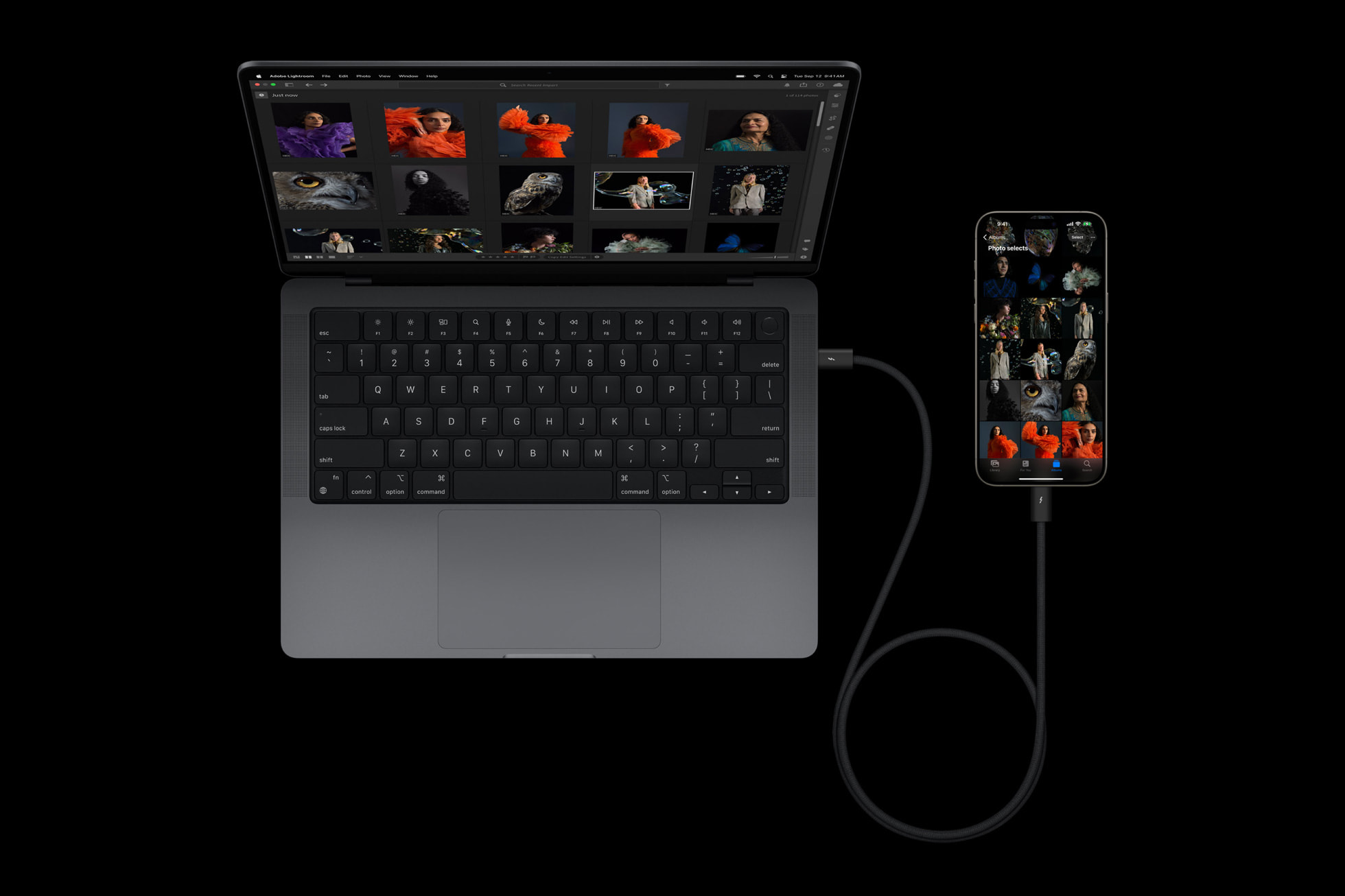
The last step matters more than people expect. A power adapter that was interrupted mid-session sometimes needs a clean reconnection before it negotiates charging again.
How to keep charging while you wait
Liquid detection only blocks the wired connector. If you own a Qi-certified wireless charger, you can carry on charging normally — just make sure the back of the iPhone is dry before you set it down on the pad. This is the single best reason to keep a cheap wireless charger at home or at your desk even if you normally charge with a cable.
There is also an emergency override. If you reconnect the cable or accessory after dismissing the alert, your iPhone offers the option to bypass liquid detection and charge anyway. Apple is clear that you shouldn’t do this under normal circumstances, because it’s exactly the scenario that corrodes the pins. Treat it as a genuine emergency tool — you need to make a call, you need maps in an unfamiliar place — not a shortcut to skip the wait.
What not to do
Apple explicitly warns against several popular internet fixes:
- No external heat sources — no hairdryers, radiators or heat guns.
- No compressed air — it can force liquid deeper rather than pushing it out.
- No foreign objects in the port — cotton swabs and twisted paper towels can shed fibres and bend contacts.
- No bag of rice — this one is the most widely repeated and one of the worst. Small rice particles can get into the phone and cause damage of their own.
Patience and airflow really are the recommended approach. There is no accelerant here worth the risk.
If it still doesn’t work
If you’ve given the phone a full day in a dry, ventilated spot and the message keeps coming back, the problem is probably not the moisture any more.
- The alert appears every time with one specific third-party cable or accessory. That cable or accessory may be damaged. Contact its manufacturer about a replacement. A quick test: try a different cable you know is dry and see if the alert disappears.
- The alert appears every time with an Apple Lightning or USB-C cable or accessory. At that point your iPhone may need service. Book a repair through Apple Support or an authorised provider.
Worth noting: Apple’s documentation doesn’t publish a technical explanation of how the sensor works, nor a stated reset time once the port dries. So if you’re two days in with multiple known-good cables and still blocked, that’s a service conversation rather than something you can troubleshoot further at home.
FAQ
How long does the liquid detected alert take to clear?
Often around 30 minutes, which is the minimum drying time Apple suggests before you retry. In wetter cases it can take up to 24 hours. You can safely test charging repeatedly throughout that window.
Can I charge my iPhone wirelessly when liquid is detected?
Yes. Wireless charging isn’t blocked by the alert. Dry the back of the phone first, then place it on a Qi-certified charger as usual.
Is it safe to use the emergency override?
It exists for genuine emergencies, but Apple advises against charging a wet iPhone. Doing so risks corroding the pins in the connector or on the cable, which can permanently break charging and accessory connections. Use it only when you have no alternative.
Why does the alert keep appearing with one particular cable?
Liquid can sit under the pins at the cable’s tip, not just inside the phone. If one cable triggers the warning consistently while others don’t, that cable is likely damaged and should be replaced — contact the manufacturer if it’s third-party, or arrange service if it’s an Apple cable.
The bottom line
The liquid detection alert is your iPhone doing its job. Unplug, tap out the excess, leave it somewhere airy, and resist every shortcut you’ve read about online. Half an hour usually does it; a full day covers the rest. If the warning survives a proper drying period across more than one cable, stop troubleshooting and get the phone looked at — that’s no longer a moisture problem.
Source: Apple Support
Where to buy
- Qi-certified wireless charging pad: check price on Amazon
- Apple MagSafe Charger: check price on Amazon
- USB-C to USB-C charging cable: check price on Amazon
- Apple Lightning to USB-C cable: check price on Amazon
As an Amazon Associate I earn from qualifying purchases.