This guide is for anyone whose browser has suddenly been hijacked by a full-screen warning claiming their PC is infected, often with a loud alarm sound and a phone number to call. If you want to stop fake virus pop-ups on Windows and keep them from returning, this walks through the official steps from Microsoft, starting with closing the pop-up safely and ending with the settings that prevent it from happening again.
The first thing to understand is that these alerts are not coming from Windows itself. Real Windows error messages never show a phone number or ask you to call for support. If a page locks your screen, plays sound, and pushes you to dial a number, it is a scam running in your browser, not a genuine virus alert.
Before you start
- This guide applies to Windows 10 and Windows 11, with specific steps for Microsoft Edge.
- You do not need to back up personal files for the basic steps, but if you reach the last-resort reset option, save any open work first.
- If a scammer was given remote access to your PC or any payment details, be ready to change your passwords and contact your bank once the immediate threat is handled.
Step 1: Close the fake pop-up safely
- Press F11 to exit full-screen mode if the pop-up is covering your whole screen.
- Close the browser tab with Ctrl + W, or close the whole browser window with Alt + F4.
- If the browser won’t close normally, press Ctrl + Shift + Esc to open Task Manager, select the browser (Microsoft Edge or Chrome), and choose End task.
- As a last resort, hold down your PC’s power button until it shuts off, then turn it back on.
Step 2: Clear your browser’s cached data
Fake alerts often reappear because the page or its scripts are still cached. Clearing this data makes it far less likely the same scam page reloads when you reopen your browser.
In Microsoft Edge
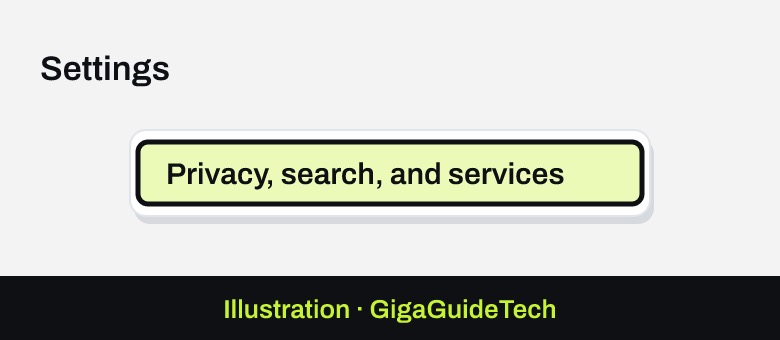
- Open Microsoft Edge and go to Settings > Privacy, search, and services.

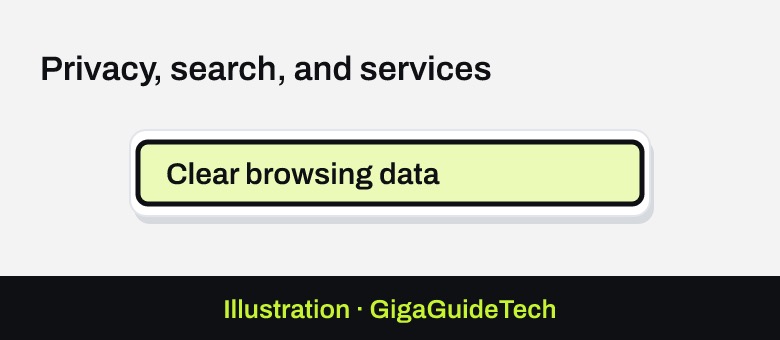
Illustration: Settings > Privacy, search, and services - Select Clear browsing data.
Illustration: Settings > Privacy, search, and services > Clear browsing data - Deselect everything except Cached images and files and site permissions.
- Choose a time range that covers when the pop-up first appeared, then select Clear now.
Step 3: Block the site’s notifications
The most common cause of these pop-ups isn’t a virus at all, it’s a website that tricked you into allowing browser notifications, which it then abuses to push scareware alerts to your desktop.
In Microsoft Edge
- Select Settings and more in the top-right corner of the browser.
- Go to Settings > Privacy, search, and services > Site permissions > All sites.
Illustration: Settings > Privacy, search, and services > Site permissions Illustration: Settings > Privacy, search, and services > Site permissions > All sites - Find the suspicious website, open its Notifications setting, and choose Block from the dropdown.
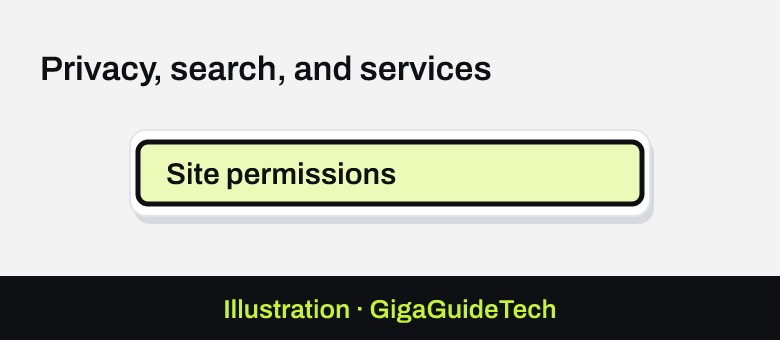
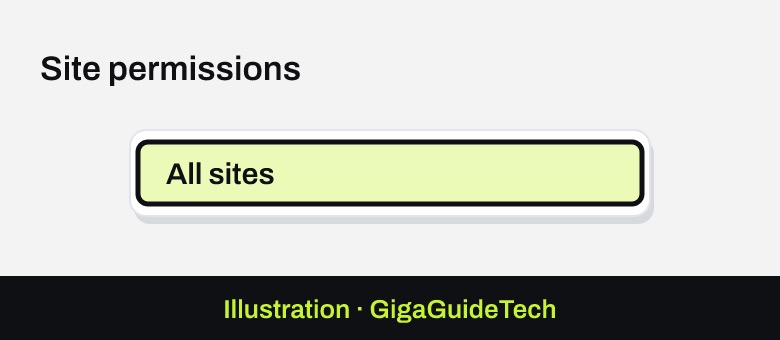
A quicker route works from the address bar: select View site information next to the URL, then under Permissions for this site, set Notifications to Block.
Step 4: Check for unwanted software
If pop-ups keep appearing even when your browser is completely closed, deceptive software may have been installed on your PC.
- Open Settings > Apps > Installed apps and remove anything you don’t recognize or don’t remember installing.
Illustration: Settings > Apps > Installed apps Illustration: Settings > Apps > Installed apps - If a suspicious program isn’t listed there, open File Explorer and browse to C:\Program Files or C:\Program Files (x86), find its folder, and run the uninstall file inside (for example, Uninst.exe or Uninstall).
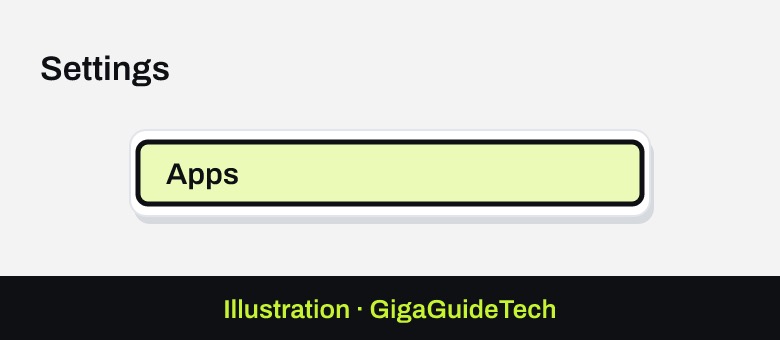
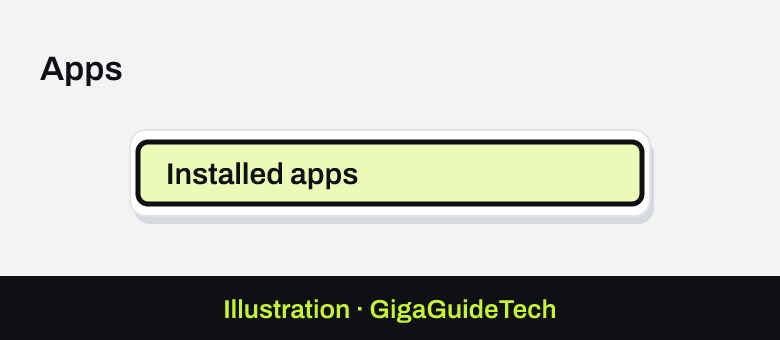
Don’t delete a program’s folder manually if there’s no uninstall file included, since that can cause other problems with Windows or your other software.
Step 5: Run a malware scan
- On Windows 11, go to Settings > Privacy & security > Windows Security > Virus & threat protection. On Windows 10, it’s Settings > Update & Security > Windows Security > Virus & threat protection.
Illustration: Settings > Update & Security > Windows Security > Virus & threat protection - Under Current threats, select Scan options.
- Choose Microsoft Defender Antivirus (offline scan) and select Scan now. This will restart your PC, so save any open files first.
- If problems persist, you can also run the Malicious Software Removal Tool by pressing Windows key + R, typing %windir%\system32\mrt.exe, and running a full scan.
Step 6: Turn on Edge’s scareware blocker
Microsoft Edge includes a built-in scareware blocker that detects and stops these deceptive pop-ups before they load, and it’s on by default on most PCs with more than 2GB of RAM and at least 5 cores. To confirm it’s enabled, go to Settings and more > Settings > Privacy, search, and services > Security, and turn on the Scareware blocker toggle. Devices with less than 1GB of RAM or fewer than 2 cores won’t see this option at all.
If it still doesn’t work
If a scammer asked you to install a tool or grant remote access to your PC, uninstall anything they had you install, run a full scan with Windows Security, and apply all pending Windows Update security updates. If you shared any payment details, change your passwords and contact your financial institution right away.
If pop-ups keep coming back after all of these steps, treat the PC as potentially compromised and consider resetting it through Windows recovery options. Be aware this can cause some data loss and may not restore every file to its exact pre-infection state, so back up anything important first.
FAQ
Is a pop-up saying my PC has a virus ever real?
No. Windows doesn’t display virus warnings with a phone number to call. Any pop-up urging you to dial a support line is a scam, regardless of how official it looks.
Why do the pop-ups keep coming back after I close them?
Usually because you accidentally allowed notifications from the scam site at some point, or your browser cache is still holding onto the page. Blocking the site’s notifications and clearing cached data fixes this in most cases.
Did I actually get a virus from this pop-up?
Not necessarily. These are typically browser-based scams rather than actual malware. Still, it’s worth running a full scan with Windows Security just to be sure, especially if you clicked anything on the page or downloaded a file.
What if more than one antivirus program is installed on my PC?
Uninstall the extra one. Running multiple antivirus or antispyware programs at once can hurt performance, cause instability, or trigger random restarts, so it’s best to stick with one.
Source: Microsoft Support
Where to buy
- External SSD for backing up files before a Windows reset: check price on Amazon
- USB flash drive for Windows recovery media: check price on Amazon
As an Amazon Associate I earn from qualifying purchases.