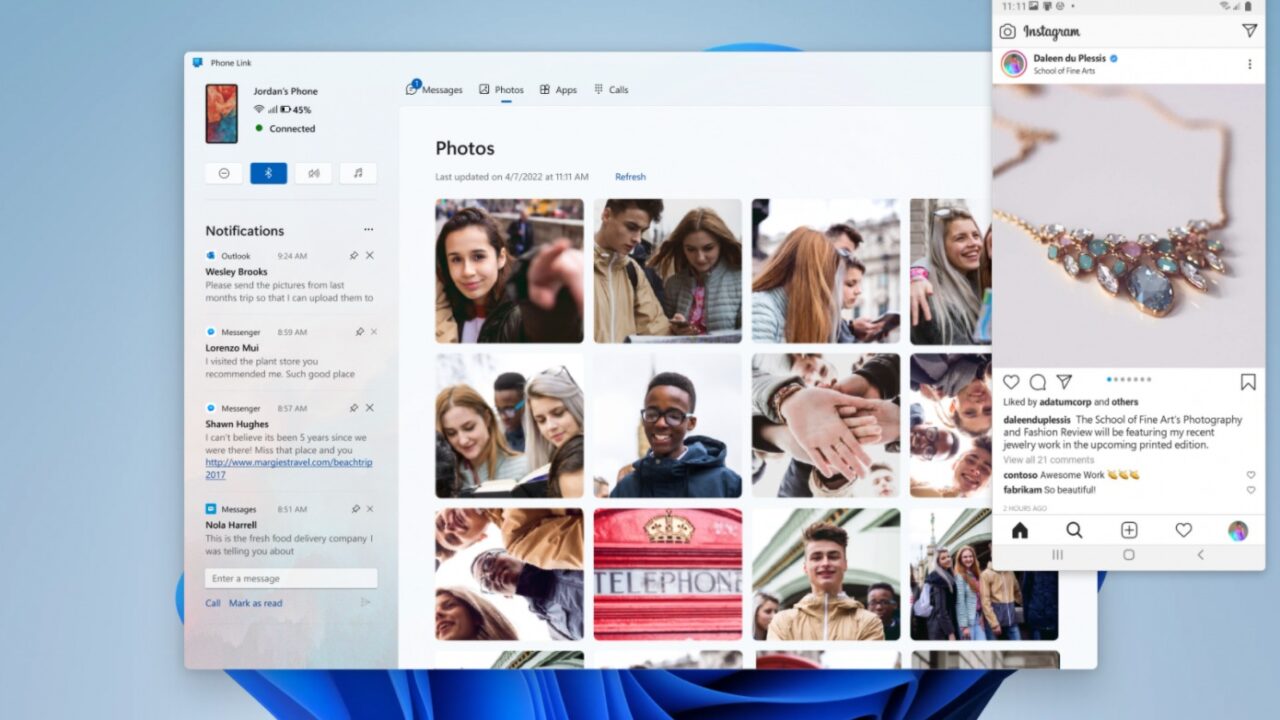
This guide is for Windows 10 or Windows 11 users who want to make calls on PC with Phone Link instead of reaching for their phone every time it rings. Whether you carry an Android device or an iPhone, Phone Link can route calls through your PC’s microphone and speakers, show your recent call history, and let you dial contacts without picking up your handset. By the end of this guide, you’ll have calling set up and know what to do if it stops working.
Before You Start
- A PC running Windows 10 (May 2019 Update or later) or Windows 11.
- Bluetooth support on your PC; iPhone users specifically need Bluetooth Low Energy (BLE) support, which some older PCs lack.
- An Android device running Android 10 or later, or an iPhone running iOS 16 or later (Microsoft’s documentation has also listed iOS 15 in some places, so if you’re on an older iPhone, check for an iOS update first).
- Both devices connected to the same Wi-Fi network for Android setups.
- No backup is needed since Phone Link doesn’t modify or delete anything stored on your phone.
If you’re not sure which Windows build you have, it’s worth checking your Windows 11 version and updating it before you begin, since an outdated build can cause pairing issues later.
Setting Up Calls on Android
- Open Phone Link on your PC and select Calls.

Illustration: Phone Link > Calls - Select Get Started and follow the on-screen instructions to pair your phone.
Illustration: Phone Link > Calls > Get Started - If you skipped calls during initial setup, go to your phone’s Settings > Features > Calls and turn on Allow this app to make and manage calls from my phone.
- The first time you place or receive a call, you’ll be prompted for Android permissions. Select Allow so Phone Link can access and display call information from your phone.
Setting Up Calls on iPhone
First pair your iPhone in Phone Link: choose iPhone when the app asks which phone you have, then follow the QR code and Bluetooth prompts.
- On your iPhone, go to Settings > Bluetooth.
Illustration: Settings > Bluetooth - Find your PC’s name in the device list.
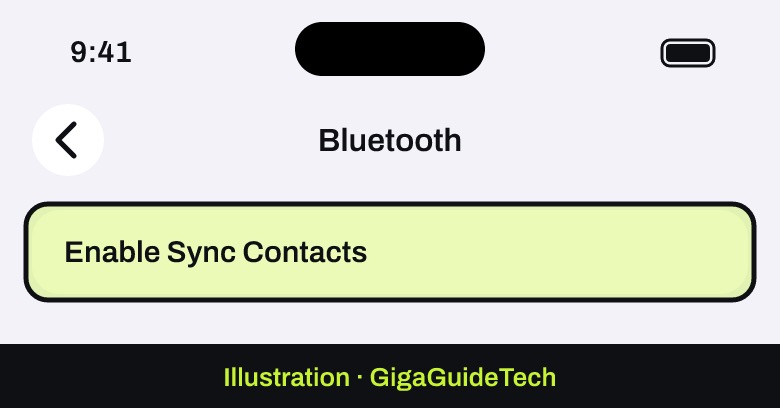
- Select Enable Sync Contacts to let Phone Link pull in your contact names.
Illustration: Bluetooth > Enable Sync Contacts
Making a Call
On Android
- Open Phone Link and select Calls.
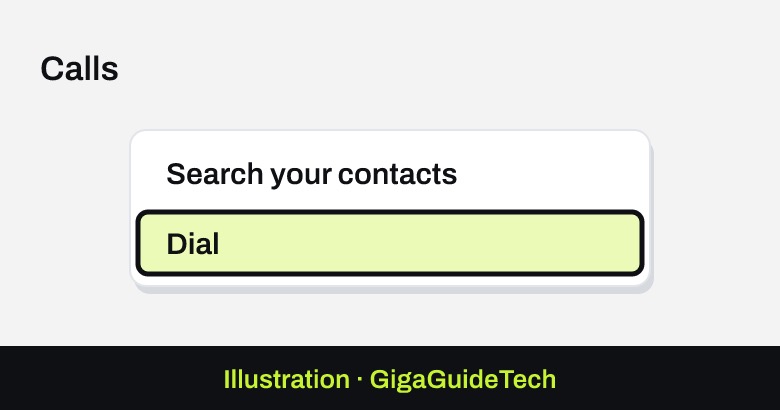
- In the Search your contacts box, type a contact’s name or enter a number directly on the dial pad.
- Select the Dial icon to start the call.
Illustration: Phone Link > Calls > Dial
On iPhone
- Open Phone Link and select Calls.
- In the search bar, type a contact’s name or phone number.
- Click the Dial icon to start the call.
Receiving Calls and Viewing Call History
On Android, an incoming call triggers a notification inside the Phone Link app; select the contact to answer directly from your PC. On iPhone, receiving calls works the same way in principle, but it depends entirely on a stable Bluetooth connection — if that connection drops, the call simply won’t come through on your PC.
To check past activity, open Phone Link and select Calls. Only calls made or received within the last 90 days will appear, and you can’t manage or delete call history from the PC side — that has to be done on the phone itself.
A few limitations are worth knowing upfront: Phone Link doesn’t relay calls to Bluetooth headsets on either platform, Android users can’t dial special symbols like * or # or search contacts alphabetically, and Phone Link is not a substitute for emergency calling — it isn’t required to connect to emergency services under local or national regulations, so always use your actual phone for those.
If It Still Doesn’t Work
- Check Do Not Disturb: Open the notification center and turn Do Not Disturb off if call notifications are silent.
- Check Focus Assist on Windows 10 (on Windows 11 it is called Do not disturb, in Settings › System › Notifications): Right-click the Action Center icon on the taskbar, select Focus Assist, and set it to Off.
- Restart both devices: Close and reopen Phone Link, then restart your PC if the issue continues.
- Toggle Bluetooth: Swipe down to reveal the Android notification panel, then tap the Bluetooth icon off and back on.
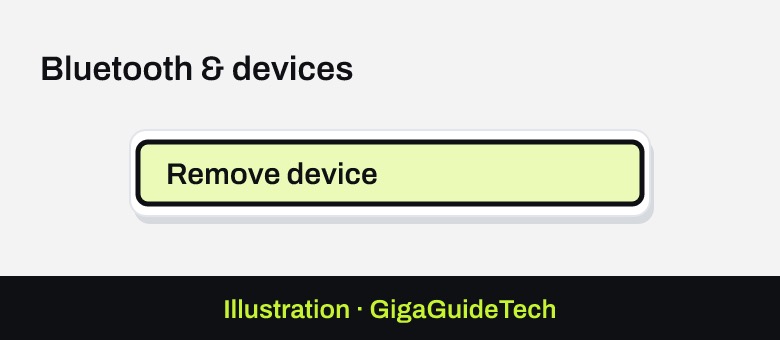
- Re-pair manually: Go to Start > Settings > Bluetooth & devices (or Devices > Bluetooth & other devices on Windows 10), select your phone, choose Remove device, then pair again.
Illustration: Remove device - Disable battery optimization: On Android, go to Settings > Apps & notifications > App info > Link to Windows > Advanced > Battery, then choose Don’t optimize.
- Remove conflicting apps: Uninstall or sign out of third-party companion apps like Intel Unison or Virtoo by LG, then unpair and re-pair your Android device.
- For iPhone specifically: Update iOS via Settings > General > Software Update, update Windows via Settings > Windows Update, update Phone Link through the Microsoft Store, and confirm Call Notifications are enabled under Settings > Bluetooth for your PC’s entry.
- Renamed your Android device? Unpair it from Start > Settings > Devices > Bluetooth & other devices > Other devices, rename it on the phone, then pair again.
FAQ
Can I use Phone Link to call 911 or other emergency numbers?
No. Phone Link is not required by local or national regulations to provide access to emergency services, so you should always place emergency calls directly from your phone.
Why can’t I hear the other person clearly during a call?
Other Bluetooth accessories paired with your PC, like a mouse, can interfere with call audio. Try disconnecting other Bluetooth devices, and if you hear echoing, switch to a wired headset.
Does Phone Link work with Bluetooth headphones?
Not for calls. Phone Link currently doesn’t support relaying calls from either Android or iPhone to a Bluetooth headset, so audio stays on your PC’s own speakers and microphone.
Why do iPhone calls work less reliably than Android calls?
iOS limits how deeply third-party apps can integrate with the system, so iPhone calls depend entirely on a stable Bluetooth connection between your phone and PC. If that connection is interrupted, calls won’t register in Phone Link even though the feature is supported.
Sources: Microsoft Support, Samsung
Where to buy
- Wired USB headset with microphone: check price on Amazon
- Bluetooth adapter for PC: check price on Amazon
As an Amazon Associate I earn from qualifying purchases.