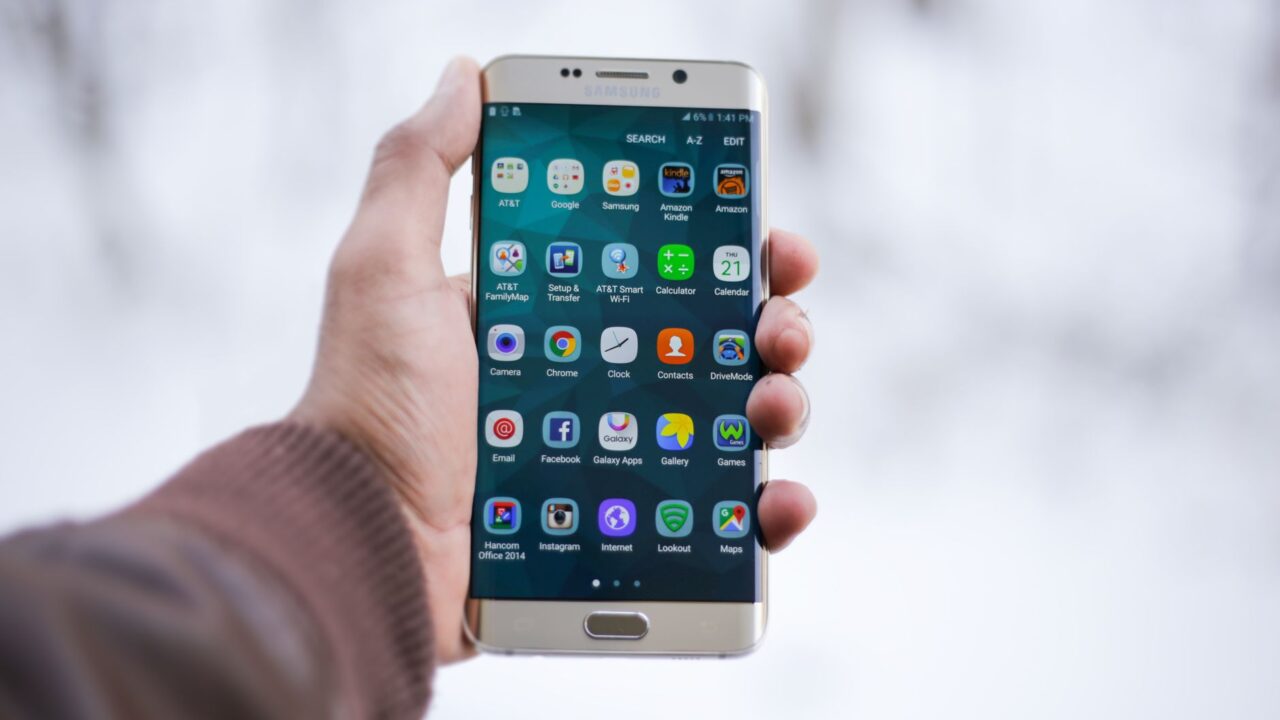
This guide is for anyone who has swiped away a notification by accident and wishes they could get it back. Both Google and Samsung build a notification history on Android into their phones, but it’s turned off by default, so you’ll need to enable it first. Once it’s on, you’ll be able to review alerts you’ve dismissed in roughly the last 24 hours. Here’s how to turn it on and find it on both Pixel and Samsung Galaxy devices.
Before you start
- Notification history must be enabled before anything is saved — it won’t retroactively show notifications from before you turned it on.
- By default, the feature keeps dismissed notifications for about 24 hours before they’re deleted, so check back soon after you dismiss something important.
- There’s no official way to back up or export notification history — once it’s gone, it’s gone.
- Make sure your phone is running a reasonably current software version. On Samsung devices, the feature is confirmed on the Galaxy S24, S25, and S26 series, Galaxy Z Fold and Z Flip models, and the Galaxy A series (such as the A15 and A25).
How to view notification history on Google Pixel
Step 1: Turn on notification history
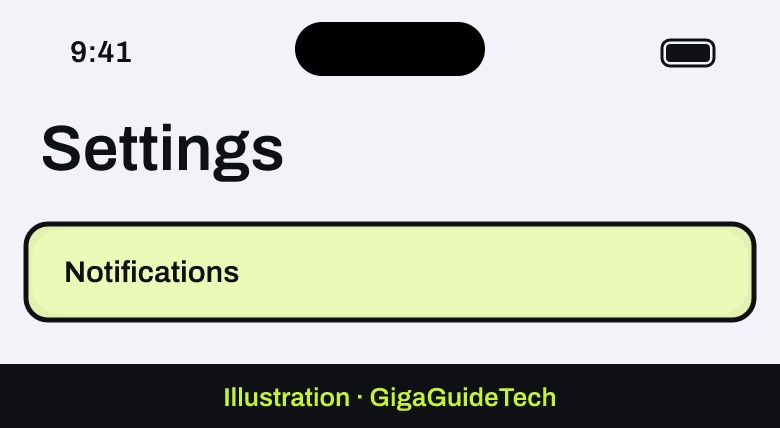
- Open your phone’s Settings app.
- Tap Notifications and then Notification history.

Illustration: Settings Illustration: Settings > Notifications - Turn on Use notification history.
Illustration: Settings > Notifications > Notification history
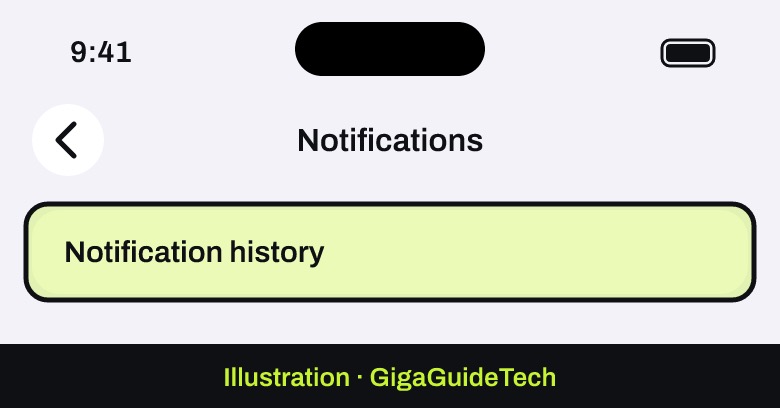
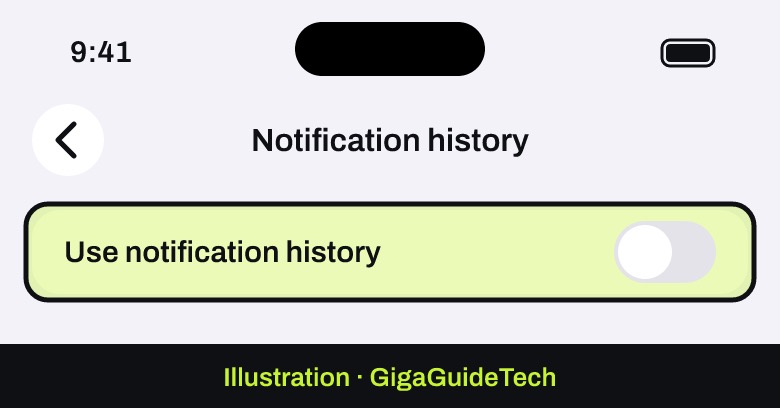
Once this is enabled, your Pixel will start keeping a record of notifications you’ve dismissed over the past 24 hours.
Step 2: Find your notification history
There are two ways to check it:
- Swipe down from the top of your screen to open your current notifications.
- Scroll to the bottom of the notification list and tap History.
Alternatively, you can go back to Settings > Notifications > Notification history at any time to see the same list. From either screen, you can tap any past notification to jump straight into the app it came from.
How to view notification history on Samsung Galaxy
Step 1: Turn on notification history
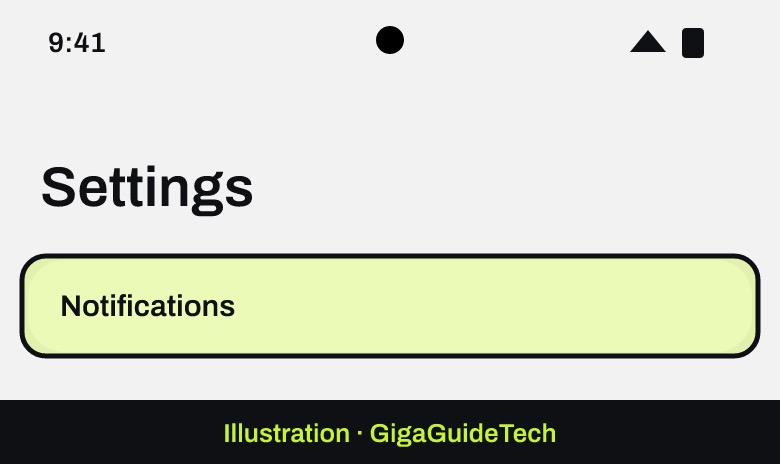
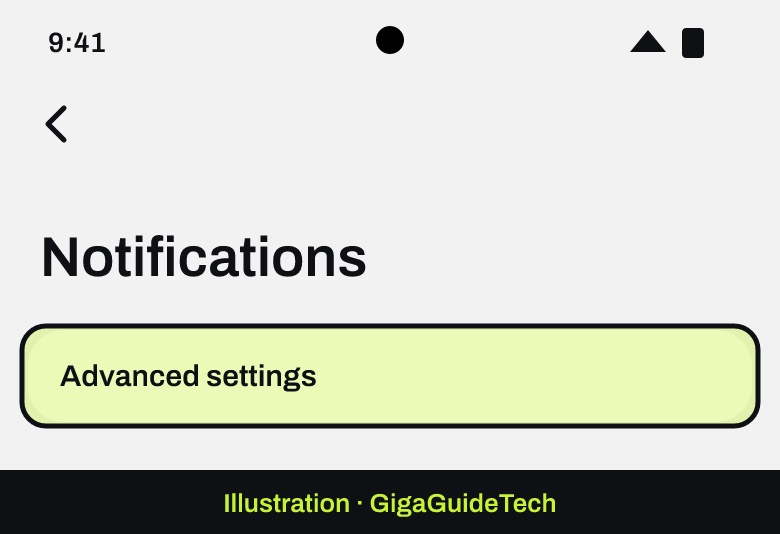
- Go to Settings > Notifications > Advanced settings.
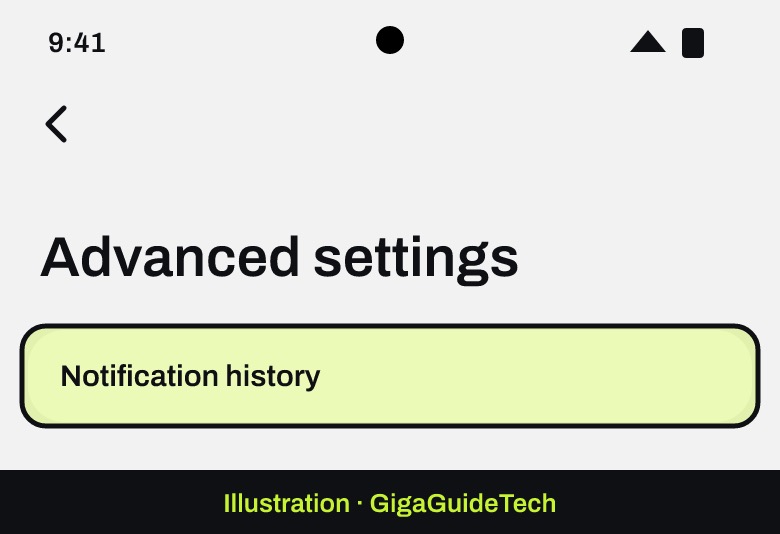
Illustration: Settings > Notifications Illustration: Settings > Notifications > Advanced settings - Tap Notification history.
Illustration: Settings > Notifications > Advanced settings > Notification history - Tap the switch at the top of the screen to turn it on.
Step 2: Find your notification history
To check saved notifications later:
- Open Settings > Notifications > Advanced settings > Notification history again — the switch at the top confirms it’s on, and your recent dismissed alerts appear below it.
Some Samsung support documentation also describes a second route: open the notification panel, tap Notification settings, and select Notification history from there. If you’ve just turned the feature on and the list looks empty, that’s normal — come back after you’ve received a few new notifications and dismissed them.
If it still doesn’t work
- Confirm your device is running the latest available software update, since older One UI or Android versions may handle the setting differently or lack it entirely.
- Double-check that notification history is supported on your specific model — not every device includes it.
- Restart your phone after turning the feature on, which can help it start logging properly.
- Remember that some apps don’t support notification history at all, so their alerts may never show up in the list even with the feature enabled.
FAQ
How long does Android keep notification history?
By default, the retention period is about 24 hours. After that, dismissed notifications are automatically removed from the history list.
Can I recover notifications older than 24 hours?
Not through the built-in feature. Official documentation doesn’t describe any way to extend retention or back up older notifications once they’ve aged out or the feature has been turned off.
Does turning off notification history delete what’s already saved?
On Samsung devices, yes — turning the feature off deletes all existing history items, and nothing new gets logged until you turn it back on.
Why don’t I see notification history on my phone at all?
It may not be supported on your model, or your software may be out of date. If you have a Samsung device, make sure you’ve updated your Samsung Galaxy phone to Android 17 or the latest One UI version available for it, since the feature’s menu location and behavior can vary across software versions.
The bottom line
Notification history on Android isn’t turned on by default, but enabling it takes less than a minute on both Pixel and Samsung phones, and it can save you from having to hunt down a message or alert you swiped away too quickly. Just keep in mind the 24-hour retention window — if you need to find something, check soon after you dismiss it rather than days later.
Sources: Google Help, source.android.com, Samsung