This guide walks Samsung Galaxy owners through how to update Samsung Galaxy to Android 17 (One UI 9), which is rolling out in stages across the S, Z, A, M, F and Tab lineups. You’ll learn where to find the update on your device, how to install it with a cable instead if needed, and what to try if the download gets stuck.
Before you start
- Confirm your model is on Samsung’s eligibility list. Confirmed so far: the Galaxy S26 series (S26, S26+, S26 Ultra), the S25 line (S25, S25+, Galaxy S25 Ultra, S25 Edge, S25 FE), S24 (S24, S24+, S24 Ultra, S24 FE), and S23 (S23, S23+, S23 Ultra, S23 FE, for which Android 17 is the final OS upgrade); Galaxy Z Fold and Z Flip models (Fold 8, Flip 8, Fold 7, Flip 7, Flip 7 FE, Fold Special Edition, Fold 6, Flip 6, Fold 5, Flip 5); A series (A57, A56, A55, A54, A37, A36, A35, A34, A26, A25, A17, A16); M and F series phones (M56, M55, M55s, M36, M35, M17, M17e, M16, F56, F55, F36, F17, F16); Tab S11, Tab S10 and Tab S9 tablets; and the rugged XCover 7 and XCover 7 Pro.
- Back up anything you can’t afford to lose before updating, since a failed install can leave data inaccessible.
- Charge your phone or tablet before starting; Samsung’s guidance points to at least 20 percent, though it’s safer to charge higher if you can.
- Connect to a stable Wi-Fi network rather than mobile data.
- Make sure you have enough free internal storage, since the device won’t install an update without it.
- Check that your Samsung account is signed in and that your date and time settings are correct.
How to check for and install the Android 17 update
Standard update path
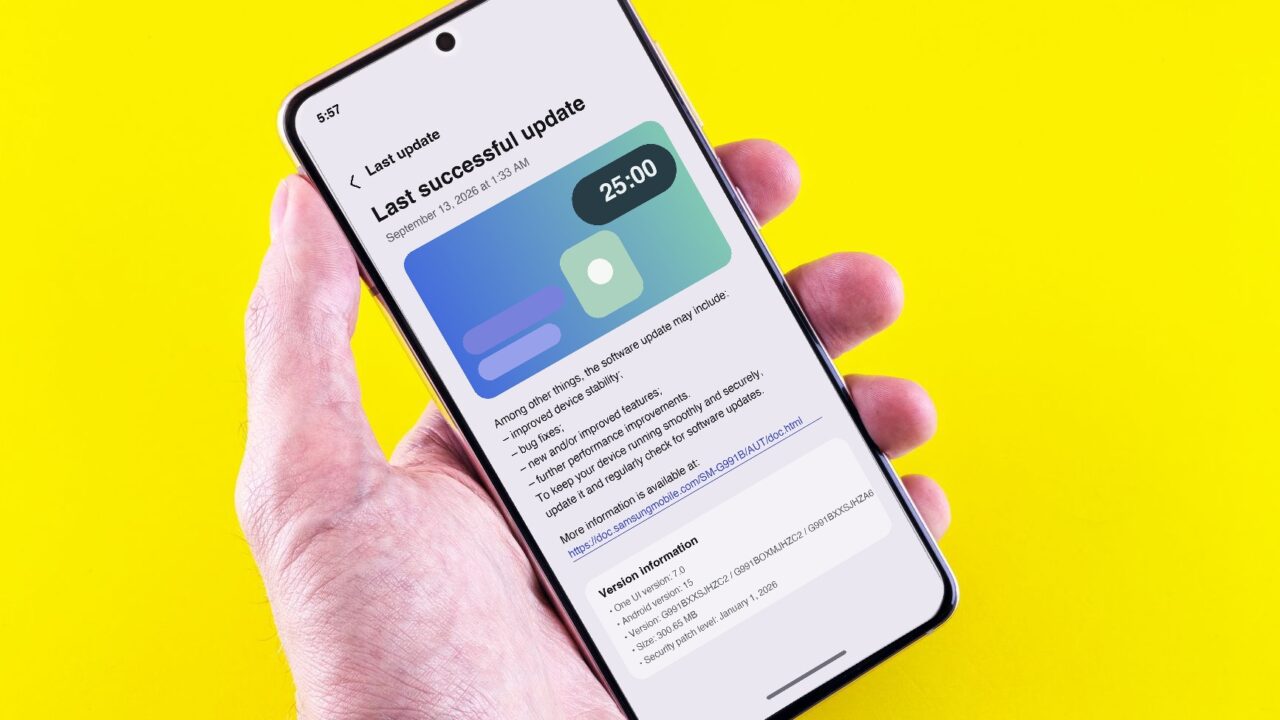
- Open Settings.
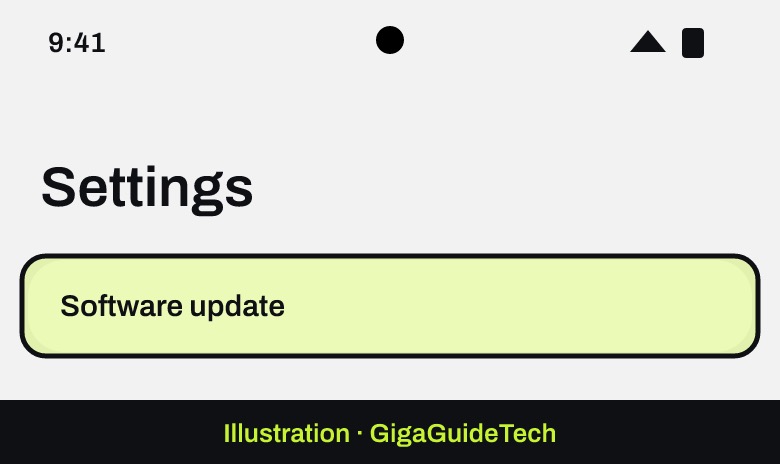
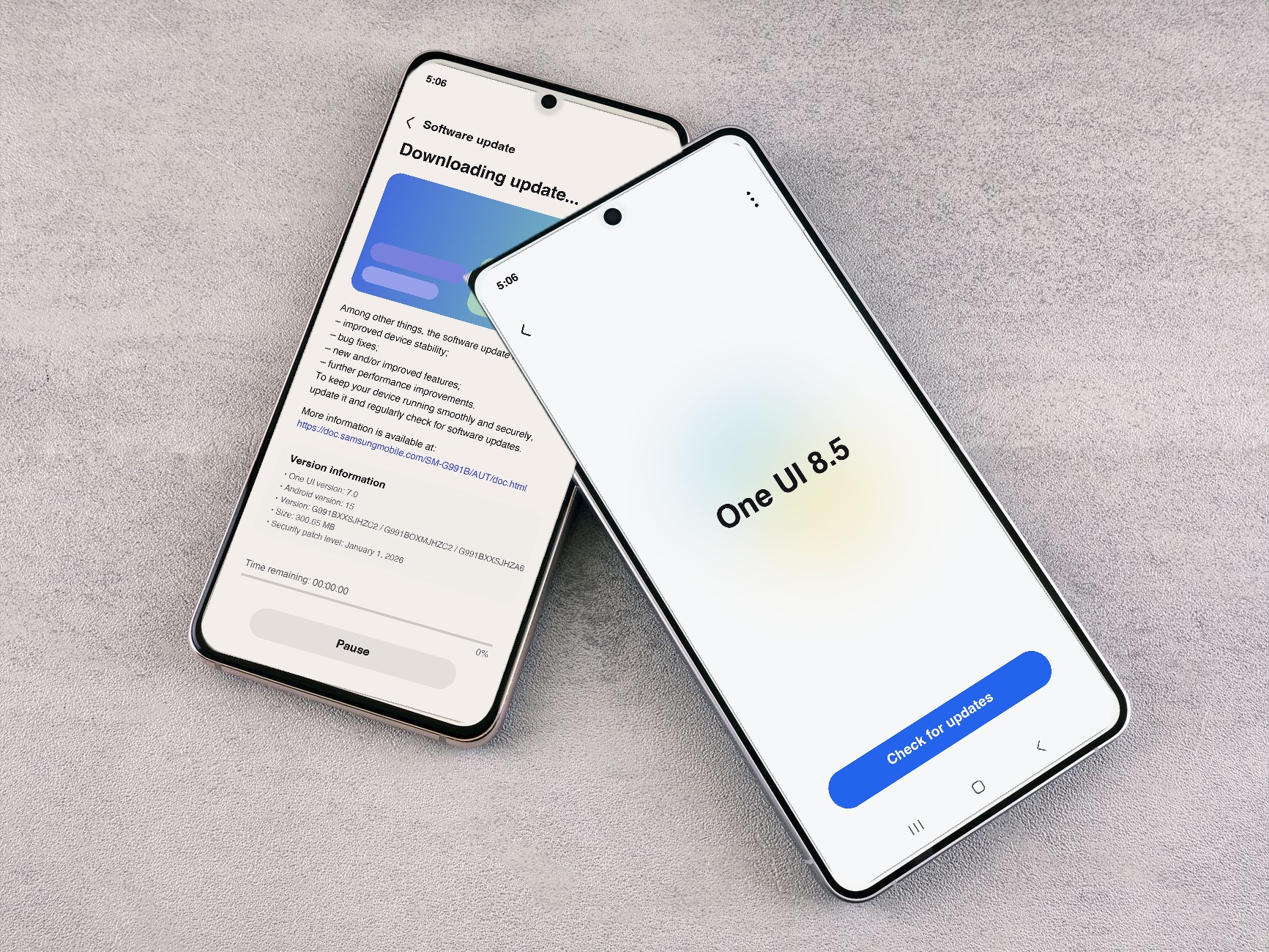
- Tap Software update (on some models this sits under About device > Software update).

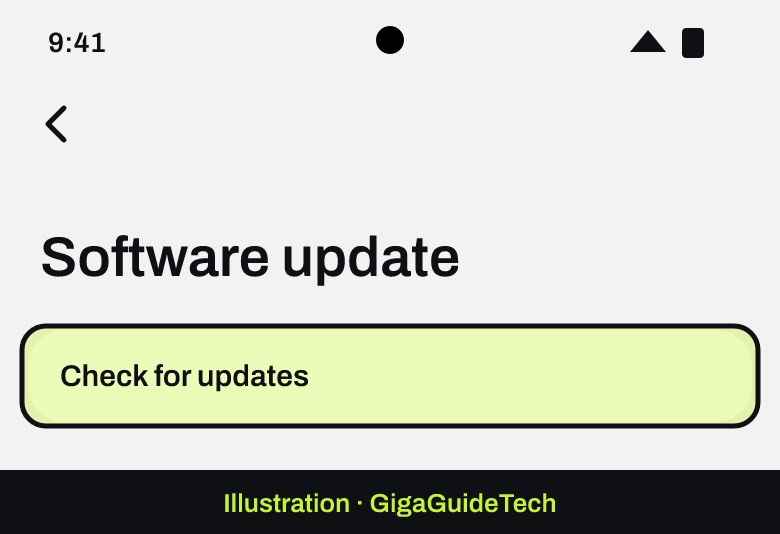
Illustration: Settings - Tap Check for updates.
Illustration: Settings > Software update - If Android 17 is available for your device, follow the on-screen prompts to download and install it.
- Your device will restart on its own during installation, so don’t try to use it until it finishes.
If the menu looks different
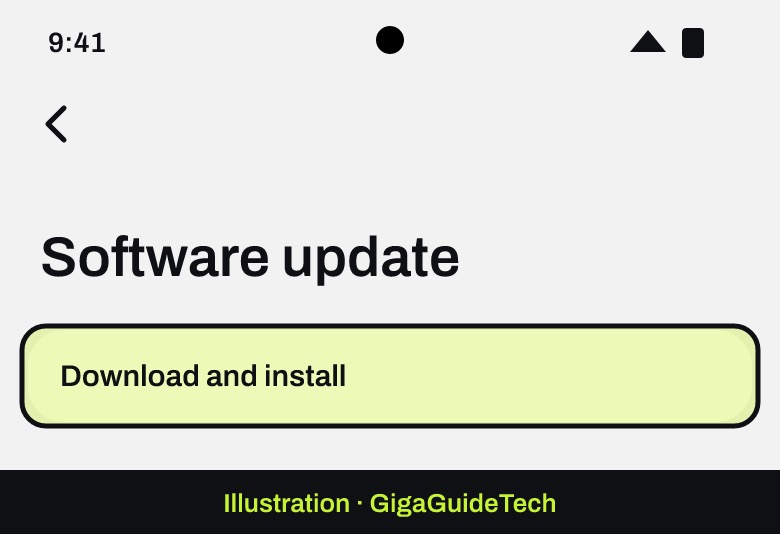
Depending on your model, the path may instead be Settings > Software update > Download and install, Settings > About device > Software update > Update now, or the menu may be labeled System updates instead of Software update. The options are the same once you’re in the right screen.
Turn on automatic updates
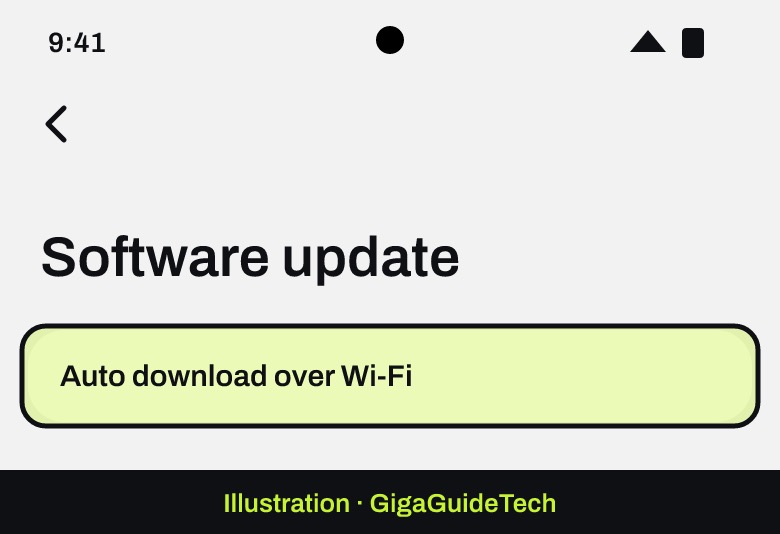
From the Software update screen, tap the switch next to Auto download over Wi-Fi. With this enabled, your device downloads and prompts you to install new versions whenever it’s connected to Wi-Fi; with it off, you’ll need to check manually.
Update using Smart Switch on a PC or Mac
- Connect your Galaxy device to a computer with Smart Switch installed, using the USB cable that came in the box (a USB adapter may be needed on some PCs).
- Open Smart Switch and let it detect your device.
- If an update is available, select Update and follow the on-screen prompts to download and install it.
If it still doesn’t work
- Not enough storage: delete unused apps or files. Samsung will show how much space is needed; to remove an app, press and hold its icon and select Uninstall.
- Weak or unstable Wi-Fi: stop the installation and retry on a better connection, temporarily disable any VPN, remove and rejoin the stable Wi-Fi network, or restart your router.
- Low battery: charge up before trying again.
- App conflicts: open the power menu (press and hold the Side key, or use the power icon in Quick Settings), touch and hold Power off until Safe mode appears, tap it, and try the update again from there.
- Corrupted cache: go to Settings > Apps, select the relevant app, tap Storage, then Clear cache.
- Wrong date or time: double-check these settings are accurate.
- Samsung account issues: confirm you’re signed in correctly.
- Rollout delay: updates are released in waves after launch, so keep checking every few hours.
- Interrupted download: resume it from the notification rather than restarting from scratch.
- Repeated failures: try installing via Smart Switch on a PC instead.
Contact Samsung Support directly if the update keeps failing after these steps, your device repeatedly restarts mid-update, Smart Switch can’t detect your phone, or updates stop appearing on the device at all.
FAQ
Which Samsung phones are getting Android 17?
Samsung has confirmed the Galaxy S26, S25, S24 and S23 series, the Z Fold and Z Flip foldables, the A, M and F series, the Tab S11/S10/S9 tablets, and the XCover 7 line. A full, final list hasn’t been published yet, and rollout timing varies by model, region and carrier.
When will my device get the update?
As of this writing, Android 17 is still rolling out in phases rather than being available to every eligible device at once. As of October 15, about 20 Galaxy models had received the stable update, with the Galaxy S23 series, the Galaxy Z Fold 5 and several Galaxy A phones in the latest batch. New batches usually reach South Korea first and other regions within a day or two. If you don’t see it yet, keep checking periodically.
Can I go back to my old version if I don’t like Android 17?
No. Once your device is updated, Samsung’s security policies prevent downgrading to a previous software version.
Do I really need to back up before updating?
Yes. While most updates complete without issue, Samsung recommends backing up important data first in case the installation runs into a problem.
Sources: Samsung, 9to5Google
Where to buy
- USB-C to USB-C Charging Cable: check price on Amazon
- USB-C to USB-A Adapter for Smart Switch Transfers: check price on Amazon
As an Amazon Associate I earn from qualifying purchases.