This guide is for anyone whose Wi-Fi keeps dropping, won’t connect, or connects but shows no internet access on a Windows PC, a Mac, or an Android phone. By the end, you’ll know how to fix Wi-Fi connection problems using the official troubleshooting steps from Microsoft, Apple, Google, and Samsung, starting with the quick fixes and working up to the more drastic ones. If you’re dealing specifically with an iPhone that keeps disconnecting from Wi-Fi, that issue has its own set of steps worth checking instead.
Before you start
- Know your device and OS version: the exact menu names below are for current Windows 10/11, macOS, Android 8.1 and up, and Samsung Galaxy devices; menus can shift slightly between software versions.
- Have your Wi-Fi password handy in case you need to reconnect from scratch.
- If you plan to reset network settings or do a factory reset, back up your device first. On Samsung phones, use the Smart Switch app and remember your Google account password, since factory resets erase saved Wi-Fi passwords, Bluetooth pairings, and on a phone, all files and apps.
- If possible, test with another device on the same network first. This tells you whether the problem is your device or the network itself.
Fixing Wi-Fi on Windows 10 and 11
Windows problems usually fall into one of three buckets: Wi-Fi won’t turn on or find networks, Wi-Fi connects but there’s no internet, or the connection keeps dropping.
Start with the basics
- Select the network icon on the taskbar and confirm Wi-Fi is turned on.
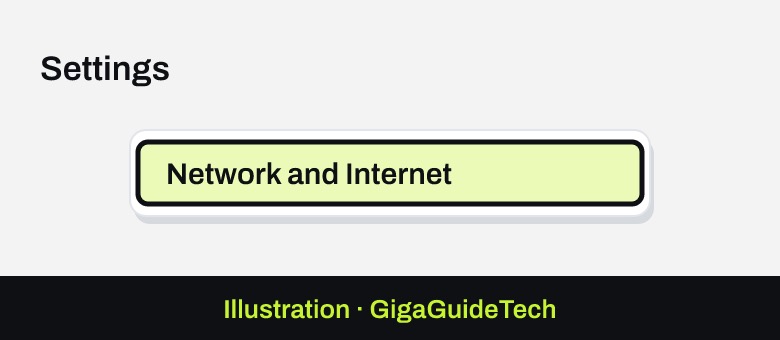
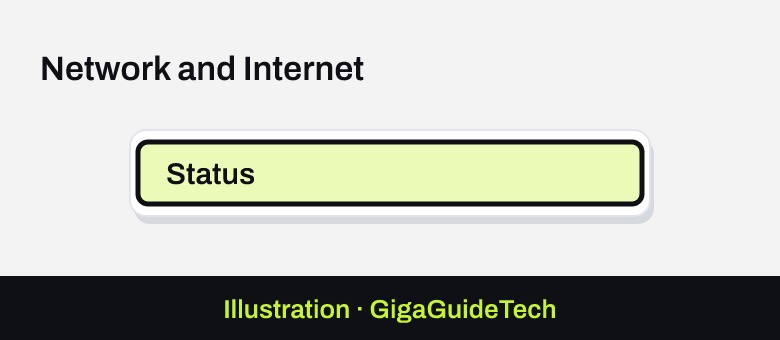
- Go to Start > Settings > Network and Internet, select Status, scroll down, and run the Network troubleshooter, following the on-screen prompts.

Illustration: Settings > Network and Internet Illustration: Settings > Network and Internet > Status - Select the Wi-Fi icon on the taskbar, open Network & Internet settings, choose Wi-Fi > Manage known networks, select the problem network, and click Forget. Then reconnect to it from the Wi-Fi icon.
No networks found or adapter not working
- Check for a physical Wi-Fi switch on your laptop and make sure it’s on.
- Open Settings > Network & internet and confirm Wi-Fi is enabled there too.
- Open Device Manager, expand Network adapters, right-click your Wi-Fi adapter, and select Enable device.
- Press Win + R, type services.msc, press Enter, find WLAN AutoConfig, right-click it, and select Restart.
Connected but no internet
- Turn Wi-Fi off and back on, then reconnect to your network.
- Open Command Prompt as Administrator and run ipconfig /release, then ipconfig /renew.
- In the same Command Prompt window, run ipconfig /flushdns to clear the DNS cache.
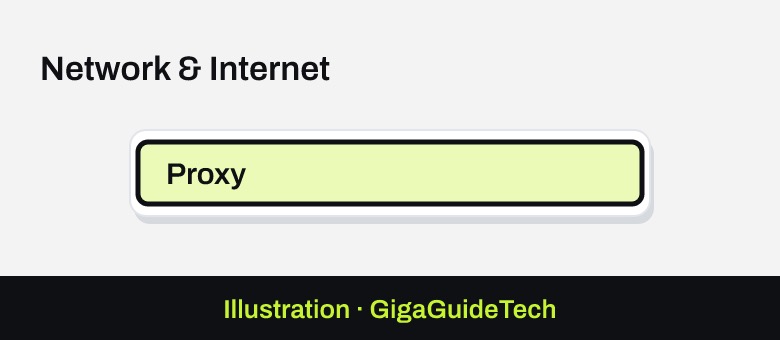
- Go to Settings > Network & Internet > Proxy and turn off any manual proxy settings.
Illustration: Settings > Network & Internet > Proxy - Check your IP address; if it starts with 169.254.x.x, your PC isn’t getting a proper address from the router.
Frequent disconnects
- Open Control Panel > Hardware and Sound > Power Options, select your plan, click Change plan settings, then Change advanced power settings.
- Expand Wireless Adapter Settings and set Power Saving Mode to Maximum Performance.
- If you manage the router, log into its admin page and switch the wireless channel to reduce interference from neighboring networks.
Network reset (last resort)
On Windows 11, go to Settings > Network & internet > Advanced network settings > Network reset. On Windows 10, go to Status > Network reset. Select Reset now > Yes to confirm. This clears all network configurations, so only use it if nothing else has worked.
Fixing Wi-Fi on a Mac
- Check that Wi-Fi is turned on from the Wi-Fi status menu in the menu bar.
- Make sure your Mac is within range of the wireless network.
- Restart your Mac. This renews the internet address it was assigned when it joined the network, which resolves many connection issues.
Manually renew the DHCP lease
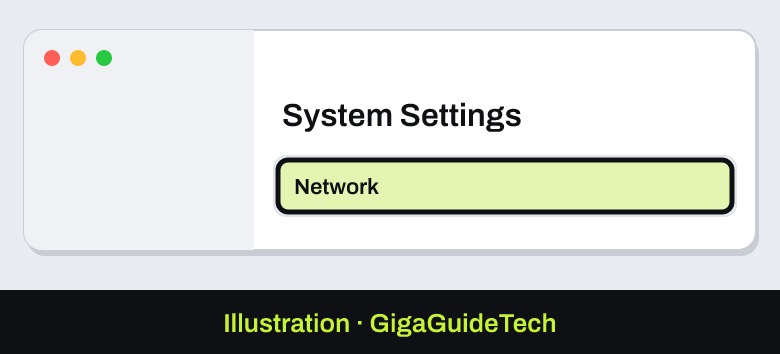
- Choose Apple menu > System Settings, then click Network in the sidebar.
Illustration: System Settings > Network - Click the network service that needs a new address, then click Details.
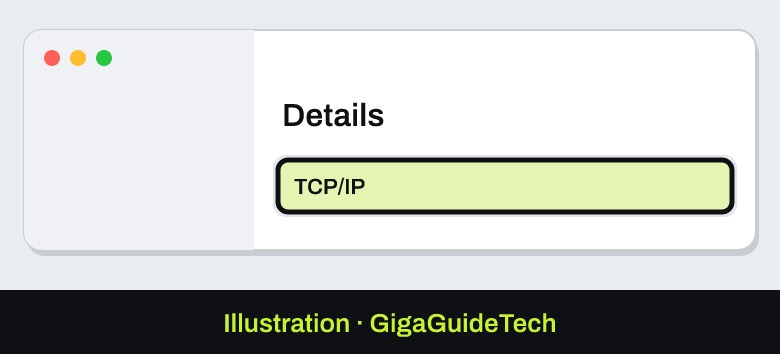
- Click TCP/IP, then click Renew DHCP Lease, and click OK.
Illustration: System Settings > Network > Details > TCP/IP
Other checks on Mac
- Confirm the date and time on your Mac are set correctly, since this can interfere with network authentication.
- If you’ve installed a VPN or security software, it could be affecting your connection; check its settings or temporarily disable it.
- Click Wi-Fi in Control Center or the menu bar and look for a Wi-Fi Recommendations item, which flags issues Apple has already detected on your network.
- Hold the Option key while clicking Wi-Fi in Control Center or the menu bar, then choose Open Wireless Diagnostics to analyze your wireless environment.
- If you manage the router, install the latest firmware and consider restarting it.
- Try a different network to see if the problem follows your Mac or stays with the original network.
Fixing Wi-Fi on Android
General Android (Google)
- Make sure Wi-Fi is on, then turn it off and back on to reconnect.
- Make sure Airplane mode is off, then toggle it on and off.
- Restart the phone by holding the power button and tapping Restart.
- Test whether other devices can use the same network. If they can, the issue is likely your phone; if they can’t either, the issue is likely the network.
Delete and re-add the network
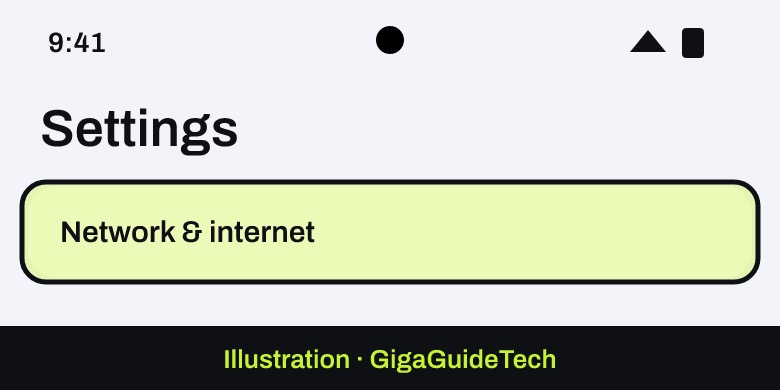
- Open Settings > Network & internet > Internet.
- Tap Saved networks, select the problem network, and tap Forget.
- Back in Internet, tap Add network at the end of the list, enter the network name and password, and tap Save.
Rule out a problem app with safe mode
- Turn on safe mode and try connecting to the Wi-Fi network again through Settings > Network & internet > Internet.
- If Wi-Fi works in safe mode, a downloaded app is likely the cause. Restart to exit safe mode, then uninstall recently added apps one at a time, testing the connection after each one.
Other Android fixes
- Set the date and time automatically via Settings > System > Date & time > Set time automatically.
- As a last resort, go to Settings > System > Reset options > Reset Bluetooth & Wi-Fi and tap Reset settings. This deletes all saved Wi-Fi passwords and Bluetooth pairings.
- Restart the router and modem: unplug both for 15 seconds, plug them back in, and wait a few minutes for the lights to settle.
Samsung Galaxy specifics
- Restart the device from the Quick settings panel, or by holding the Side key and Volume down key together for more than 7 seconds if it has frozen.
- Check for updates in Settings > Software update > Check for updates.
- Confirm Wi-Fi is on under Settings > Connections > Wi-Fi, or via the Quick settings panel.
- Press and hold the problem network under Connections > Wi-Fi, tap Forget network, then select and reconnect to it.
- Enter Safe mode from the power menu to check if a third-party app is the cause, and if so, remove recently installed apps in the order you added them.
- If nothing else works, go to Settings > General management > Reset > Reset Wi-Fi and Bluetooth settings.
- Check that the router firmware is current and that other devices can see the same network; if not, the router itself may need attention.
- Run a diagnostic through the Samsung Members app under Support > Get started, selecting Wi-Fi from the scan options.
If your Galaxy phone shows an “Authentication Error”, that points to an incorrect password, so contact your internet provider to verify or change it.
If it still doesn’t work
- Move closer to the router. Typical Wi-Fi range is around 150 feet, but walls, fridges, and microwaves can all cut that down.
- Check whether you’re trying to join the 2.4 GHz or 5 GHz band, since many routers broadcast both as separate network names, and one may work better for your device than the other.
- Confirm Airplane mode is off on both phones and laptops.
- If you manage the router, update its firmware and try restarting it before resetting your device’s own network settings.
- If the problem turns out to be the network itself rather than your device, contact your internet service provider, router manufacturer, or network administrator.
FAQ
Why does my Wi-Fi keep disconnecting but other devices are fine?
If other devices on the same network stay connected without issue, the problem is most likely with your specific device rather than the network. Work through the device-specific steps above, including checking for problem apps in safe mode.
Will resetting network settings delete my saved passwords?
Yes. On both Windows and Android, a network reset clears all saved Wi-Fi passwords and Bluetooth pairings, so you’ll need to re-enter them afterward. Treat it as a last resort rather than a first step.
My device connects to Wi-Fi but has no internet access, what does that mean?
This usually means the problem is with the internet connection itself rather than the Wi-Fi radio. On Windows, try renewing your IP address and flushing DNS; on Android and Samsung phones, forgetting and re-adding the network often resolves it.
Do I need to back up my phone before troubleshooting Wi-Fi?
Only before a full factory reset, which is a last resort and erases all data, including files and apps. The earlier steps, like forgetting a network, restarting in safe mode, or resetting just Wi-Fi and Bluetooth settings, don’t require a backup, though the latter does erase saved passwords.
Sources: Microsoft Support, Apple Support, Google Help, Samsung
Where to buy
- TP-Link AC1750 Wi-Fi Range Extender: check price on Amazon
- USB Wi-Fi Adapter for PC: check price on Amazon
- Cat6 Ethernet Cable: check price on Amazon
As an Amazon Associate I earn from qualifying purchases.