This week brought two reminders of how fragile passwords are: researchers found billions of stolen logins sitting in open databases, and a breach at 1Password handed scammers a list of email addresses to target. If you keep hearing that passkeys are the answer, you’re not alone in wondering what they actually are. Here’s a plain-English explanation of what a passkey is, how it works, and whether you should start using them.
What is a passkey?
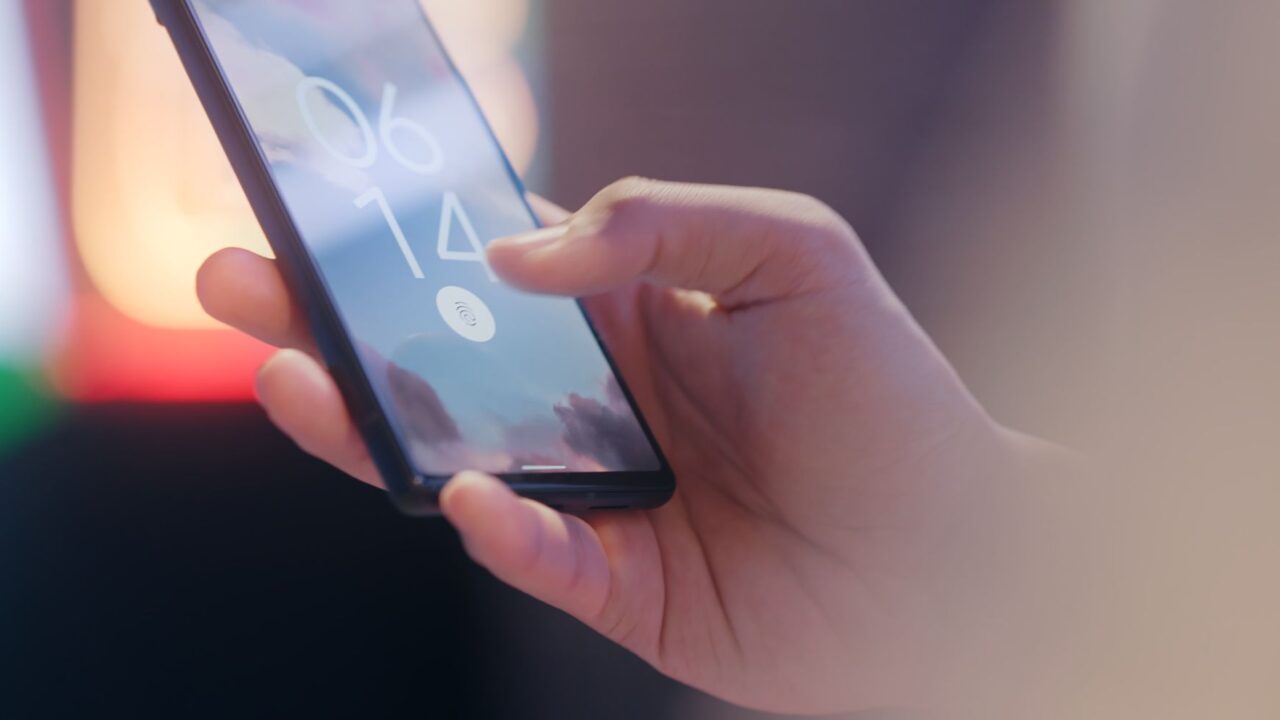
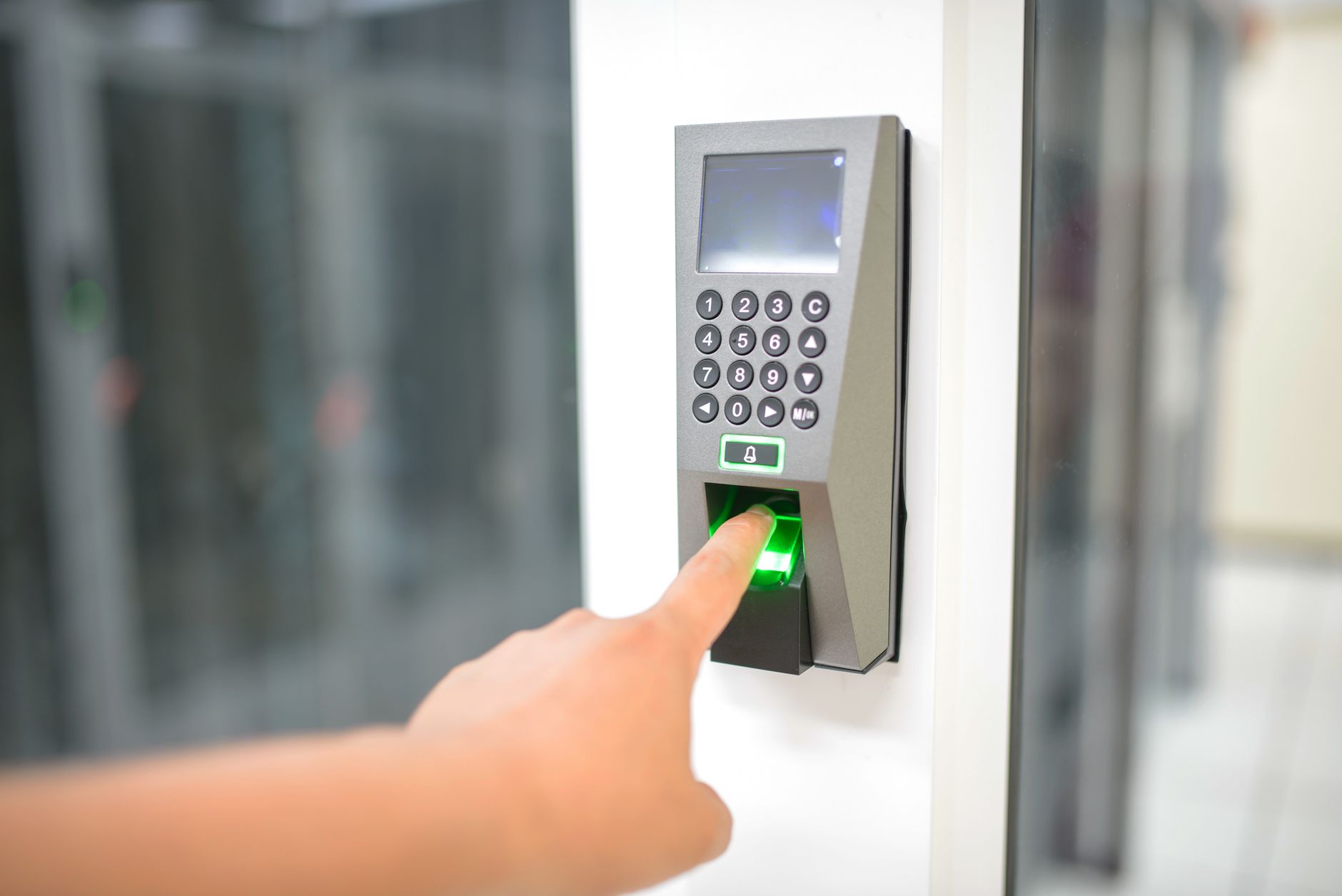
A passkey is a replacement for a password. Instead of typing a secret word, you sign in to an app or website the same way you unlock your phone or computer: with your fingerprint, your face or your screen lock PIN.
The FIDO Alliance, the industry group behind the standard, describes a passkey as a sign-in credential that can be stored on your phone, your computer or a hardware security key. Apple, Google and Microsoft all support it, and the word “passkey” isn’t tied to any one company. It’s a general term, like “password.”

How passkeys work
When you create a passkey for a website, your device makes a matching pair of digital keys, as Apple explains:
- A public key goes to the website. It isn’t a secret, so it doesn’t matter if someone sees it.
- A private key stays on your device. This is the part that actually proves it’s you, and the website never learns what it is.
When you sign in, your phone asks for your face, fingerprint or PIN, then uses the private key to prove to the website that you’re the real owner. No secret is ever sent over the internet. Google notes that your fingerprint or face data stays on your device and is never shared with Google.
Why passkeys are safer than passwords
- They resist phishing. A passkey only works on the real website it was made for. If you land on a fake lookalike page, there’s nothing to type in and nothing for scammers to steal.
- They can’t be leaked in a breach. Websites only store your public key, which is useless to hackers on its own. Compare that with stolen password lists like the one found this week.
- They can’t be shared or reused. Google points out that passkeys can’t be copied, written down or accidentally given to someone else.
- They’re always strong. There’s no weak “password123” version of a passkey, because your device creates it for you.
The FIDO Alliance says passwords are behind most data breaches, which is why the tech industry is pushing so hard to replace them.
Passkey vs. password vs. two-factor codes
| Password | Password + code | Passkey | |
|---|---|---|---|
| What you do | Type a secret | Type a secret, then a code | Use your face, fingerprint or PIN |
| Can be phished | Yes | Sometimes | No |
| Leaks in a breach | Yes | Password can | No |
| Need to remember it | Yes | Yes | No |
What if you lose your phone?
This is the most common worry, and there’s a good answer. Passkeys sync across your devices through your account:
- On Apple devices, passkeys sync with iCloud Keychain, which Apple says is end-to-end encrypted. Apple adds that passkeys can be recovered even if you lose all your devices, and that iCloud Keychain requires two-factor authentication.
- With a Google Account, Google says adding a passkey doesn’t remove your other sign-in or recovery options, so you can still get in another way if needed.
One important warning from Google: only create passkeys on devices you personally own. Anyone who can unlock your phone could use its passkeys to get into your account.
Where can you use passkeys?
A growing number of big services support them, including Google, Apple, Microsoft, Amazon and many banks and shopping sites. In a 2024 survey commissioned by the FIDO Alliance, 53% of people said they had turned on passkeys for at least one account.
A few limits to know about: not every website supports passkeys yet, some work or school accounts restrict them, and Google says they may not work in incognito mode on some browsers. Your device also needs to be fairly up to date. For a Google Account, that means at least Windows 10, macOS Ventura or ChromeOS 109 on a computer.
Should you start using passkeys?
Yes, especially for your most important accounts. Start with your email account, since it’s the key to resetting everything else, then add passkeys to your Apple or Google account, Amazon and your bank if they offer them. When a site prompts you to “create a passkey,” it usually takes less than a minute. Keep your password manager for sites that don’t support passkeys yet, and make sure two-factor authentication is on everywhere else.
Want to lock down your phone while you’re at it? Read how to block spam calls and texts.
Sources: Apple Support, Google Account Help, FIDO Alliance