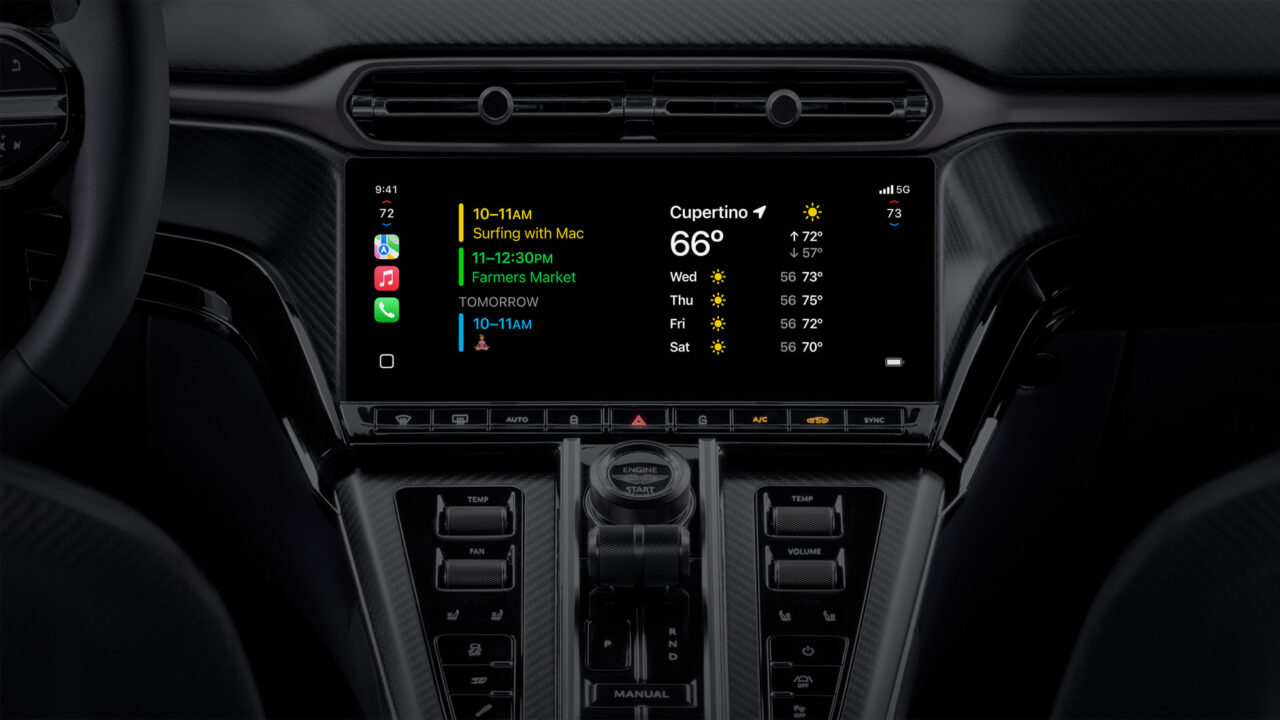
This guide is for iPhone owners whose car supports CarPlay widgets and want to customize what shows up on their dashboard screen. By the end, you’ll know how to add CarPlay widgets, rearrange or remove them, and turn on automatic features like Smart Rotate and Widget Suggestions.
Before you start
- Your iPhone needs to be running iOS 26 or later; widget support in CarPlay arrived with that update.
- Your vehicle’s CarPlay screen must support widgets. How many widget “stacks” you can see depends entirely on your car’s display, so some vehicles will show more than others.
- You must be parked and not actively driving. Apple’s instructions specify making these changes “when you’re not driving,” using the Settings app on your iPhone rather than the in-car screen.
- No backup is needed since this only changes display preferences, not your data.
How to add a widget to CarPlay
- When you’re not driving, open the Settings app on your iPhone.

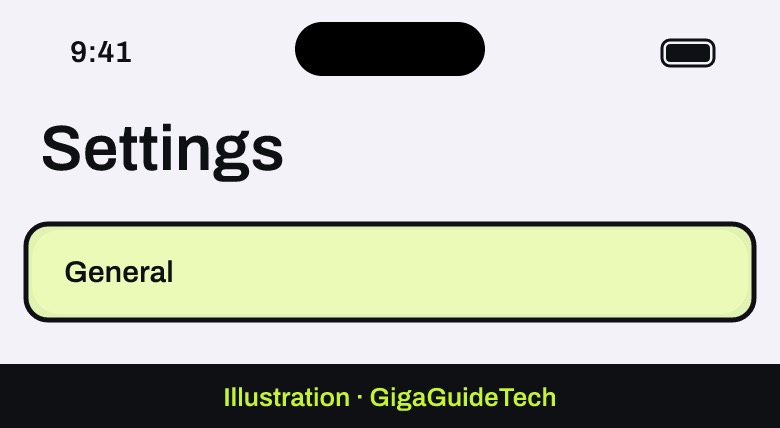
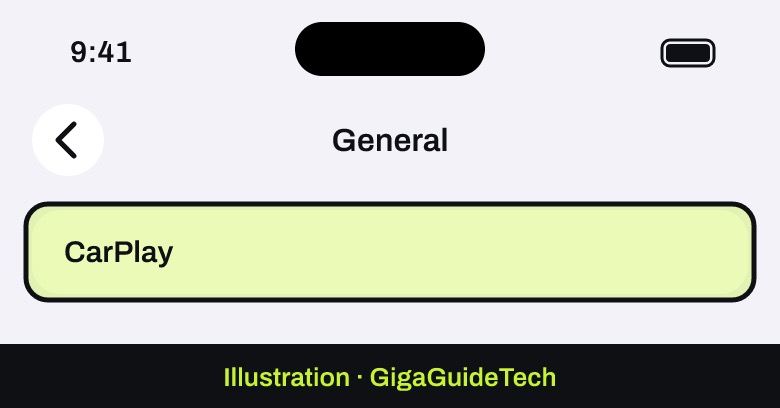
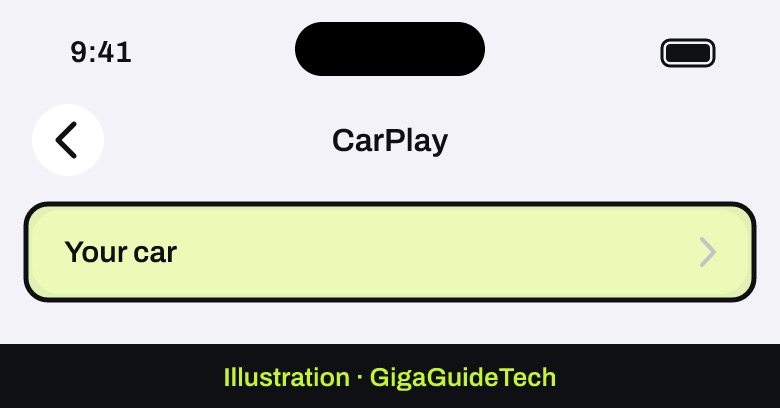
Illustration: Settings - Tap General, then tap CarPlay, then tap your car from the list of paired vehicles.
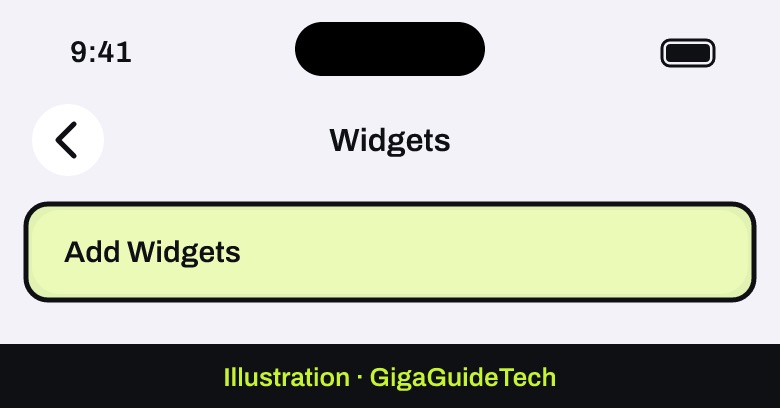
Illustration: Settings > General Illustration: Settings > General > CarPlay > your car - Tap Widgets, then tap Add Widgets.
Illustration: Your car > Widgets > Add Widgets - Follow the onscreen instructions to choose and add a widget.
How to rearrange or remove CarPlay widgets
- When you’re not driving, open the Settings app on your iPhone.
- Tap General, then tap CarPlay, then tap your car.
- Tap Widgets.
- Drag the reorder button next to a widget to move it, or tap the remove button to delete it from your CarPlay screen.
How to turn on Smart Rotate or Widget Suggestions
If you’d rather not manage widgets manually every time, Apple includes two optional features that automate the process.
- When you’re not driving, open the Settings app on your iPhone.
- Tap General, then tap CarPlay, then tap your car.
- Tap Widgets.
- Turn on Smart Rotate or Widget Suggestions, depending on which behavior you prefer.
Illustration: Your car > Widgets > Smart Rotate or Widget Suggestions
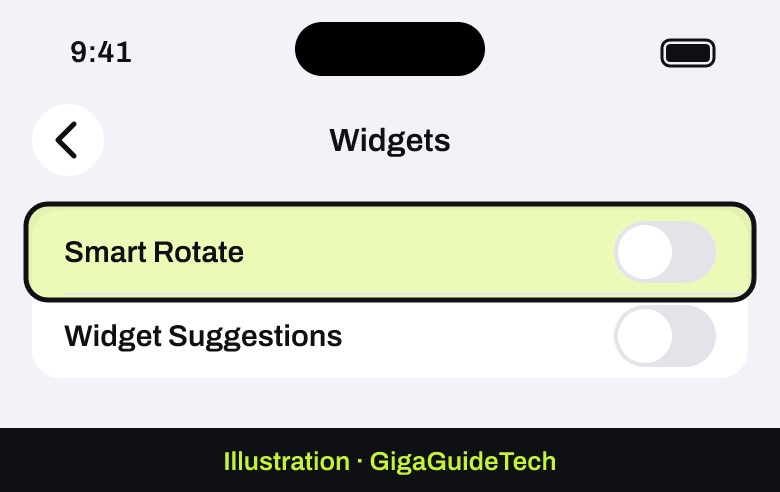
Smart Rotate and Widget Suggestions are designed to automatically manage which widgets appear, so you don’t have to add or swap them yourself every time your routine changes.
If it still doesn’t work
Apple’s support documentation doesn’t list specific troubleshooting steps for widgets that fail to appear or an Add Widgets button that’s missing. Based on the confirmed requirements, start with the basics:
- Confirm your iPhone is updated to iOS 26 or later, since widget support in CarPlay is tied to that software version.
- Check that you’re configuring widgets while parked, not while actively driving, as Apple specifies this is a requirement for making changes.
- Remember that the number of widget stacks your car can display is a hardware limitation of the vehicle’s CarPlay screen, not something you can change from your iPhone.
- If a widget still won’t show up, try removing it and adding it again through Settings > General > CarPlay > your car > Widgets > Add Widgets.
FAQ
Do I need a specific iPhone model to use CarPlay widgets?
You need a device that supports iOS 26 or later. Apple’s compatibility list for iOS 26 includes iPhone 11 and later models, so most iPhones from the last several years should qualify once updated.
Why can’t I see as many widgets as a friend with a different car?
The number of widget stacks shown depends on your vehicle’s CarPlay screen. Some cars support more widget space than others, so the same iPhone can show a different layout depending on which vehicle it’s paired with.
Can I set up CarPlay widgets from the car’s screen instead of my iPhone?
According to Apple’s instructions, widget setup is done through the Settings app on your iPhone while you’re not driving, rather than directly on the car’s display.
What’s the difference between Smart Rotate and Widget Suggestions?
Both are optional automation features found under Widgets in your car’s CarPlay settings. Apple describes them as tools that help manage which widgets appear automatically, reducing the need to add or rearrange them manually, though it doesn’t detail separate behaviors for each in its published documentation.
The bottom line
Adding and customizing CarPlay widgets is a quick process handled entirely from your iPhone’s Settings app. As long as your software and vehicle support the feature, you can add widgets, reorder them, or let Smart Rotate and Widget Suggestions handle the layout for you.
Sources: Apple, Apple Support