This guide is for anyone with an Apple silicon Mac who wants to know which apps need Rosetta before Apple pulls broad support for it in macOS 28, due in fall 2027. By the end, you’ll know exactly which apps on your Mac still rely on Intel code, and what to do about them before they stop working.
Rosetta is the translation layer that lets Intel-built (x86_64) apps run on Apple silicon Macs (M1, M2, M3, M4, and later). It’s been quietly doing this job since Apple switched chips six years ago. Starting with macOS 28, Rosetta will only be kept around for a narrow set of older, unmaintained games that depend on Intel-based frameworks — everything else built for Intel will simply stop launching. If you’ve never checked which of your installed apps still depend on it, now’s a good time.
Before you start
- This only applies to Macs with Apple silicon chips. Intel-based Macs don’t use Rosetta at all, so you can skip this guide if that’s what you have.
- The easiest method below requires macOS 27 Golden Gate or later. An alternative method using Finder works on earlier versions of macOS too.
- No backup is needed. Checking which apps need Rosetta only involves viewing information — nothing is deleted, modified, or put at risk.
Check in System Settings (macOS 27 and later)
This is the fastest way to see a list of Intel-based apps Apple has detected on your Mac.
- From the Apple menu, choose System Settings.
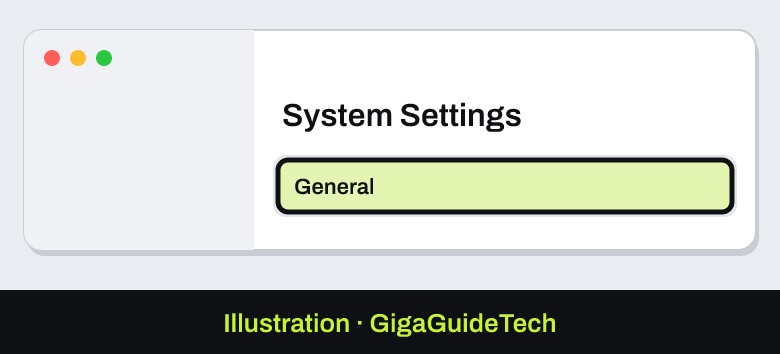
- Click General in the sidebar, then click About on the right.

Illustration: System Settings Illustration: System Settings > General - In the macOS section, click the Details button next to Intel-based Apps.
Illustration: System Settings > General > About - A list of Intel-based apps appears, showing apps you’ve recently used or that are installed in common locations.


From this list, you can hover over an app’s name and click the More Info button to choose Show App in Finder or Move to Trash.
Check with Finder (works on earlier macOS versions)
If you’re not yet on macOS 27, or you want to check a single app, Finder’s Get Info window will tell you exactly what you’re dealing with. This is the same method covered in our guide on checking which apps have full disk access on your Mac, since both rely on the Info window to reveal app details.

- Locate the app in Finder. Most apps live in the Applications folder, accessible from the sidebar of any Finder window.
- Click the app once to select it.
- From the File menu in the Finder menu bar, choose Get Info, or press Command-I.
- In the Info window, look at the line after Kind:
What the “Kind” label means
- Application (Intel) — built only for Intel processors. This app needs Rosetta and should be updated for Apple silicon.
- Application (Universal) — built for both Apple silicon and Intel Macs. No action needed.
- Application (Apple silicon) — built specifically for Apple silicon. No action needed.
Only apps showing “Application (Intel)” are the ones that need Rosetta before macOS 28 arrives.
Watch for warnings when you open an app
Sometimes the clearest signal comes from using the app itself. When you open an Intel-based app, macOS may notify you that support is ending for Intel-based apps and that the app, or a component it uses, won’t work in a future release of macOS.
There’s also a less obvious case: a Universal app can still be forced to run under Rosetta. If the Info window for an app shows an “Open using Rosetta” checkbox, that means the app is Universal but its developer built in the option to force Intel mode, usually so it can use Intel-only plug-ins, extensions, or add-ons. Check whether that box is ticked, since it means part of that app’s functionality still depends on Rosetta even though the app itself is modern.

Why some Intel apps don’t show up
The System Settings list isn’t exhaustive. It only surfaces apps you’ve recently used or that live in common locations, so apps you rarely open, or that are installed outside the usual folders, may not appear at all. It’s worth manually checking any older or niche apps using the Finder method above.
There’s also a hidden-component problem: a Universal app can look fully compatible while still bundling Intel-only helper tools, extensions, or updaters internally. These won’t always show up as a red flag in either the System Settings list or the basic Finder check, so if an app behaves oddly or throws an unexpected error after macOS 28 ships, a hidden Intel component is worth investigating.
If it still doesn’t work
For the best performance and long-term compatibility, the official recommendation is to update any Intel-based app to a version built for Apple silicon. If no update is available, contact the app’s developer directly to ask whether an Apple silicon version is planned — some apps rely on separate updates for extensions or updater components that aren’t covered by the main app update. If you are already on macOS 27, keep in mind that installing it removes Rosetta. macOS asks to reinstall it when you open a regular Intel app, but some menu bar utilities simply stop working with no warning. You can put Rosetta back yourself by opening Terminal and running softwareupdate --install-rosetta --agree-to-license. That stops being an option in macOS 28, when general Rosetta support ends.

FAQ
Does this affect Intel-based Macs?
No. Rosetta is an Apple silicon feature used to run Intel-built apps on M-series chips. Intel Macs run those apps natively and never needed Rosetta.
Will Rosetta disappear completely in macOS 28?
Not entirely. Apple says Rosetta will remain available only for certain older, unmaintained games that depend on Intel-based frameworks. Everything else built for Intel will stop working.
What happens if I keep using an Intel-only app after macOS 28?
Based on the official guidance, the app (or components it relies on) will not work once macOS 28 is installed, since general Rosetta support ends with that release.
How do I know if an app I rarely use needs Rosetta?
Use the Finder “Get Info” method rather than relying on the System Settings list, since that list only shows recently used or commonly installed apps and may miss ones you open infrequently.
Sources: 9to5Mac, Apple Support